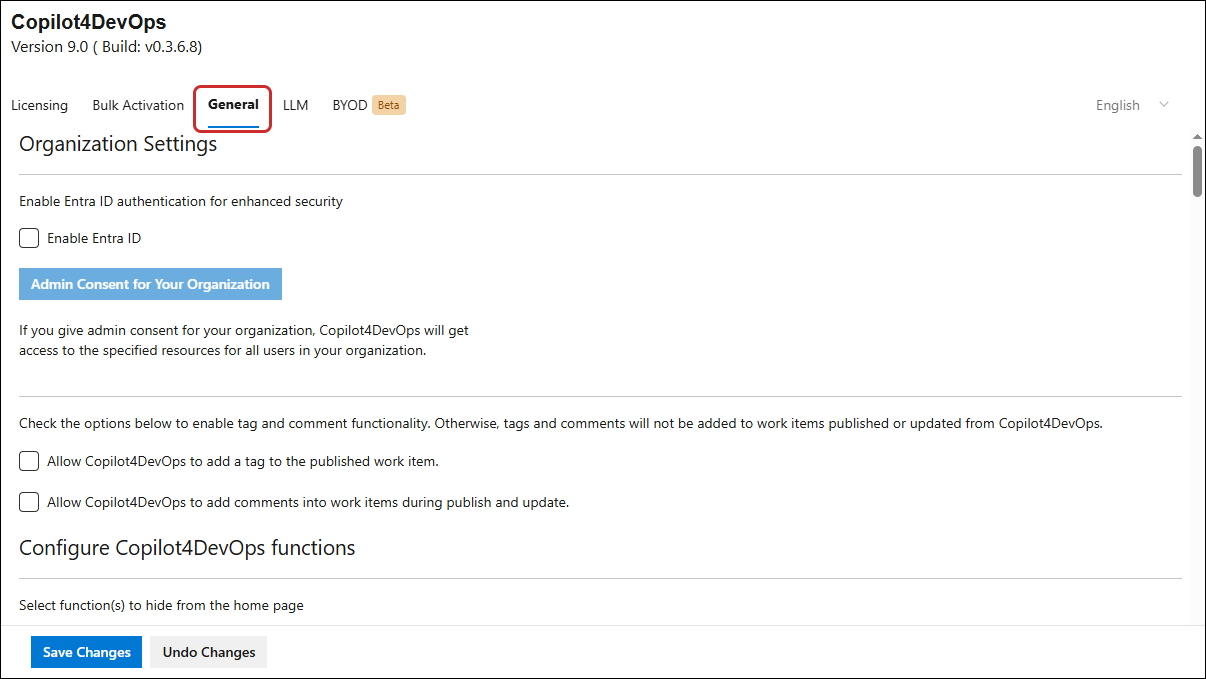
General
The General tab in the Admin panel of Copilot4DevOps serves as a central hub for configuring key organizational settings that enhance the platform's integration and functionality. Let’s go through each of its elements one by one.
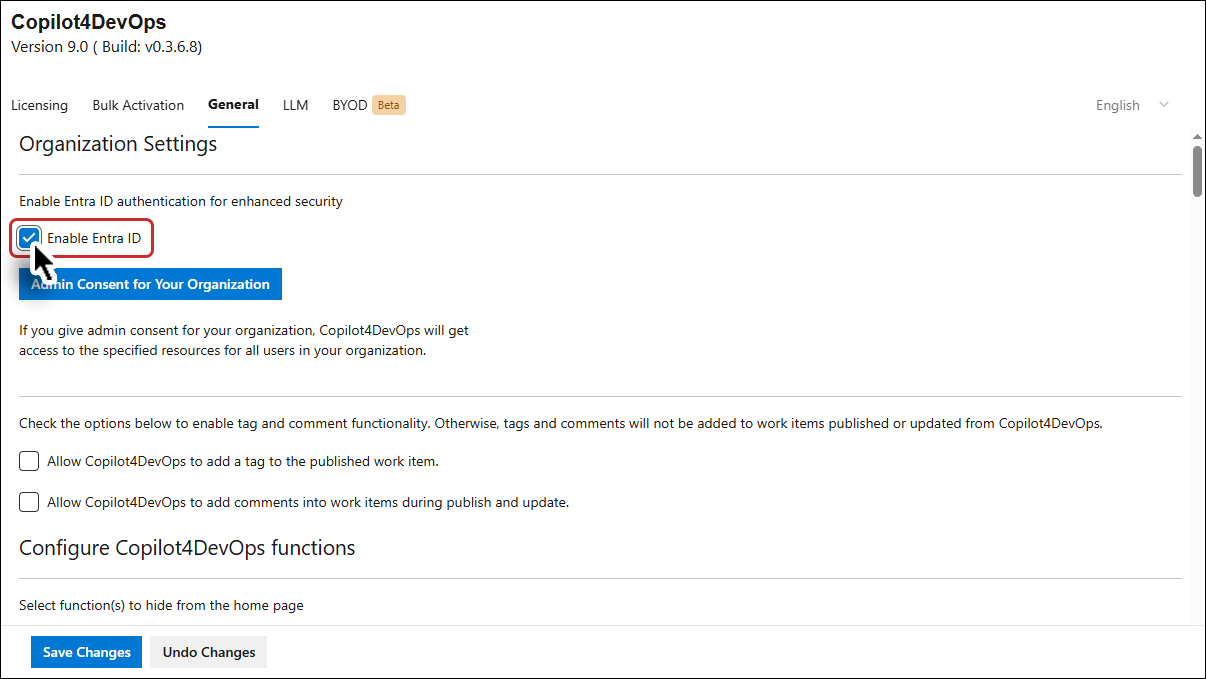
Enable Entra ID
1. To activate integration with Microsoft Entra ID (formerly known as Azure Active Directory), enable the "Enable Entra ID" option. This configuration allows Copilot4DevOps to authenticate users through your organization's Microsoft Entra ID, ensuring secure and seamless user access management.
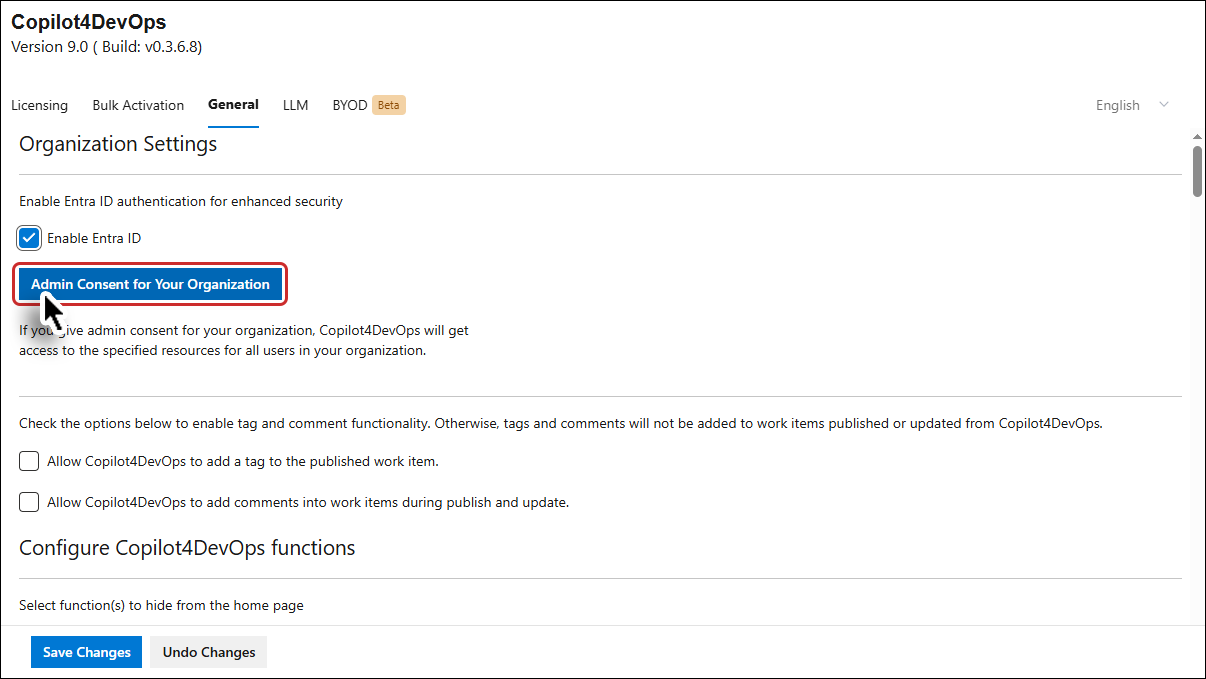
Admin Consent for Your Organization
2. Click "Admin Consent for Your Organization" to grant the necessary access permissions for Copilot4DevOps. This step authorizes the application to access designated resources across your organization, streamlining the process by eliminating the need for individual users to approve permissions separately.
By providing admin consent, you ensure that Copilot4DevOps can operate with the appropriate permissions at an organizational level, enhancing both security and operational efficiency.
Enable tag and comments publishing
There are two options/checkboxes in the sub-section:
-
The first option deals with tags
-
The second option deals with comments
3. Check "Allow Copilot4DevOps to add a tag into the published work item" to enable tag publishing within Copilot4DevOps. This configuration allows tags to be associated with work items and displayed across various functions within the platform.
-
Tag Management Flexibility: When enabled, this setting ensures that tags are published alongside work items, enhancing categorization, searchability, and filtering capabilities. Admins can manage tag visibility based on organizational requirements.
-
Impact of Disabling: If this option is unchecked, tags will not be published with work items, and their visibility will be restricted.
Note: For users with Azure DevOps (ADO) Stakeholder licenses, tags will not be published, regardless of the setting in the General tab.
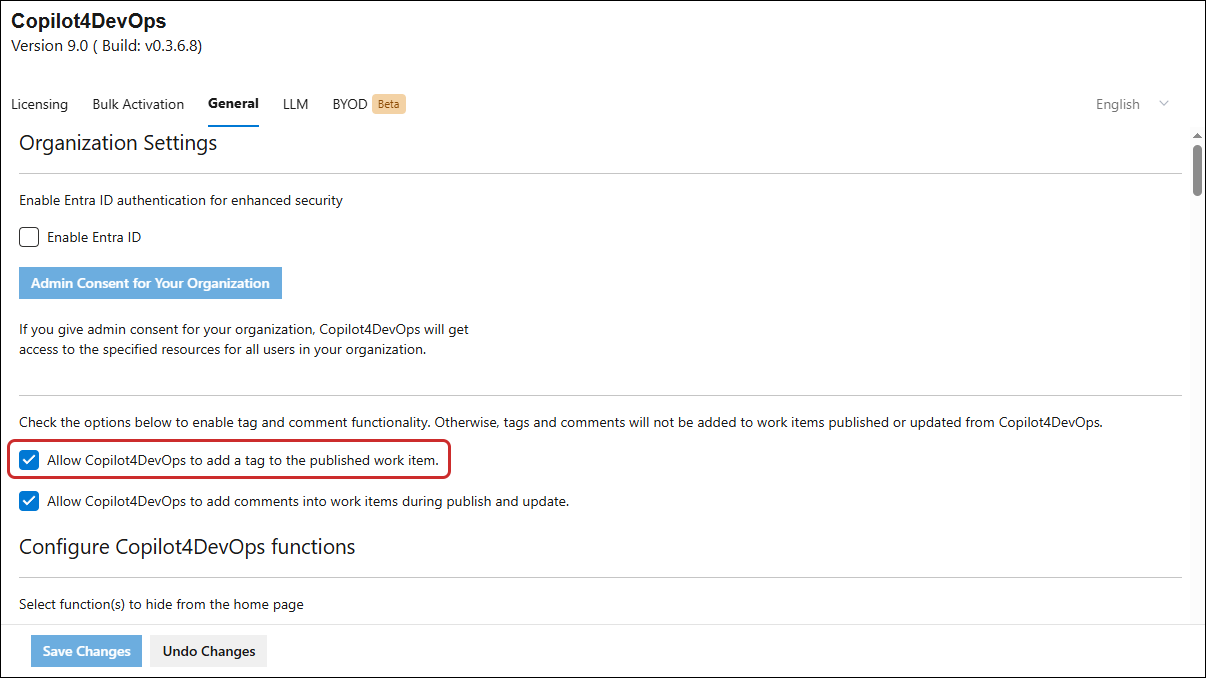
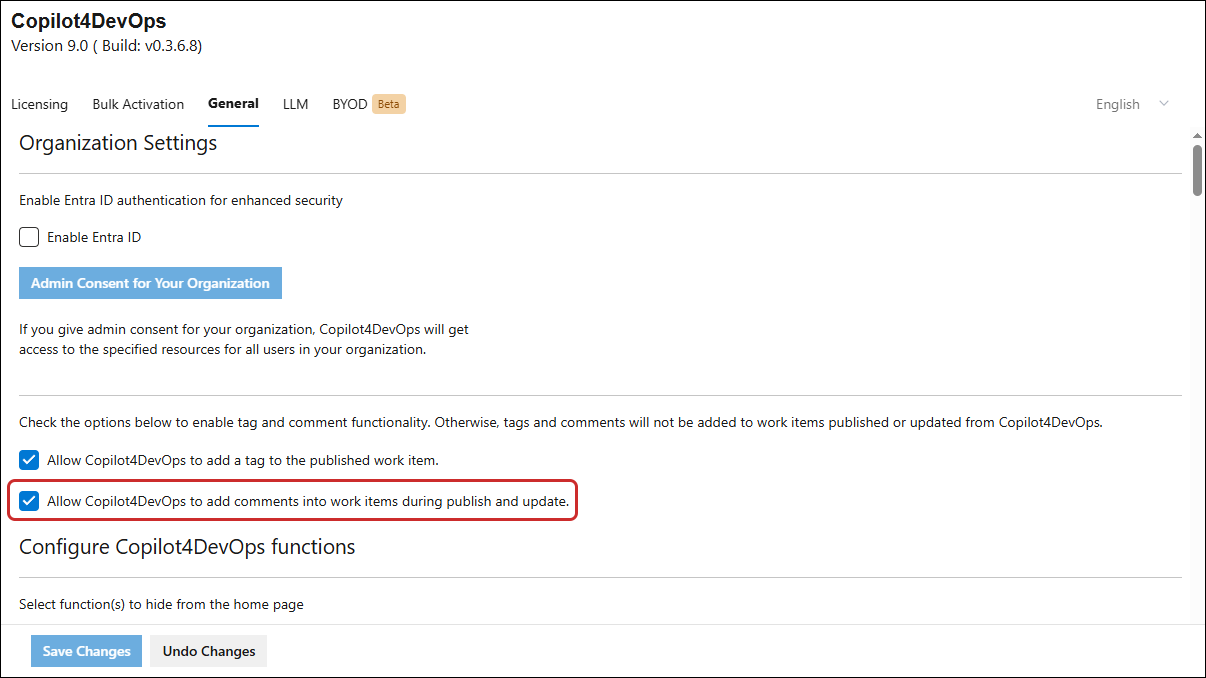
4. Check the Allow Copilot4DevOps to add comments into work items during publish and update checkbox to enable this option.
-
If enabled Copilot4DevOps continues to automatically add comments during Work item creation (publish) and Work item updates
-
If disabled, Copilot4DevOps will not add any automatic comments across supported features.
Configure Copilot4DevOps Functions
This feature enables you to control which function tiles are displayed on the Copilot4DevOps home page.
5. Utilize the "Hide Copilot4DevOps functions" dropdown to select the specific functions you do not want to be displayed on the Copilot4DevOps home page.
After making your selections, ensure that you save the configuration. Only the functions you have selected won’t be visible on the home page and reflected in the breadcrumb navigation. This allows for a streamlined and personalized user experience, tailored to your organization's needs.
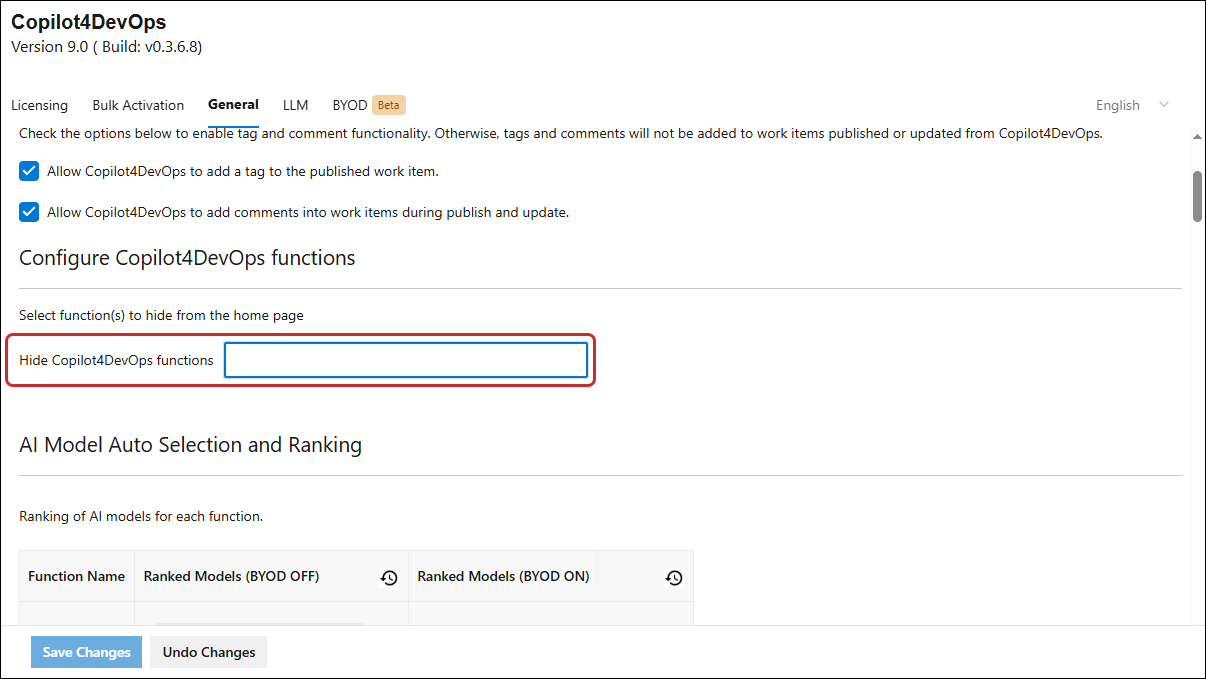
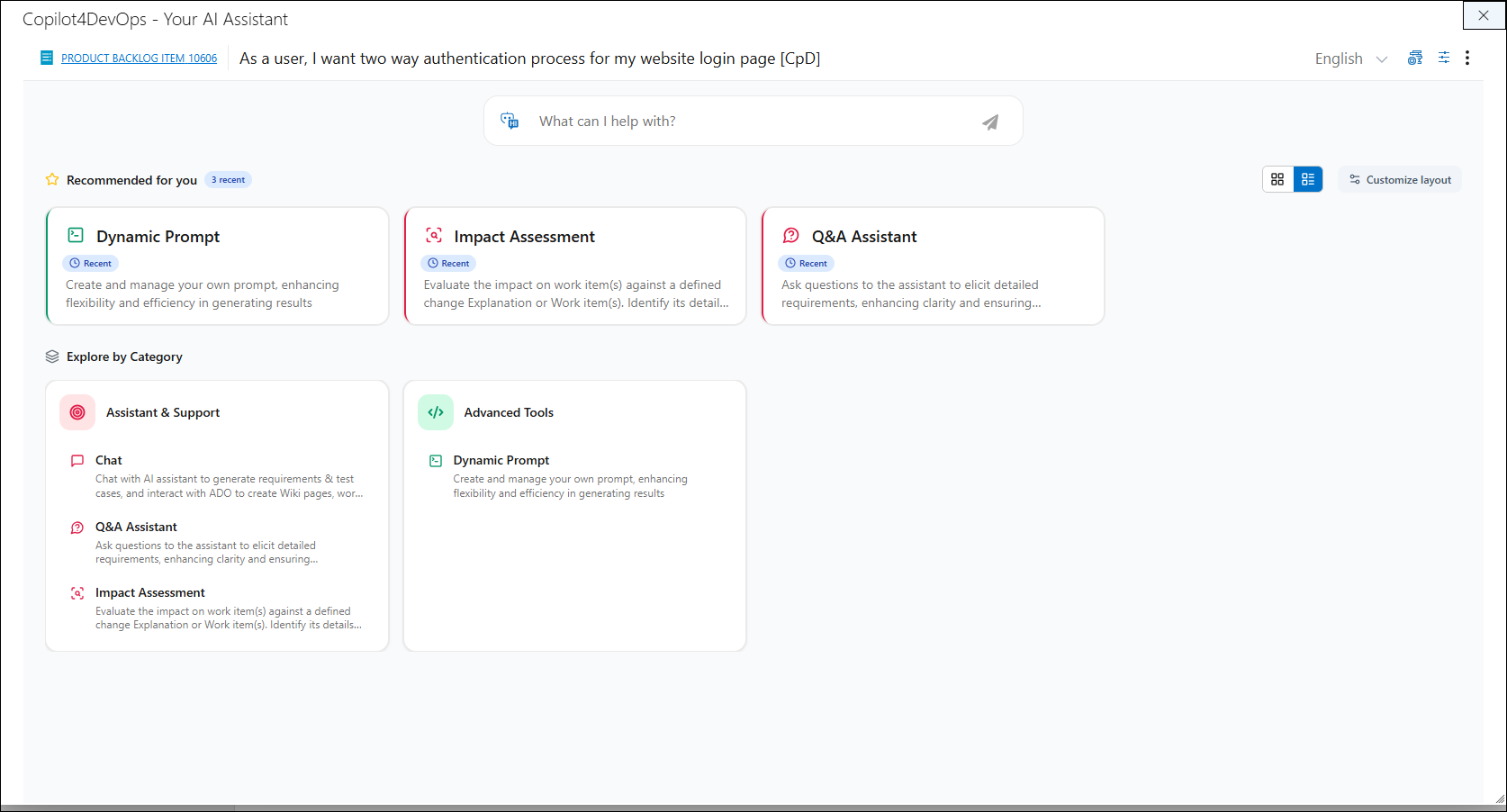
• Select the Copilot4DevOps Functions from the dropdown menu to hide them on the Copilot4DevOps homepage.
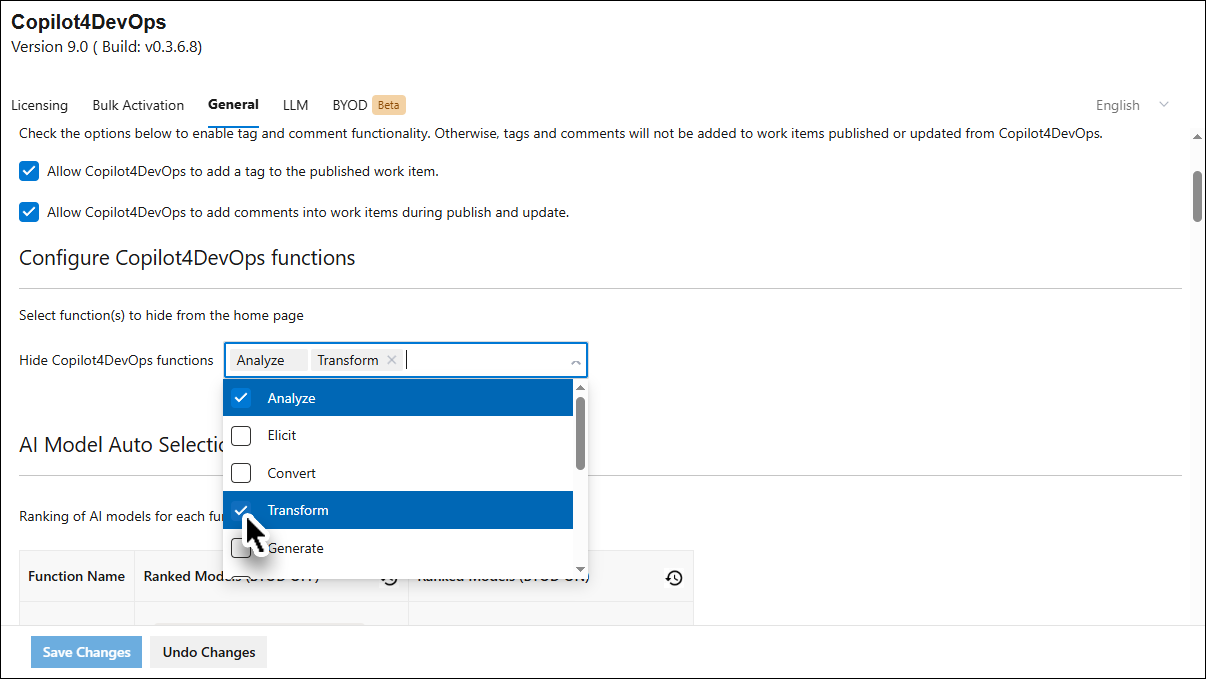
The Copilot4DevOps interface now displays Copilot4Devops functions except for the hidden ones.
AI Model Auto Selection and Ranking
• Copilot4DevOps features an AI Model Auto Selection and Ranking option that prioritizes models by output quality. Admins with Private LLM only can rank models or use the default ranked model for each function to ensure the best recommendations and high-quality results, enhancing the overall user experience.
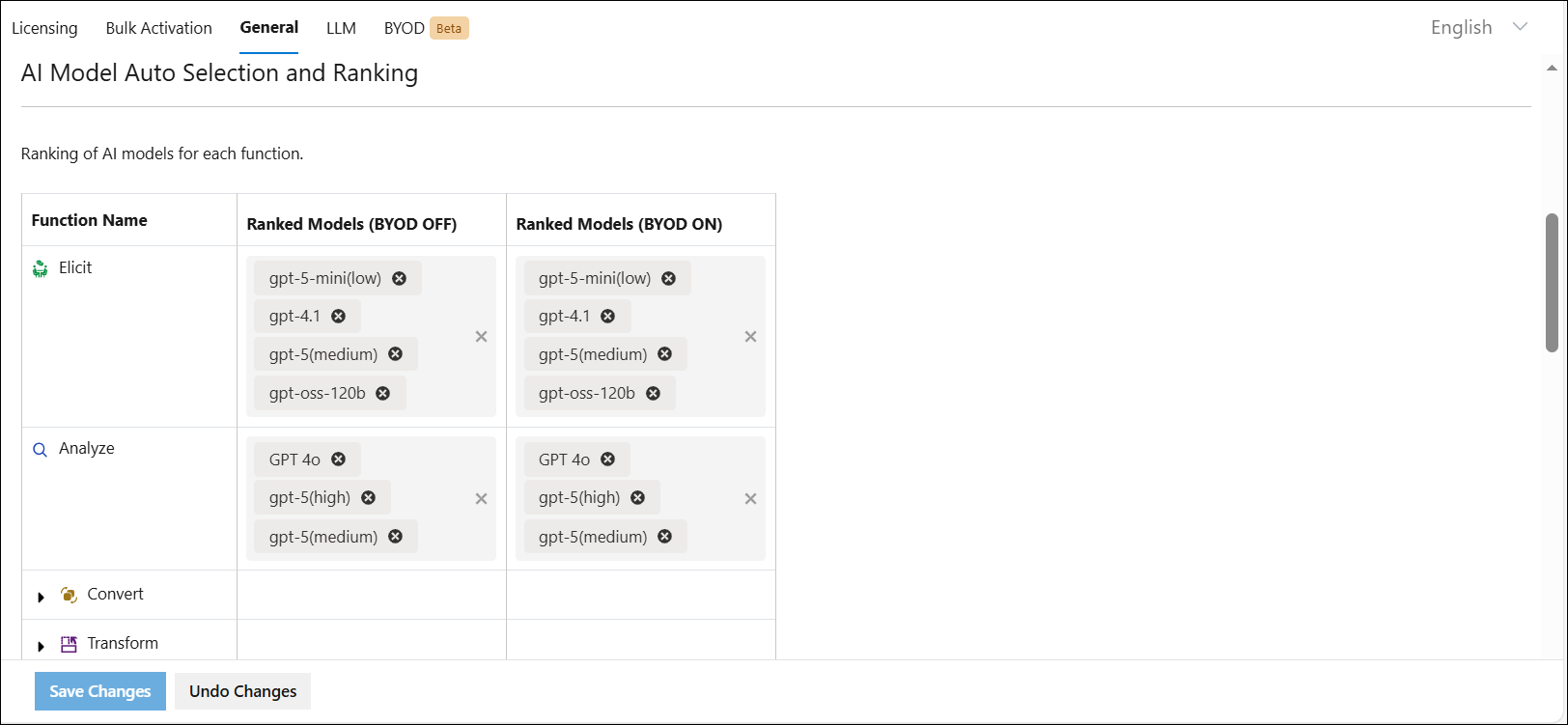
Admin Panel Configuration
6. To enable and manage AI model ranking, a new section titled "AI Model Auto Selection and Ranking" has been added under the General Tab in the Admin Panel.
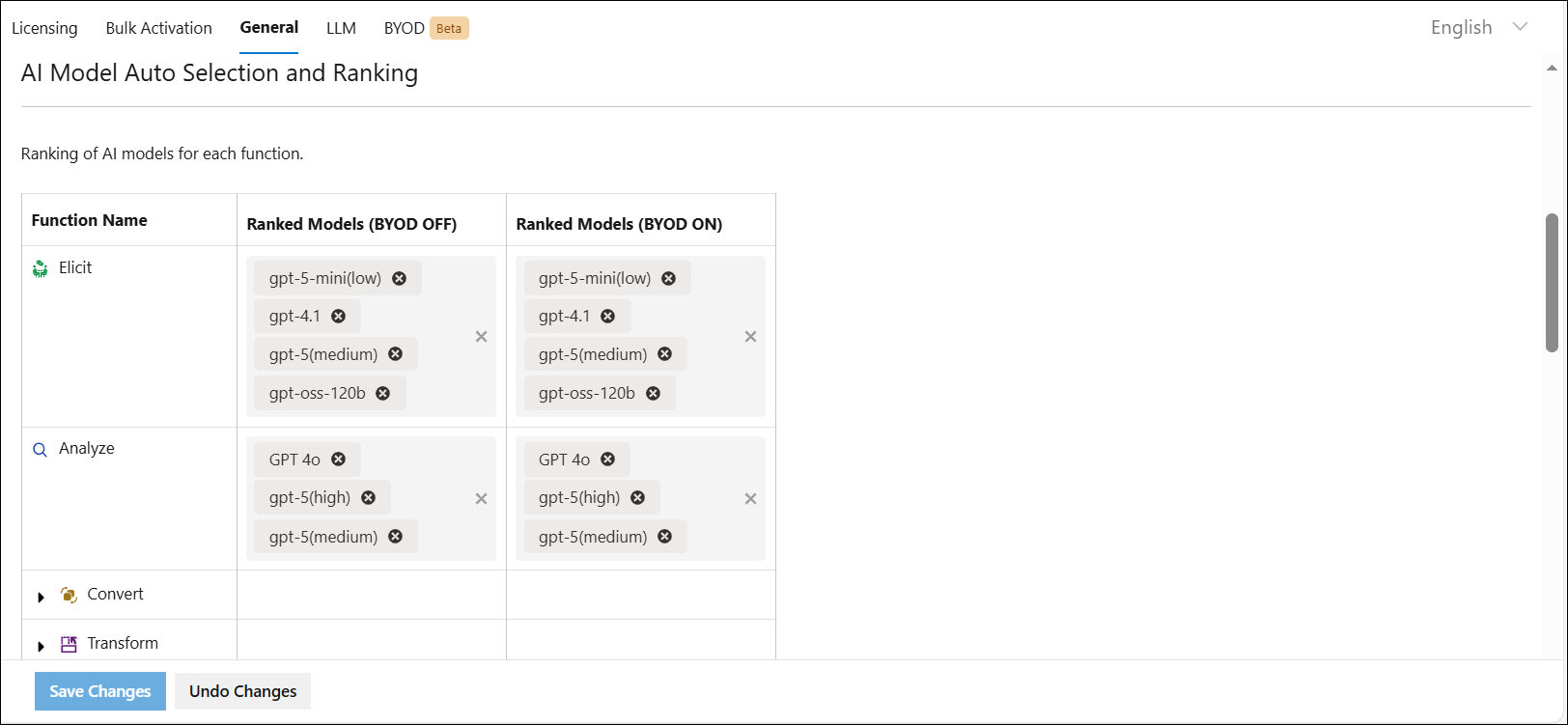
AI Model Ranking Configuration
7. Ranking of AI models for each function.
Note: For the Default LLM, we have assigned one or more top-ranked models for each function. Just like the list shown here, you will see similarly ranked models within each function. You can switch between these prioritized models and generate responses using the model you select.
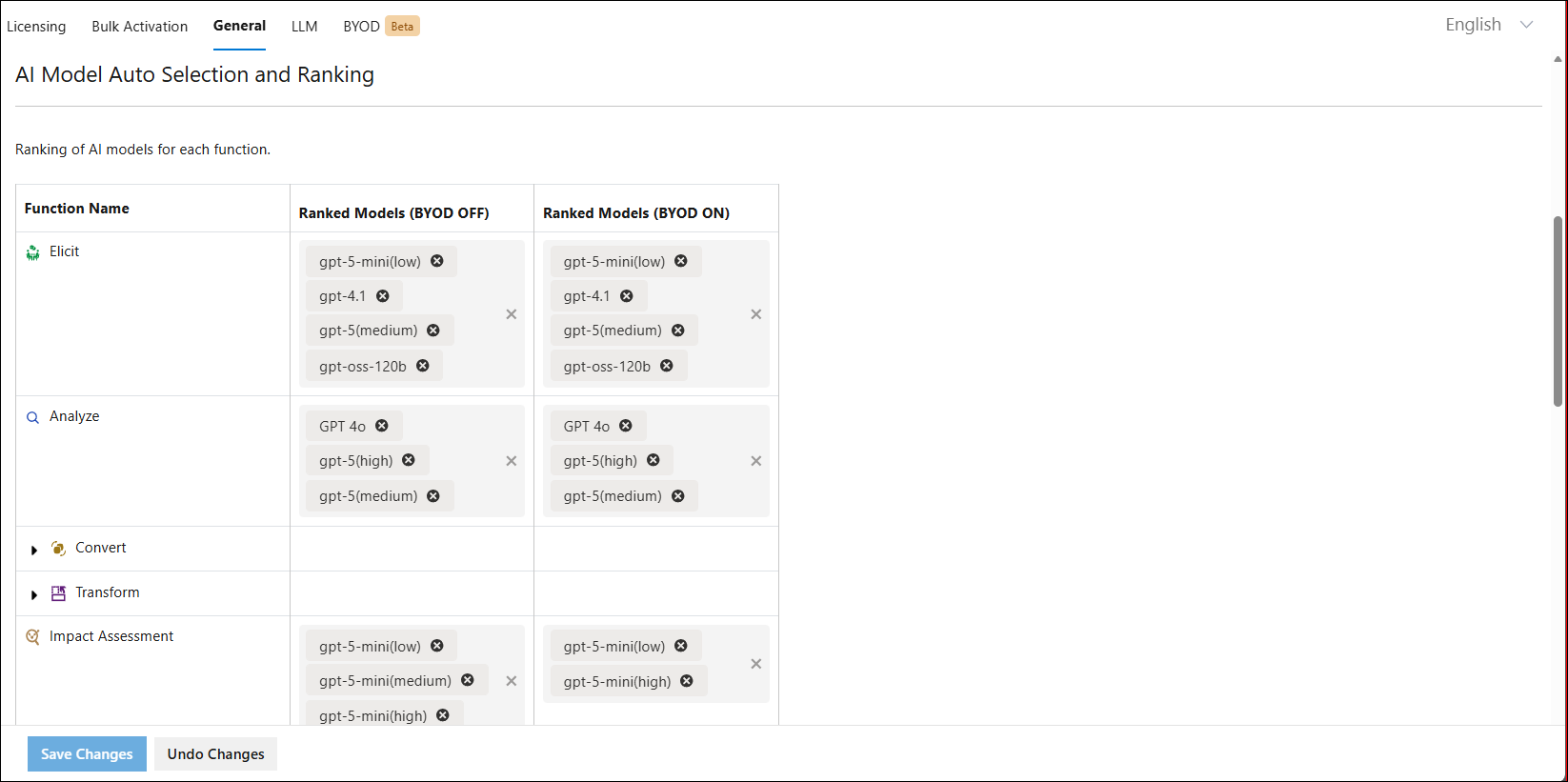
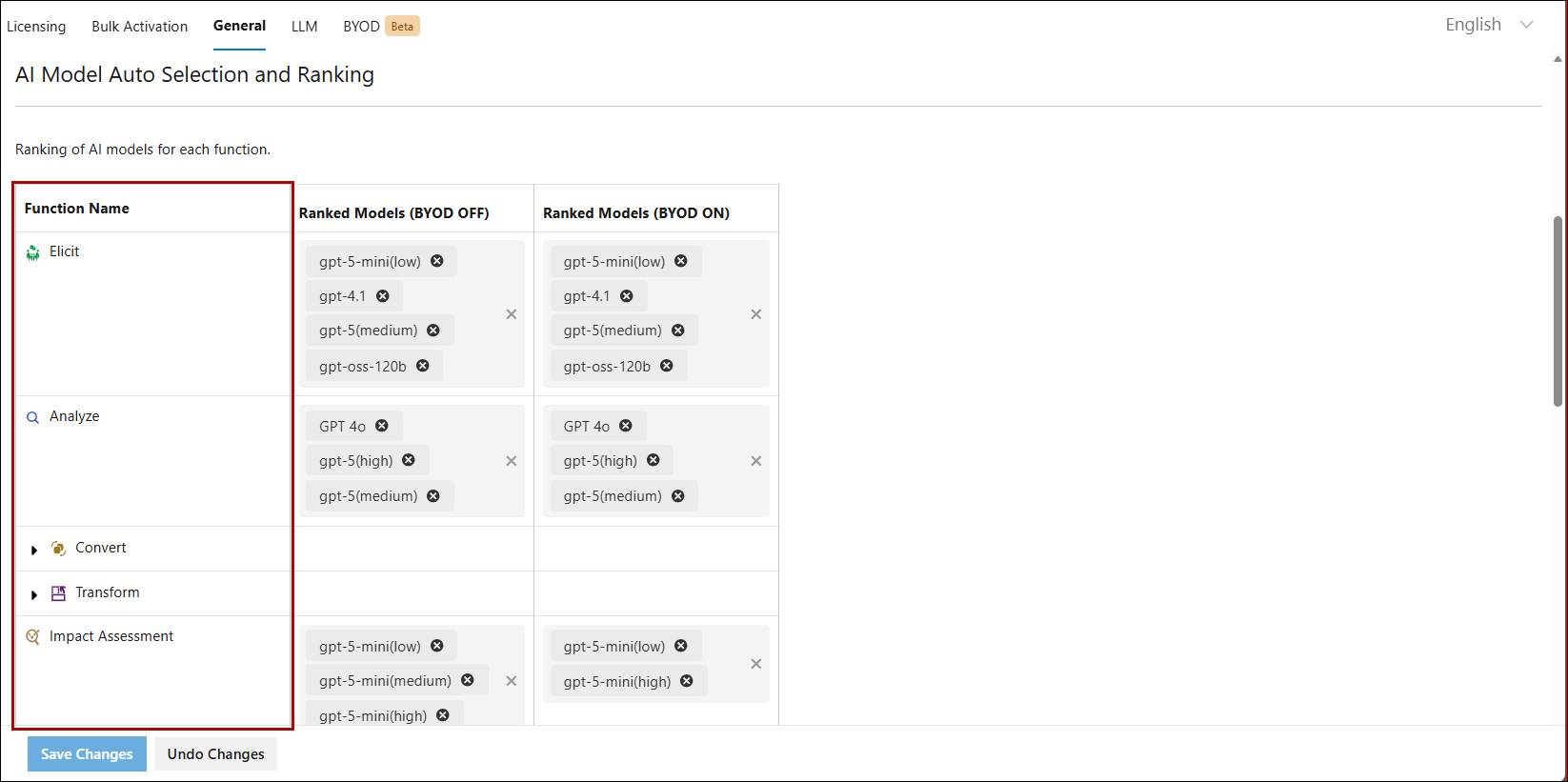
First Column: Lists Copilot4DevOps functions along with their icons.
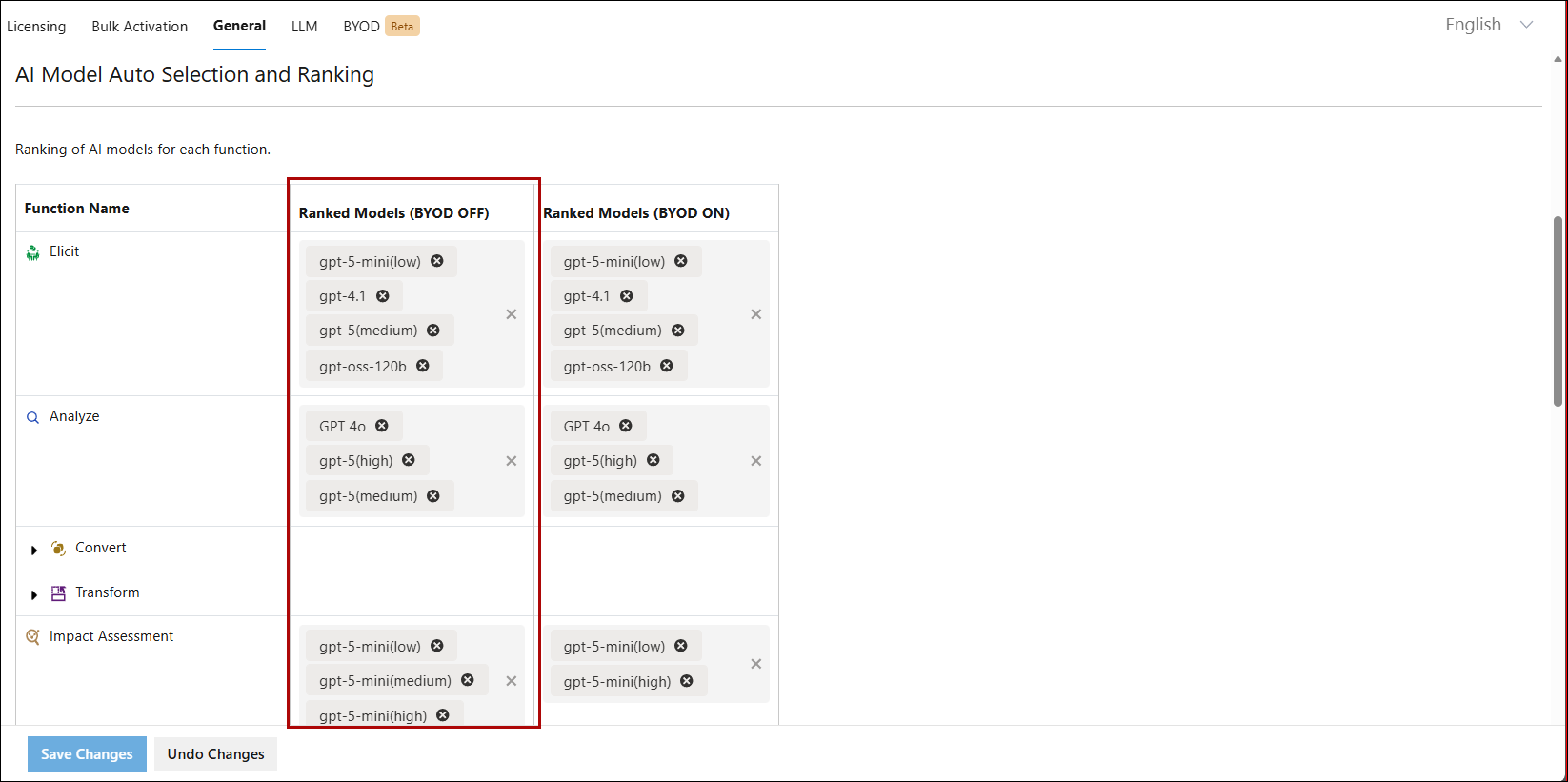
Second Column: Displays the ranked AI models for each function when BYOD is not enabled.
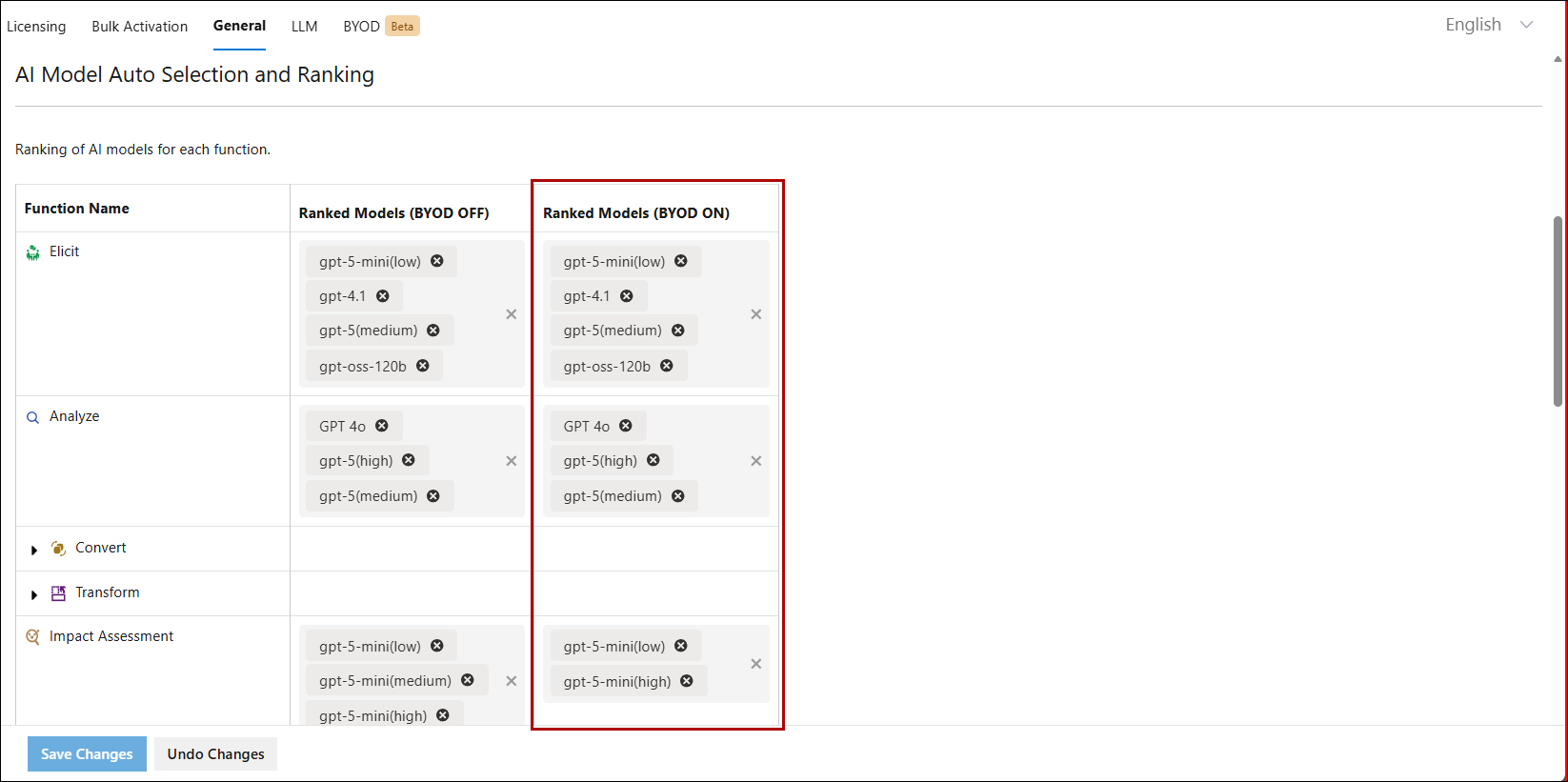
Third column: Displays the ranked AI models for each function when BYOD is enabled.
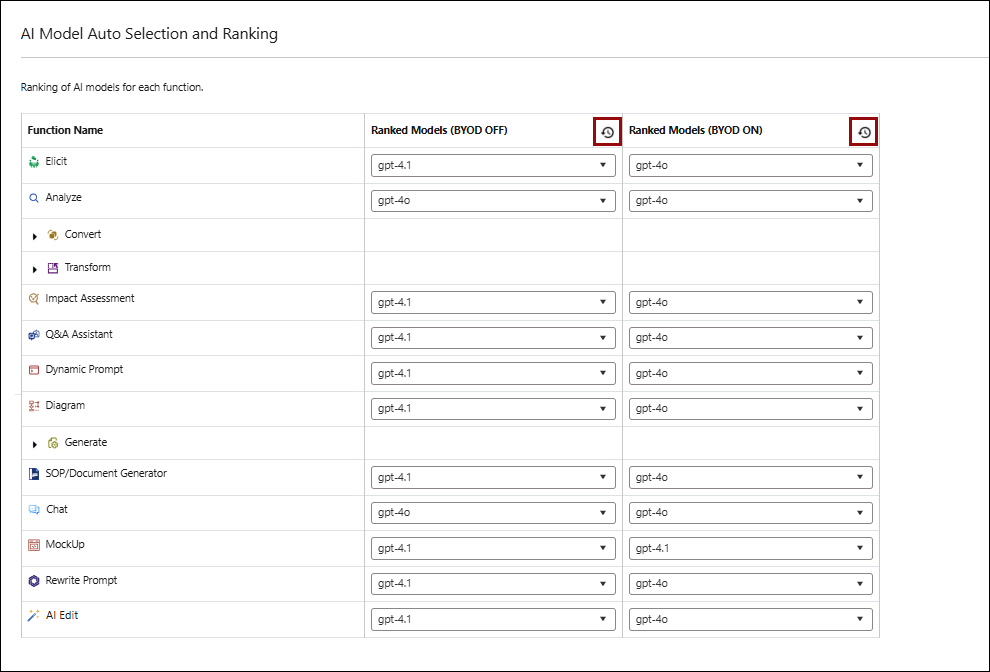
Note: Users with a Private LLM can set AI models and click the reset icon to revert the ranked models to the default ranking set by the internal team.
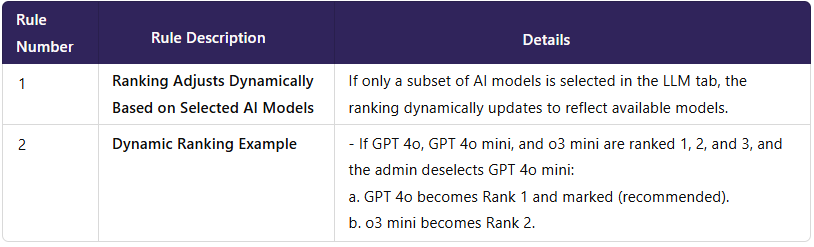
AI Model Selection Rules