LLM
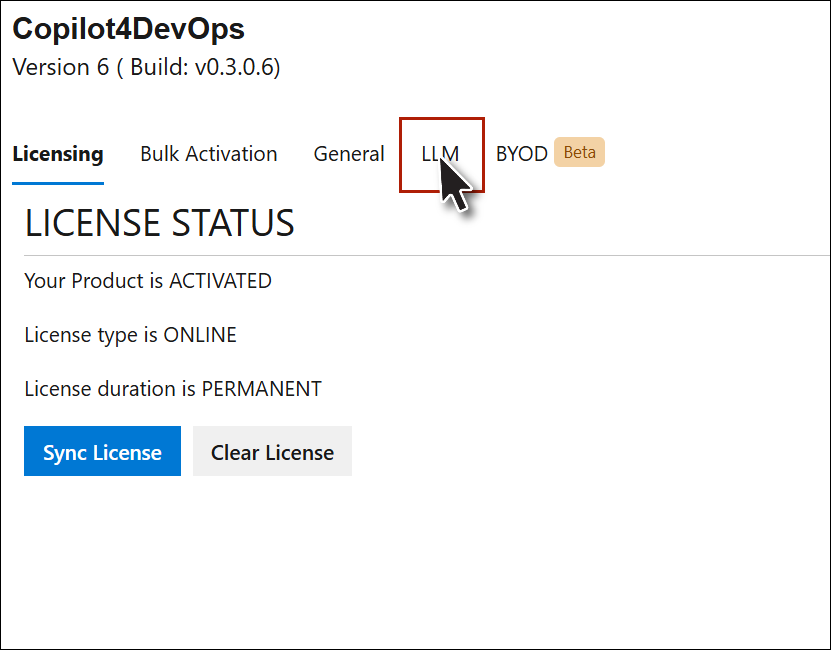
1. Navigate to the "LLM" tab in the Admin Panel to view the LLM section.
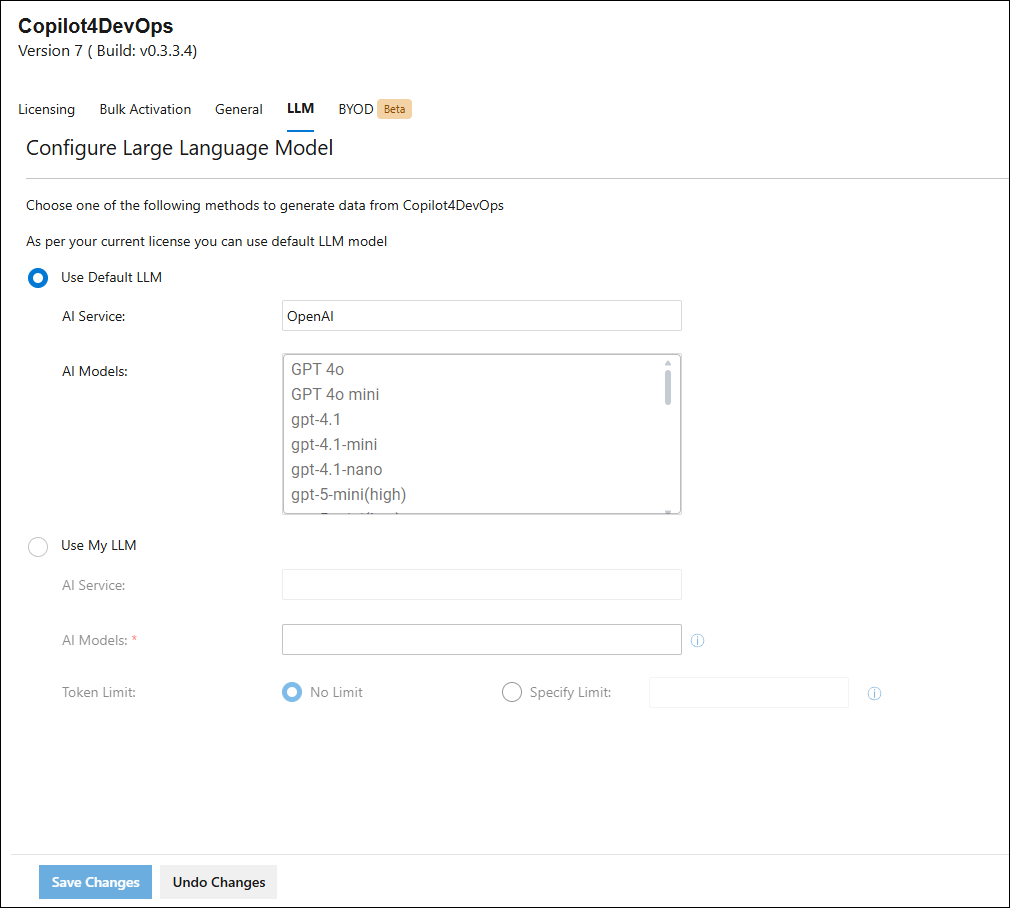
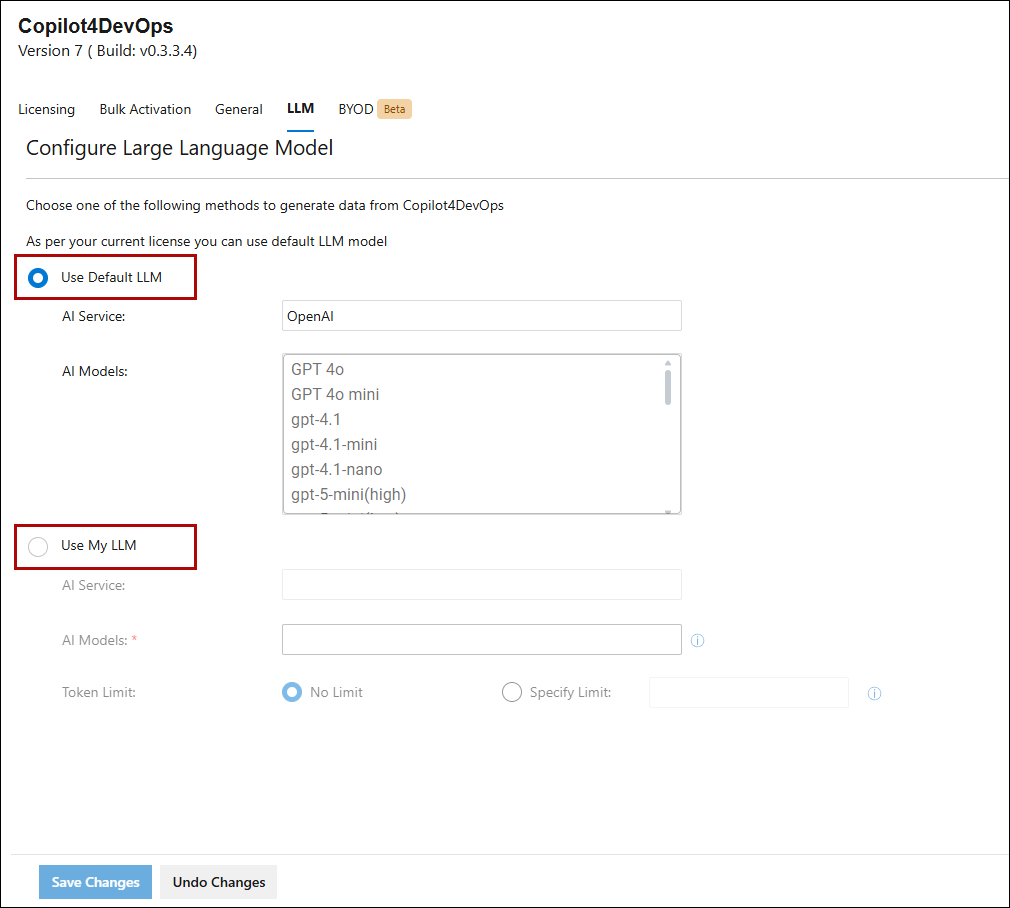
2. Choose between "Use default LLM" and "Use my LLM".
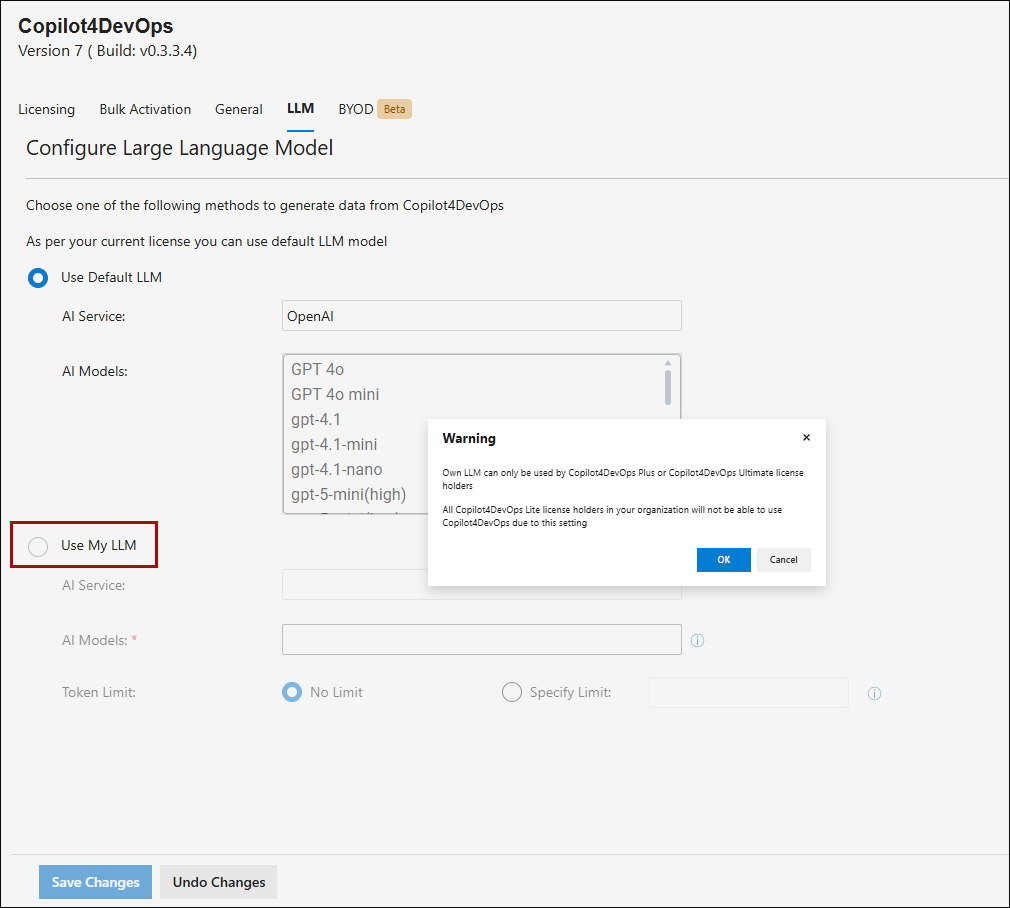
Note: Users can also check the 'Use my LLM' checkbox if they have a Plus or Ultimate license. Otherwise, when the user wants to select a checkbox with a lite license, a notification or warning message will appear.
3. In the ‘Use default LLM’ area, users can select the AI Service from the dropdown menu.
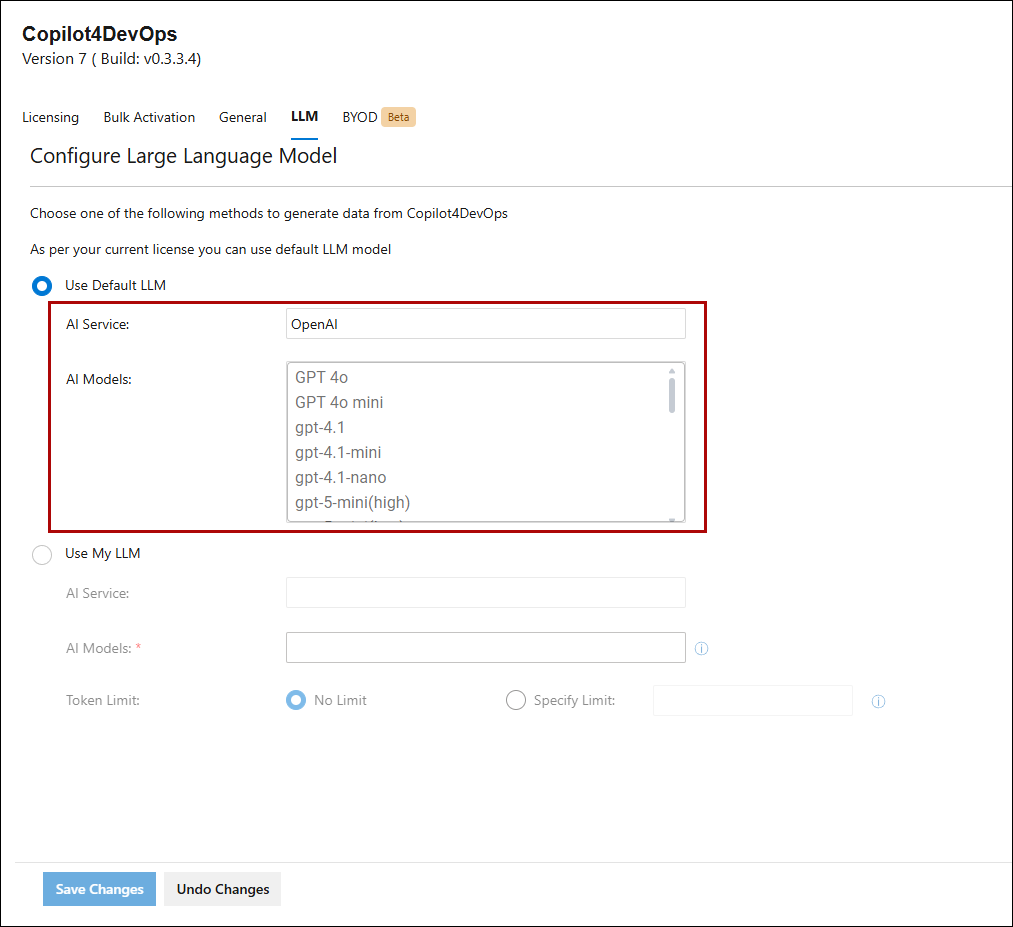
Note:
1. Users cannot select or deselect specific AI models. All AI models within the chosen service, whether OpenAI or AzureAI, will be automatically selected by default.
2. A new “Across Different LLMs” option has been added under the Default LLM section. This option enables unified, platform-independent model selection. When selected, it displays a consolidated, alphabetically sorted list of models from multiple providers—such as Azure AI and OpenAI—showing each model’s name along with its provider.
.png)
4. A user can configure settings by selecting only one checkbox at a time.
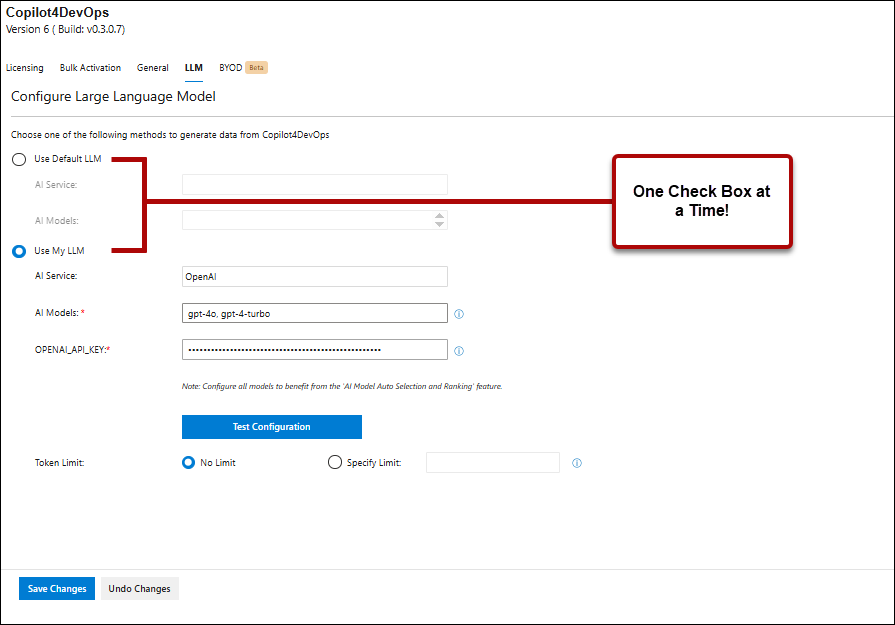
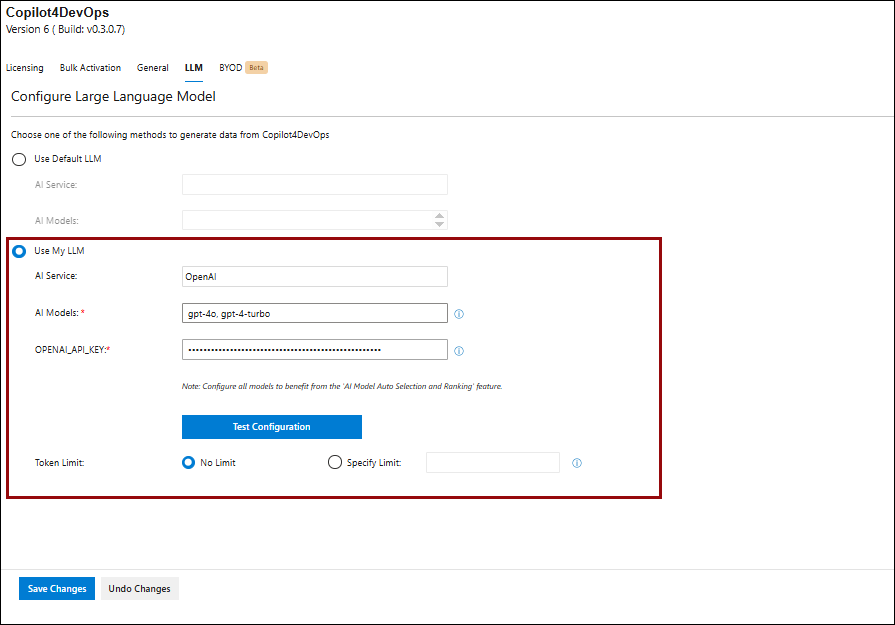
5. Users can select an AI service from the dropdown menu. Once selected, relevant settings will be displayed for configuration.
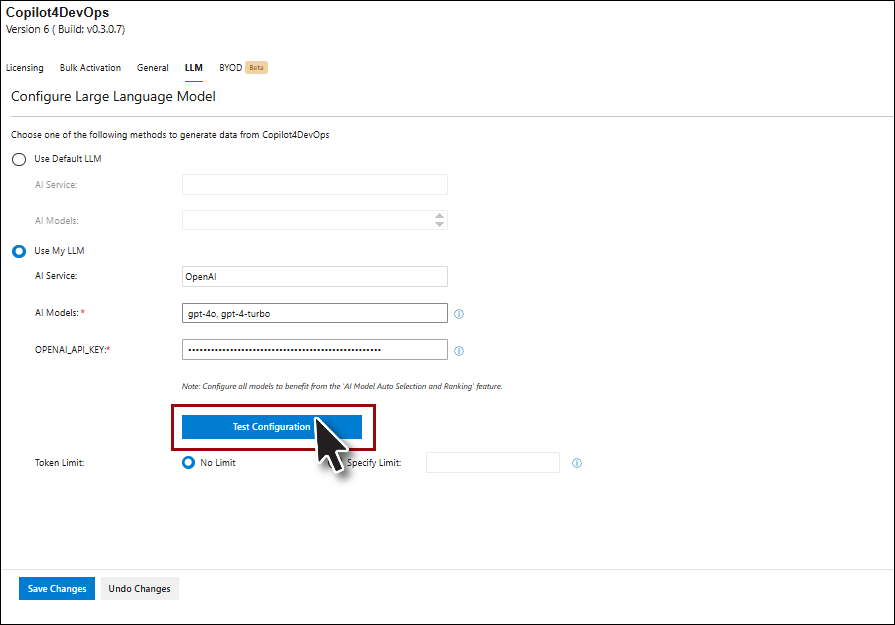
6. Click the 'Test Configuration' button to test your setup.
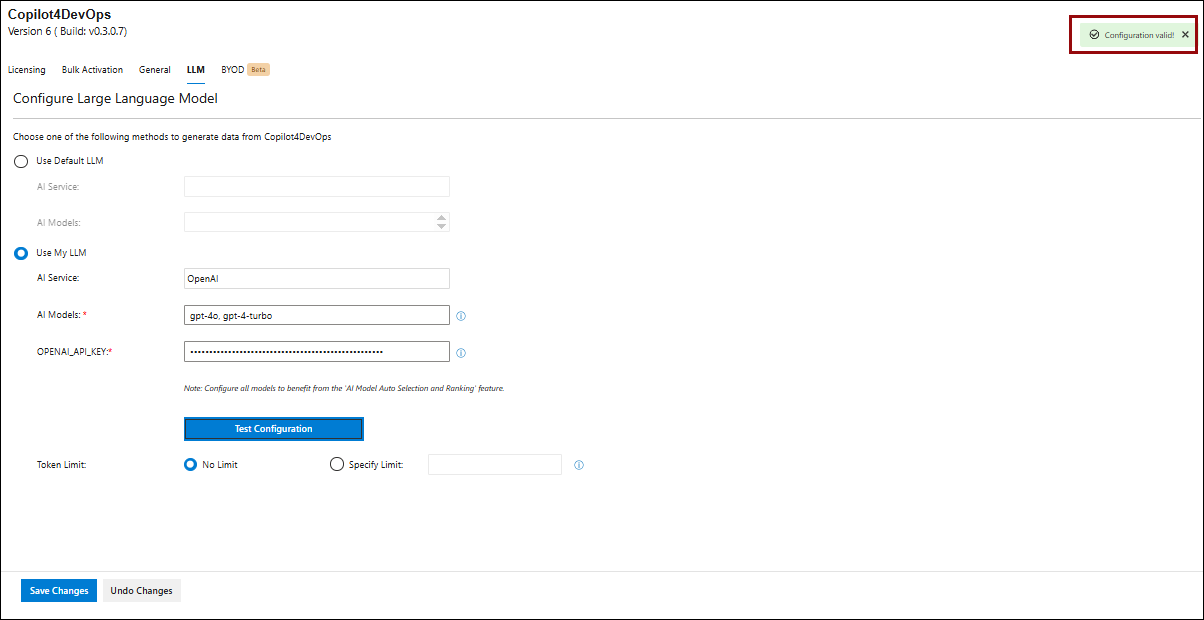
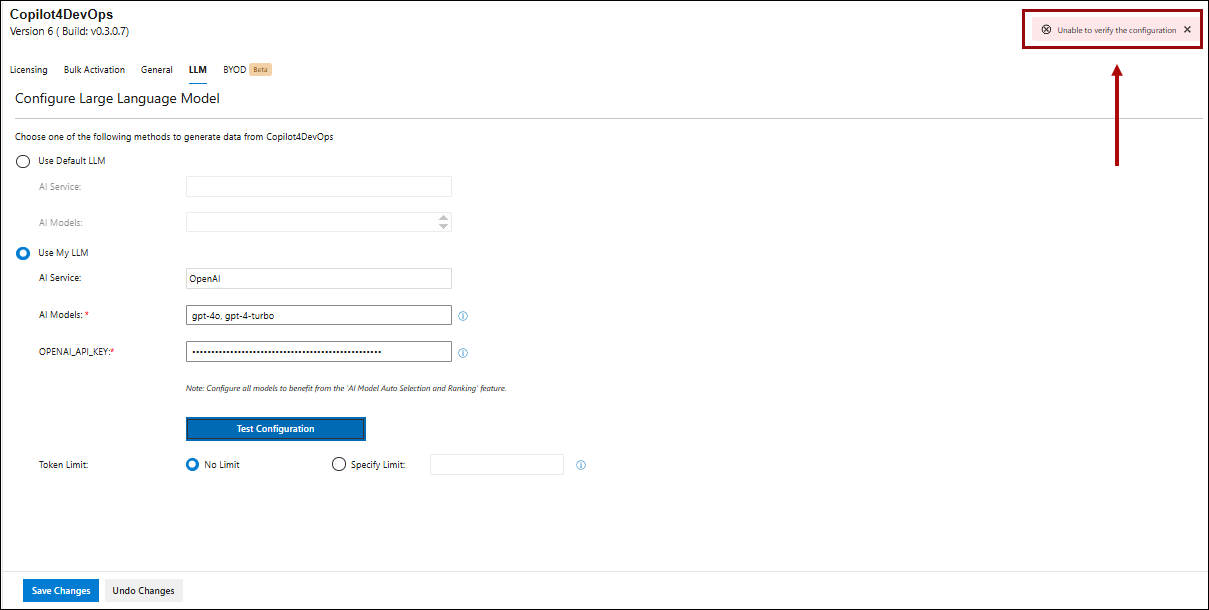
7. If the user enters incorrect information, an error message will be displayed upon clicking the "Save Changes" button.
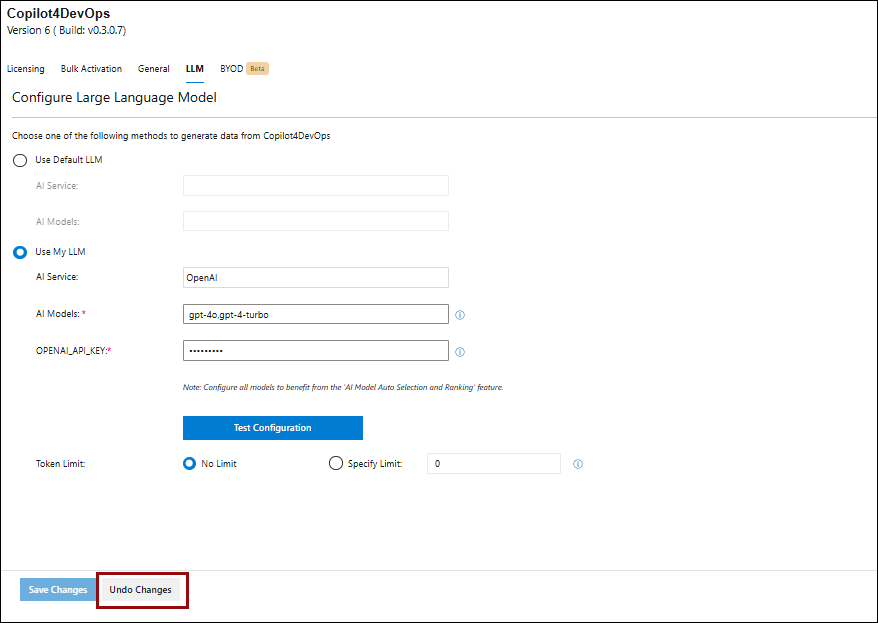
8. Clicking the "Undo Changes" button will revert the settings to their last saved state, prior to the recent changes.
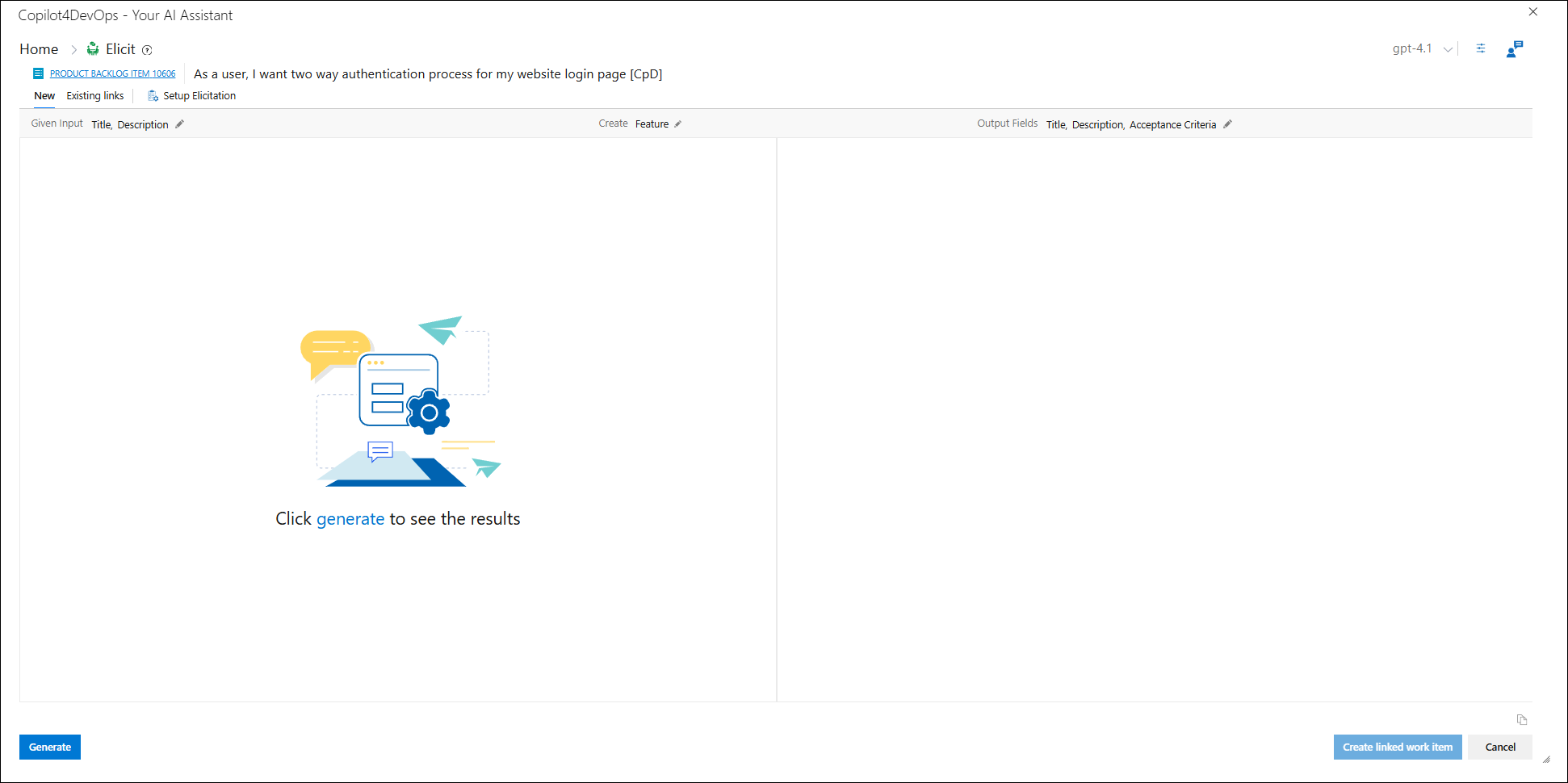
9. After configuring the settings, data will be generated in the Copilot4DevOps window according to the settings specified in the Admin Panel.
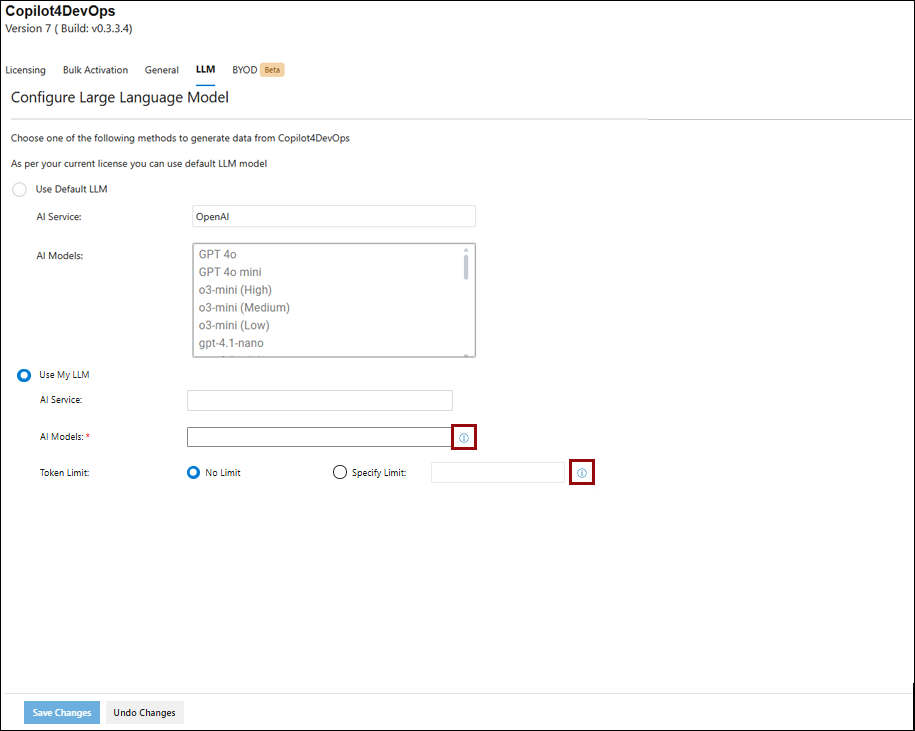
10. Information icons have been added to assist users. By referring to these icons, users can configure their data more effectively.
Note:
• If the user wants to use the BYOD function, then the license key set at that moment, whether it's 'BYOD with default LLM' or 'BYOD with own LLM,' will determine which radio button is selected for the user.
