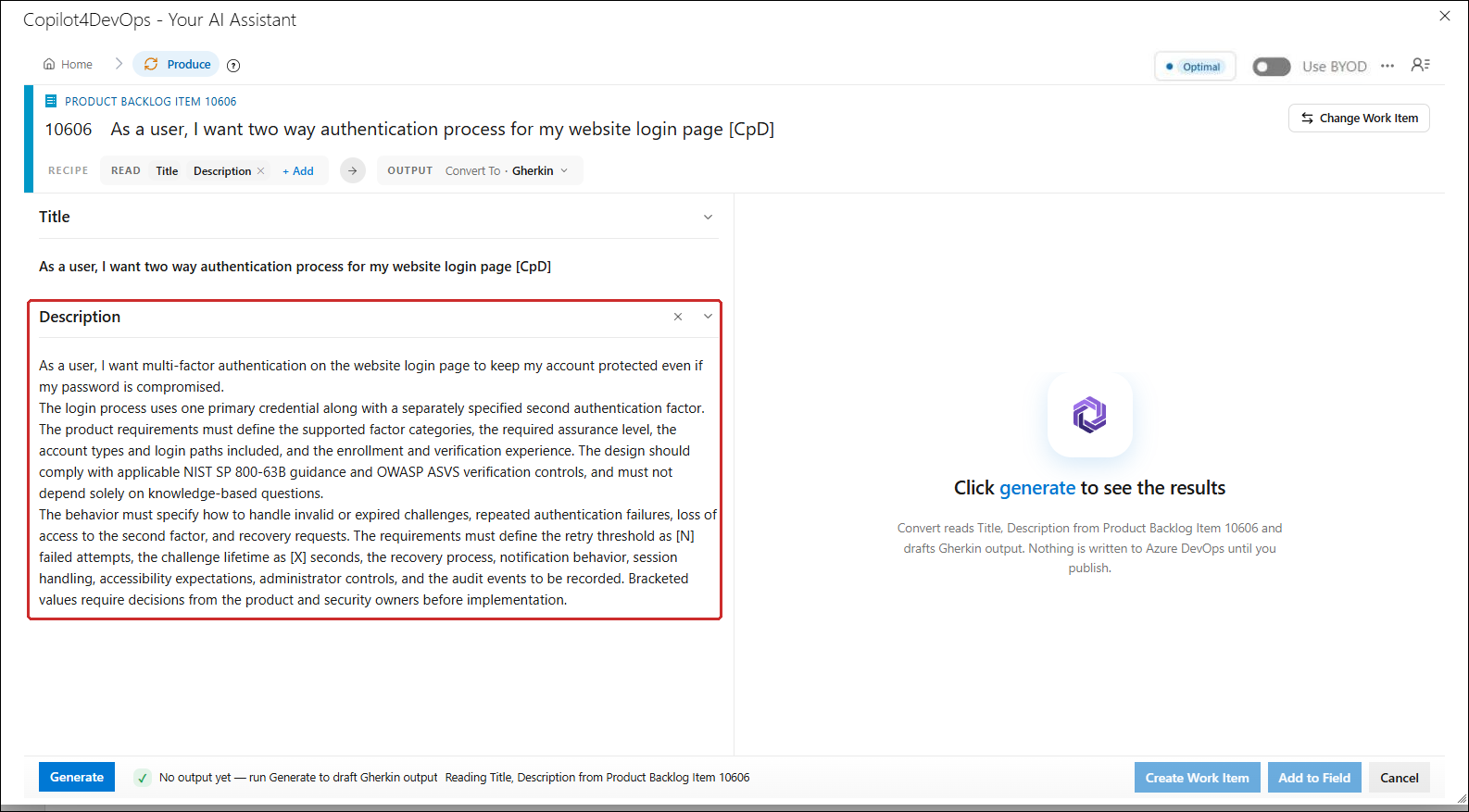
Paraphrase
This page describes the Paraphrase output of the Produce module, which is in the Transform group of the OUTPUT menu. The general information about the module is discussed on the Produce page.
1. Click the OUTPUT section of the RECIPE bar, expand the Transform group and select the Paraphrase option. Only the Replace button appears at the bottom right of the window.
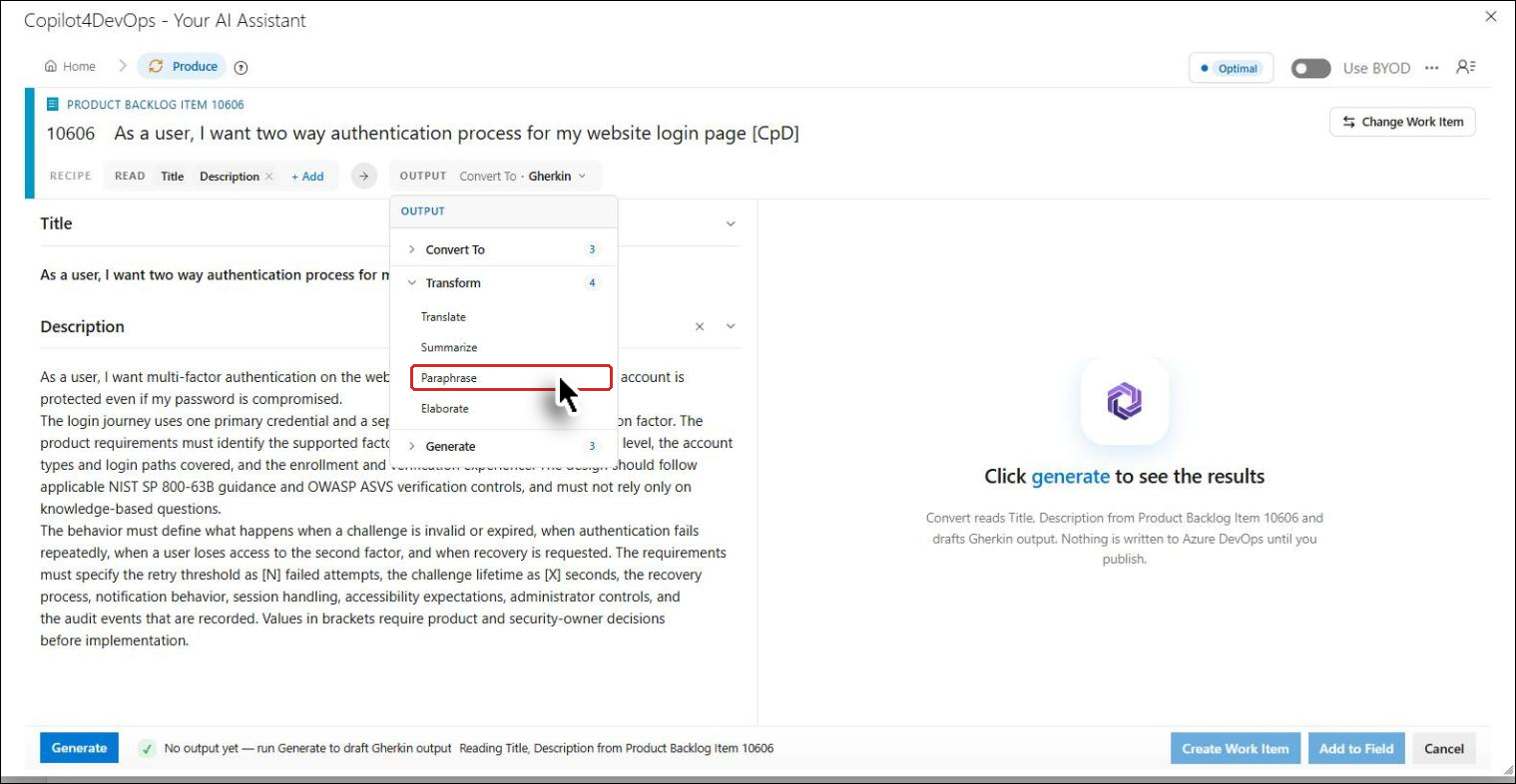
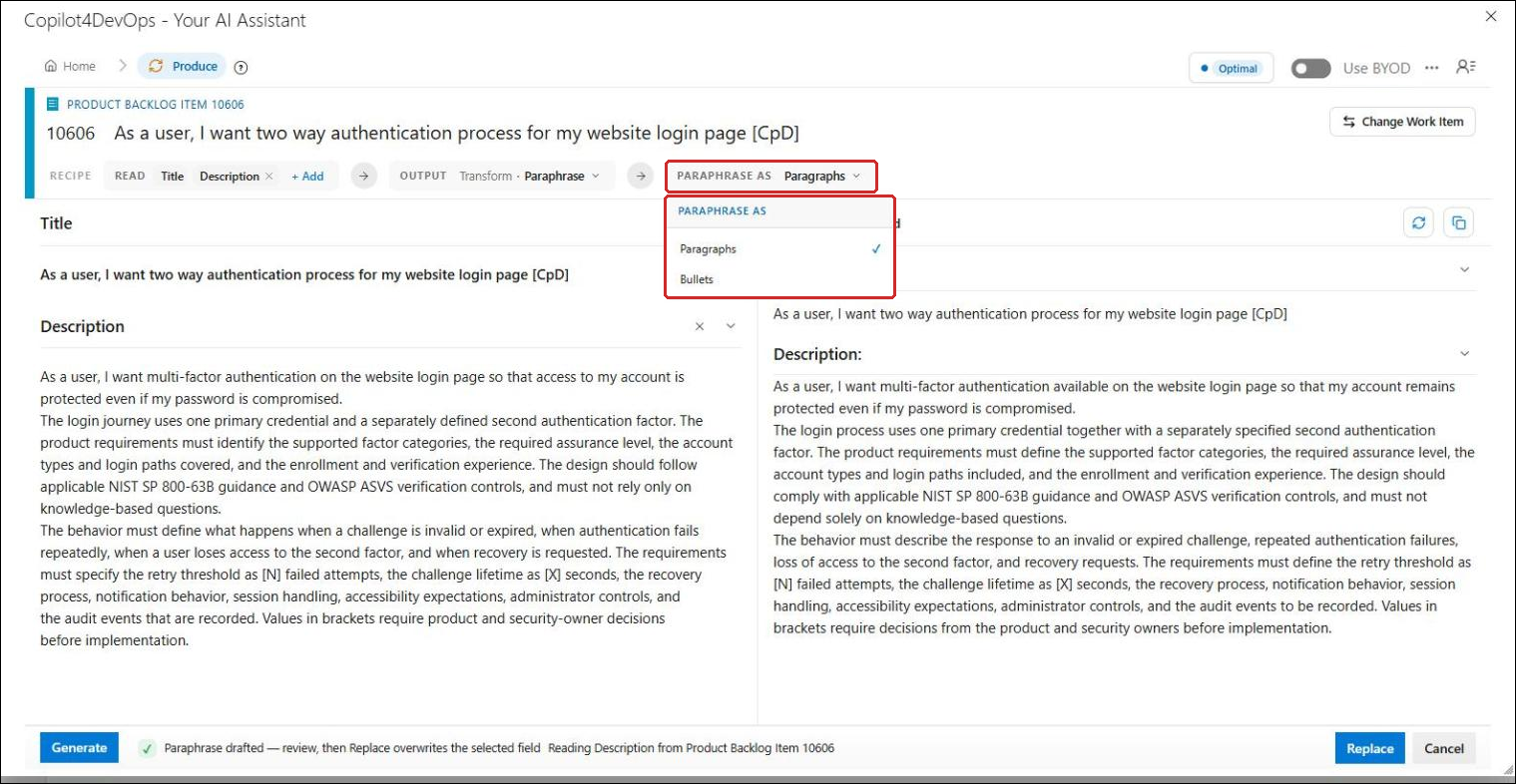
You can then choose the paraphrase style from the PARAPHRASE AS section of the RECIPE bar: Paragraphs or Bullets. By default, Paragraphs is selected.
2. Click on the Generate button.
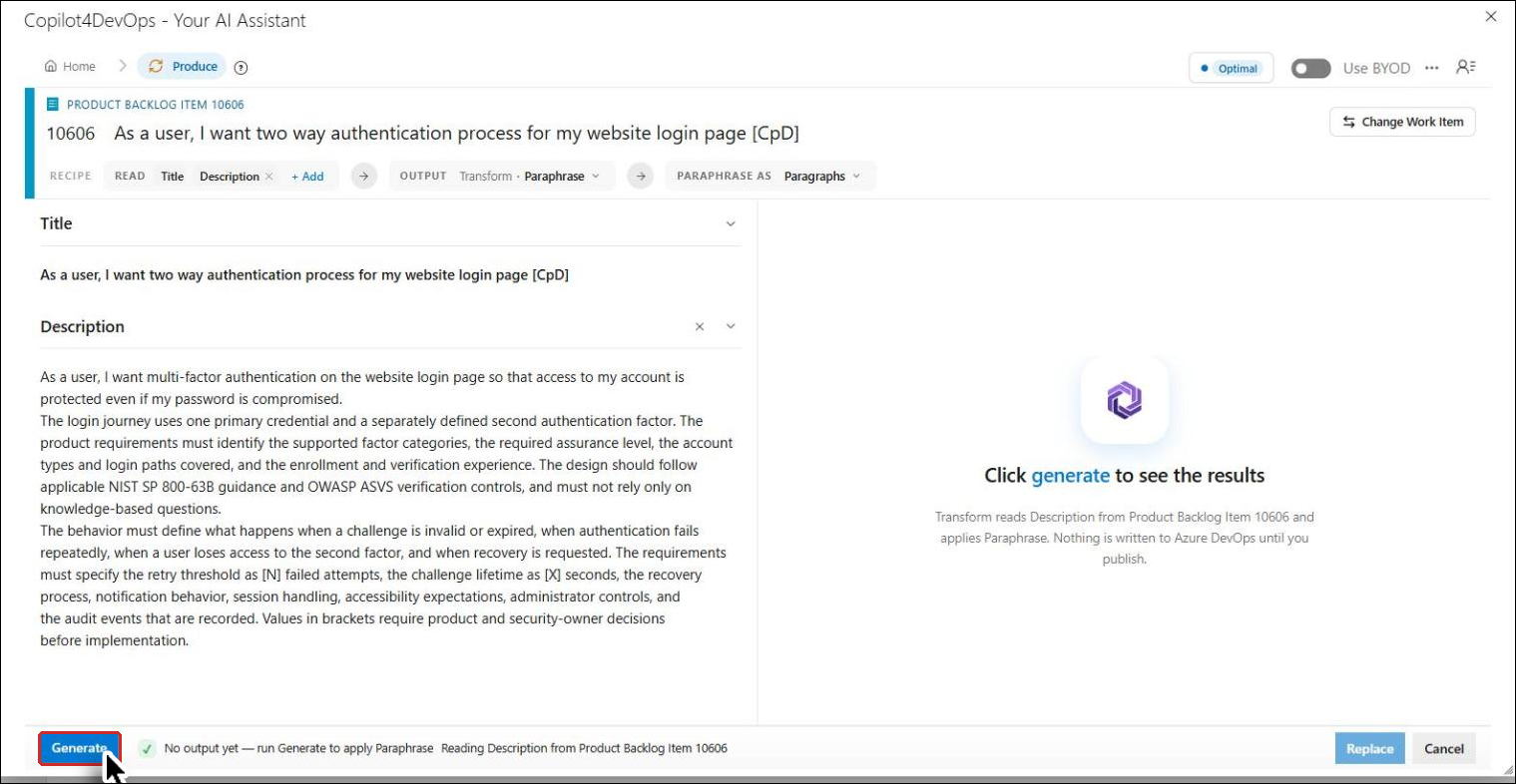
The data is paraphrased (in the right panel), and the status bar shows “Paraphrase drafted — review, then Replace overwrites the selected field”. The Replace button also becomes enabled.
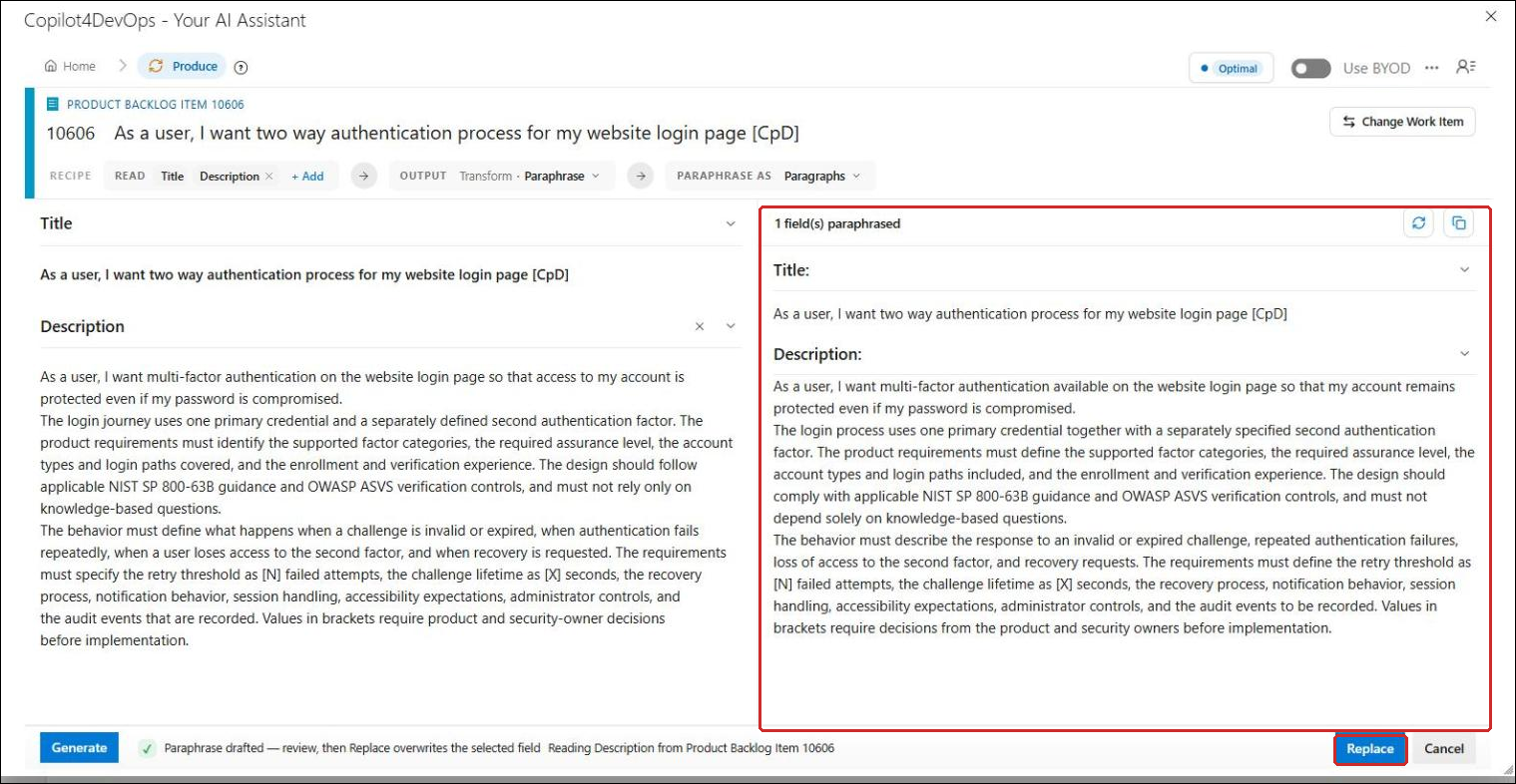
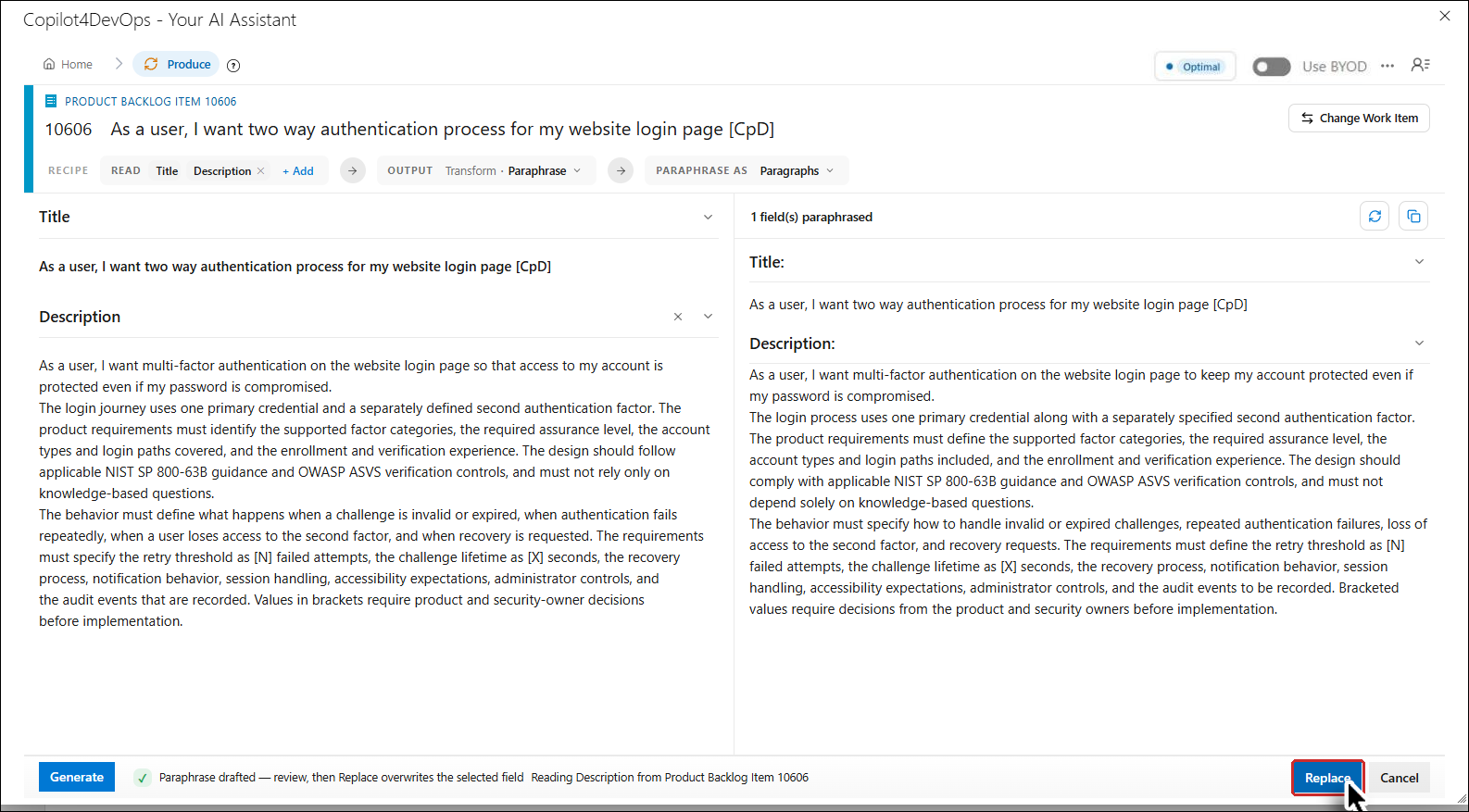
4. Click on the Replace button at the bottom right of the window.
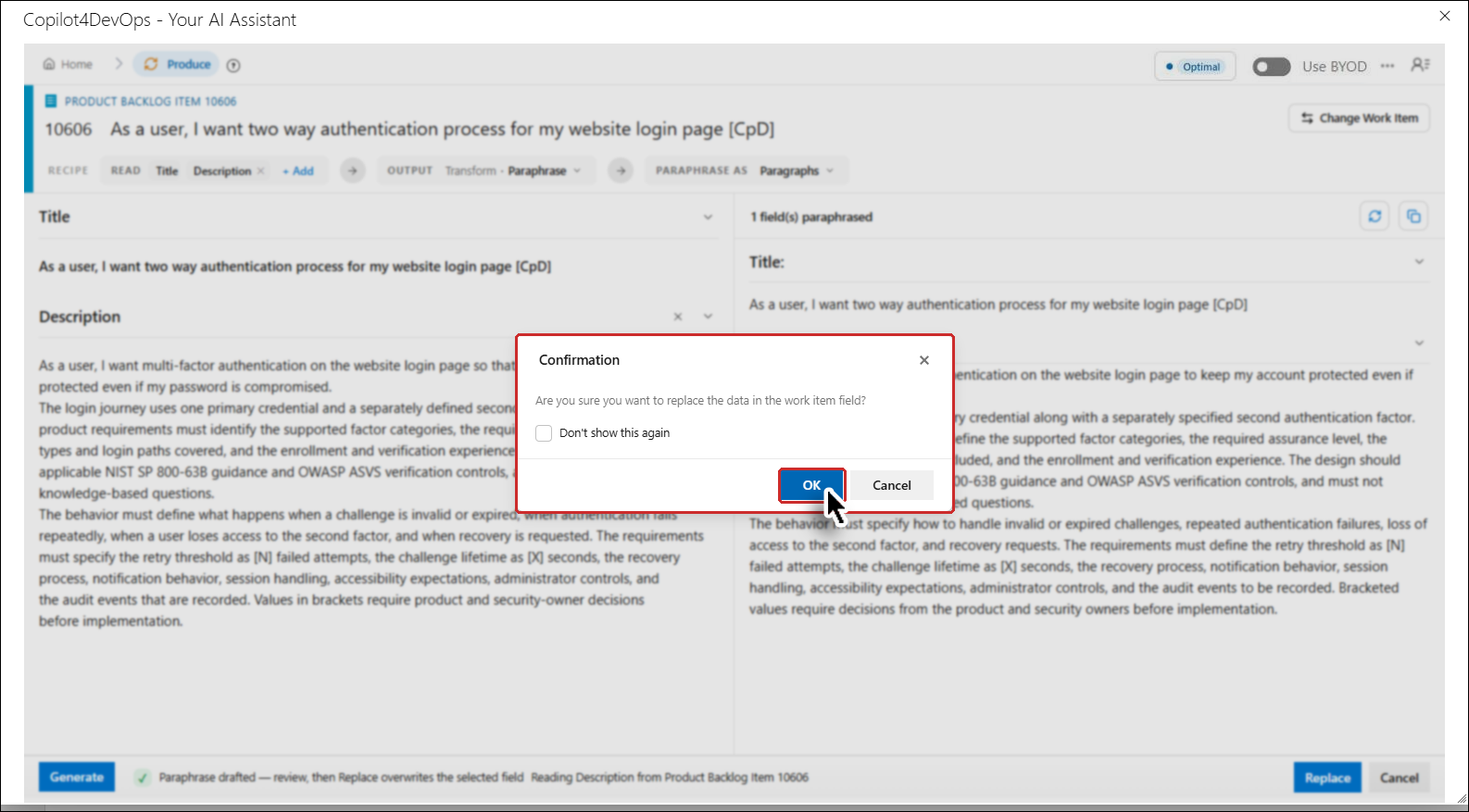
5. A Confirmation message box asks “Are you sure you want to replace the data in the work item field?” Click the OK button. Tick Don't show this again if you do not want to see this message the next time.
The paraphrased data replaces the content of the selected field and the user is taken back to the Home Page.
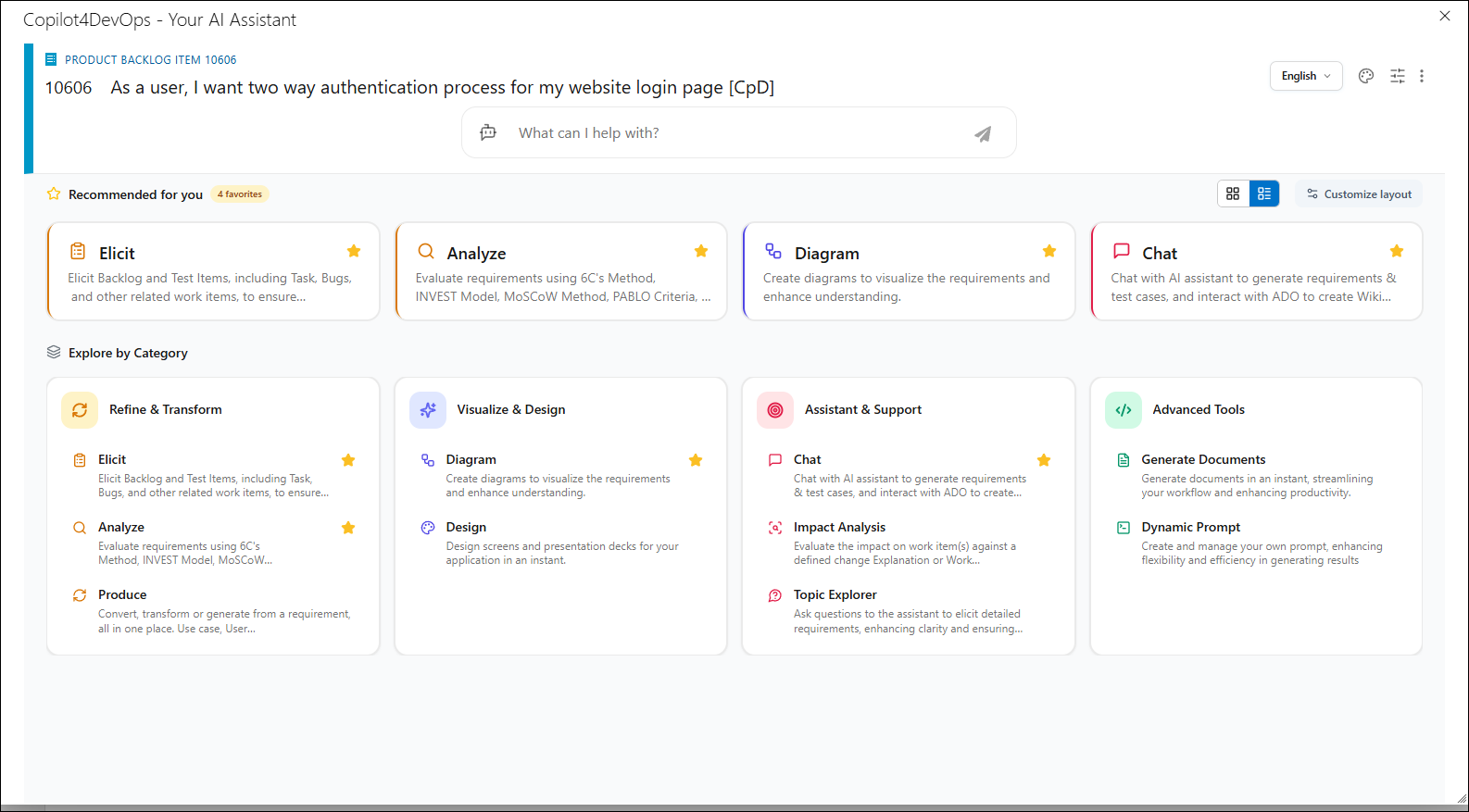
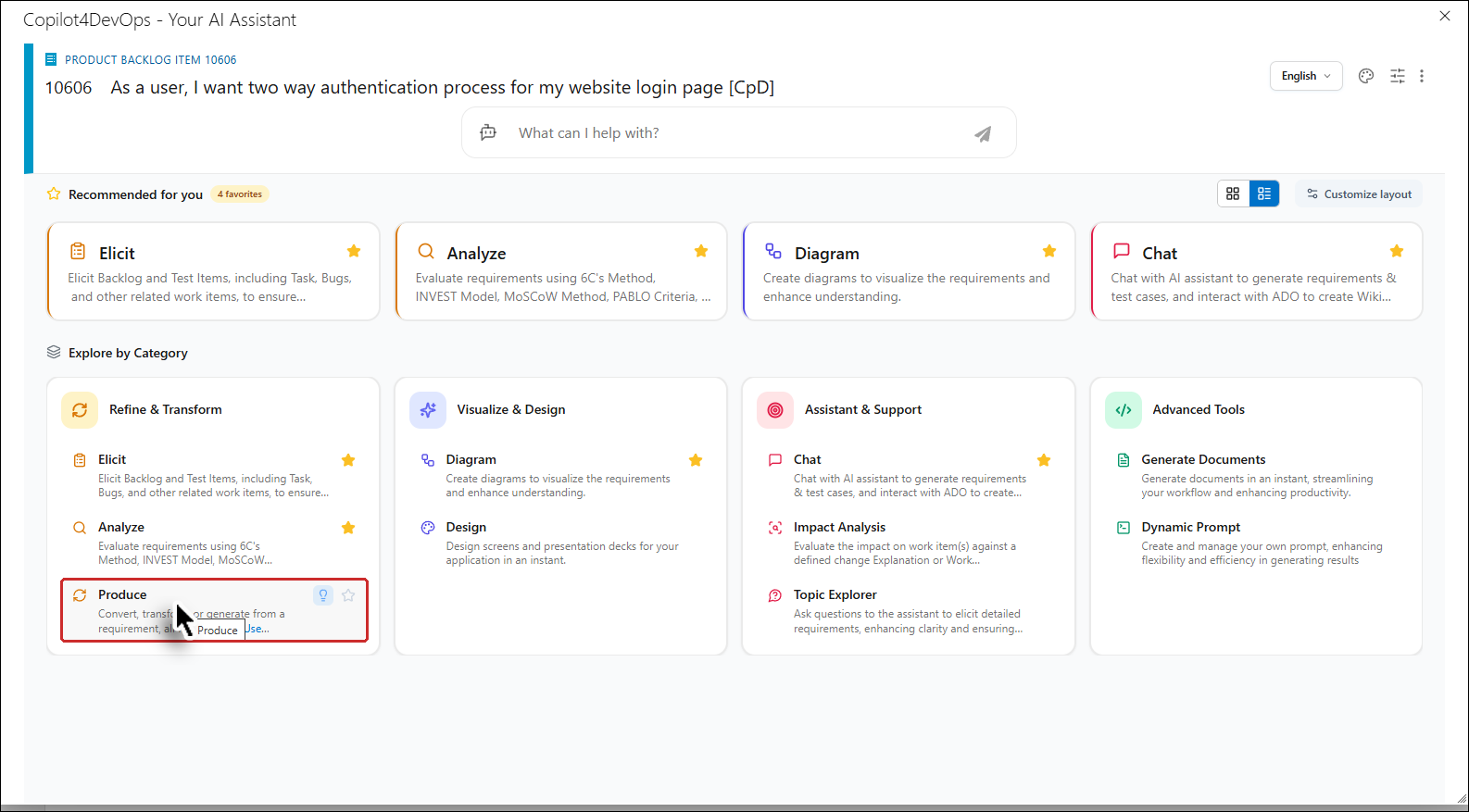
6. Click the Produce card/option. If it is not listed under Recommended for you, you will find it under the Refine & Transform category.
The selected field is updated accordingly. In this example, the Description field now contains the paraphrased text.