Summarize
This page describes the Summarize output of the Produce module, which is in the Transform group of the OUTPUT menu. The general information about the module is discussed on the Produce page.
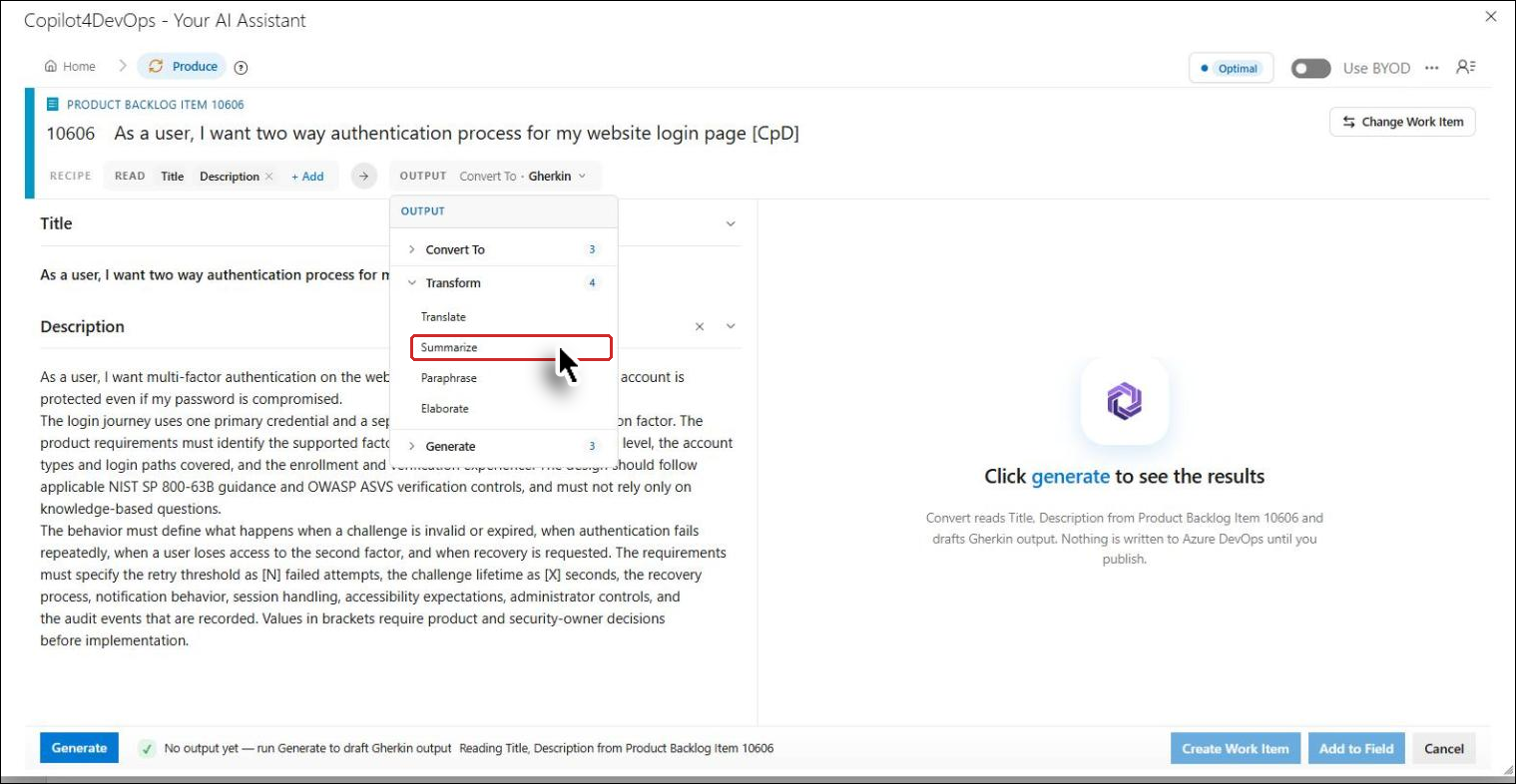
1. Click the OUTPUT section of the RECIPE bar, expand the Transform group and select the Summarize option. Only the Add to Field button appears at the bottom right of the window.
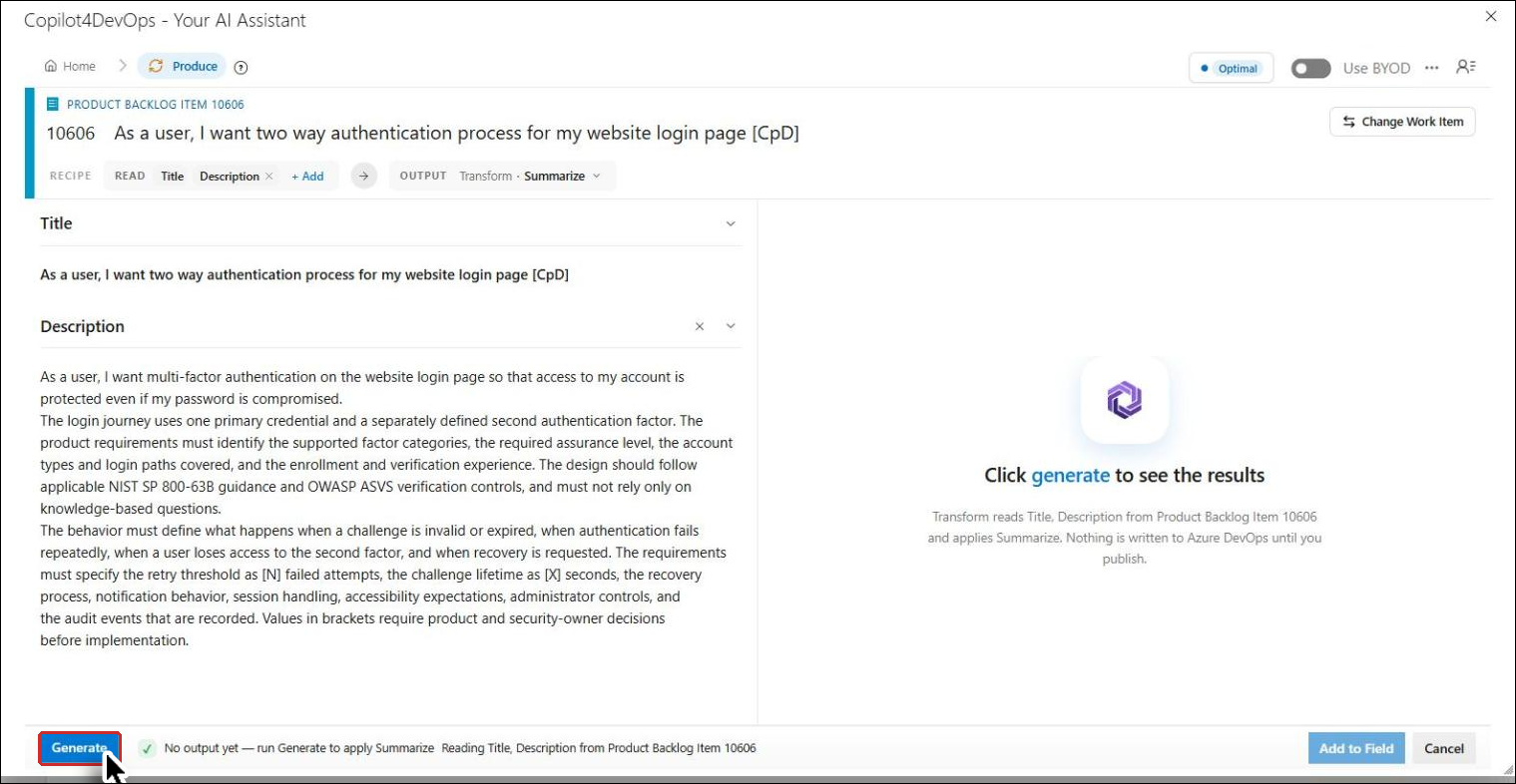
2. Click on the Generate button.
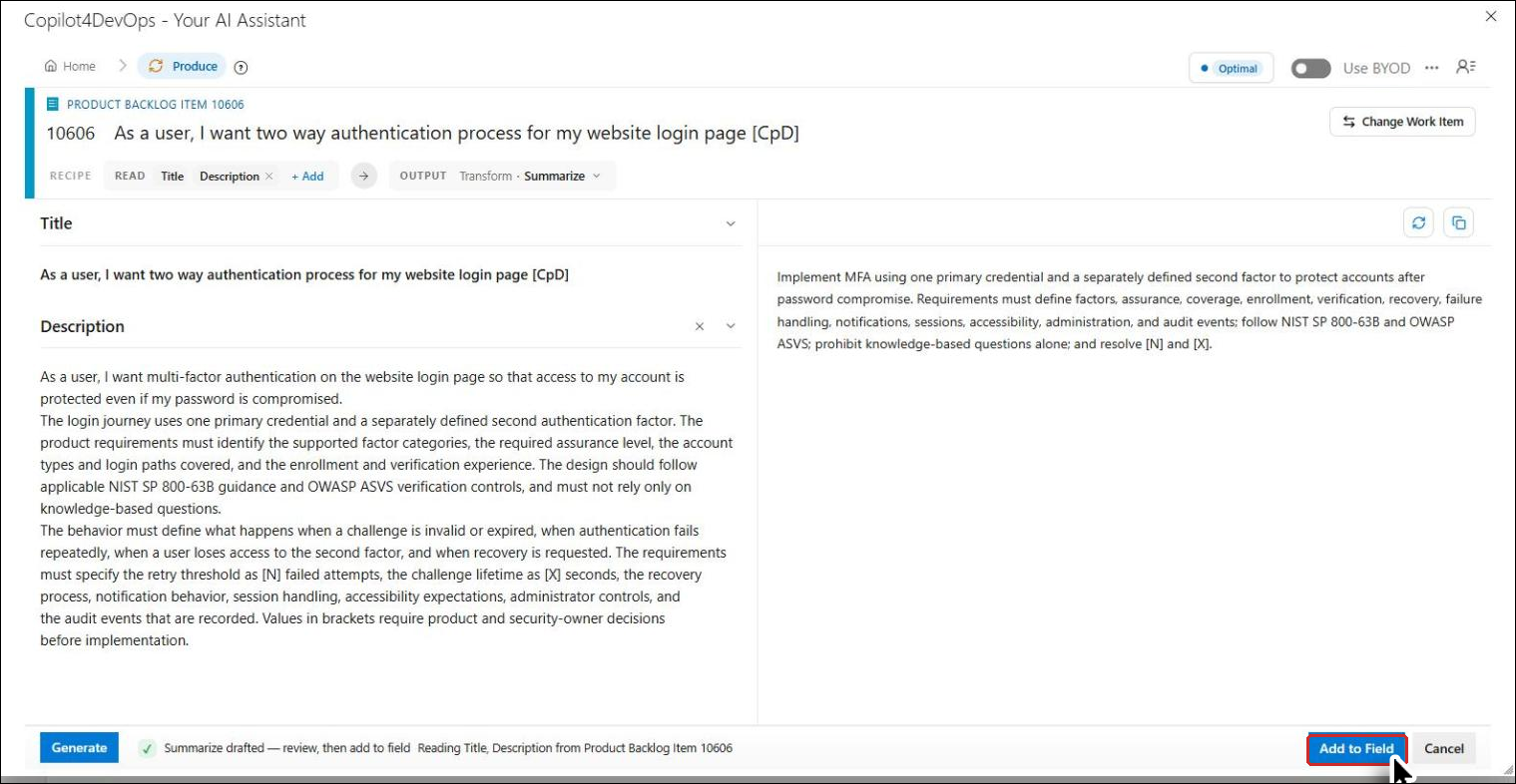
The selected fields are summarized (in the right panel), and the status bar shows “Summarize drafted — review, then add to field”. The Add to Field button also becomes enabled.
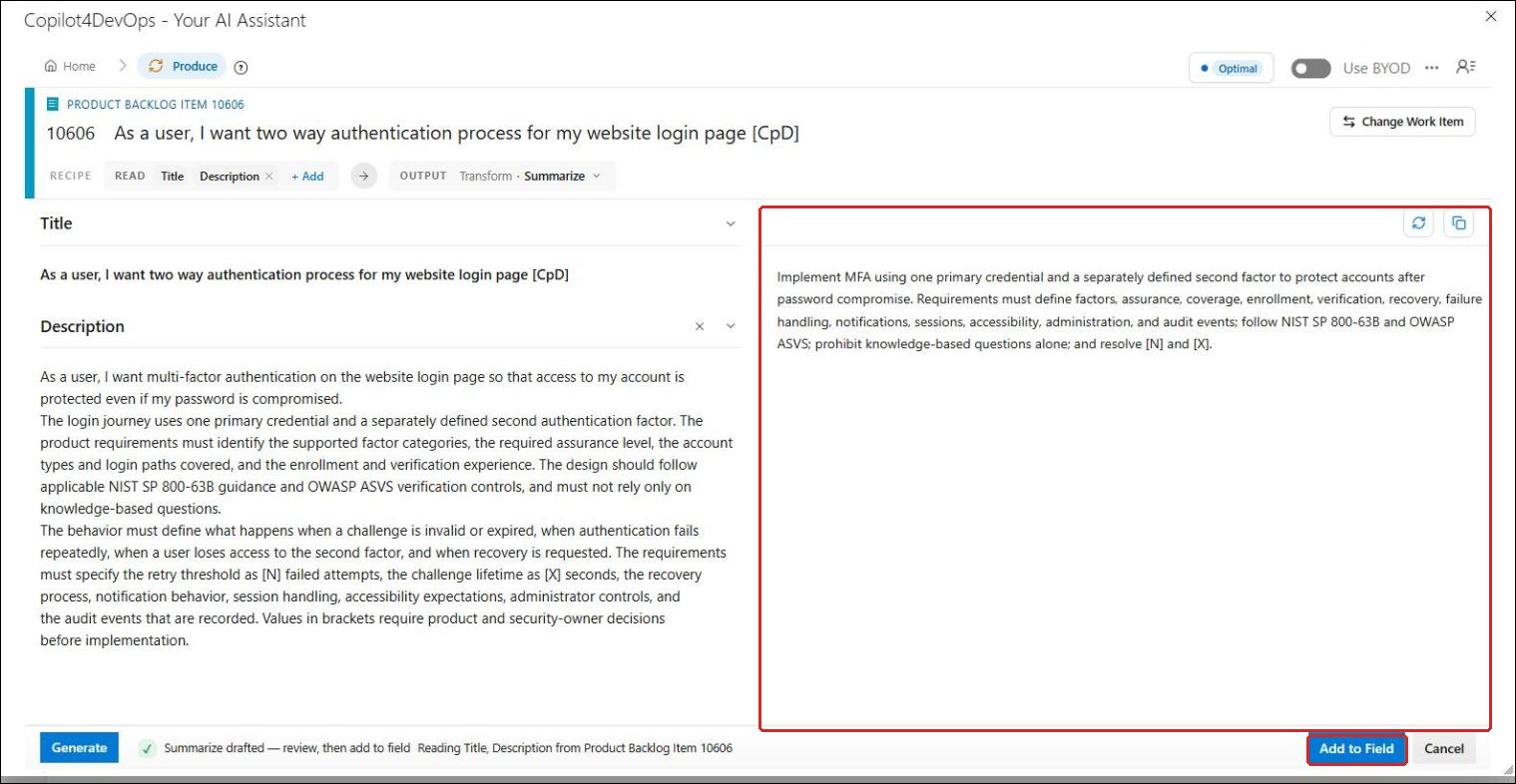
3. Click on the Add to Field button.
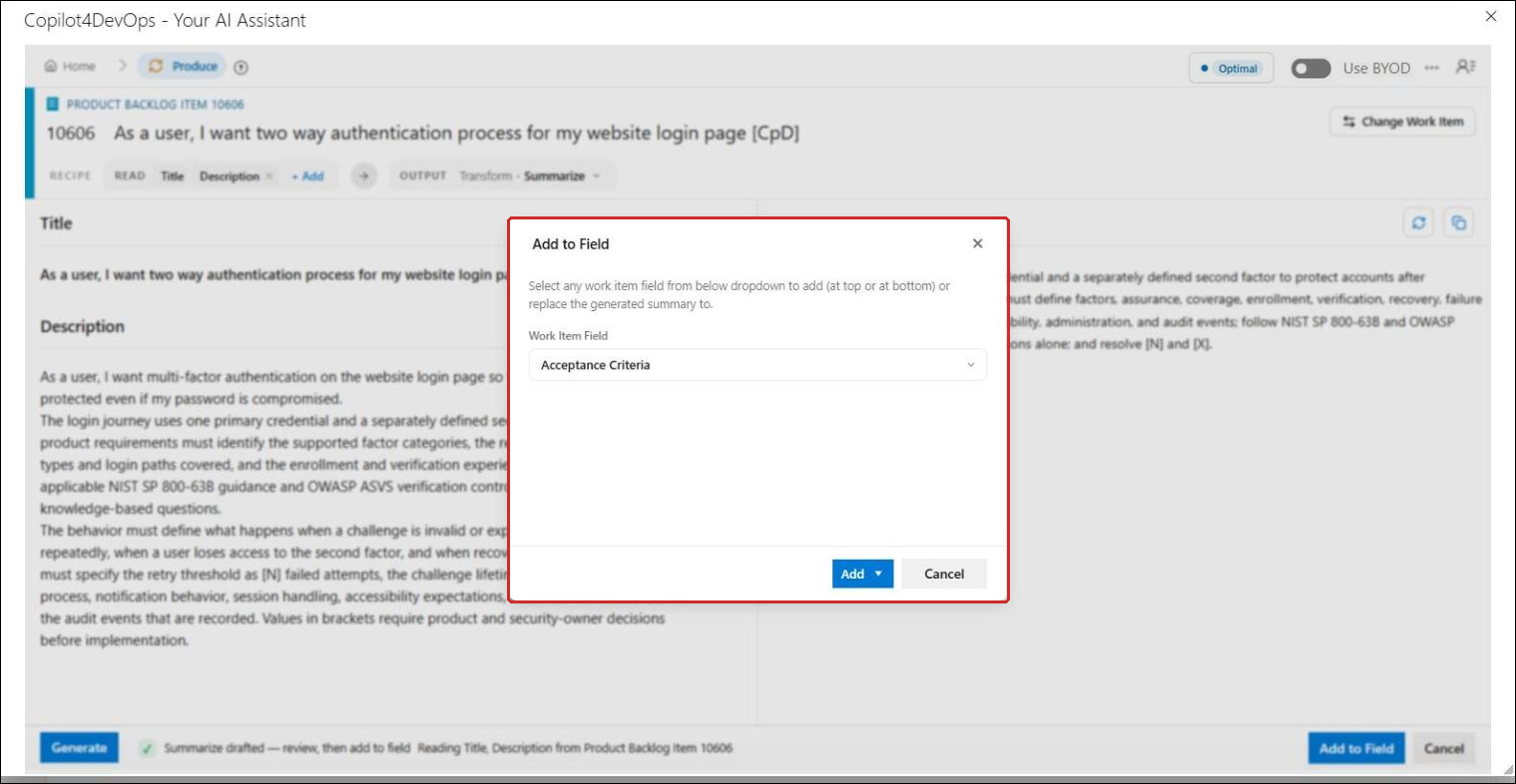
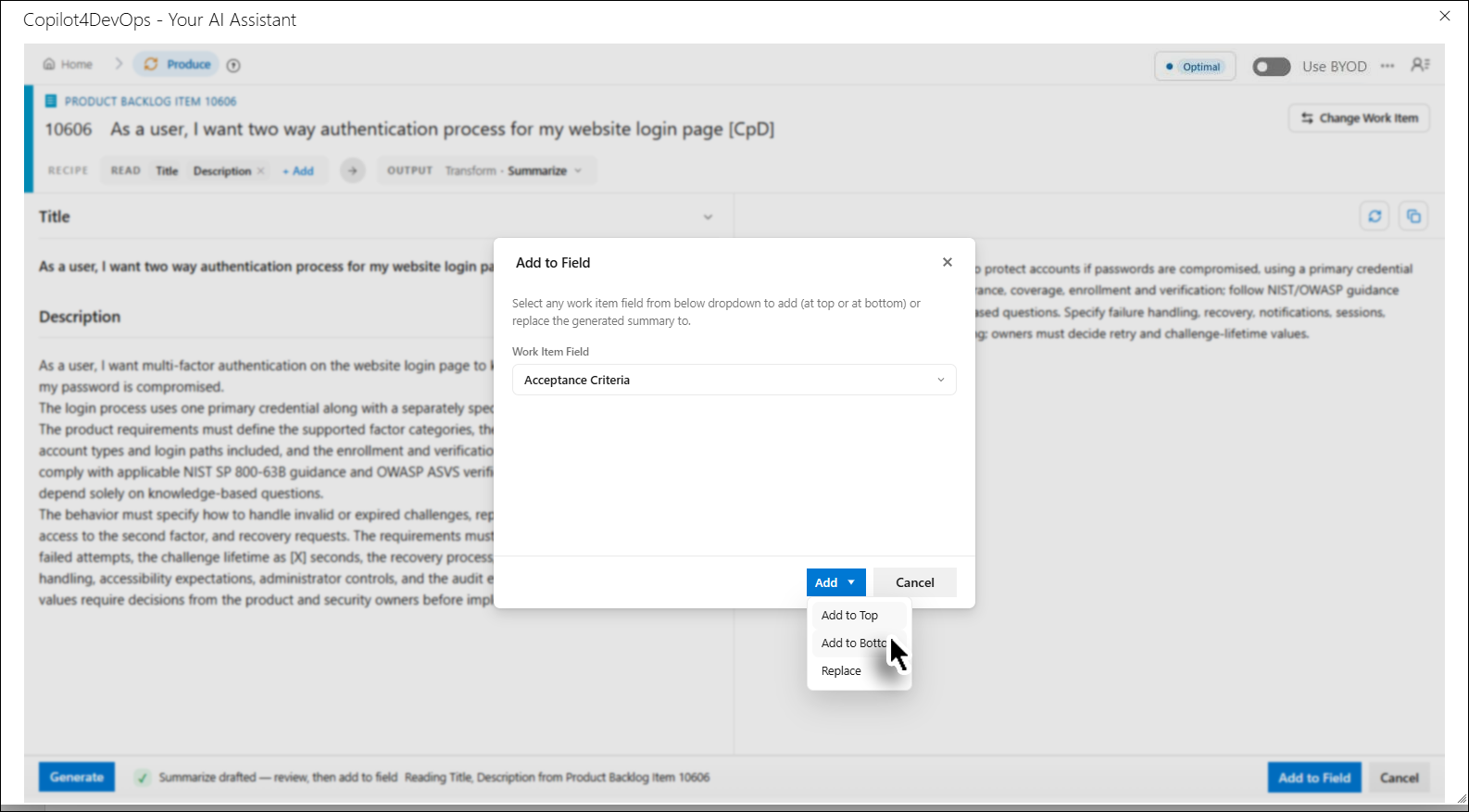
The Add to Field dialogue box appears.
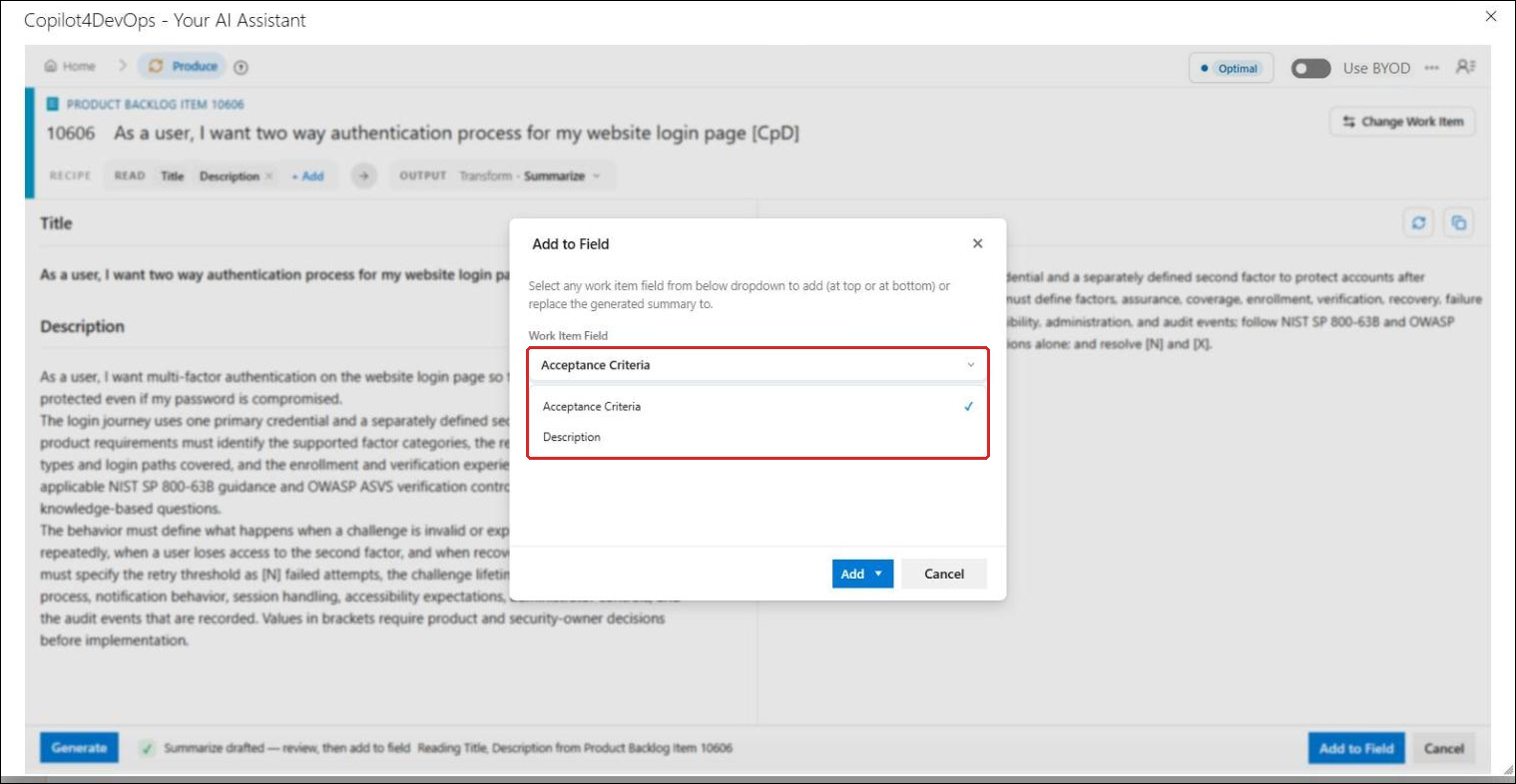
5. Select the relevant Work Item Field.
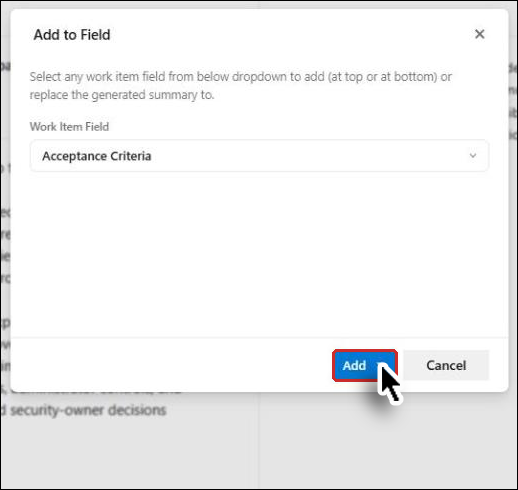
7. Click the arrow on the Add button, and then select the desired position from the dropdown:
-
Add to Top: inserts the data above the existing content of the field.
-
Add to Bottom: appends the data below the existing content of the field.
-
Replace: replaces the existing content of the field with the data.
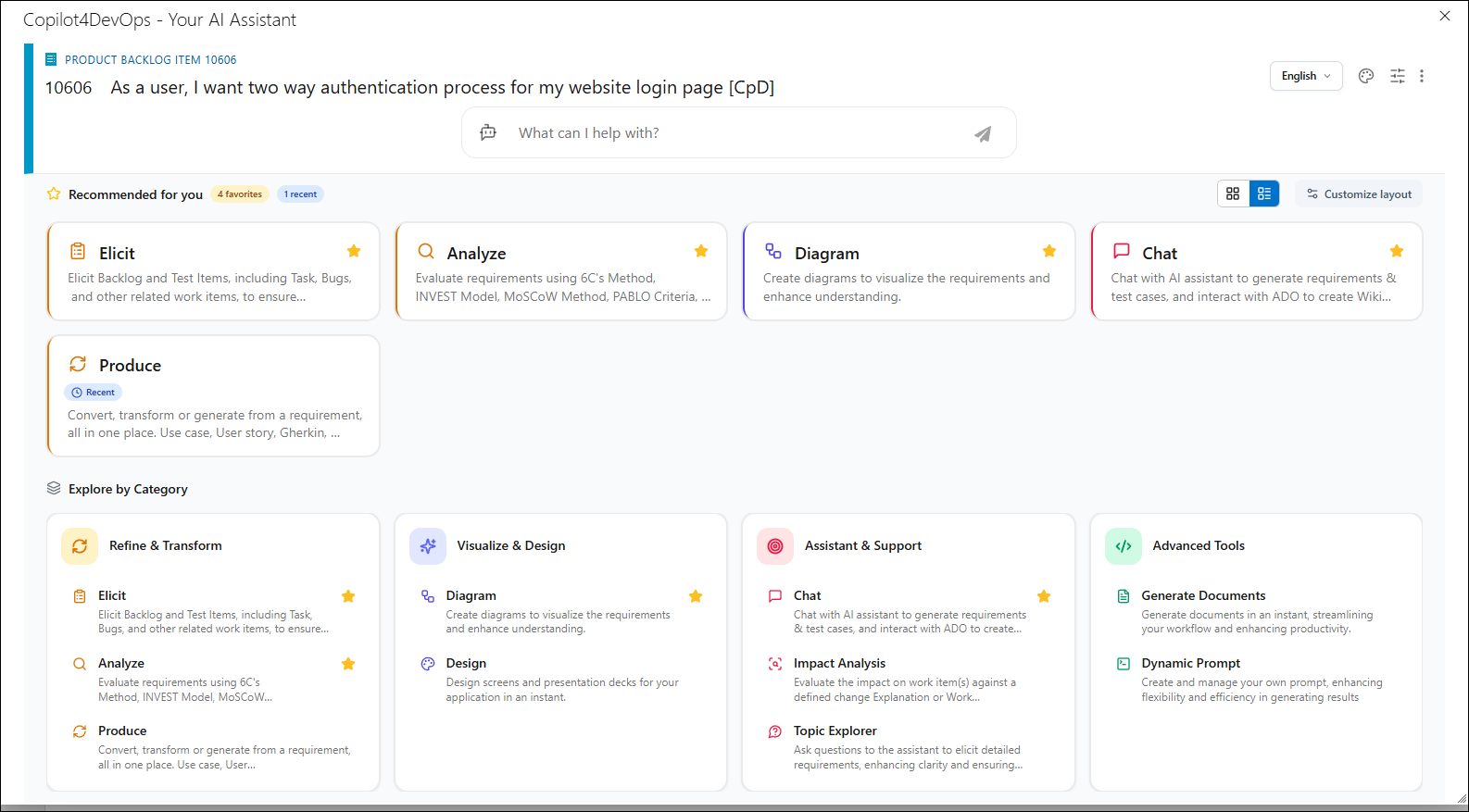
The summarized data is added to the selected field at the chosen position, and the user is taken back to the Home Page.
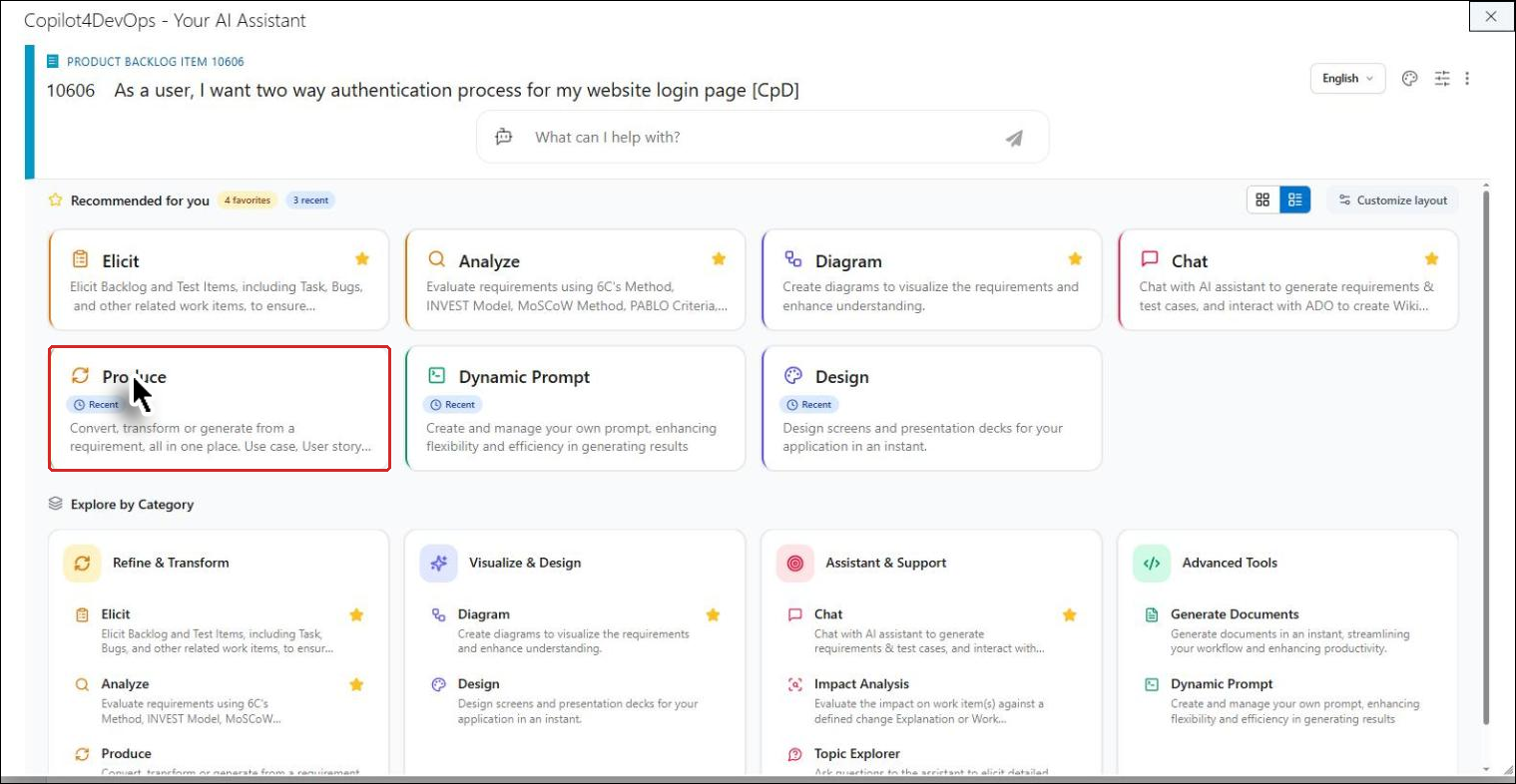
8. Click the Produce card/option.
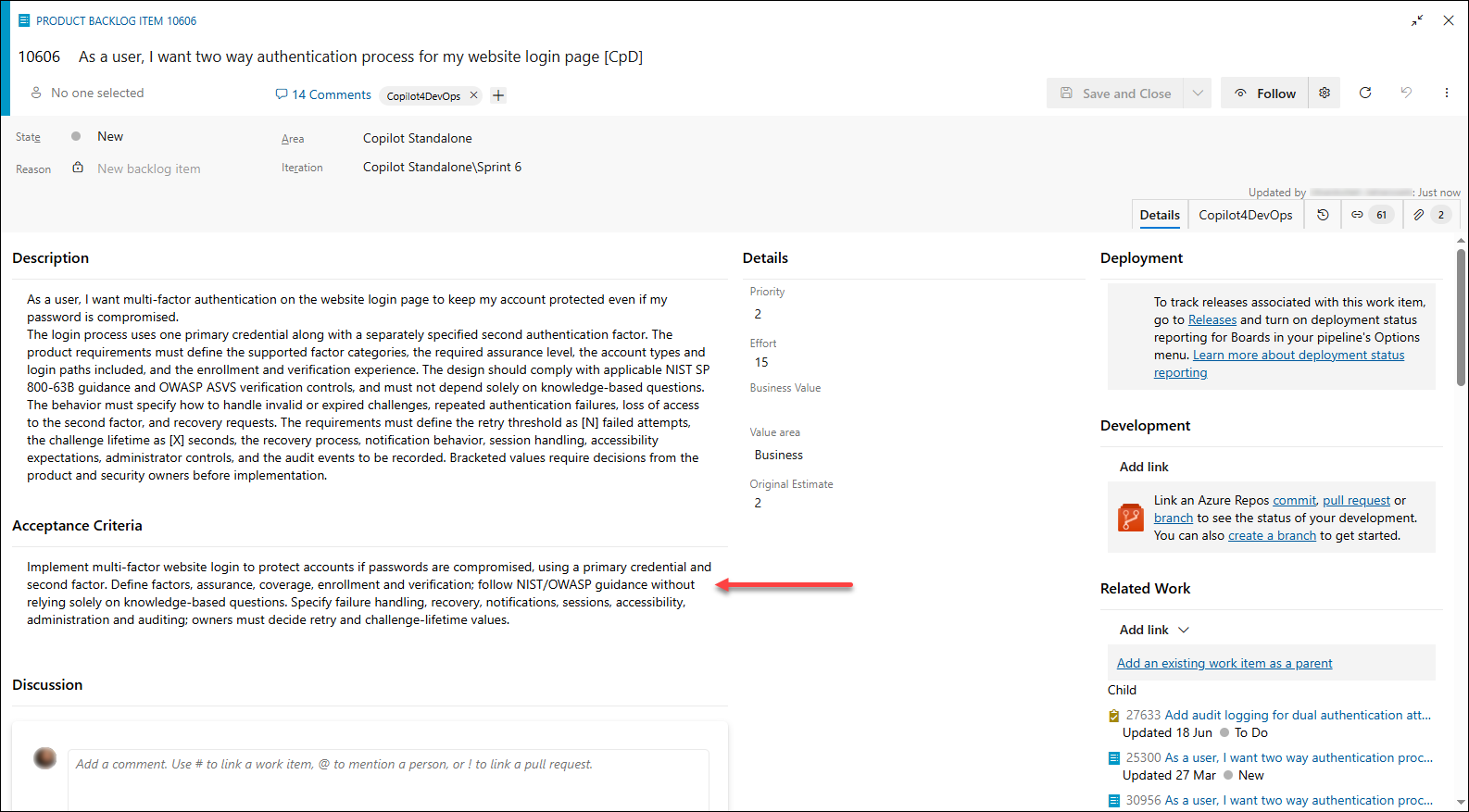
The selected field is updated accordingly. In this example, the work item opened in Azure DevOps shows the summary added to the Acceptance Criteria field.