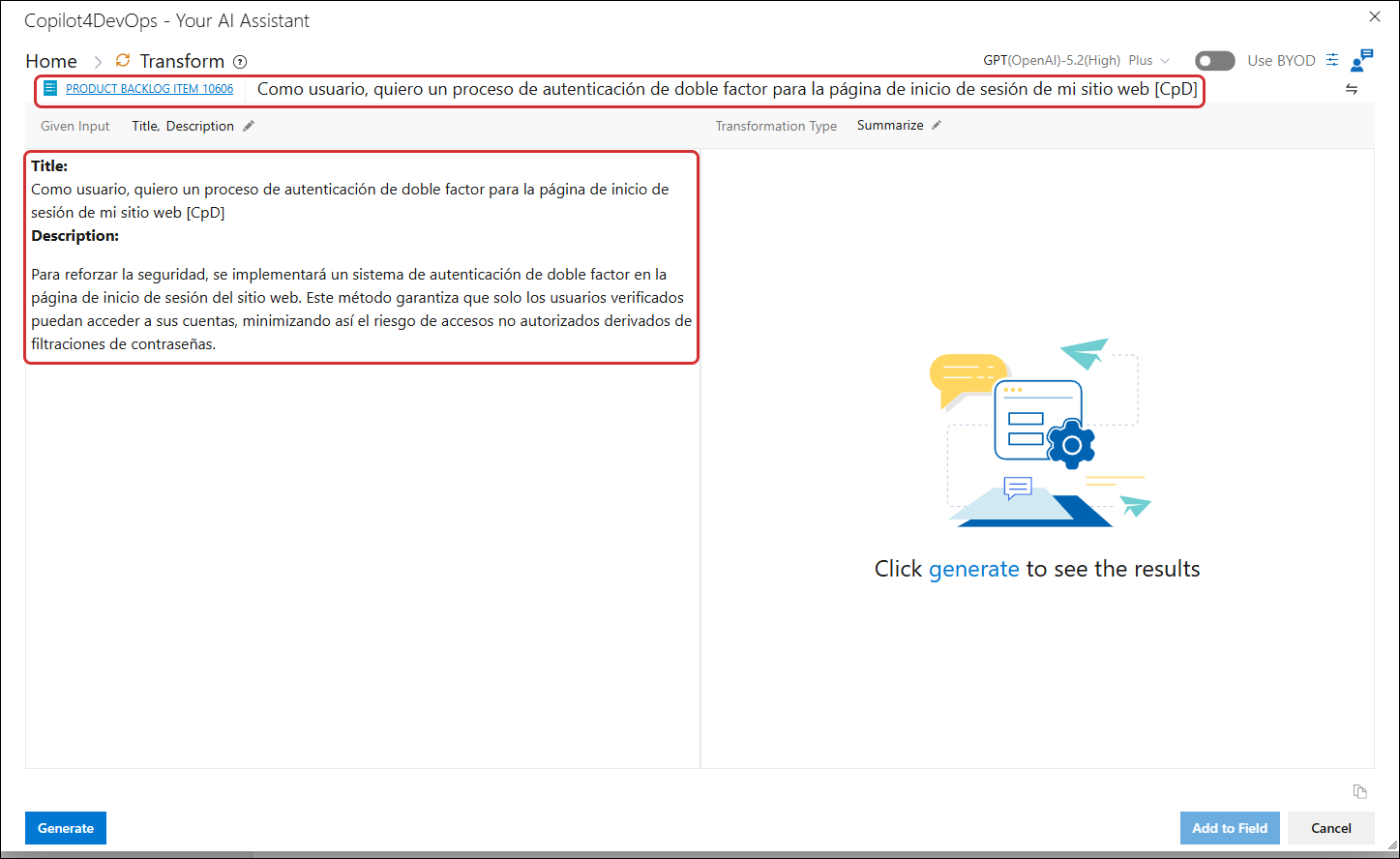
Translate-type transformation
1. Click on the Transformation Type dropdown and select the Translate option.
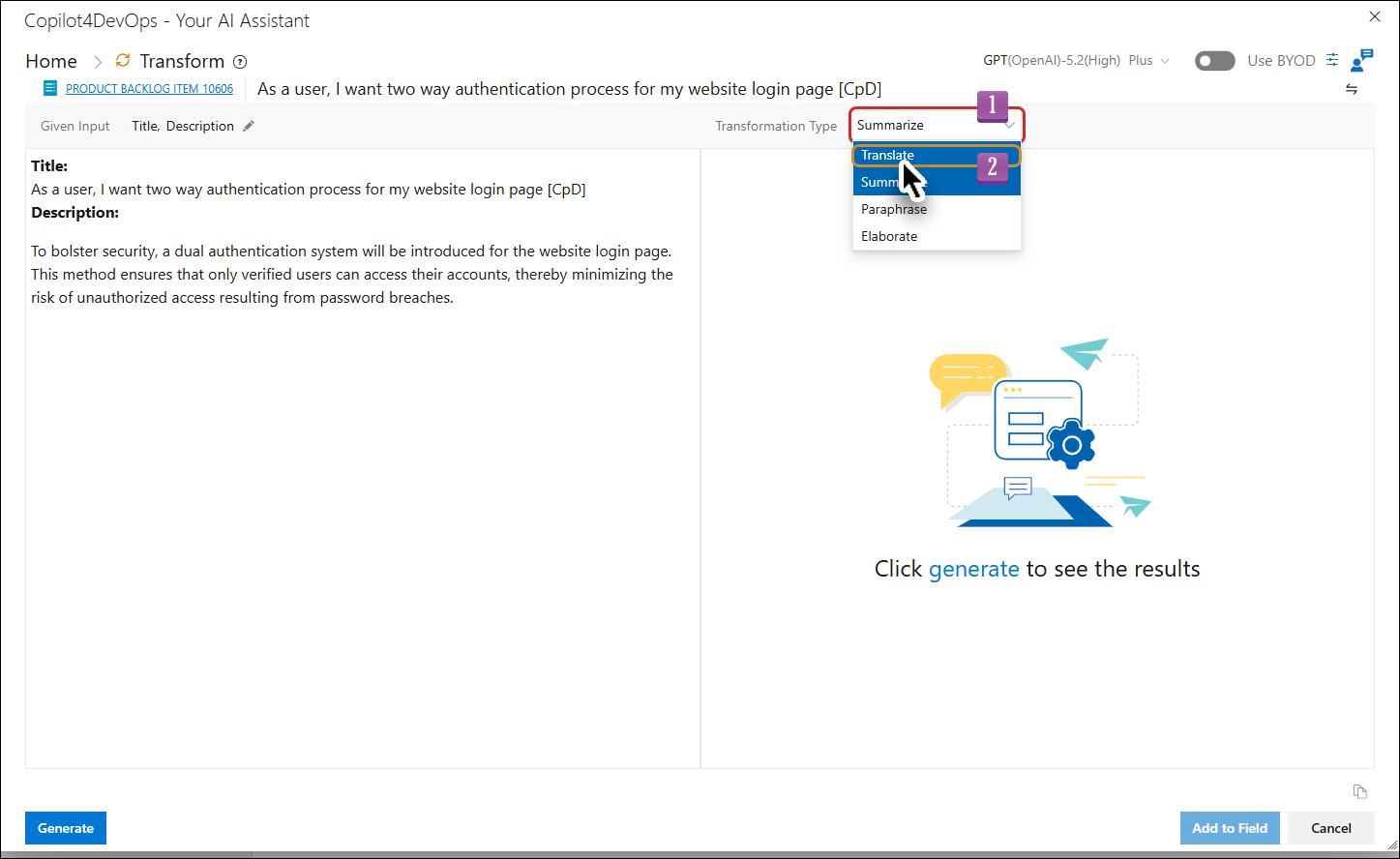
2. Select the desired language. However, if German is to be selected then skip this step, since German is selected by default.
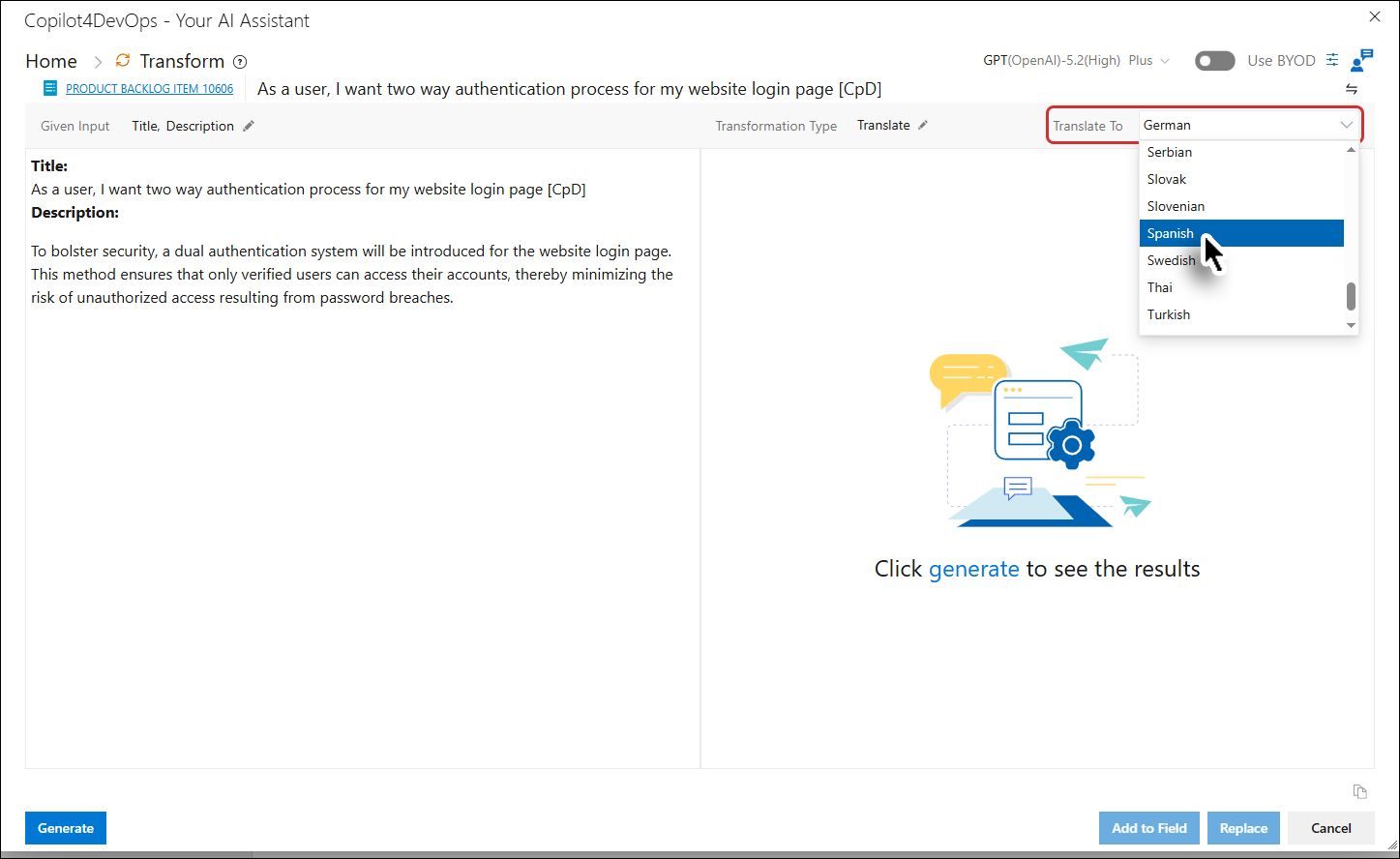
3. Click on the Generate button.
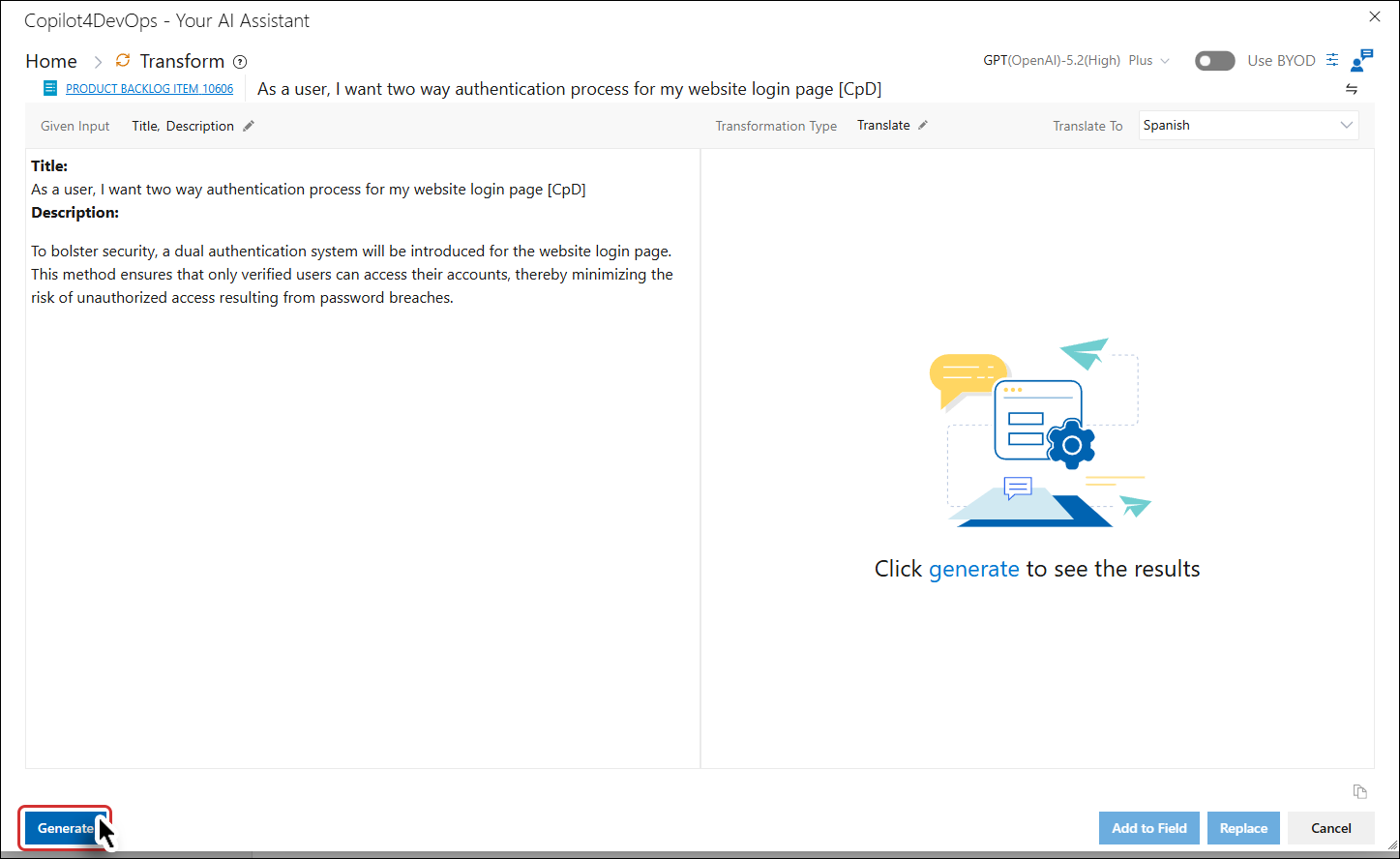
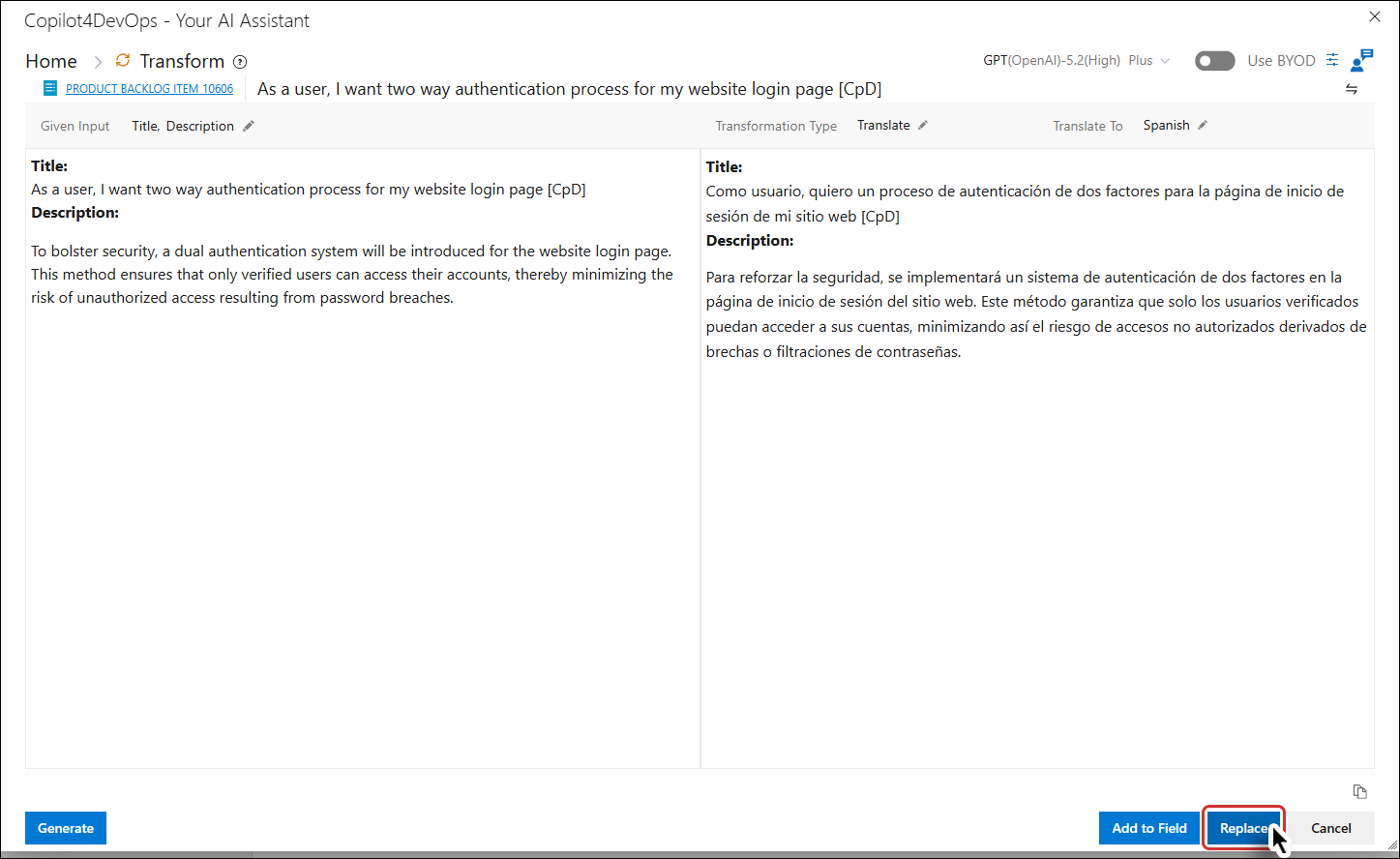
The Given Input fields are translated to the selected language (in the right panel). The Add to Field and Replace buttons also become enabled.
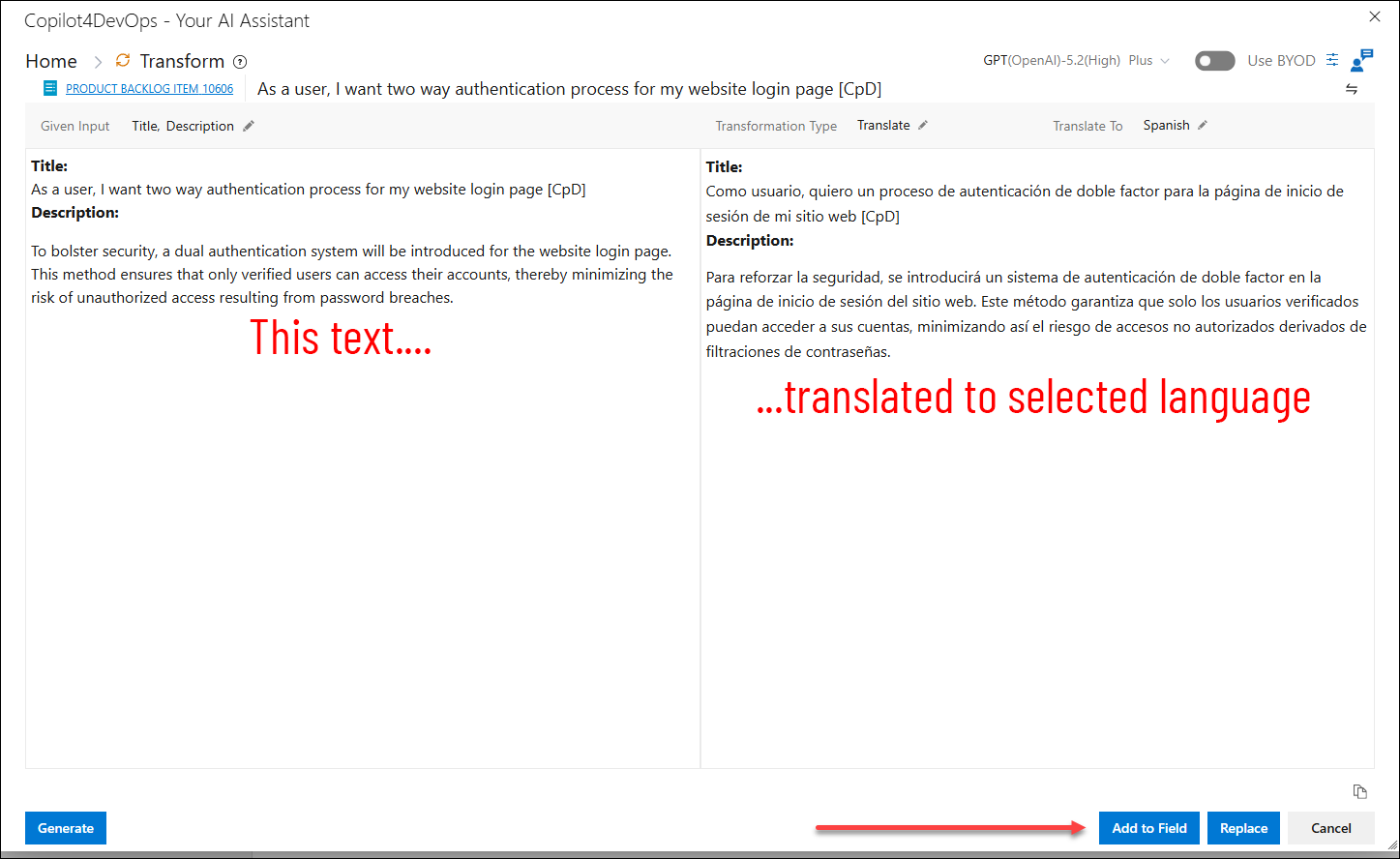
You can now click on either Add to field OR Replace button, according to your preference.
Add to field
4. Click on Add to field button.
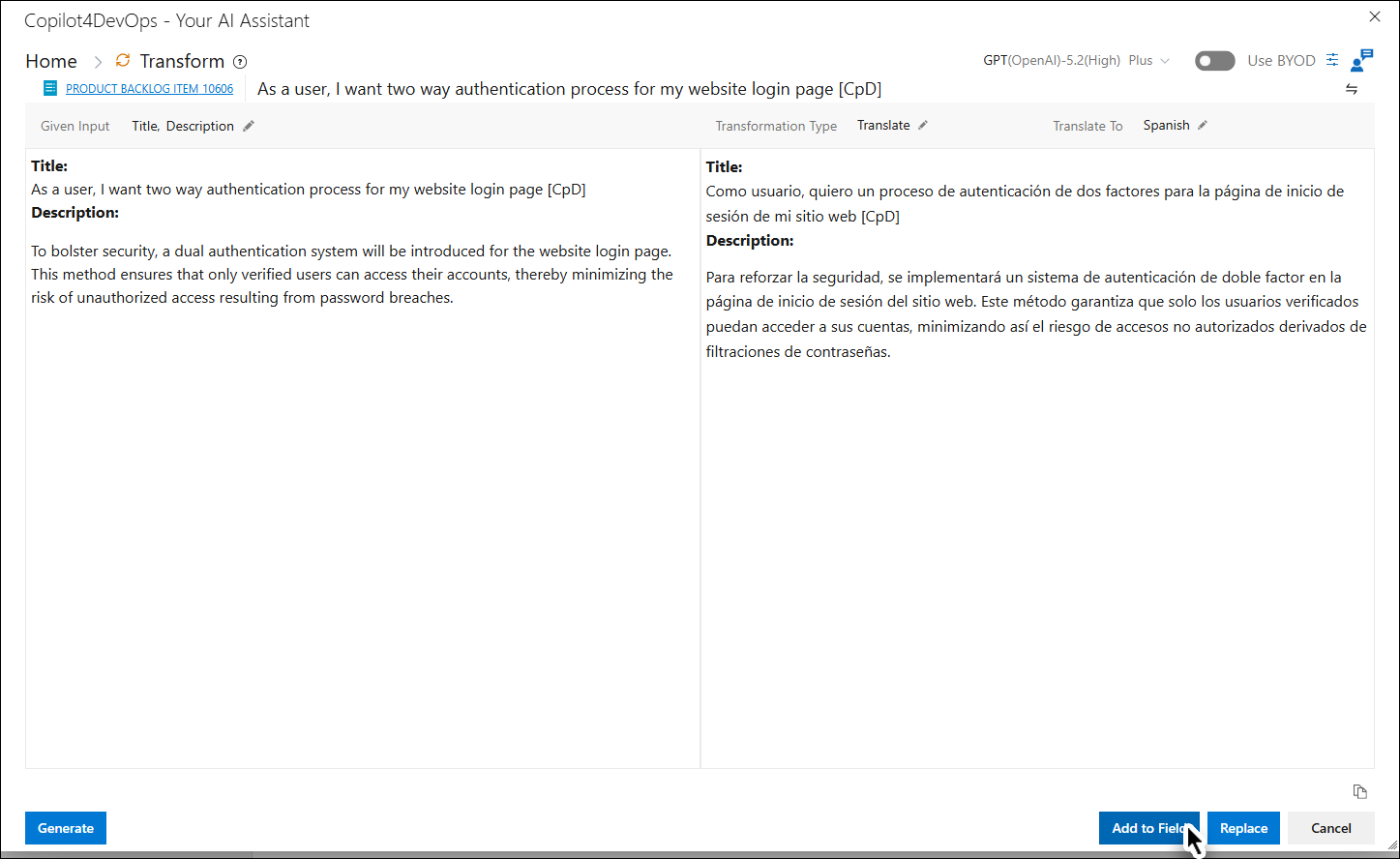
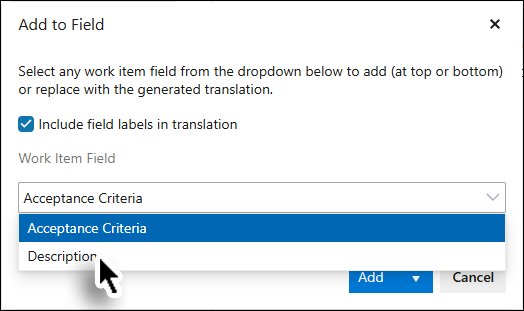
The Add to field dialogue box appears.
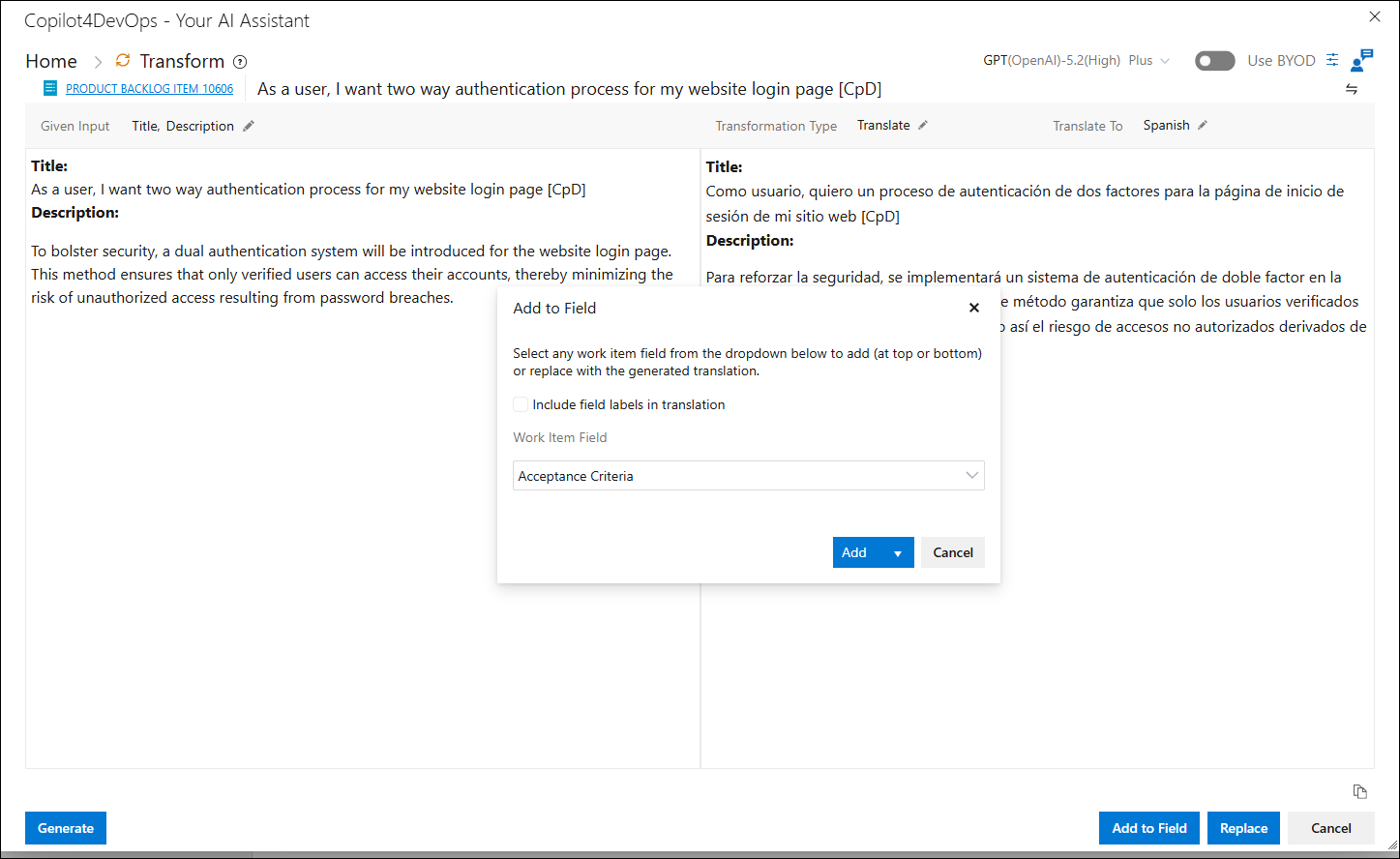
5. Enable the Include field labels in translation checkbox (if desired).
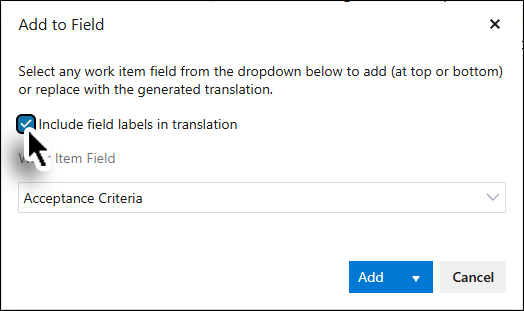
6. Select the relevant Work Item field.
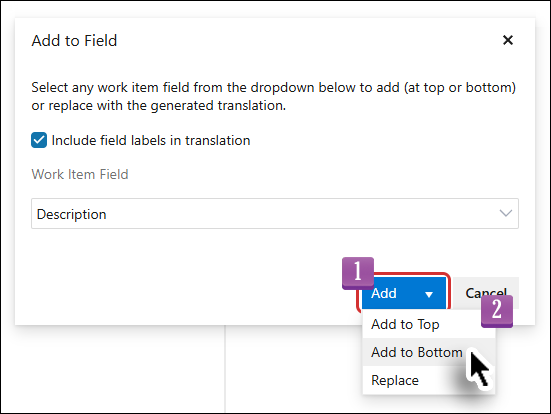
7. Click on the Add button, and then select desired position from the dropdown.
The translated data is added to the selected field and the user is taken back to the Home Page.
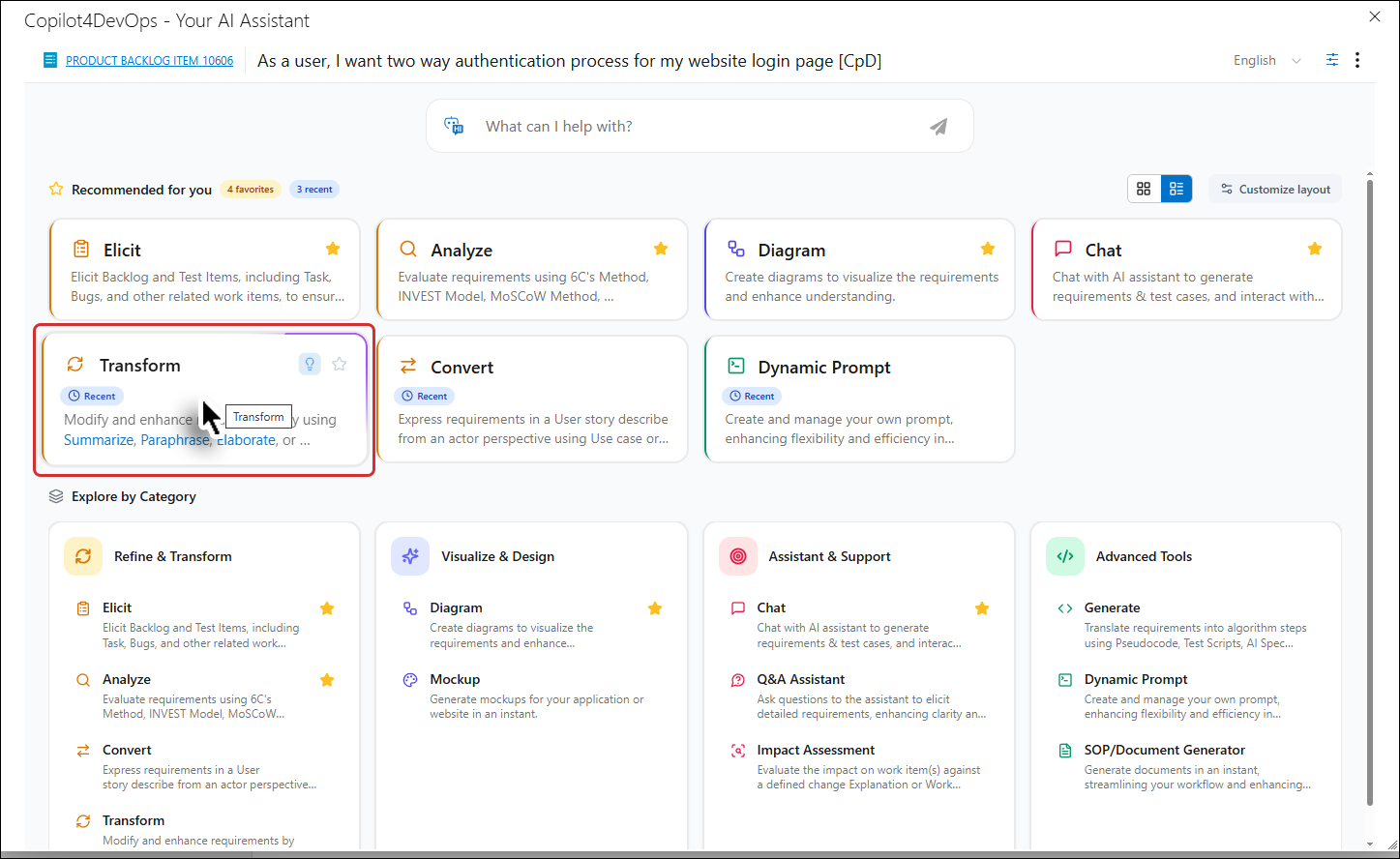
8. Click the Transform card/option.
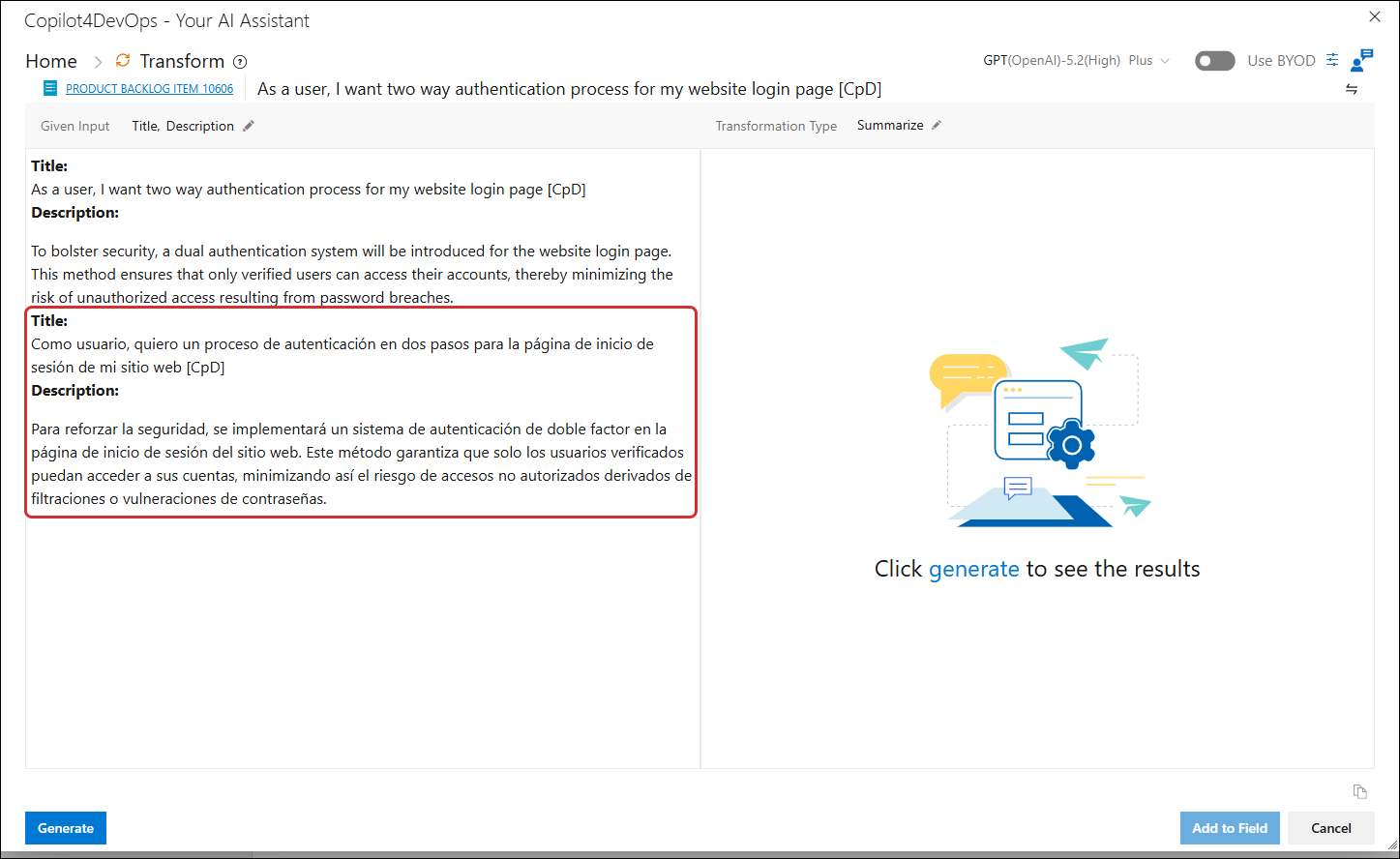
The selected field is updated accordingly.
Replace
4. Click on Replace buton.
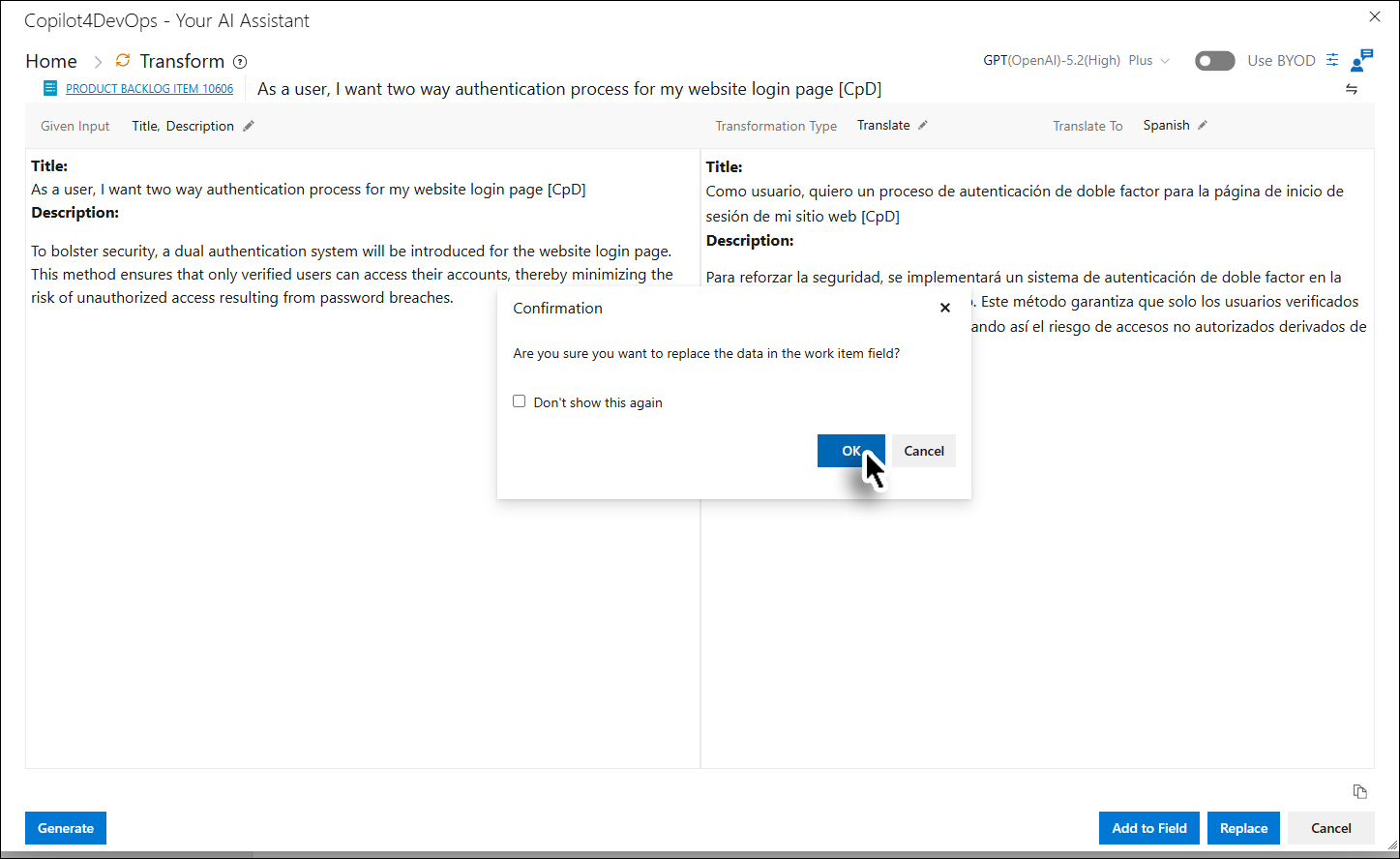
5. Click the OK button on the message box.
The translated data is added to the selected field and the user is taken back to the Home Page.
6. Click the Transform card/option.
The Given Input fields are updated accordingly.