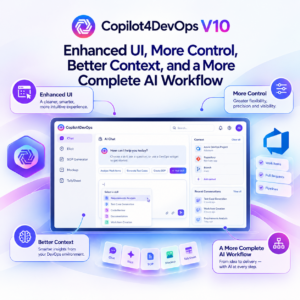

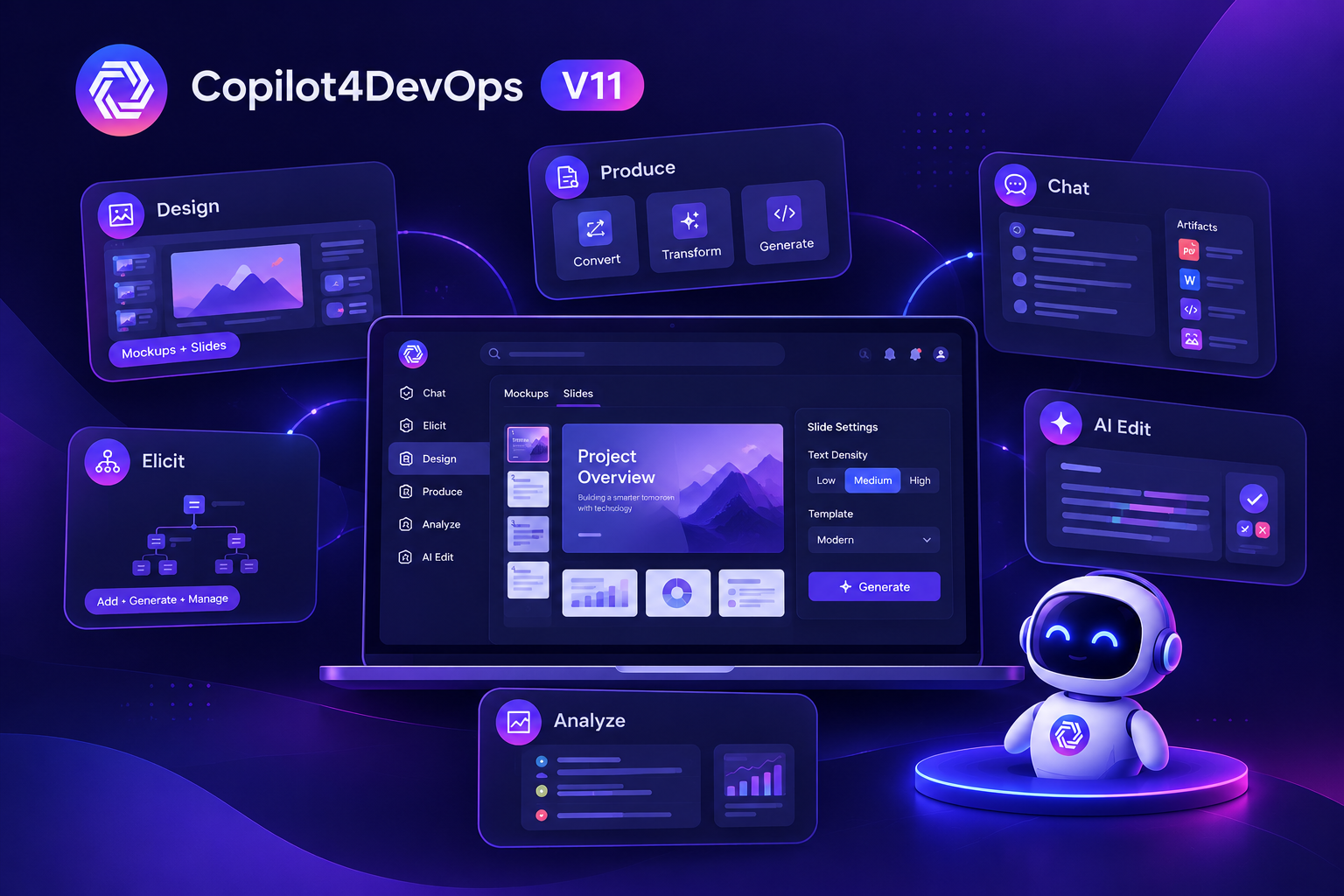
In September 2026, we released Copilot4DevOps version 10, which introduced a major upgrade in the UI across the whole application. Now, in October 2026, we are introducing Copilot4DevOps version 11, which brings new features in a Mockup module and some additions in other modules like Elicit, Analyze, Chat, AI Edit, etc.
This release focuses on giving users more control over AI-generated content and reducing the steps between finding an issue and fixing it. Let’s look at what problems CP V11 is solving and how it is beneficial to users.
What’s New in Copilot4DevOps V11
Here is a quick summary of what changed in each module and what that means for your team.
| Module | Key improvements in V11 | Benefit to users |
|---|---|---|
| Design |
What's changed?
|
What it means for end users
|
| Produce |
What's changed?
|
What it means for end users
|
| Chat |
What's changed?
|
What it means for end users
|
| Ermitteln |
What's changed?
|
What it means for end users
|
| AI Edit |
What's changed?
|
What it means for end users
|
| Analysieren |
What's changed?
|
What it means for end users
|
1. Create Complete Presentations with the New Slides Mode
First of all, note that the “Mockup” module has been renamed to “Design”, as it now also allows you to generate slides aligned with the mockup, and the new name reflects its expanded purpose.
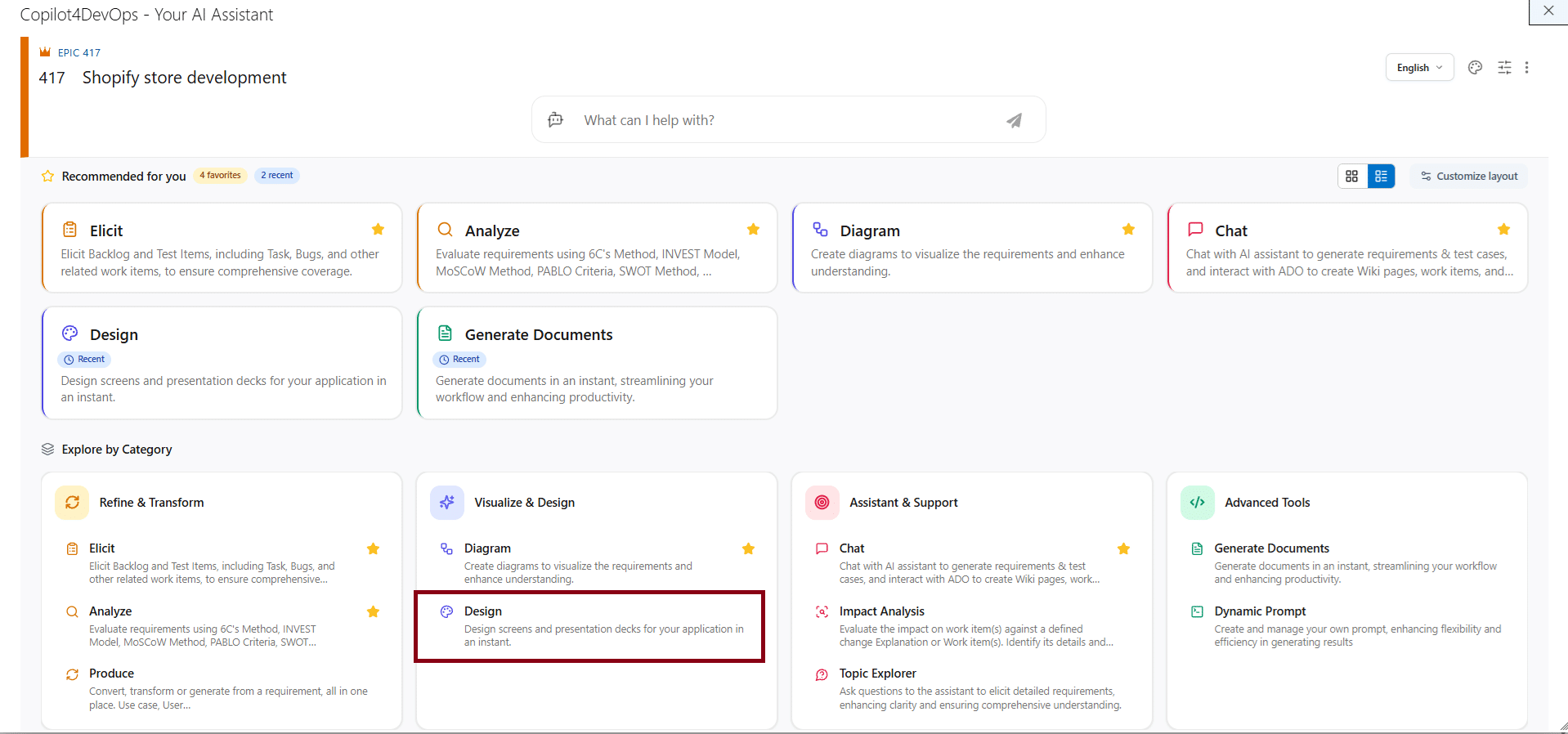
To get started with creating slides, you can just change the mode inside the Design module, write a prompt, select text density in each slide, select a template from the available ones, and press “Generate”. That’s all it takes to create presentation slides based on ADO work items content. Similar to mockups, you can use AI to edit slides and export them into a PDF.
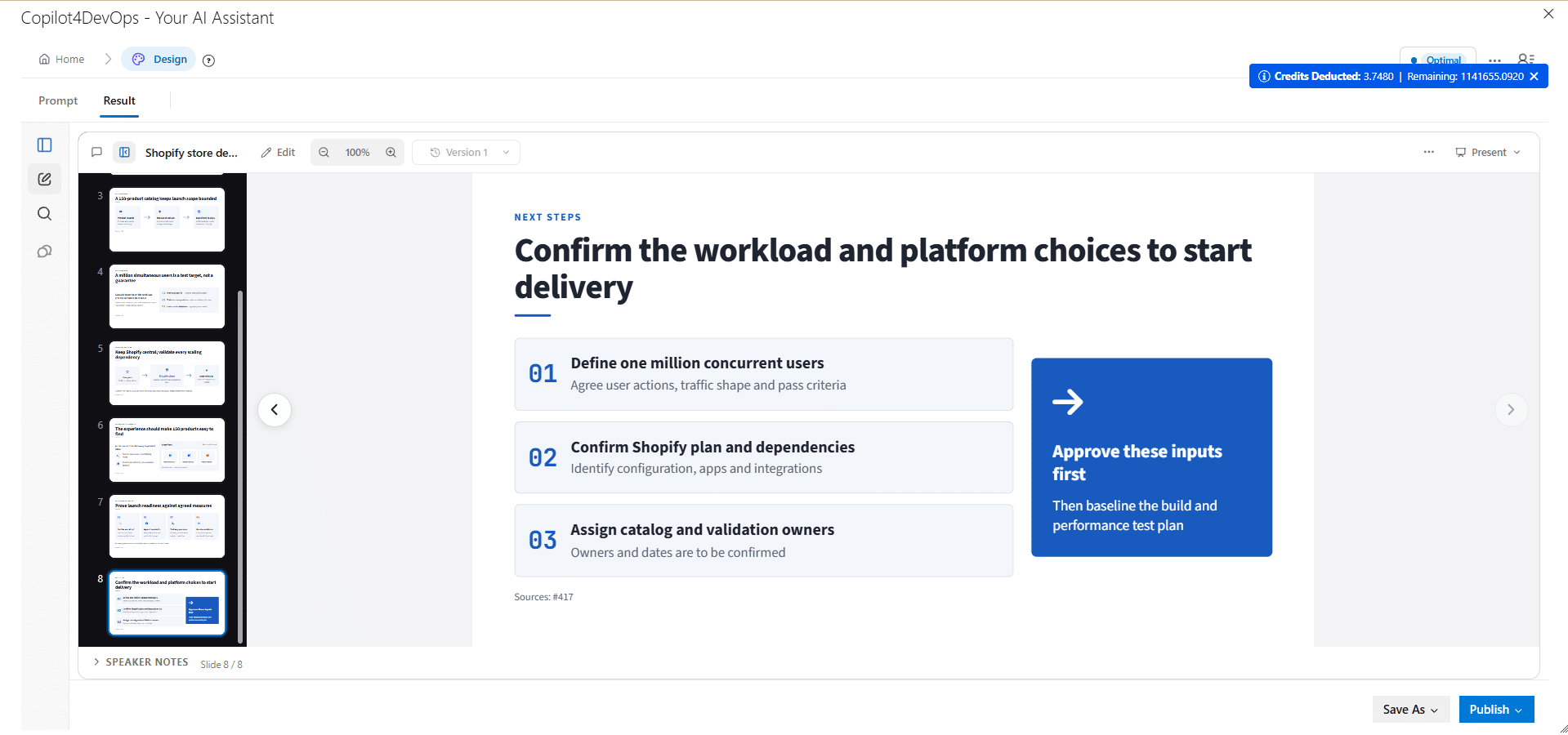
The main reason behind introducing the slide mode is that project teams often need to explain requirements, plans, and work item updates to the stakeholders who generally don’t work inside Azure DevOps every day. With slide mode, teams can turn the project context into a presentation without having to build every slide from scratch.
2. Review and Refine Generated Content in the New Chat Artifacts Panel
We’ve noticed that, in the AI Chat module, generated documents, code, spreadsheets, and other content need a clear place for review and further work. So, we’re introducing a dedicated Artifacts panel in Chat, which gives users a single workspace to review, refine, and hand off generated files without leaving the chat. Furthermore, it is not limited to documents; it supports different types of artifacts like documents, code files, slide decks, mockups as HTML or images, or quality analysis scorecards.
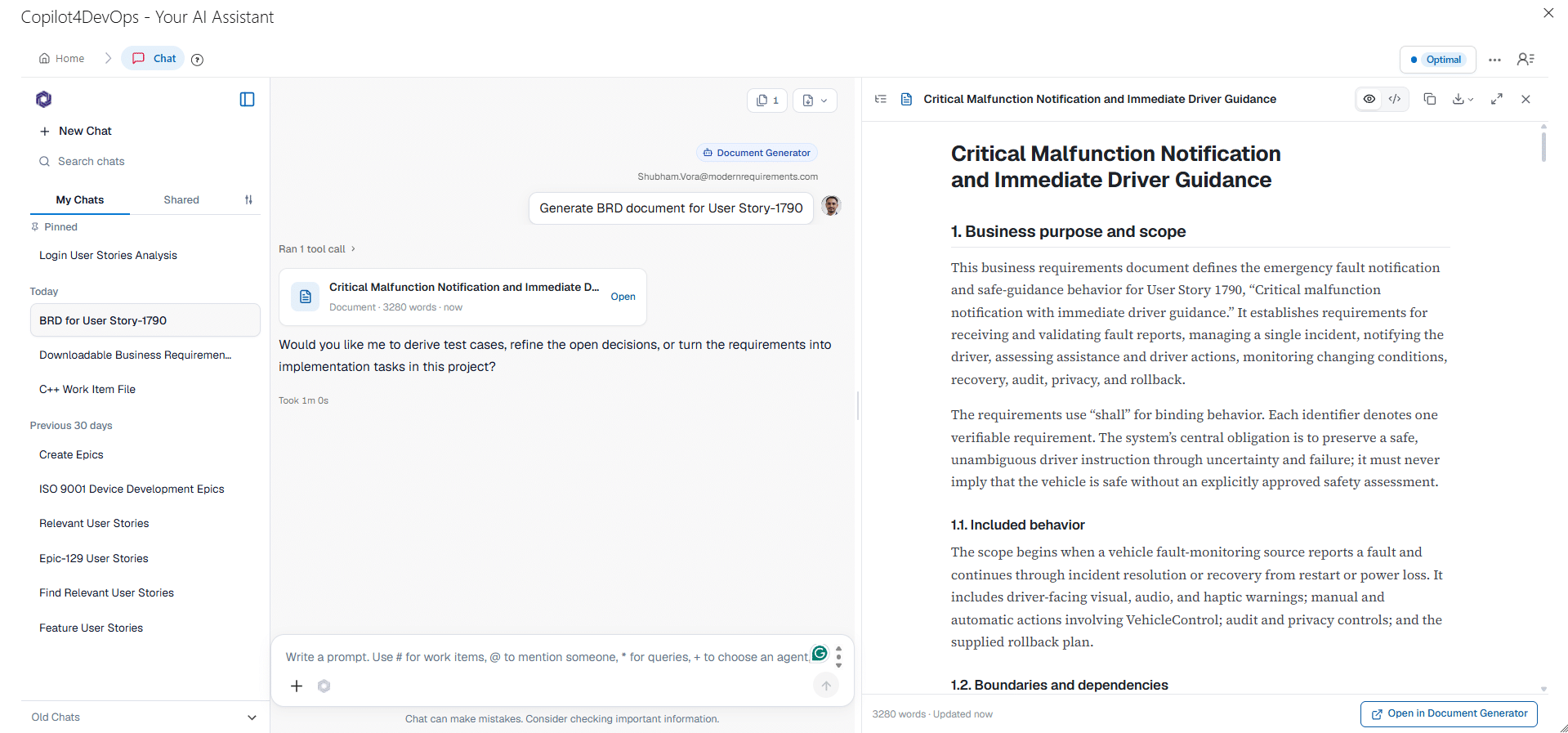
Furthermore, for every artifact, users can also see the Markdown view, copy or download the file, and open it in full screen. If you want to refine the artifacts, you can continue the conversation in chat, and it updates them. Also, artifacts can be opened in the relevant modules like Generate Documents and can be edited there directly using AI or manually.
Overall, this enhancement in AI Chat helps users to keep content review and refinement connected to the conversation that created it.
3. Use AI Edit to Implement Recommendations From the Analyze Module
The previous workflow for analyzing and editing a work item was: Open the Analyze module -> perform analysis -> understand recommendations -> switch tabs and open AI Edit -> implement those changes and ensure nothing is missed -> re-verify those changes.
The new workflow with CP V11 would be: Perform work item analysis in Analyze -> Open AI Edit directly from there, and it suggests changes based on recommendations from the Analyze module -> apply those changes if it looks good -> reanalyze work items in the same tab.
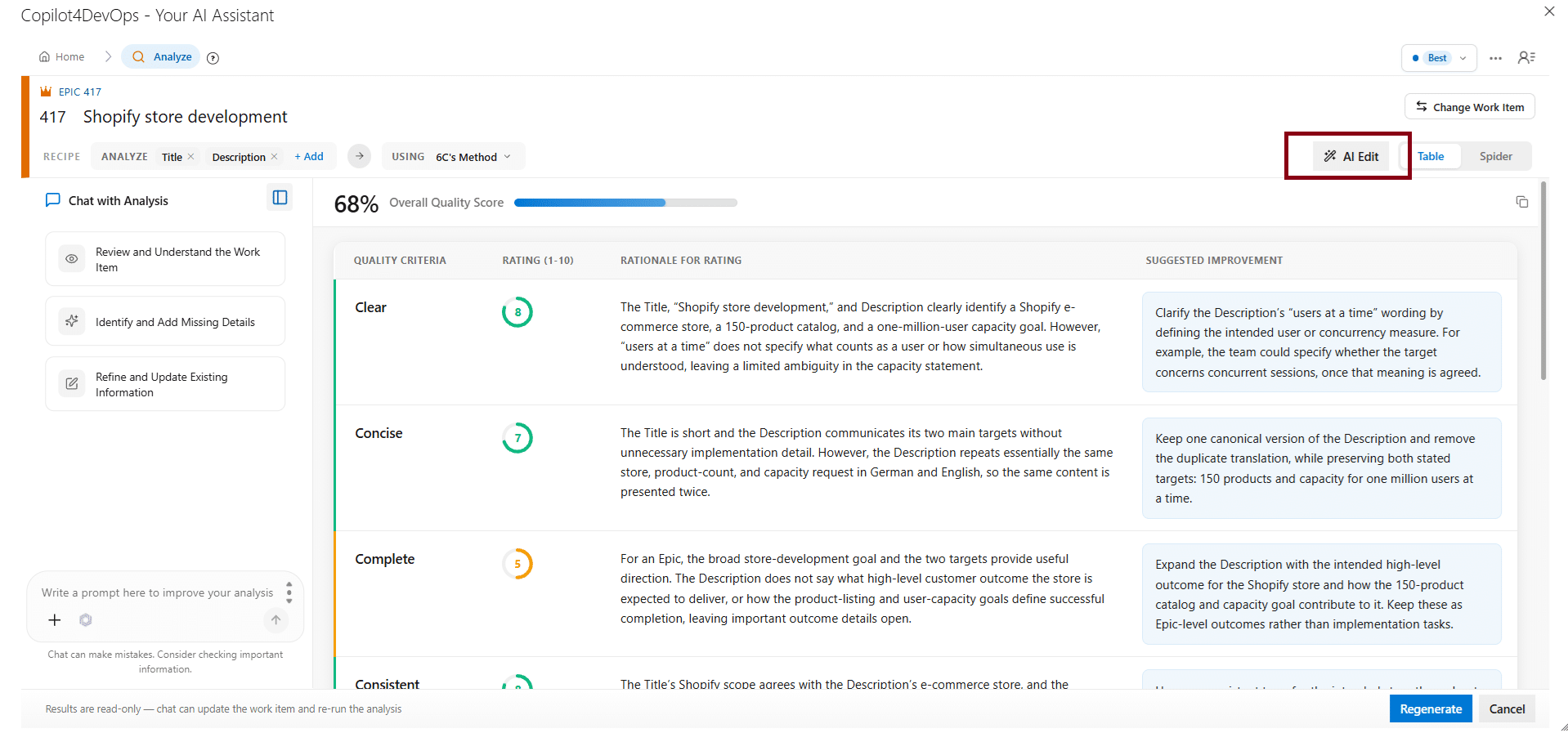
This helps in connecting quality checks with corrective action and makes it easier to review whether a work item has improved without switching between multiple tabs and manually verifying whether all recommendations are implemented.
4. Review AI Edit Suggestions Before Changing Work Items
In CP V10, AI Edit was giving general change recommendations for any particular work item field. But in CP V11, it returns multiple concrete changes per field, with each suggestion shown as a card anchored to the exact passage it affects. The card displays the difference of the proposed change: what text will be removed and what will be added so that users can see what is going to change before applying them.
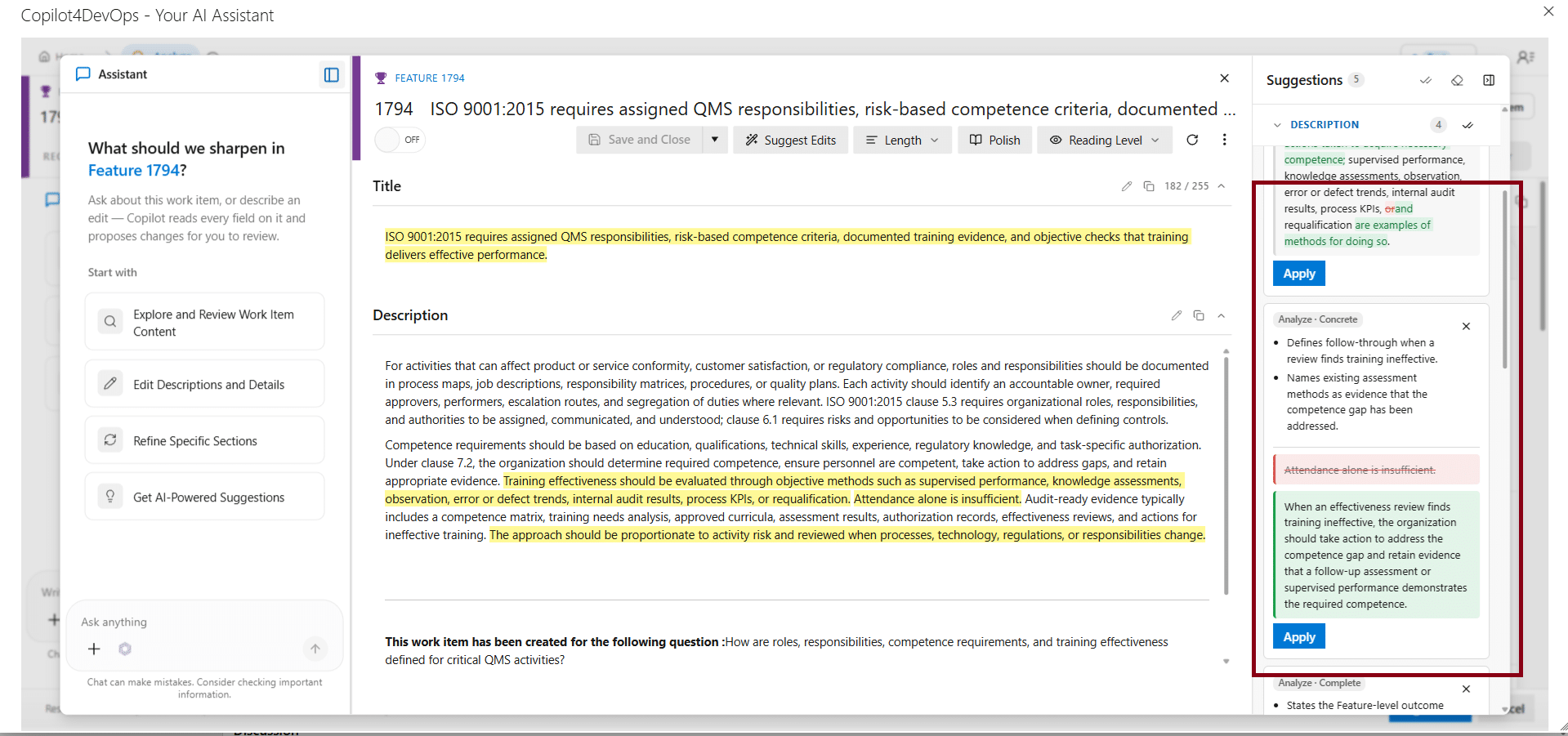
However, it also gives the option to apply all changes at once, giving users more control over changes to requirements and other work-item content.
5. Add and Manage Work Items More Flexibly with Elicit
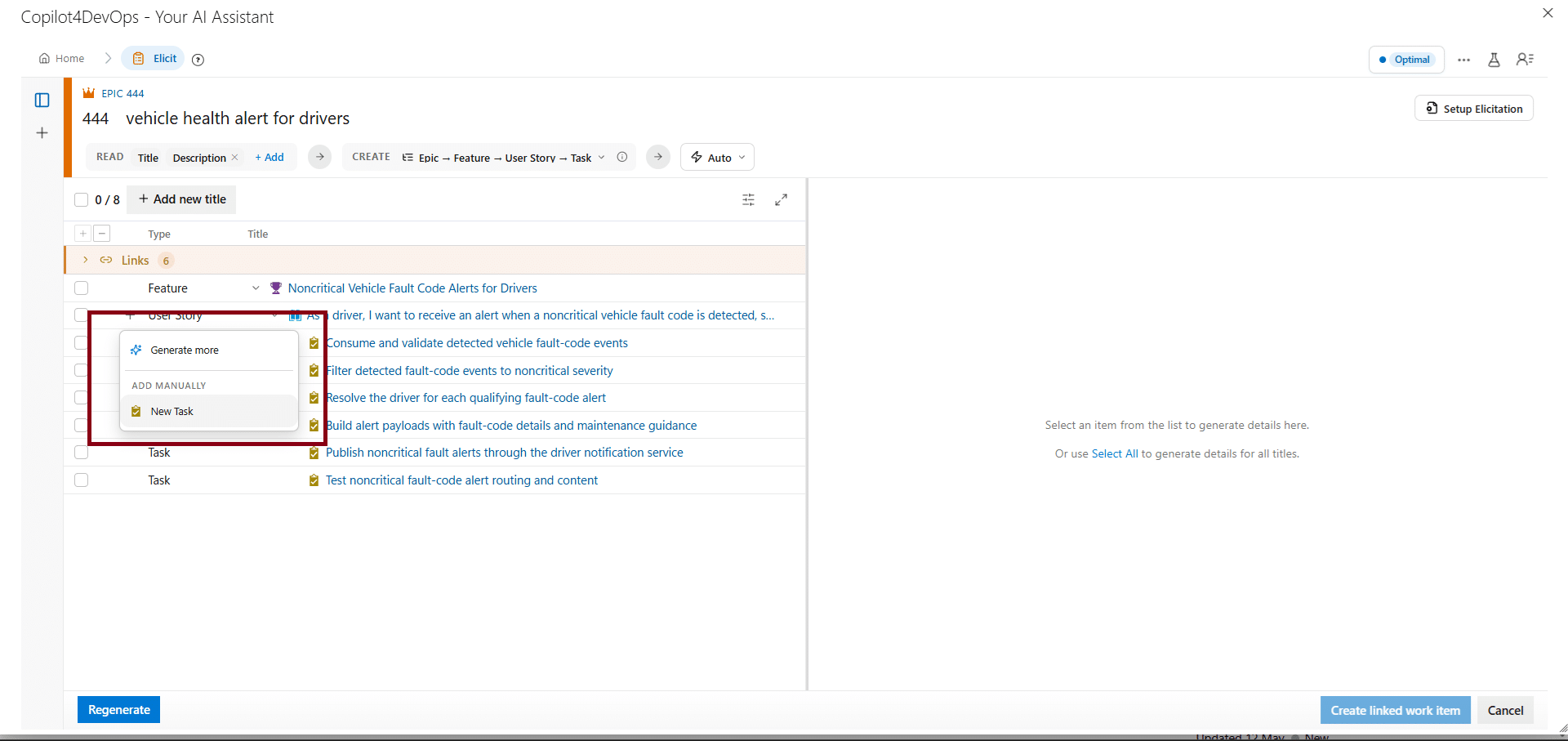
Building a work-item hierarchy often means adding or fixing individual items after the first generation. In CP version 11, the + icon beside a parent item offers two choices: Generate More or Add Manually. With that, users can now add work items at any level of an Elicit hierarchy tree, not just the top level, filling gaps anywhere in the structure without regenerating an entire branch or leaving the workflow.
6. UI Enhancement: Convert, Transform, and Generate Modules are Embedded in Produce Module
Related content operations were spread across three separate modules. So, we’ve combined Convert, Transform, and Generate Artifacts into the Produce Module (newly introduced) to enhance the UI and accessibility of CP features. This brings related content operations together and lets users review output before adding it to Azure DevOps.
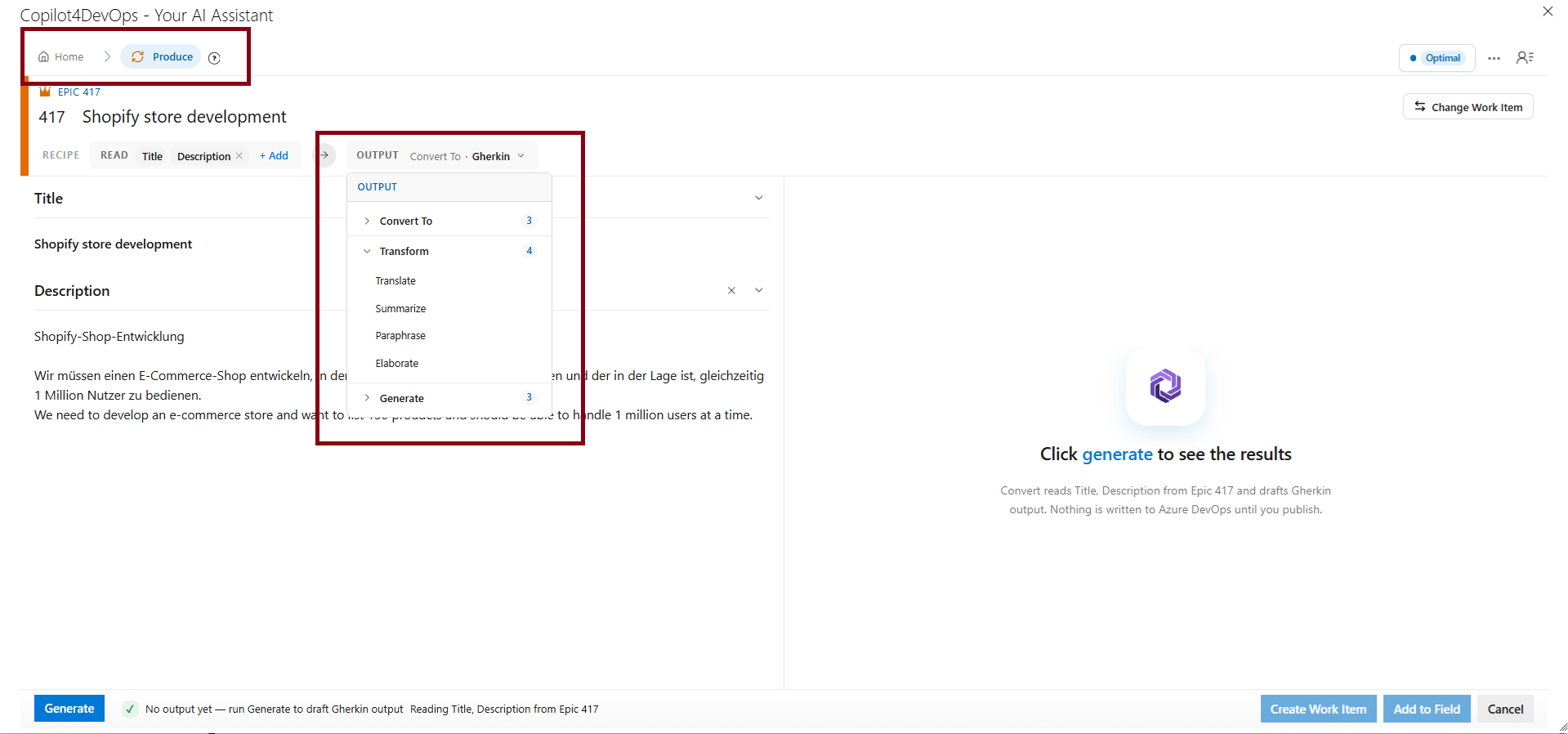
Note: This change doesn’t affect how you work or your past work history, as existing conversions, transformations, and generations are retained.
What V11 Means for Copilot4DevOps Users
In this release of Copilot4DevOps, we have focused on the work that happens before and after AI generates an output. Teams can now create presentations from Azure DevOps work items, review generated files in Chat in a structured manner, and make changes without losing earlier versions. Elicit gives users more freedom to manage work-item hierarchies, while the connection between Analyze and AI Edit helps them act on findings instead of stopping at a quality check.
We regularly look into customers’ feedback, and if you have any, you can get in touch via the Contact Us form.
Probieren Sie es selbst aus
Bereit, Ihr DevOps mit Copilot4DevOps zu transformieren?
Holen Sie sich noch heute eine kostenlose Testversion.