

AI-Powered Requirements Modeling Within Azure DevOps
Turn requirements into interactive diagrams using AI. Visualize workflows, map processes, and technical flows right inside Azure DevOps.

Trusted by the world’s leading businesses















The shift from manual to AI-led requirements transformation
The old way
- I use external tools like Lucidchart for requirements modeling.
- I manage different versions of diagrams across folders and emails.
- I use spreadsheets to manage all diagrams.
- I update diagrams manually.
- I manually write diagram explanations and share them with team members.
The New Way with Transform
- I just write what type of diagram I need in plain language, and AI generates it within seconds inside Azure DevOps.
- Copilot4DevOps automatically creates a new version of the diagram whenever I make any change and stores it within my Azure workspace.
- I see a history of all created diagrams and revisit them.
- I type instructions in natural language, and AI updates them automatically.
- AI generates a concise explanation of each component of the diagram, which I copy and share with teams.
A quick overview of the Diagram module in Copilot4DevOps
Copilot4DevOps’s Diagram module uses AI to automatically generate professional visuals (flowcharts, sequence diagrams, journey maps, etc.) from your Azure DevOps work items. Instead of sketching diagrams manually or juggling external software, teams can now describe what they want and watch it take shape in real time.
Whether you’re planning an update rollout, mapping a validation process, or outlining system architecture, the Diagram module helps convert details into visuals that are easy to review and refine. It bridges the gap between text-heavy documentation and practical understanding. The end result of using the Diagram module is instant alignment across engineering, product, and audit teams.

Key features of Diagram that turn complexity into clear visuals
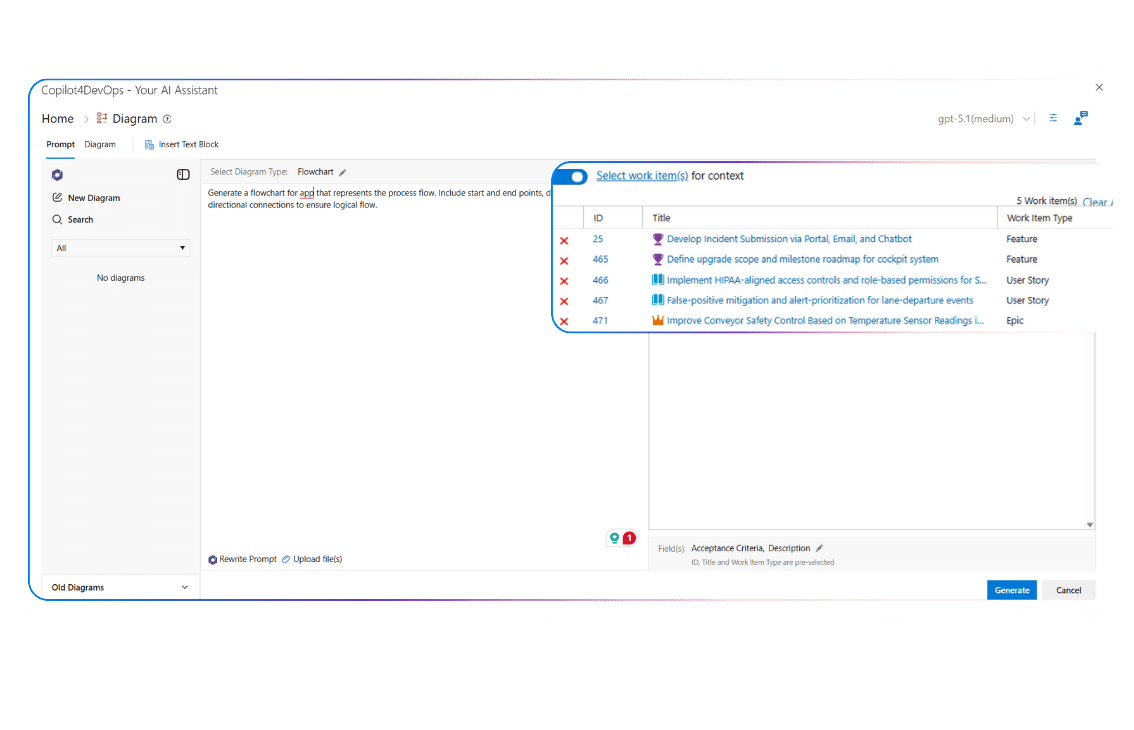
Reference existing work items
Need to generate diagrams based on the current project data?
Simply reference any existing Azure work items; AI will analyze their content and create a diagram based on work item descriptions.
File upload
Do you want to provide existing files as context?
Upload multiple files, whether they are documents or design files; AI analyzes the content of the files, takes it as a reference, and generates the diagram accordingly.
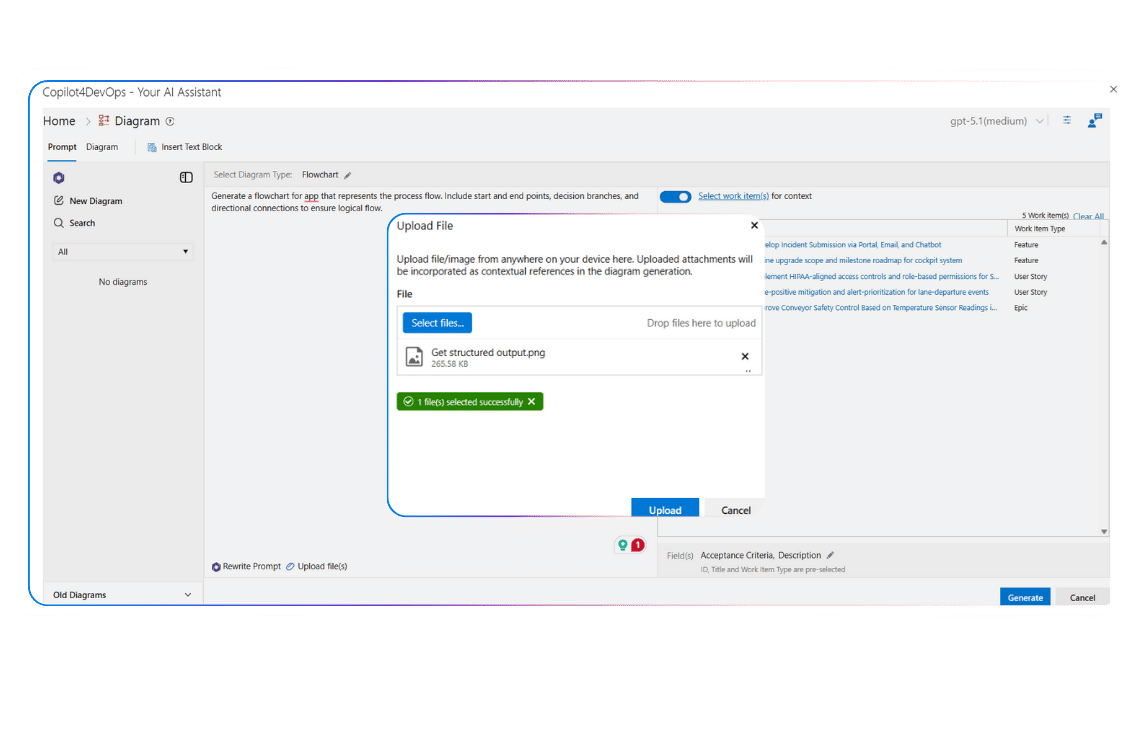
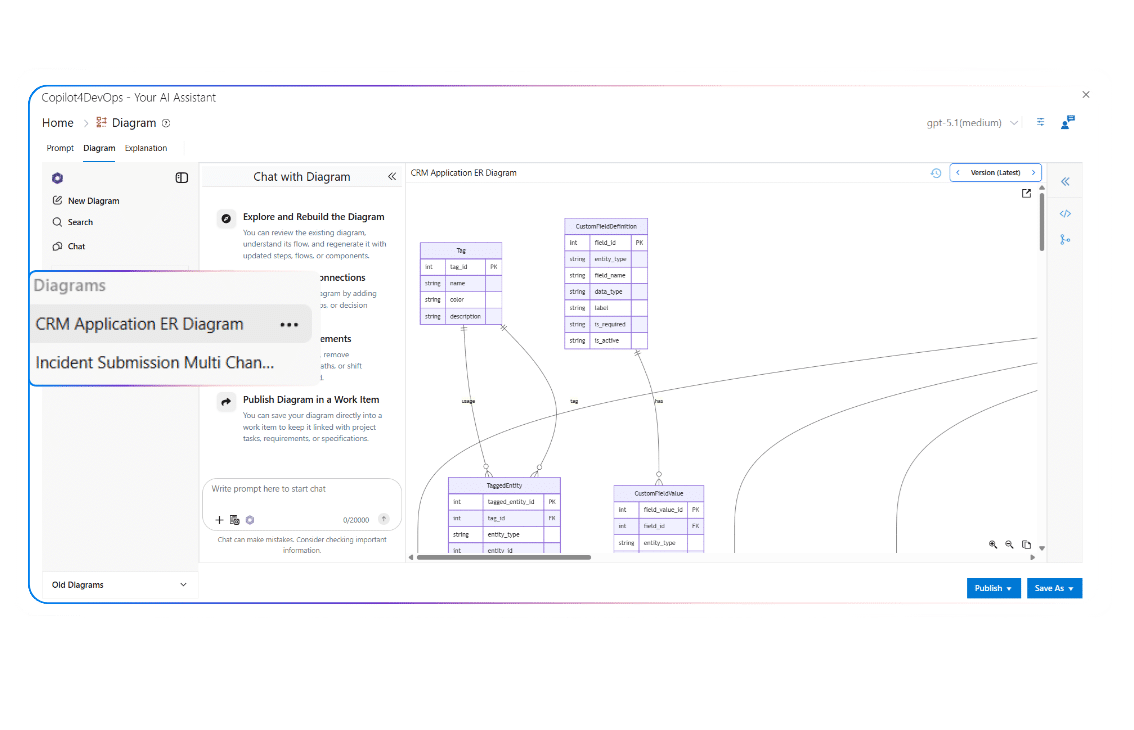
Diagram history management
Want to revisit past diagrams you’ve created?
The history panel on the left side allows you to access all diagrams you’ve created in the past. You can open any diagram, reuse it, or update it without starting from scratch.
Version management
Need to track different versions of diagrams?
Open the version management panel and check out every iteration made on the diagram. Whenever a user makes any changes to the diagram, the tool automatically creates a new version and saves it.
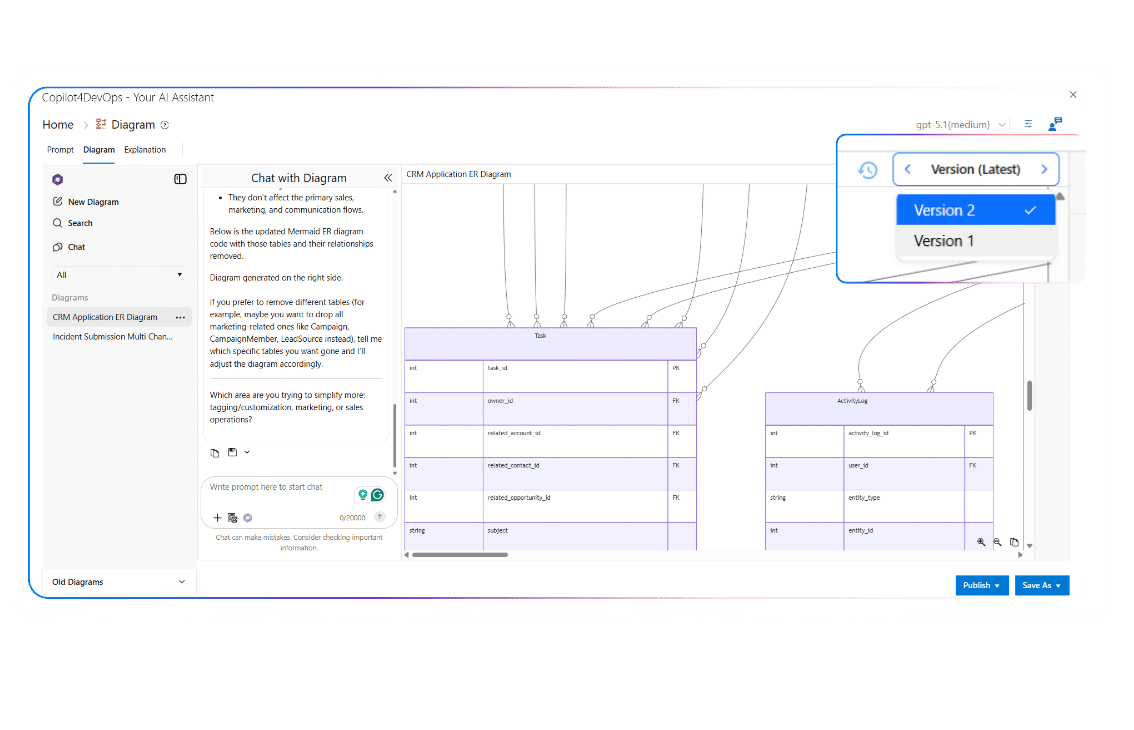
In-built chat assistance
Built-in chat within the result tab allows users to interact with the diagram using natural language. With that, users can:
- Update or rebuild diagrams by just typing what needs to be changed.
- Create notes for a particular component of the diagram.
- Ask any questions related to the diagram.
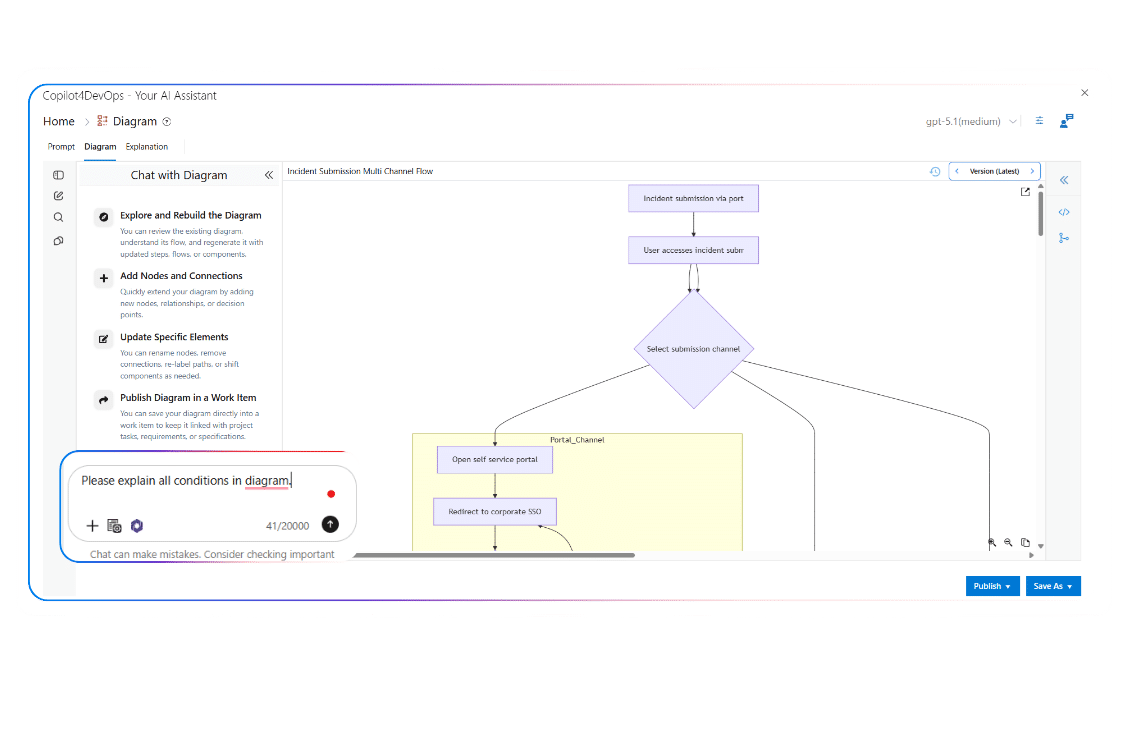
Explanation generator
Need to describe a diagram to stakeholders or team members?
Use the “Explanation Generator” that writes an in-depth explanation for each component of the diagram using an AI. This explanation can be shared with anyone, along with a diagram.

Rewrite Prompt
Don’t know how to write a perfect prompt to get better results?
Use the “Rewrite Prompt” feature, which allows users to enhance their raw prompt and generate a diagram that fulfills their needs.

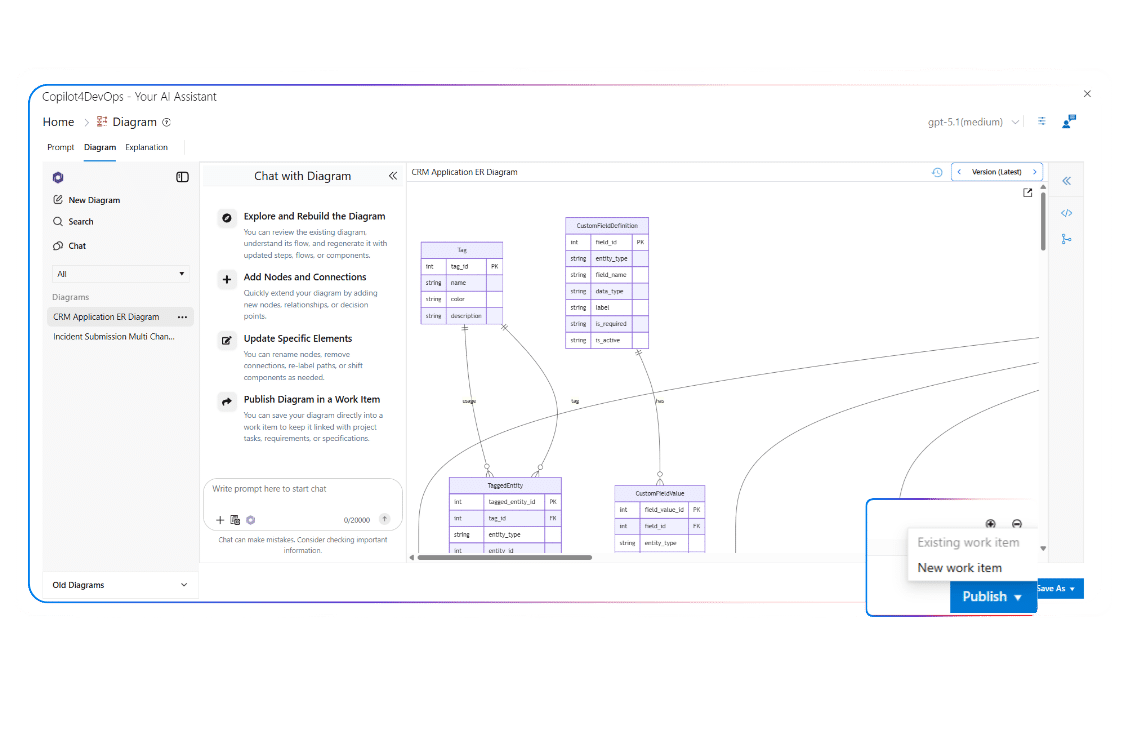
Publish within Azure work items
Need to share a diagram with your team members?
Publish an AI-generated diagram directly to the existing Azure work item or create a new one and insert it into that. Also, you can use the copy button in the bottom-right corner and manually paste the diagram into any document.
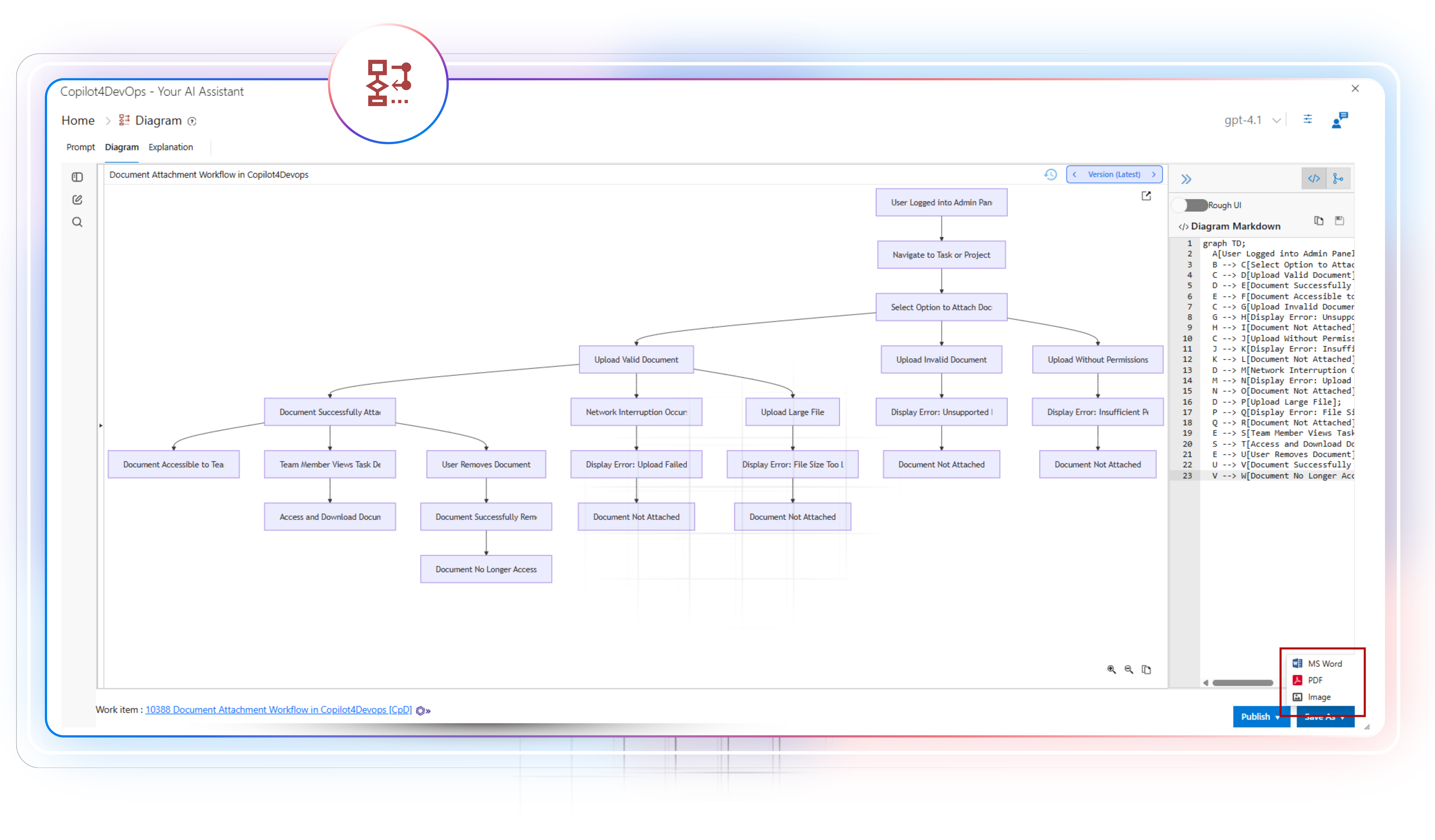
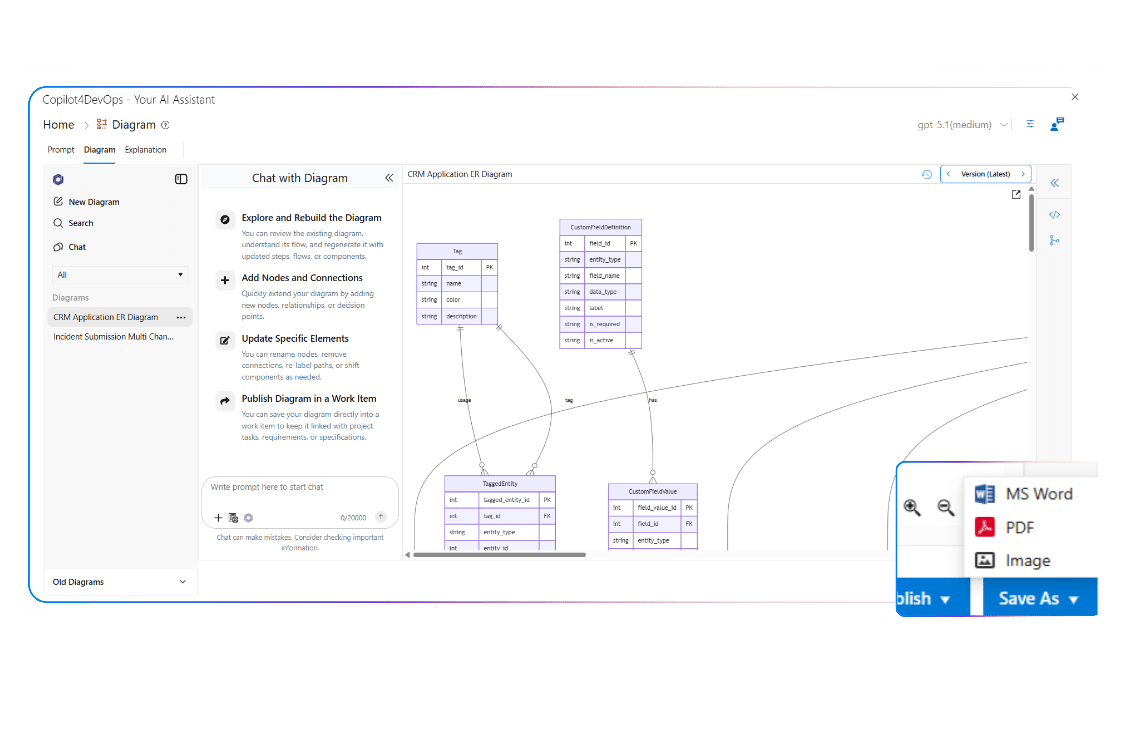
Multi-format export options
Want to share diagrams with those who are not part of your Azure Workspace?
Use the “Export” option, which allows you to export an image in Microsoft Word, PDF, or image format with a single click. It is ideal for documentation, client reports, or compliance reviews.
Built for every job role that works with requirements modeling within Azure DevOps

Developer
Create sequence diagrams using an AI to visualize API calls between multiple systems or how they exchange data. You can also create ER diagrams for database design directly from Azure work items.

Software Architect
Use AI to prepare class and context diagrams for defining system components, modules, and relationships between them.

Business Analyst
Generate flowcharts and journey diagrams to map business processes and user journeys. Turn textual requirements into visuals that clarify scope and improve collaboration with stakeholders.

Release Manager
Build journey diagrams to illustrate deployment pipelines, validation stages, and rollback checkpoints. Use them to standardize processes and prevent release bottlenecks.

Scrum Master
Create mind maps from Azure work items to visualize sprint backlogs and dependencies. Share diagrams during retrospectives or planning meetings to improve understanding across cross-functional teams.

Compliance Lead
Utilize AI to create state diagrams to document validation steps and security checkpoints. Use them to ensure regulatory compliance, maintain traceability, and support audit documentation directly inside Azure DevOps.

QA Engineer
Create flowcharts and state diagrams based on existing test cases to model test flows and system responses. Identify missing conditions and verify logic paths before execution, reducing test rework and improving coverage.

Data Engineer
Generate ER diagrams from existing database-related documents to visualize relationships between tables and data sources. Use them to confirm schema design, track dependencies, and share clear database models with the team.

Security Engineer
Use AI to generate state and flow diagrams from security guidelines documents to visualize threat models, authentication flows, and access points. Use visuals to detect weak links and strengthen system security before deployment.

System Integrator
Build sequence and context diagrams from Azure work items to illustrate interactions between multiple systems. Use them to validate connections and avoid integration failures.
Create 8 Types of diagrams using an AI
Flowchart
Use when you need to show sequential steps, decision points, or task flows. Commonly used by project managers and developers to visualize feature rollouts, release stages, or approval processes in a structured way.
Sequence Diagram
Ideal for illustrating interactions between systems, services, or components. Helpful for software architects, backend developers, and integration engineers to clarify API calls, message timing, and dependency relationships.
ER Diagram
Use for mapping entities and relationships in a data model. Database engineers and analysts rely on it to design logical schemas and ensure data structure consistency across environments.
Class Diagram
Best for object-oriented design work. It helps developers define classes, attributes, and relationships for cleaner code organization and clear communication during application architecture planning.
State Diagram
Use this when you need to describe system behavior or transitions between states. QA engineers and embedded developers find it valuable for defining validation logic and response handling.
Mindmap
A quick way to capture brainstorming sessions or hierarchical structures. Teams use it for sprint planning, early ideation, and outlining documentation before committing to detailed workflows.
Journey Diagram
Use for mapping user journeys, release paths, or rollout stages. Especially useful in automotive, healthcare, and enterprise teams where step-by-step progress and validations must be clearly tracked.
Context Diagram
Perfect for showing how a system interacts with its environment. Business analysts and architects use it to present high-level system boundaries and external dependencies in reviews or audits.
Top use cases across different industries
Insurance
- As an Operations Manager, I use AI to generate flowcharts related to insurance approval and payout processes.
- As a Policy Administration Lead, I create a journey diagram showing how customer data moves across claims systems, and it follows GDPR compliance.
- As a Backend Developer, I draft sequence diagrams for premium calculation and approval flows from ADO work items using AI.
Healthcare
- As a Product Owner, I want to generate a journey diagram from existing ADO work items to visualize ensuring the medical device’s software system is easy to use and straightforward.
- As a Software Tester, I want to use AI for generating a sequence diagram to visualize how data exchange between device firmware and cloud services happens.
- As a Compliance Officer, I want to generate a context diagram showing patient data boundaries and system integrations to support HIPAA compliance reviews and security risk assessments.
Energy & Utilities
- As a Backend Developer, I prepare sequence diagrams using an AI to visualize communication between control systems, sensors, and monitoring platforms.
- As a Scrum Master, I generate a mind map to organize feature dependencies and maintenance tasks across multiple utility modernization initiatives.
- As a Safety and Compliance Lead, I take the help of an AI diagramming tool to prepare a state diagram representing equipment operating modes to support ISO 55001 asset management compliance and safety reviews.
Banking & Finance
- As a Database Engineer, I draft ER diagrams for creating an online portal database based on existing ADO work items.
- As a Backend Developer, I want to generate a sequence diagram showing transaction processing steps to reduce failures during peak payment volumes.
- As a Security Architect, I want to generate a context diagram showing system integrations handling sensitive data to support PCI DSS assessments.
Aerospace & Defence
- As a Systems Engineer, I want to prepare class diagrams to define software components for aviation.
- As a Compliance Lead, I want to generate a flowchart documenting verification and validation steps to demonstrate DO-178C compliance.
- As a Security Officer, I want to generate a sequence diagram to visualize and review how data exchange happens between radar and aviation.
Service & Technology
- As a Scrum Master, I want to utilize the Diagram feature of CP for generating a mind map to organize features for sprints.
- As a DevOps engineer, I use AI to create a sequence diagram from existing ADO tasks to visualize CI/CD pipeline interactions and identify bottlenecks during deployments.
- As a Solutions Architect, I generate a context diagram using AI for explaining system integrations to different stakeholders and embed them into existing ADO work items.
Railways
- As a Business Analyst, I prepare a flowchart using AI to map the train incident response procedure.
- As a Full Stack Developer, I generate a sequence diagram to visualize the communication workflow between the control system and attach it to existing ADO work items to provide as a reference to junior developers.
- As a Safety Officer, I would like to prepare a state diagram representing train operating modes within Azure DevOps to support EN 50126 safety compliance.
Automotive
- As a Compliance Manager, I want to use AI for drafting a flowchart directly from OTA firmware update-related requirements to visualize related steps.
- As a Software System Architect, I prepare a journey diagram to visualize how users will interact with the car's music system and attach the generated diagram to the ADO work item.
- As a Cybersecurity Specialist, I want to generate a context diagram showing data exchange paths to support UNECE R155 cybersecurity assessments.
Government
- As a Program Manager, I create a flowchart for the registration process on the citizen portal and embed it into the ADO work item to share with developers.
- As a DevOps engineer, I want to generate a sequence diagram showing interactions between legacy systems and new digital services based on the existing ADO work item’s content to reduce integration risks during modernization.
- As a Records Manager, I want to generate a state diagram using an AI to track document lifecycle states in line with public records retention policies.
Key benefits of using AI Chat in Copilot4DevOps
Works within your existing workflow
The biggest benefit is that the Diagram module works within your Azure workspace. So, teams don’t need to manage diagrams across multiple scattered tools and switch between them.
Saves hours of manual diagramming
Teams using an AI-diagramming generator save 80% of their time. Also, diagram updating becomes 10x faster with AI.
Keeps every version organized automatically
CP tracks each version of the diagram. So, teams can see who made changes in the diagram and how the diagram evolved.
Improves knowledge transfer
New team members understand the project context faster by looking at diagrams instead of reading long requirements documents. So, it makes the onboarding process easier.
Reduces errors in process mapping
When diagrams are created manually, there is a high chance of errors. However, with AI, teams can reduce errors by 95%.
Simplifies complex technical workflows
Whether it’s an integration sequence or a multi-phase rollout, diagrams turn technical details into visuals that any stakeholder can understand at a glance.
Your Questions are Answered Here
Can I create diagrams directly inside Azure DevOps without switching tools?
Yes. Copilot4DevOps works as an extension within Azure DevOps. You can use the Diagram module of CP to generate requirements diagrams directly for Azure work items and save them into the work items themselves.
What kinds of diagrams can I generate with this module?
You can generate eight types of diagrams, including flowcharts, sequence diagrams, ER diagrams, class diagrams, state diagrams, mind maps, journey diagrams, and context diagrams.
Do I need to know diagram syntax or special formatting?
Not really. You just enter a prompt about how your diagram should look, and AI generates that within seconds.
Can I edit a generated diagram later if I need changes?
In the result tab, CP offers a chat interface where you can enter natural language instructions to update the diagram using an AI. It helps you update the whole diagram or a particular component of the diagram.
How does the Diagram module handle version control?
The diagram module automatically handles the version control for each update you make in the diagram. It auto-saves each update, which you can check later.
Is my project data secure when using the Diagram module?
Yes, all diagrams and explanations generated by Copilot4DevOps stay inside your Azure workspace, and Copilot4DevOps doesn’t store any data. Also, CP is SOC Type II certified, which ensures that it doesn’t use customer data to train its AI models. So, your data is totally safe.
Can I use information from existing work items to generate a diagram?
Yes, you can pass multiple Azure work items as a reference. AI analyzes the content of the work item and generates the diagram based on that. So, your diagram always reflects real project data.
Can I see older diagrams I created before?
The Diagram module offers a history management panel, where you can view all previously created diagrams. You can even open them and start interacting with them.
Does it support diagrams for regulated or safety-critical industries?
Copilot4DevOps is built to work within regulated or safety-critical industries such as automotive, healthcare, aerospace, etc., where teams need to follow particular compliance.
Can I export diagrams for external reports or audits?
Yes, you can export the diagram in Microsoft Word, PDF, or image format. Another available option is that you can publish the diagram within an Azure work item.
Is there a way to explain what a diagram means for non-technical users?
Yes. The “Explanation Generator” produces a simple written summary of any diagram. It helps project leads or auditors understand the structure and flow without reading complex notation.
Transform Complex Workflows Into Clear Visuals
Discover how the Diagram module helps your team move faster, reduce errors, and communicate progress visually within Azure DevOps.
Explore Relevant Features
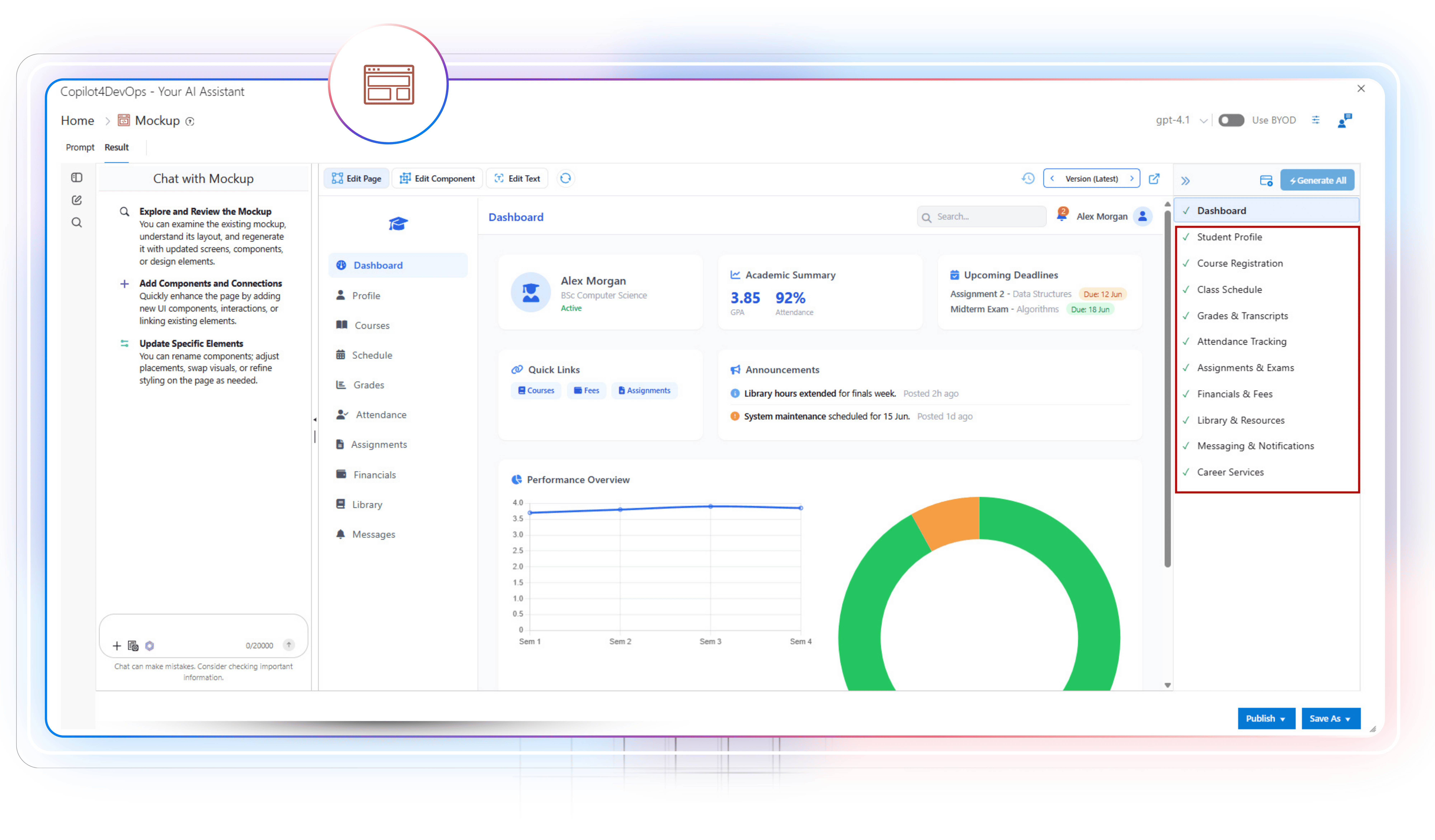
Mockup Tool
Turn ideas into interactive interfaces in minutes
Use AI to generate interactive and ready-to-review mockups directly from Azure work items. It helps in preparing early prototypes of products and reduces rework during design handoff.
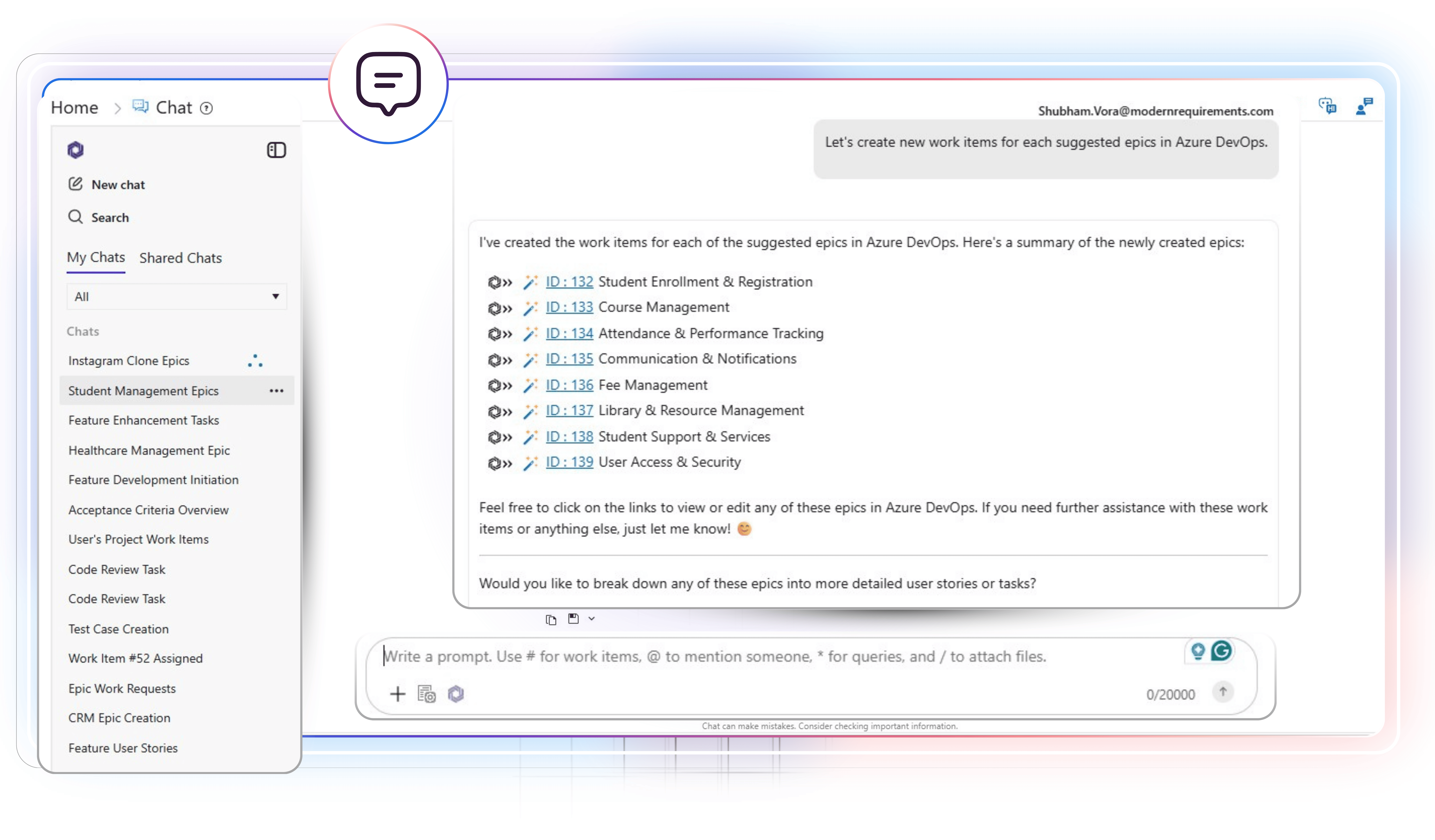
AI Chat
Interact with Azure work items using natural language
Type a prompt in plain English to list all required Azure work items. Then you may ask follow-up questions, create a workflow diagram based on multiple requirements, generate pseudocode or test scripts, or update work items using an AI.
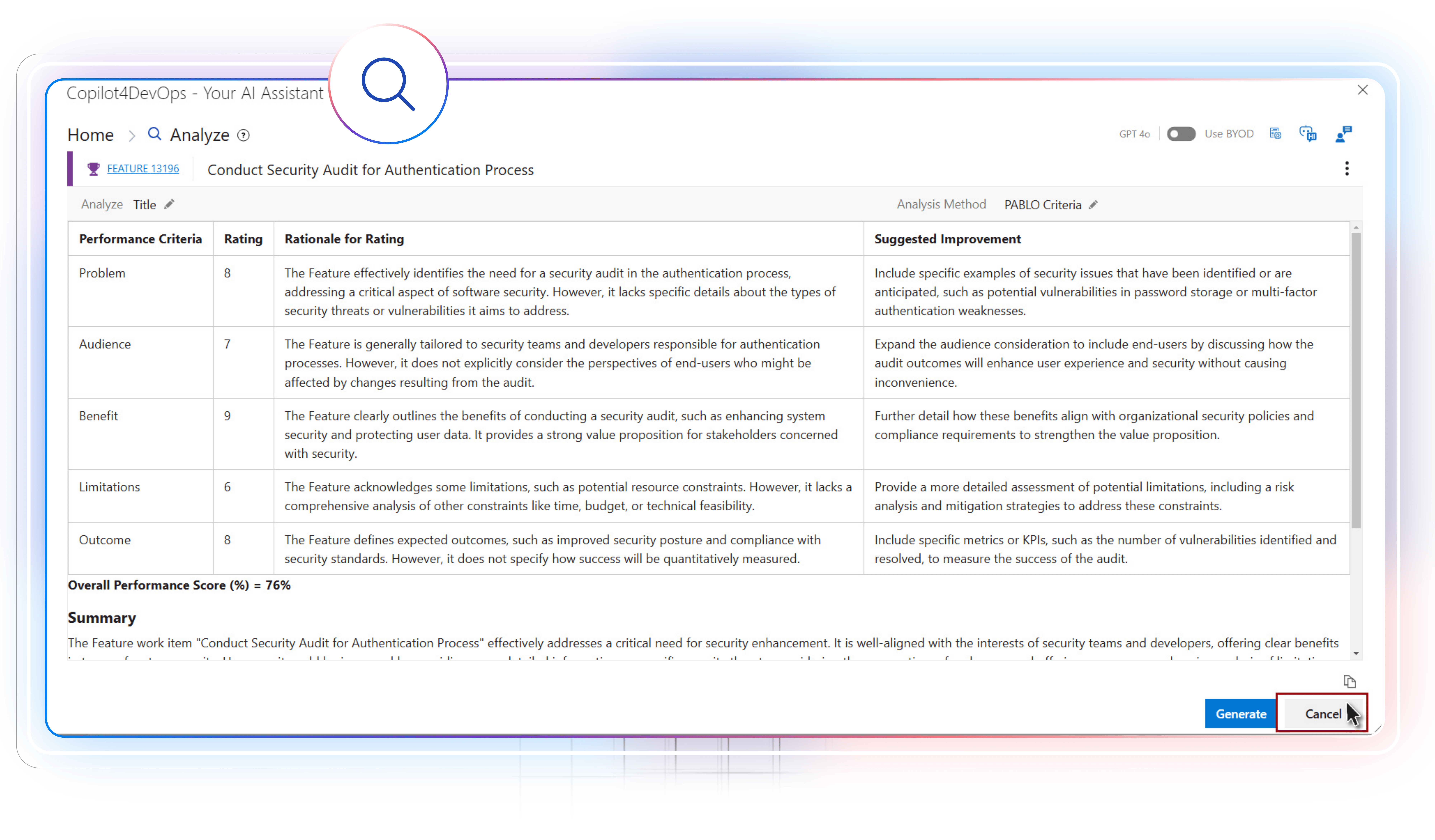
Analyze
AI for reviewing requirements
Analyze ADO work items against proven frameworks, such as MoSCoW, INVEST, PABLO Criteria, and the 6C’s method, using AI to find gaps and inconsistencies before any development starts.