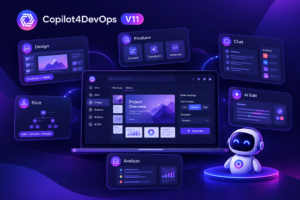

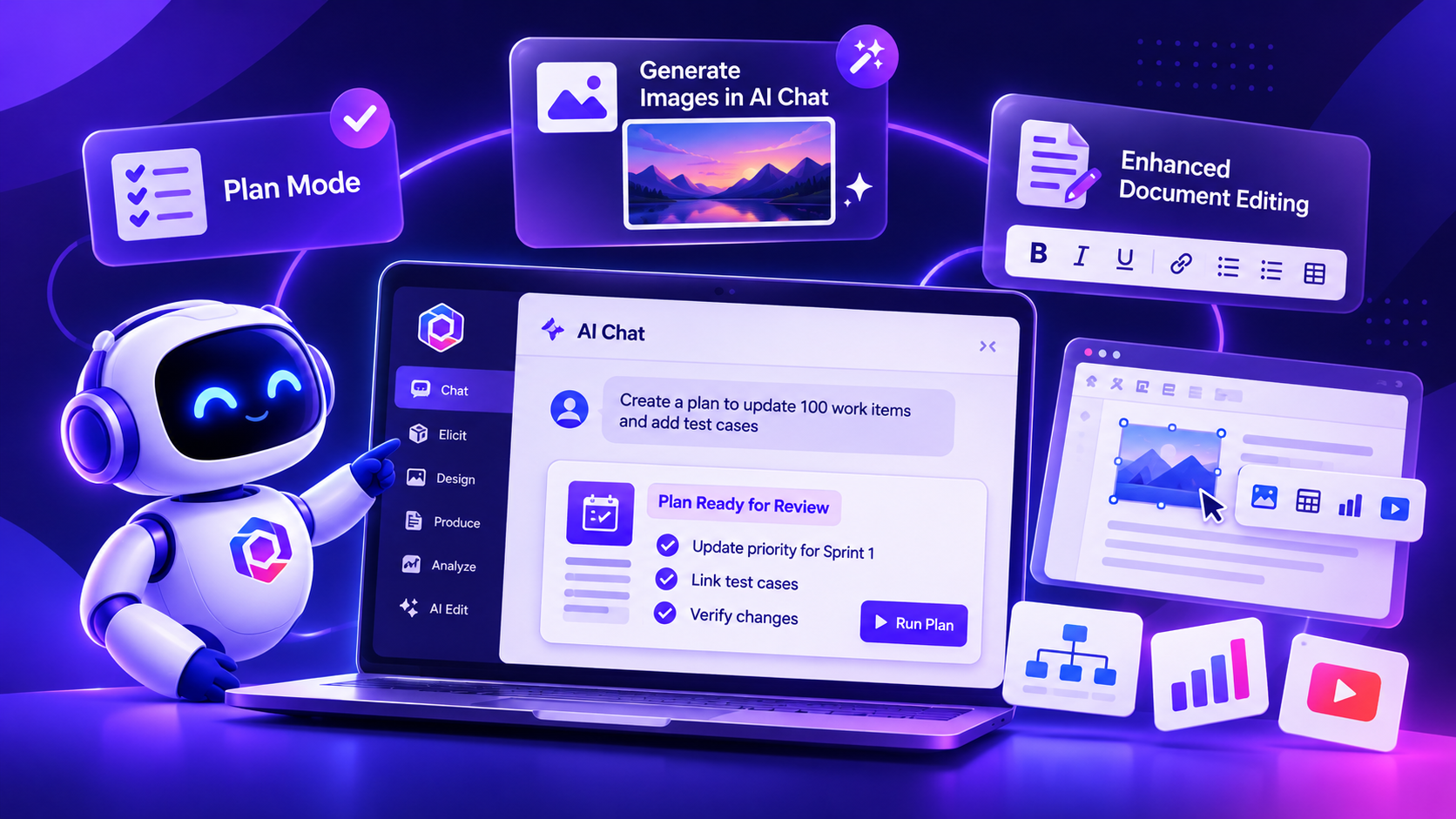
We’re excited to introduce Copilot4DevOps V12.
In this release, we have introduced new features in the AI chat module to handle complex tasks, which allow it to plan first and then execute the task when anyone approves, and we have also added image generation capabilities within the AI Chat module. Furthermore, advanced editing and image generation capabilities have been introduced in the document generator module.
Let’s understand what’s new in Cp V12 and how it improves the productivity of teams in their day-to-day work.
Plan and Execute Complex Tasks with Plan Mode in AI Chat
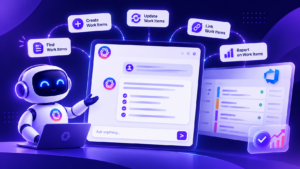
In Copilot4DevOps V12, we have introduced plan mode alongside the agent mode, which allows teams to review the task that AI Chat is going to execute on Azure DevOps work items.
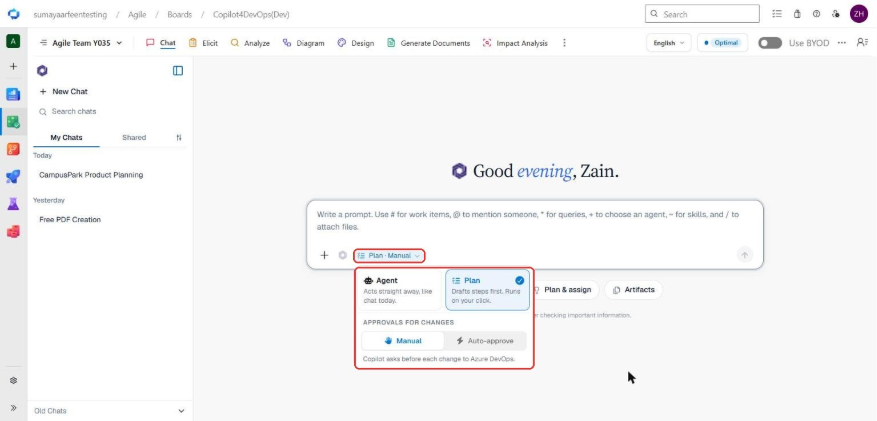
It works in a very straightforward way. You select plan mode, enter your prompt, and hit enter. After that, it drafts the plan, which contains the steps it is going to execute. Each step is one of four kinds: Read, draft, make changes to work items, and check work items and make decisions. These plans are downloadable in MD file format.
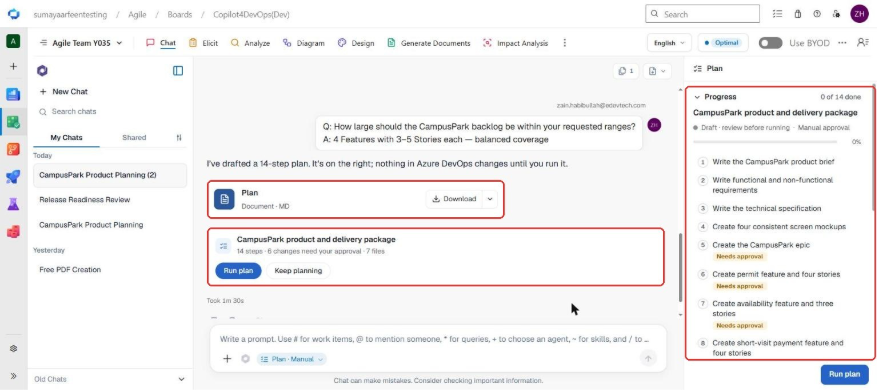
If you think you need to add or remove steps, you can give prompts accordingly and improve the plan; otherwise, you can just run the plan. While the plan is executing, you can see the status and progress with a step checklist and pre-step results.
Plan Mode vs. Regular AI Chat
| Comparison | Without Plan Mode (Regular AI Chat) | With Plan Mode |
|---|---|---|
| Approach | Handles individual requests directly. | Drafts the plan first, and when anyone approves, it starts executing. |
| Control and trust | Users let AI work in their lives and their projects without fear of unwanted changes. | First of all, nothing runs until the final plan is approved. Also, when a user selects manual mode, it pauses for every change approval, and it always asks before executing high-risk actions. |
| Audit and compliance support | Just chat history is available. | Downloadable plan.md contains steps that are executed. |
| Control over changes | AI performs actions based on individual prompts. | Users review the plan before execution begins. |
| Progress tracking | Users track completed work through chat replies. | A step-by-step view shows completed, pending, and approval-required actions. |
| Vague requests | Users need to regenerate output and waste credits. | The user redrafts the plan first and executes the final plan only. This saves AI tokens. |
| When a request is interrupted | Users need to start fresh again. | It starts from where the run left off. |
| Time spent | Wasting more time on repetitive prompting. | Requires less time, as the user approves the plan first. |
| Best suited for | Quick questions, individual requests, and small tasks. | Larger tasks involving multiple steps, actions, and deliverables. |
Whether you are preparing requirements, planning a release, creating test cases, or working on a new product idea, Plan Mode gives you a way to hand over more of the work while staying involved in the decisions that matter.
Generate AI Images Directly in AI Chat
Need a diagram, concept image, or visual to support your work? You no longer need to leave the AI Chat module to create one.
To generate images, you just need to provide a relevant prompt. For example, “Generate an image of a university parking lot with a phone showing a live parking map.”
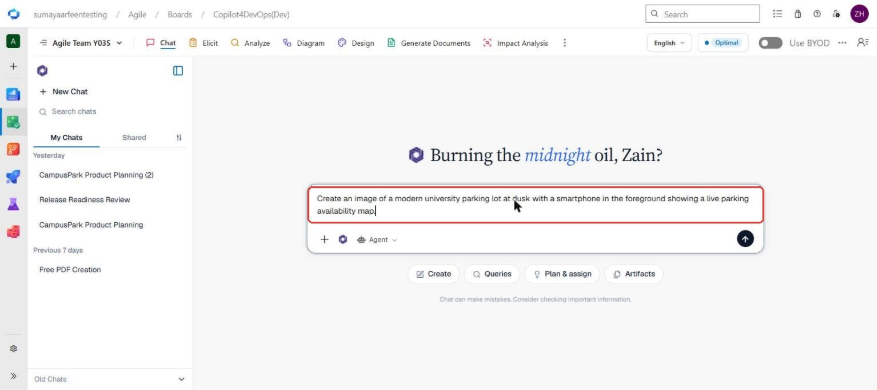
And it gives you an image.
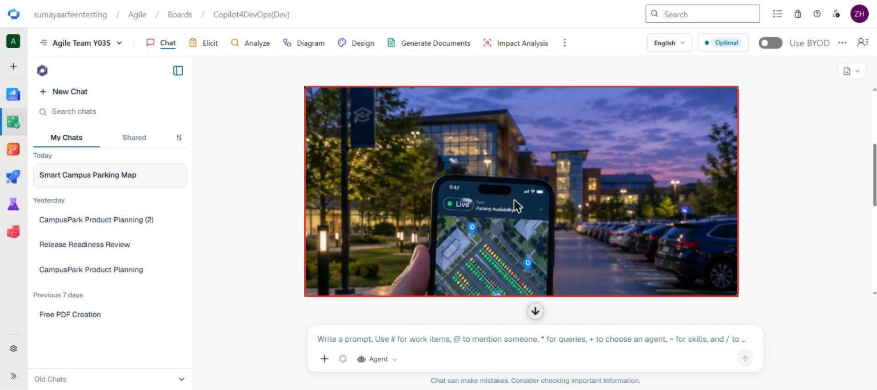
If you don’t like the image, you can enter a prompt to regenerate the image. Once the image is finalized, you can add it to the documents. You can download, export, and even share with external team members.
This is really useful when you need to use the same Chat context while generating the image.
Create, Edit, and Manage Documents with Greater Flexibility
In Copilot4DevOps V12, we’ve introduced multiple new features that provide a better editing and document management experience. These changes are useful for teams preparing requirements, technical specifications, project reports, and other deliverables where content often goes through several rounds of review.
Enhanced Document Editing Experience
Now, we have removed the editing panel from individual sections and added a single universal toolbar at the top of the generated document, which always remains visible. Whenever you want to edit any section or text, you can just put the cursor there and start editing it. This editing toolbar allows you to perform undo and redo actions, change text style, change text formatting, and insert lists and tables.
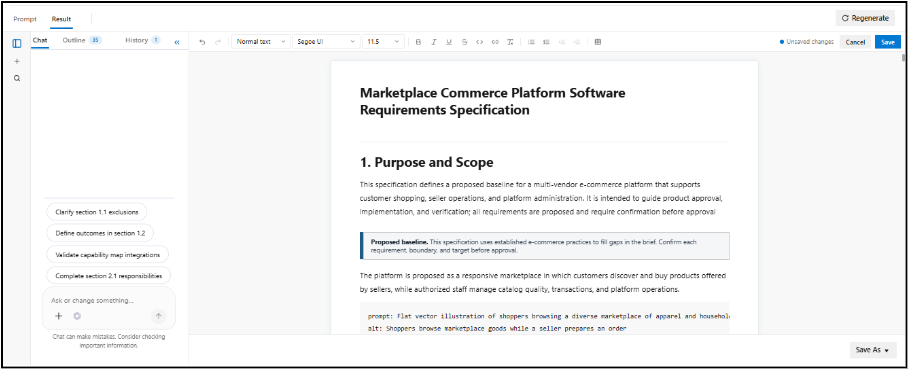
Moreover, we have introduced inline editing options to make the editing experience better. Here is what was introduced with inline editing:
- / command menu: When you type “/” anywhere in the document, it opens a command menu, which contains options for AI writing, adding headings, lists, quotes, images, tables, charts, etc.
- @ mentions: You can type @ and mention any person.
- Floating format bar: Selecting text shows a floating bar with Bold, Italic, Underline, Strikethrough, Code, Link, and Edit with Chat. Edit with Chat replaces the selected text with AI-generated text, which stays highlighted until the document is saved.
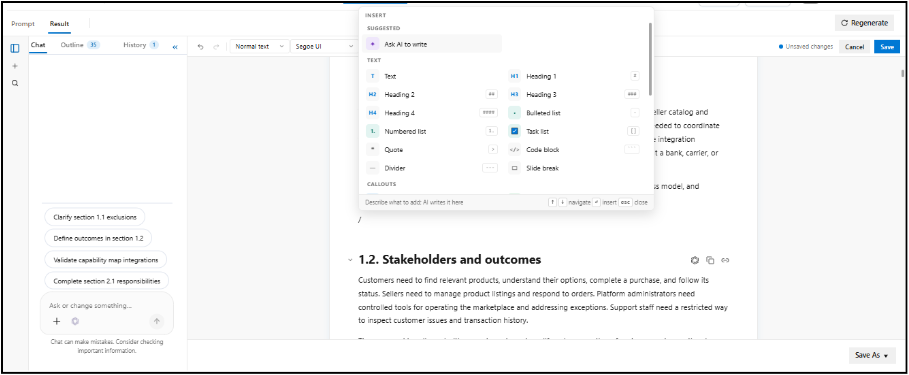
Furthermore, if you want to use AI to edit any section of the document, then you can hover over it and select “Edit with Chat,” enter a prompt, and it will change that particular section or subsection.
Generate Documents with More Content Types
Now, users can directly generate multiple content types in a document and add them to it.
- For example, diagrams can be created and edited in the document using the built-in Mermaid editor.
- Similarly, whenever any work items are added to the document, they appear in a card.
- Also, work item data can be represented visually as charts and tables based on the same snapshot instead of live data.
- Users can even add full YouTube videos and play them within the document.
- AI Chat allows you to generate images based on the document context and add them to documents directly.
This allows teams to generate multiple types of content and add them to the document without switching between multiple tools or modules of Copilot for DevOps.
Add, Manage, and Reorder Headings from the Outline Panel
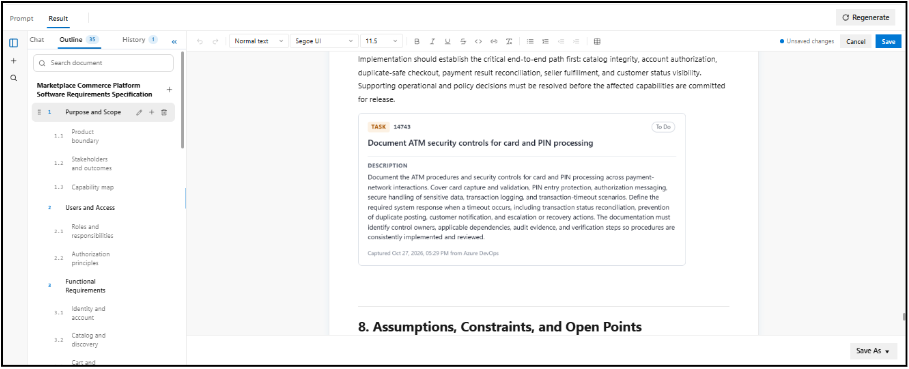
We’ve noticed that multiple users were facing challenges managing and editing long documents. So, we have introduced a feature that allows you to edit and manage the document hierarchy directly from the Outline panel.
From here, users can directly add new sections and subsections, reorder them, or rename them without scrolling through long documents or technical specifications.
Working with a long document can become difficult when you need to find a particular section or change the document structure. The updated Outline Panel makes it easier to manage headings without having to scroll through the entire document.
Save and Cancel Option in Text Block Management
We’ve made minor UI fixes in the text block feature. Previously, users needed to edit each text block one by one. When they clicked the “Done” button, it closed the panel, and then they needed to reopen it to edit another text block. Now, we have replaced the “Done” button with “Save” or “Cancel”. Whenever you are done changing one text block, you can just click on Save. The panel remains open, and you can start editing another text block.
What’s Next for Copilot4DevOps?
We continue to work on Copilot4DevOps with one goal in mind: making AI more useful in your everyday Azure DevOps work. There is still a lot we want to build, and user feedback plays an important role in deciding what comes next.
If you have an idea, feature request, or something you’d like us to improve, we’d love to hear from you. Your feedback helps us make Copilot4DevOps better. Haven’t tried it yet? Start your free trial and see how it fits into your team’s workflow.
FAQs
Can I modify a plan after Copilot4DevOps generates it?
Yes. You can refine the plan through chat by adding steps or re-prompting, then clarify instructions, and adjust the proposed work before execution begins.
Does Plan Mode make Azure DevOps changes automatically?
Before you start executing a plan, you can choose between auto mode and manual mode. When you choose manual mode, it asks for approval whenever it needs to make changes to any work items; when you choose auto mode, it only asks for approval for high-risk changes, so it doesn’t take any risky action without approval.
Can I change document headings without editing content?
Yes. The Outline Panel lets you add, manage, and reorder headings independently of manually searching through the document.
Probieren Sie es selbst aus
Bereit, Ihr DevOps mit Copilot4DevOps zu transformieren?
Holen Sie sich noch heute eine kostenlose Testversion.