
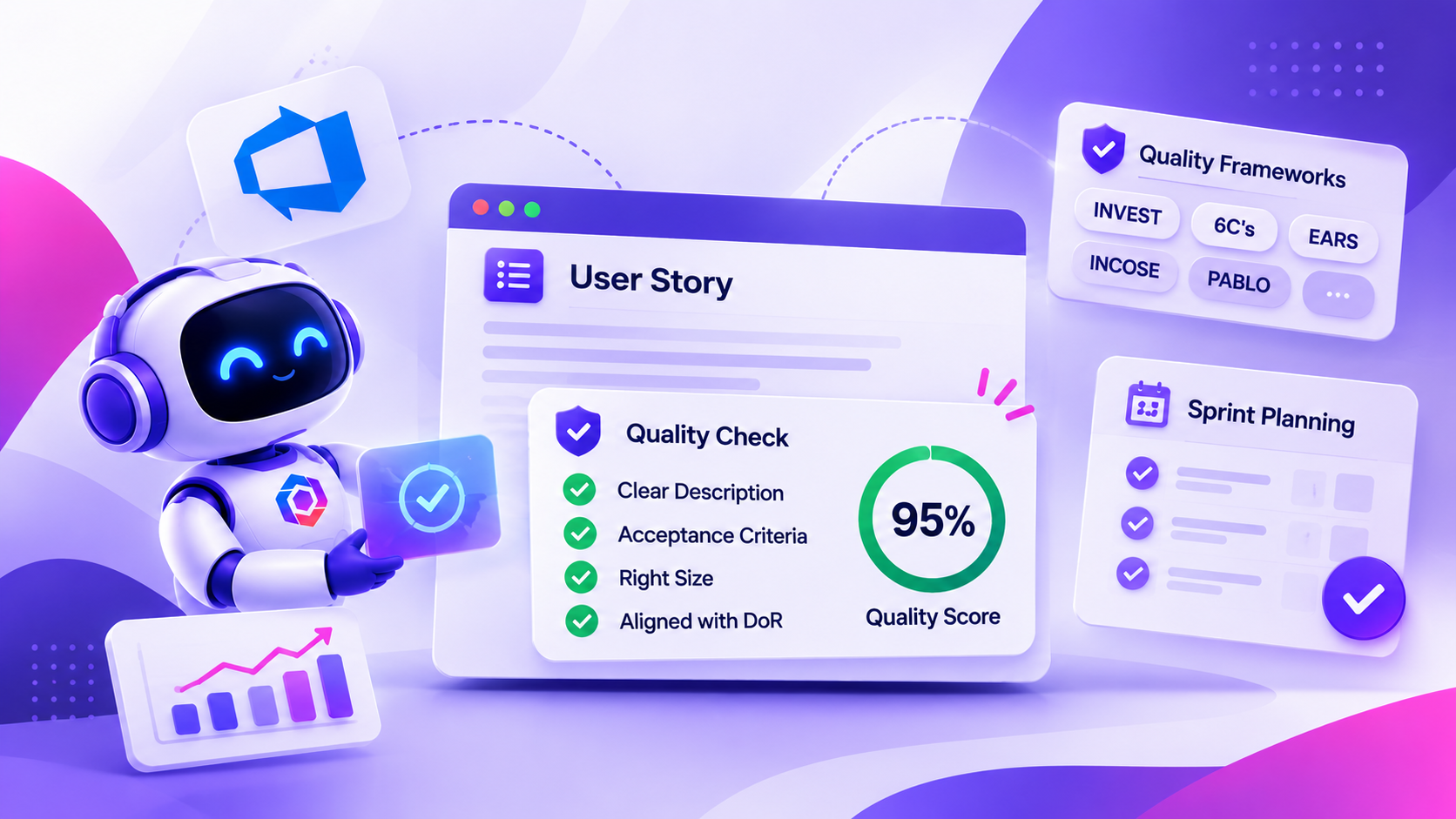
A product owner adds new user stories to the product backlog that might be oversized, vague, and have unclear acceptance criteria. Unclear and inaccurate user stories confuse product owners, developers, and other team members, while incomplete information causes incorrect implementation, resulting in repeated clarification meetings and delays. Furthermore, the Scrum team spends hours improving the quality of these user stories manually.
Teams using Azure DevOps can find user stories with empty fields and fill them with prefilled templates, but it cannot check user stories against quality frameworks or a Definition of Ready (DoR) or apply new acceptance criteria in bulk.
That’s why we are writing this blog and showing how AI in Azure DevOps can help teams to analyze user stories before or during sprint planning.
Why User Story Quality Breaks or Makes Sprint Planning
Agile Teams use a Definition of Ready (DoR), a shared checklist around how complete a user story should be before sprint planning. An ambiguous and incomplete user story creates confusion within a Scrum team and introduces bugs and rework at the end of development. That’s not just a random guess. Microsoft’s Code with Engineering Playbook states that if a user story is not ready at the beginning of the sprint, it may not be complete even at the end of the sprint.
How to Check User Stories Natively in Azure DevOps
You can check user stories in three ways natively in Azure DevOps:
- Saved queries: Create a query with filters such as “Description is Empty” to identify user stories without a description. You can save this query and use it for the next sprint.
- Prefilled work item templates: A reusable template containing prefilled values for standardization.
- Manual assessment: Check each user story manually against INVEST or a quality checklist to assess the user stories. Here, you can also use external AI tools, but you need to check each story one by one.
These methods work for agile teams with a backlog of 30 to 100 work items; however, they fall short for large, complex sprints or projects.
How Copilot4DevOps Helps You Check User Story Quality with AI Inside Azure DevOps
Copilot4DevOps is a requirements analysis tool that works natively inside Azure DevOps. There are two ways to check work item quality using Copilot4DevOps: Analyze for detailed review of a work item and AI Chat for browsing and fixing whole-sprint user stories in bulk.
| Analysieren | KI-Chat | |
|---|---|---|
| Work items | 1 or 5-15 user stories | Full backlog or candidate list |
| How to Use | Main menu of user stories on the backlog or queries | Saved queries with references or clauses |
| Result | A rating or review from the selected quality framework. Provides a normal view and a spider view. | Provides analysis of work items in a single chat. |
| How to Fix Issues | Update individually through the Analyze feature itself. | Bulk update through AI Chat. |
Let’s look at the difference between both features in-depth and how to use them.
Using Analyze to check user stories one by one
1. Open your Azure work item or user story main menu and select Copilot4DevOps.
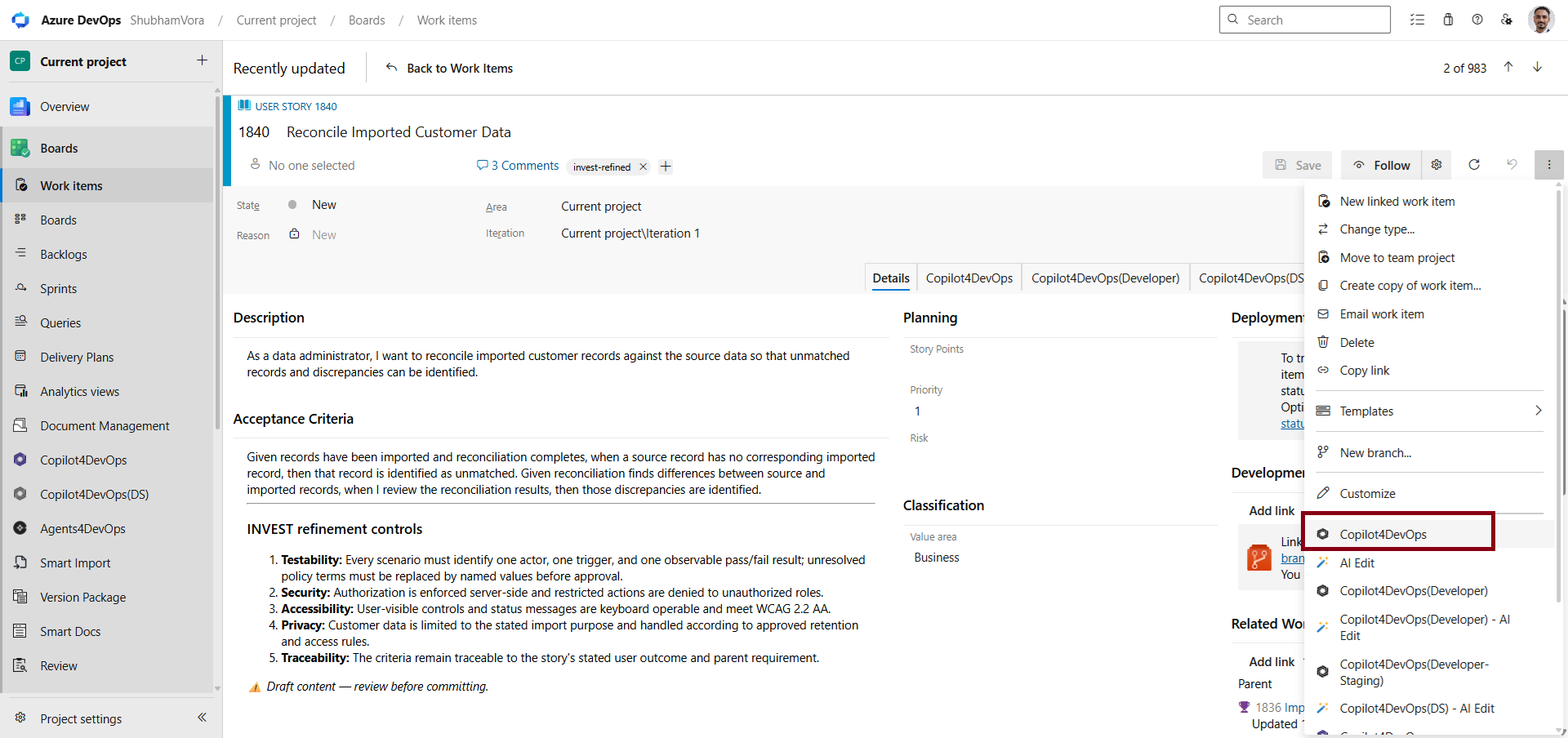
2. Then, select Analyze.
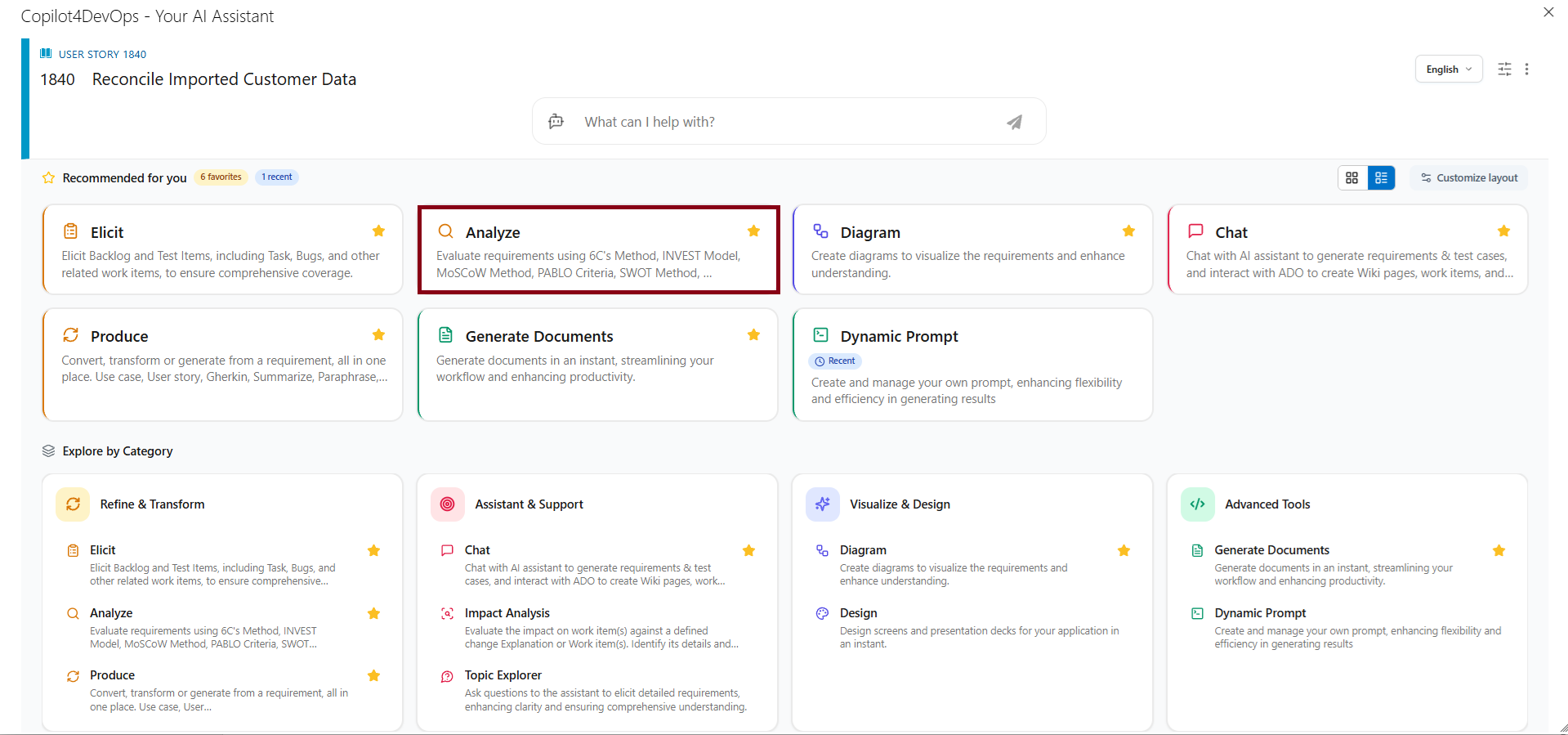
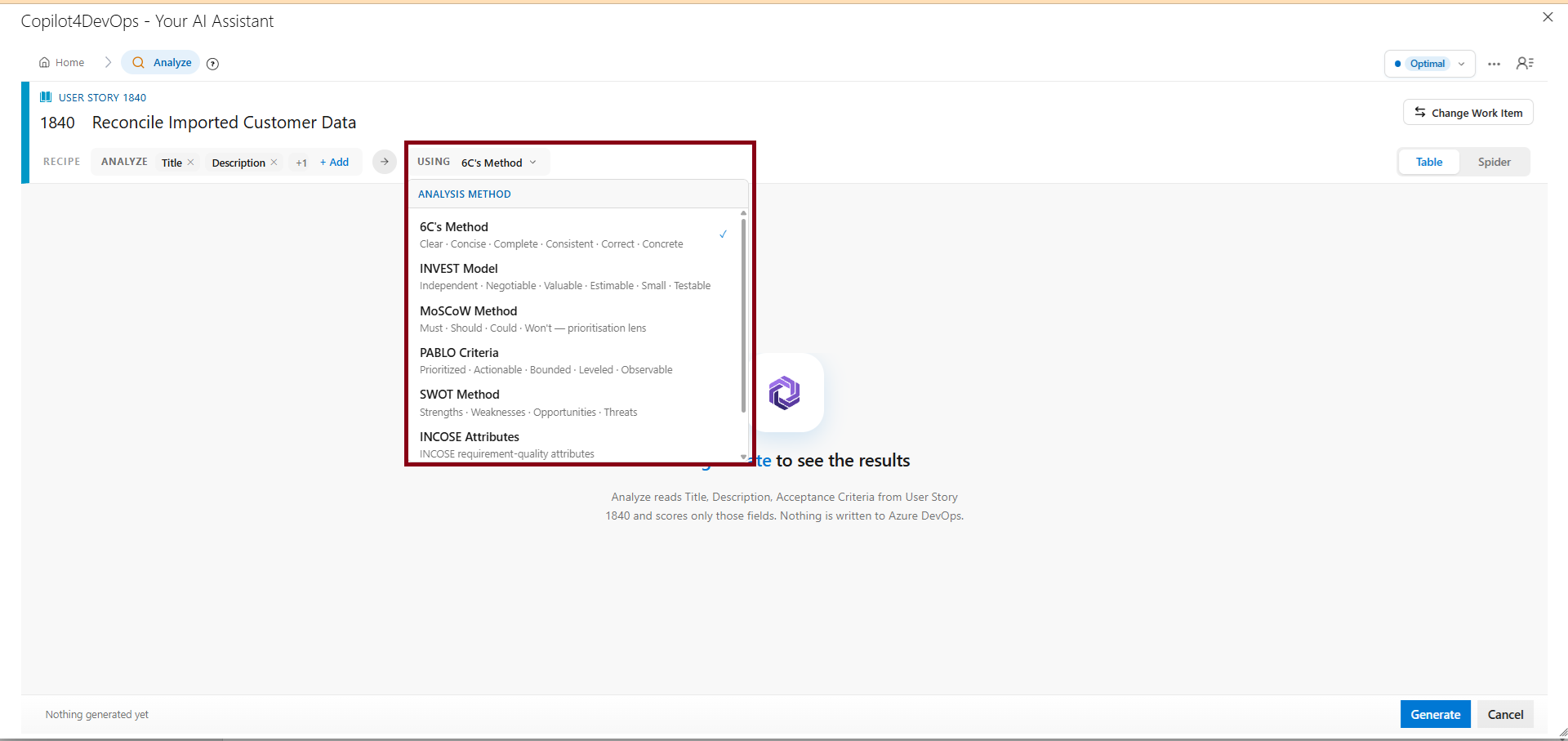
3. Choose a quality framework, such as the 6C’s method, INVEST criteria, EARS Pattern, etc., to analyze the work item against it. You can also insert your Definition of Ready (DoR) in Custom Instruction and click Generate.
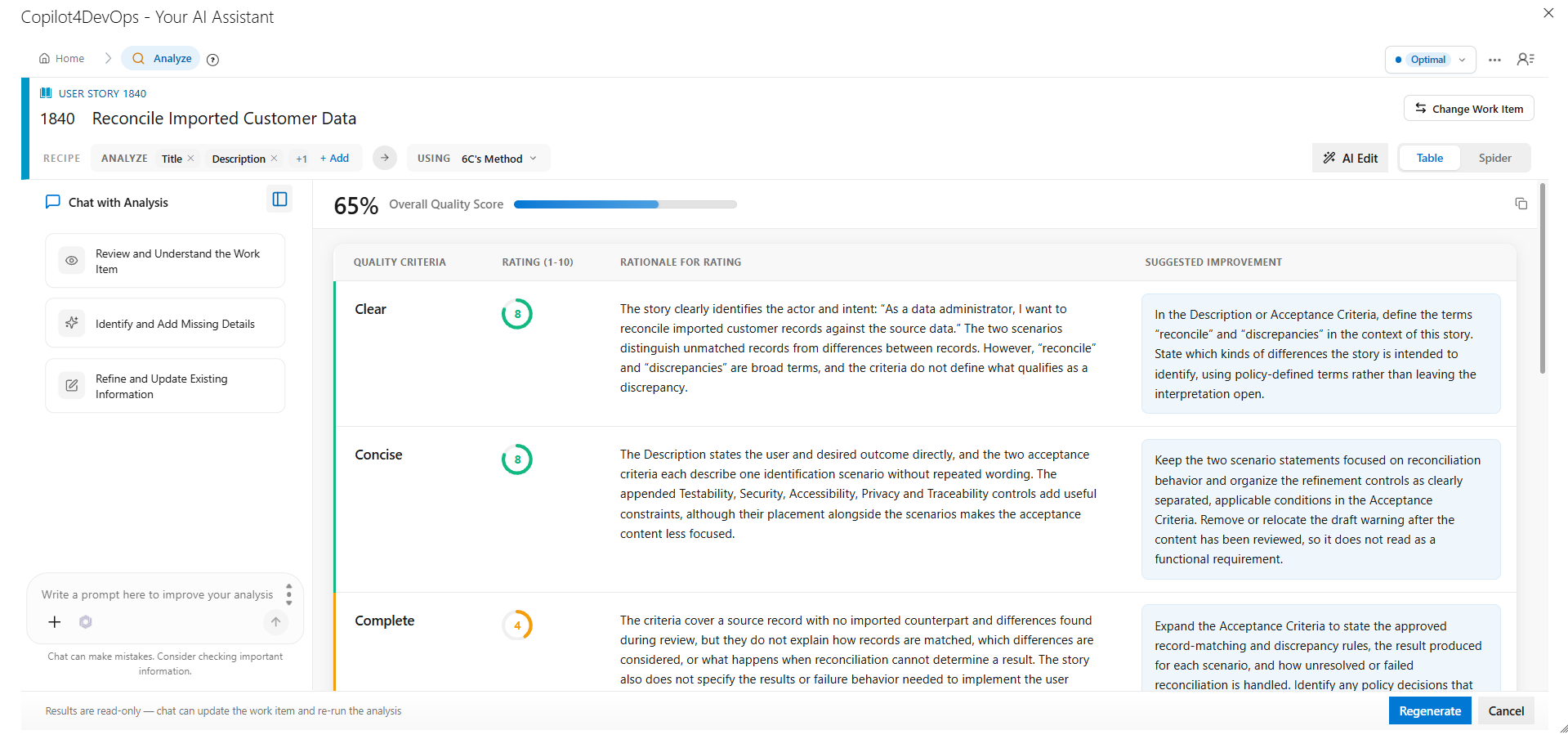
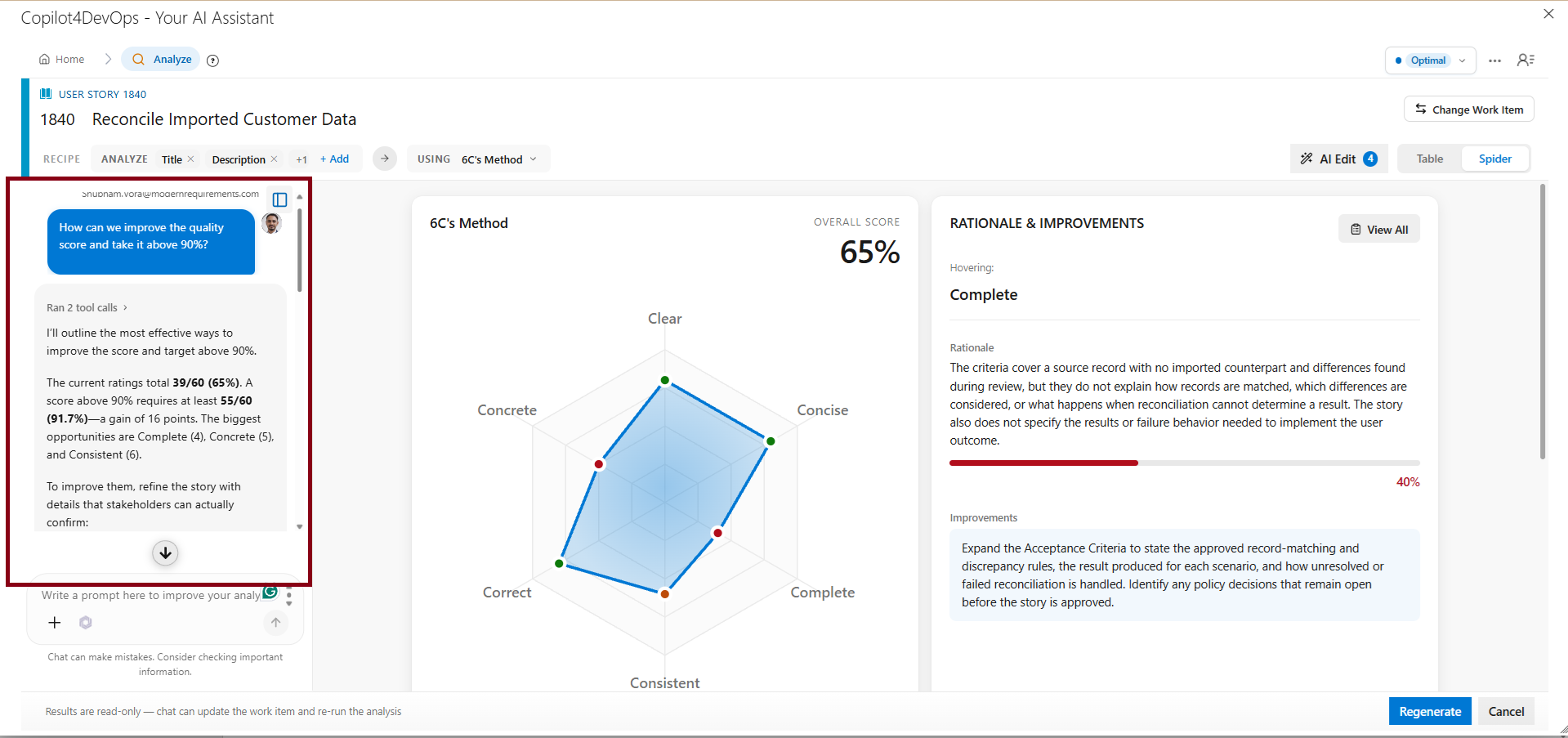
4. Review the Overall Quality Score and detailed assessment. Here, you can see the summary, what’s missing, and recommendations.
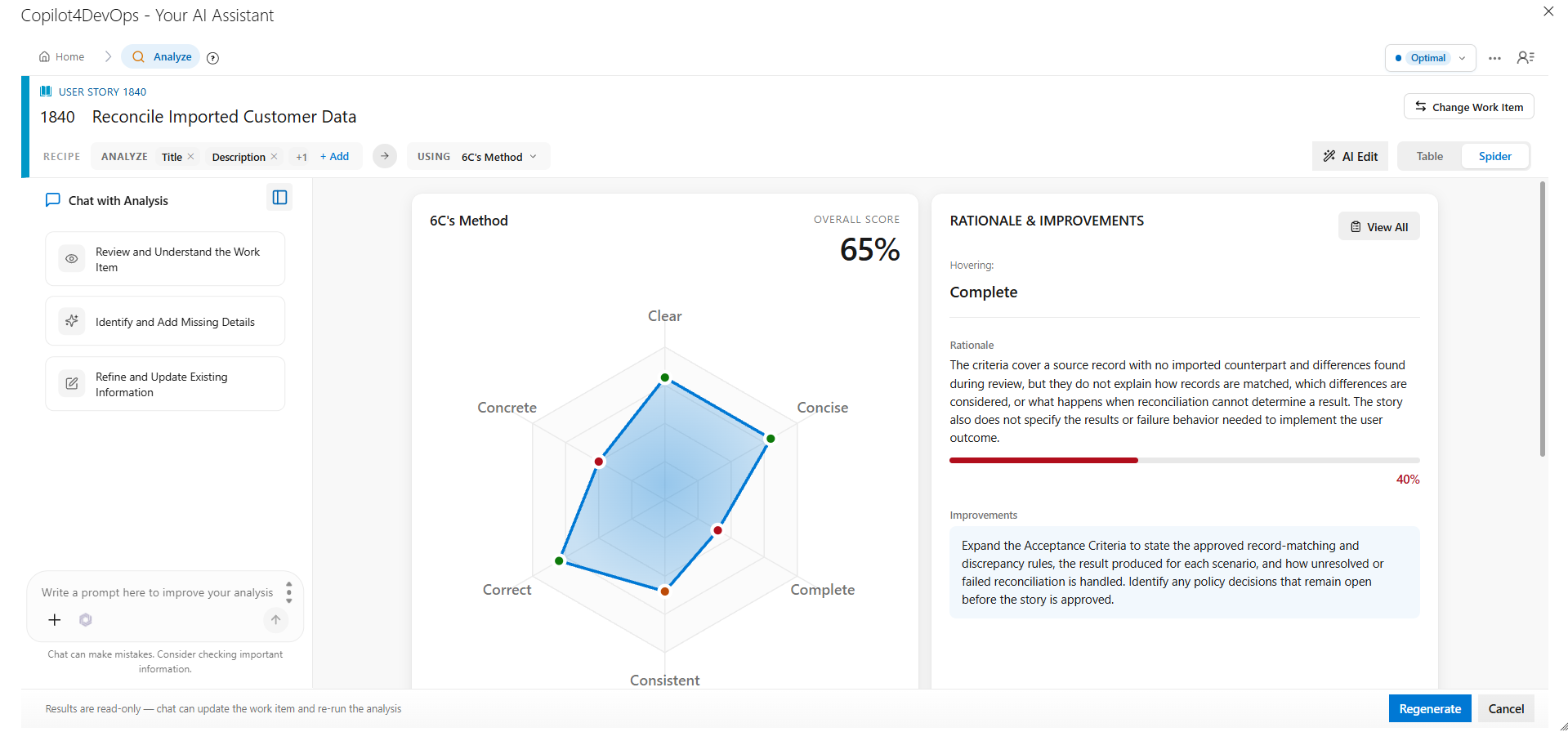
5. You can also toggle between table and spider view to visualize the analysis in a more structured view.
6. If you don’t understand anything, you can directly ask questions in the chatbot. Here, we’ve asked, “How can we improve the quality score and take it above 90%?”
7. You can also open AI edit directly and implement suggested changes into the work item and then re-analyze the work item.
Using AI Chat to check a whole sprint at once
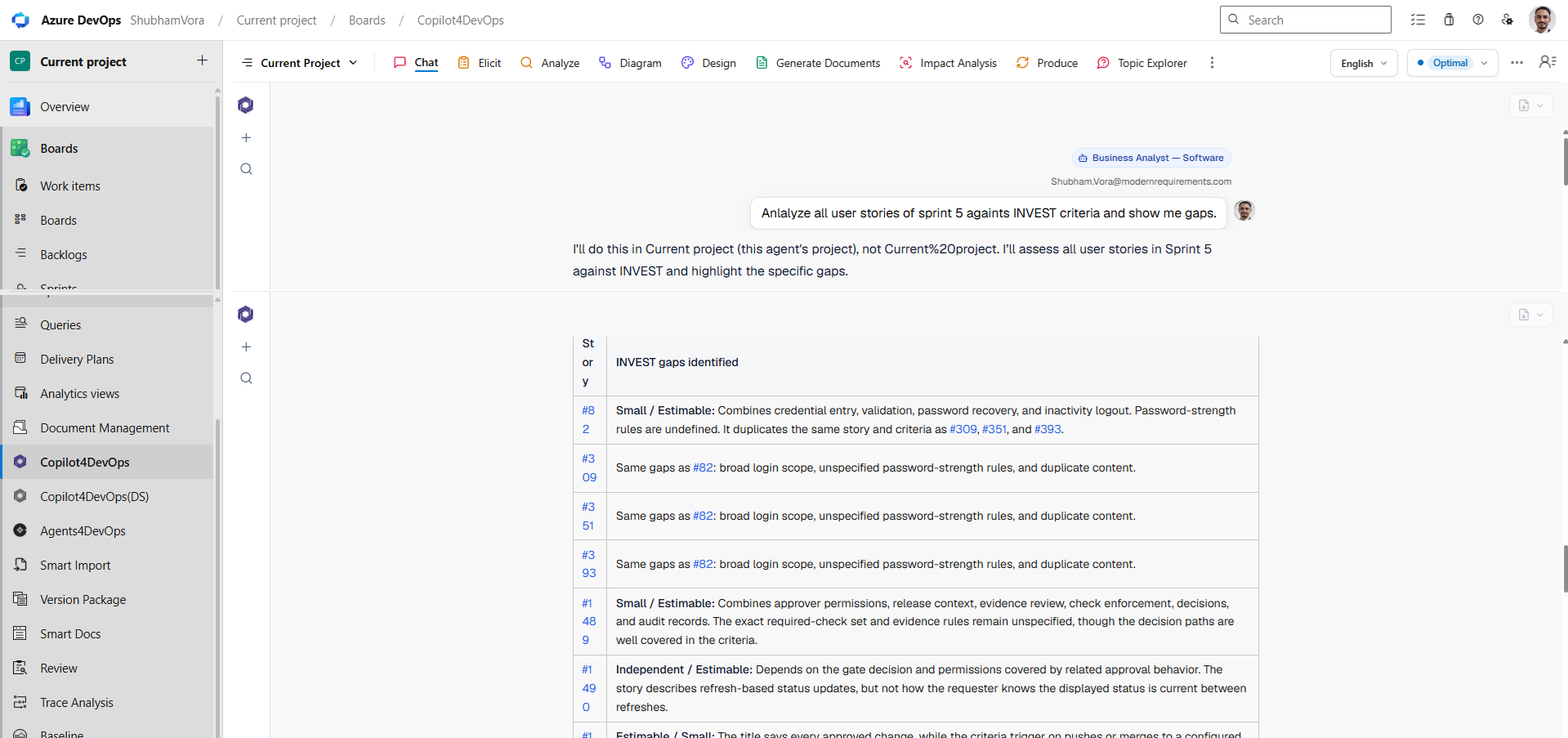
Here, in Copilot4DevOps, you can directly move to AI Chat and ask it to analyze all user stories in Sprint 1 against INVEST criteria. It will fetch all work items and start analyzing them. Similarly, you can analyze each user story against any framework like the EARS pattern, INCOSE attributes, PABLO criteria, etc.
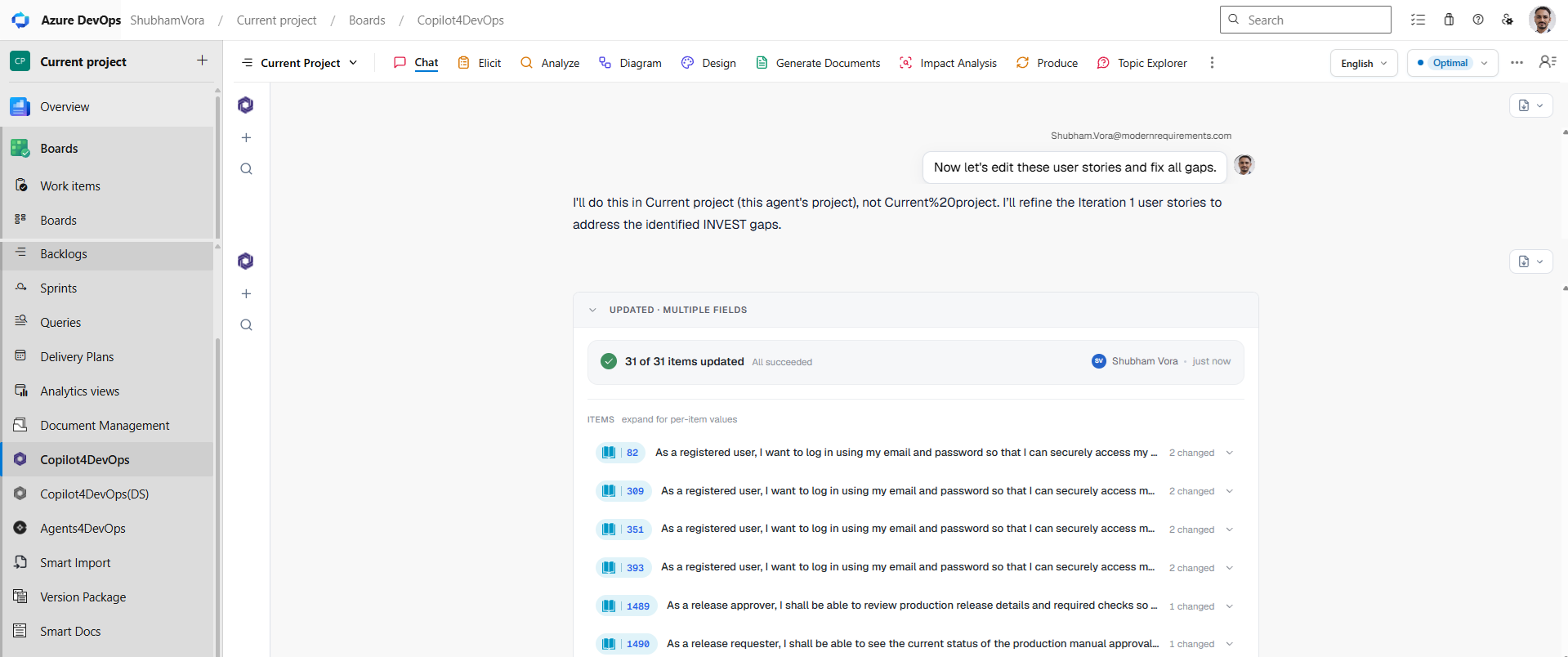
After that, we asked AI Chat to fix all user stories based on the gaps listed above, and it updated the user stories in bulk.
This way, teams can use AI Chat to update or analyze ADO work items in bulk, get a weekly status report, or perform any kind of action on the ADO backlog.
Use Cases: How Teams in Different Industries Check Story Quality with AI
Teams can follow the same steps to review and check user story quality, but the quality framework and AI features needed depend on the user story and relevant industry risk involved.
- Medical devices and healthcare: In medical industries, teams need to prioritize user stories and check their completeness. If a user story doesn’t specify how to respond when test results are unavailable, teams manually check these requirements against MoSCoW and the 6Cs method. Instead, the Analyze feature can evaluate requirements against the 6Cs method to find gaps, use the AI Edit feature to refine them, and prioritize these requirements with Analyze against MoSCoW.
- Banking and Finance: Banking operations are sensitive; teams check user stories for incorrect implementation and risks. If a user story doesn’t explain what happens when the beneficiary bank is unavailable, it needs to be checked against the INVEST framework. Here, you can use Analyze with the INVEST framework to identify weaknesses and use AI Chat to refine it with Given/When/Then criteria.
- Automotive: For safety-critical requirements in the automotive industry, teams use INCOSE and EARS patterns to find missing conditions and inconsistent statements within user stories. For example, if a lane departure alert requirement doesn’t clarify the vehicle speed threshold or the state and activation conditions, teams can identify requirement gaps and missing operational conditions using Analyze with INCOSE and EARS patterns, while AI Chat helps rewrite ambiguous requirements.
- Software and SaaS: Software teams manage large backlogs of user stories involving oversized acceptance criteria with multiple scenarios. A user story may include filtering, exporting, and report-generation acceptance criteria, making the requirement oversized. Reviewing and rewriting small requirements can be time-consuming, but with Analyze with INVEST you can generate testable and estimable user stories. Then use AI Chat to make user stories smaller and draft acceptance criteria in bulk.
Conclusion
Improving user story quality helps reduce time spent clarifying ambiguous requirements during Sprint Planning. Copilot4DevOps Analyze evaluates selected work items against supported quality frameworks, while AI Chat helps teams retrieve backlog items, identify gaps, and draft acceptance criteria. Together, these features support backlog refinement and help teams prepare stories. Product Owners and teams must still review and validate AI-generated suggestions.
Try Copilot4DevOps Analyze and AI Chat to review your backlog for your next sprint.
FAQs
What makes a user story ready for sprint planning?
A user story is ready for a sprint when it has clear acceptance criteria, scope, and estimation. Teams can use their Definition of Ready checklist as well.
What is the difference between Azure native queries and AI analysis?
Azure native queries help find work items based on specified fields, while Copilot4DevOps evaluates user stories against selected frameworks and helps review their content.
Can a business analyst improve acceptance criteria using AI?
Yes, a business analyst can use Copilot4DevOps’s AI Edit feature to redraft acceptance criteria. If you need to edit work items in bulk, use the AI Chat feature of Copilot4DevOps.
Probieren Sie es selbst aus
Bereit, Ihr DevOps mit Copilot4DevOps zu transformieren?
Holen Sie sich noch heute eine kostenlose Testversion.