
























AI Chat

Interact with Azure Work Items Using Natural Language

Use AI to create, edit, and organize Azure work items with simple plain-English commands and without switching between multiple Azure DevOps tabs.

Trusted by the world’s leading businesses

See how AI Chat changes the way teams work in Azure DevOps

The old way

The New Way with AI Chat

AI Chat in Copilot4DevOps explained

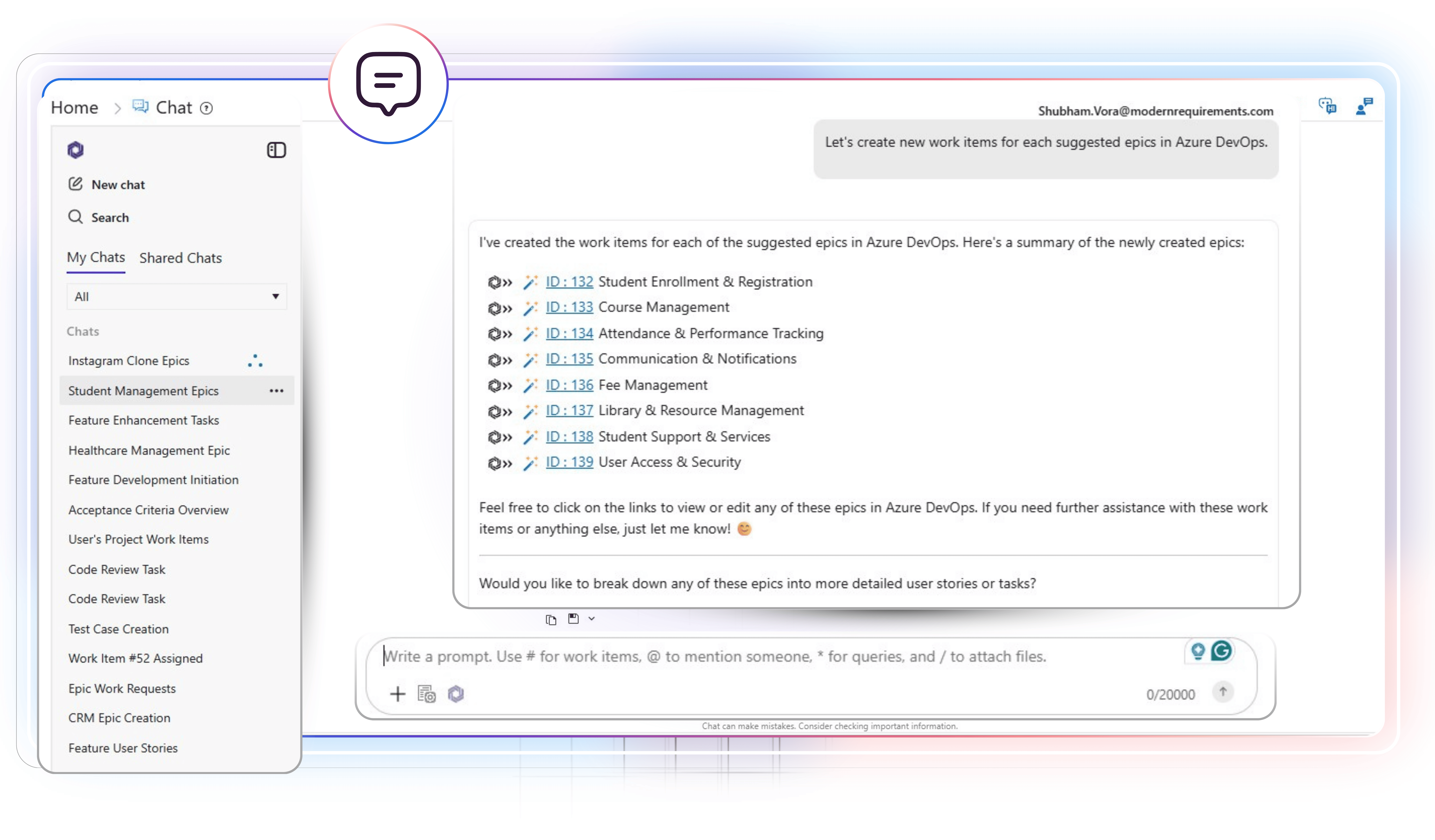
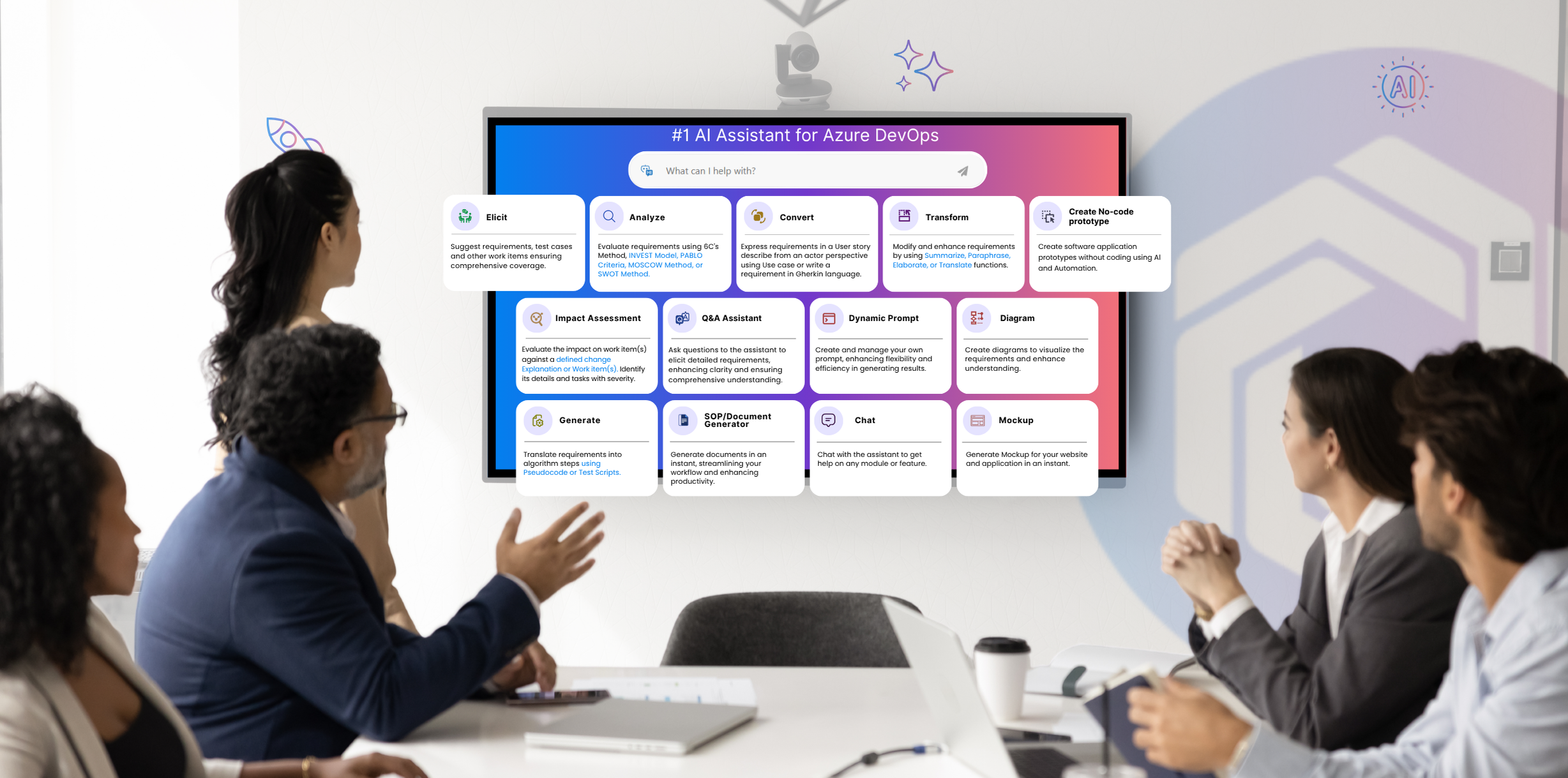
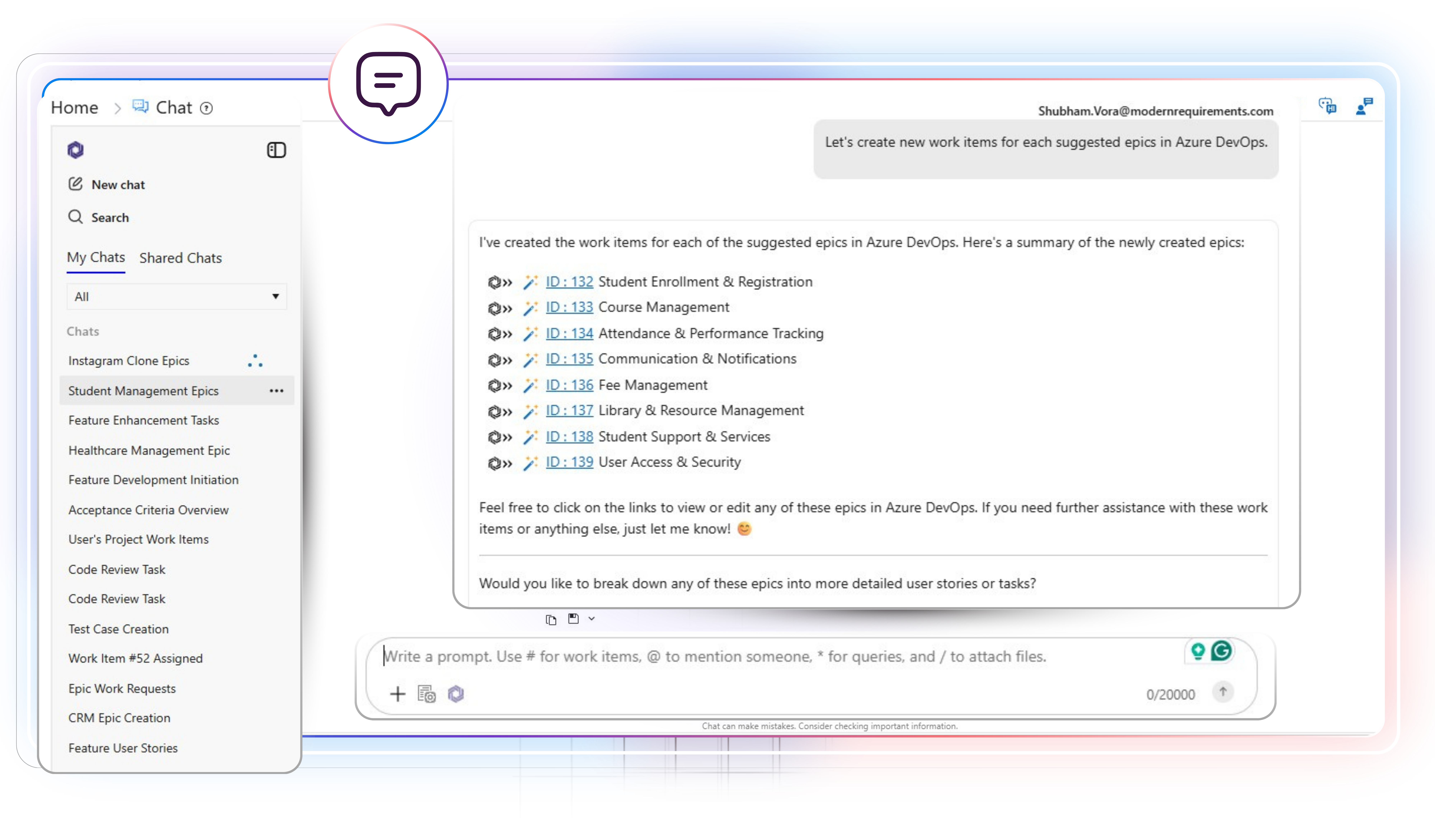
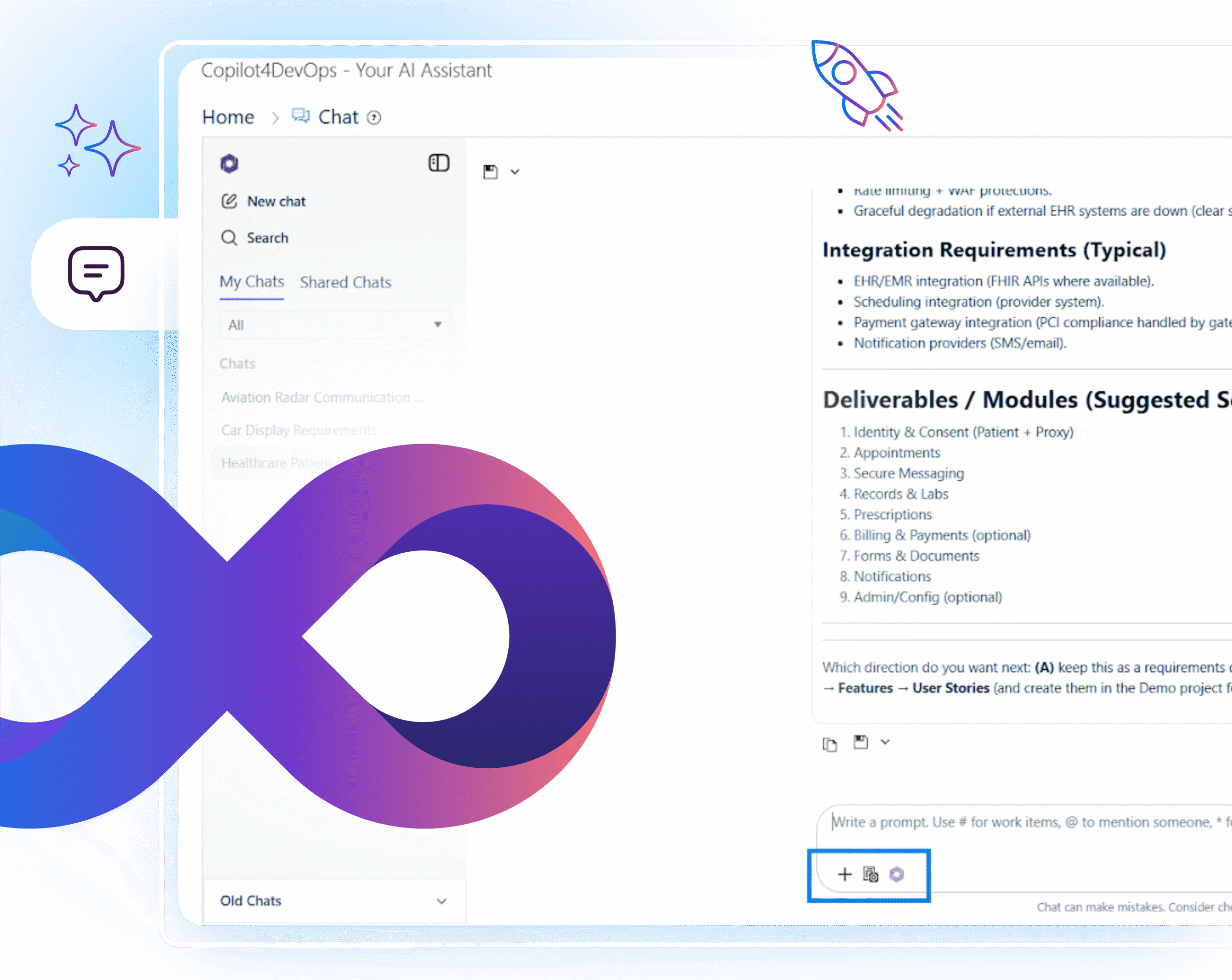
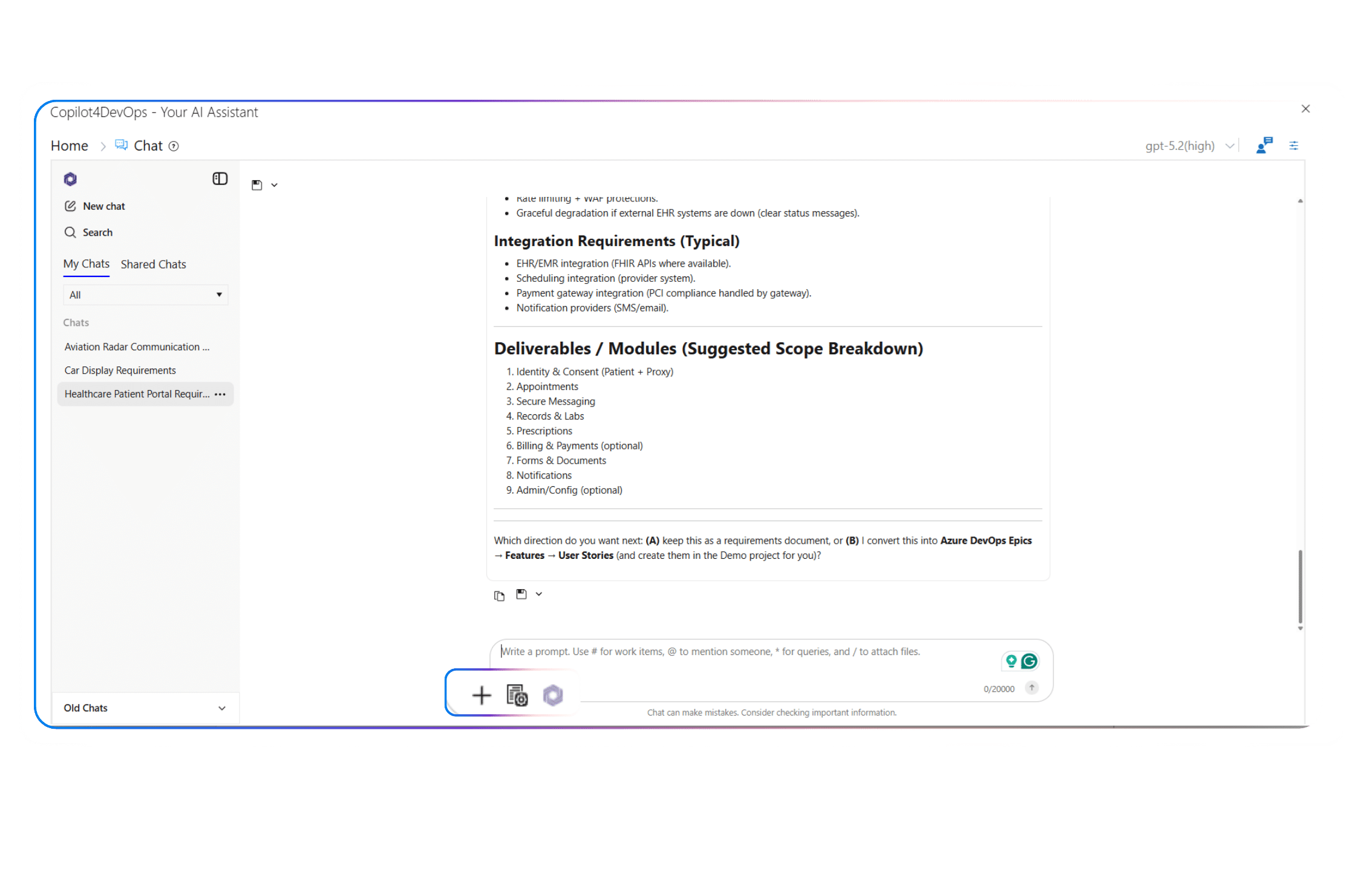
AI Chat is a key feature of Copilot4DevOps, which functions as an AI-powered assistant within Azure DevOps, enabling teams to manage their backlog using natural language prompts. It brings a simple chat interface where teams can act on work items, update details, delete them, or review project progress by getting work item summaries in one place.

With AI Chat, teams can quickly handle routine actions in bulk, build workflow diagrams, manage Azure wiki content, and generate requirements documents without switching screens. It helps reduce time spent on repetitive updates and keeps every project organized, consistent, and easy to track.

Role-based view

AI built for every role that works within Azure DevOps

Business Analyst

Turn meeting notes into epics and user stories using an AI. Ask for a gap analysis and clear acceptance criteria. Create linked work items inside Azure DevOps and concise summaries to speed grooming and cut rework across teams.

Product Owner

Use AI to capture product ideas and convert them into backlog-ready items. Use chat to prioritize features, set stakeholder-facing summaries, and keep scope aligned without long manual edits or back and forth.

Project Manager

Generate status snapshots, run quick queries for risks and blockers, and bulk update schedules or work item priorities of Azure work items. Produce stakeholder-ready reports from the backlog in minutes to save meeting time.

Scrum Master

Check sprint health, surface blocked work, and assign follow-ups from chat. Create quick retrospective actions and update team tasks so that daily standups focus on solutions rather than tracking updates.

Developer

Link code tasks to user stories, ask for clarification on requirements, and auto-generate simple test cases or implementation notes using an AI. Reduce context switching and speed handoffs between planning and coding.

QA Tester

Create test cases from user stories, run filters for failed tests, and request bug summaries. Bulk update test statuses and attach evidence without leaving Azure DevOps to speed release checks.

Solution Designer

Utilize AI to draft system diagrams from selected work items, request interface or data flow sketches, and attach generated visuals back to the backlog to make design reviews faster and clearer.

DevOps Engineer

Produce deployment checklists, map pipeline tasks to work items, and generate rollback steps from release notes without switching between multiple steps. Use chat to produce operational runbooks and keep deployment work traceable.

Release Manager

Prepare release notes, group related tasks, and set release priorities quickly. Perform bulk edits to tag and move items across sprints and communicate changes to stakeholders to keep releases on schedule.

Compliance Manager

Pull audit-ready traces, generate policy checklists for work items, and export linked evidence. Quickly identify gaps in required approvals, flag missing controls, and speed review cycles for regulated projects.

Technical Writer

Turn work items into user-facing guides, compile release notes, and generate SOP drafts with AI. Create linked documents from the backlog to keep manuals current with minimal manual formatting.

Core capabilities

Key features of AI Chat that reduce the team’s workload

Quick access

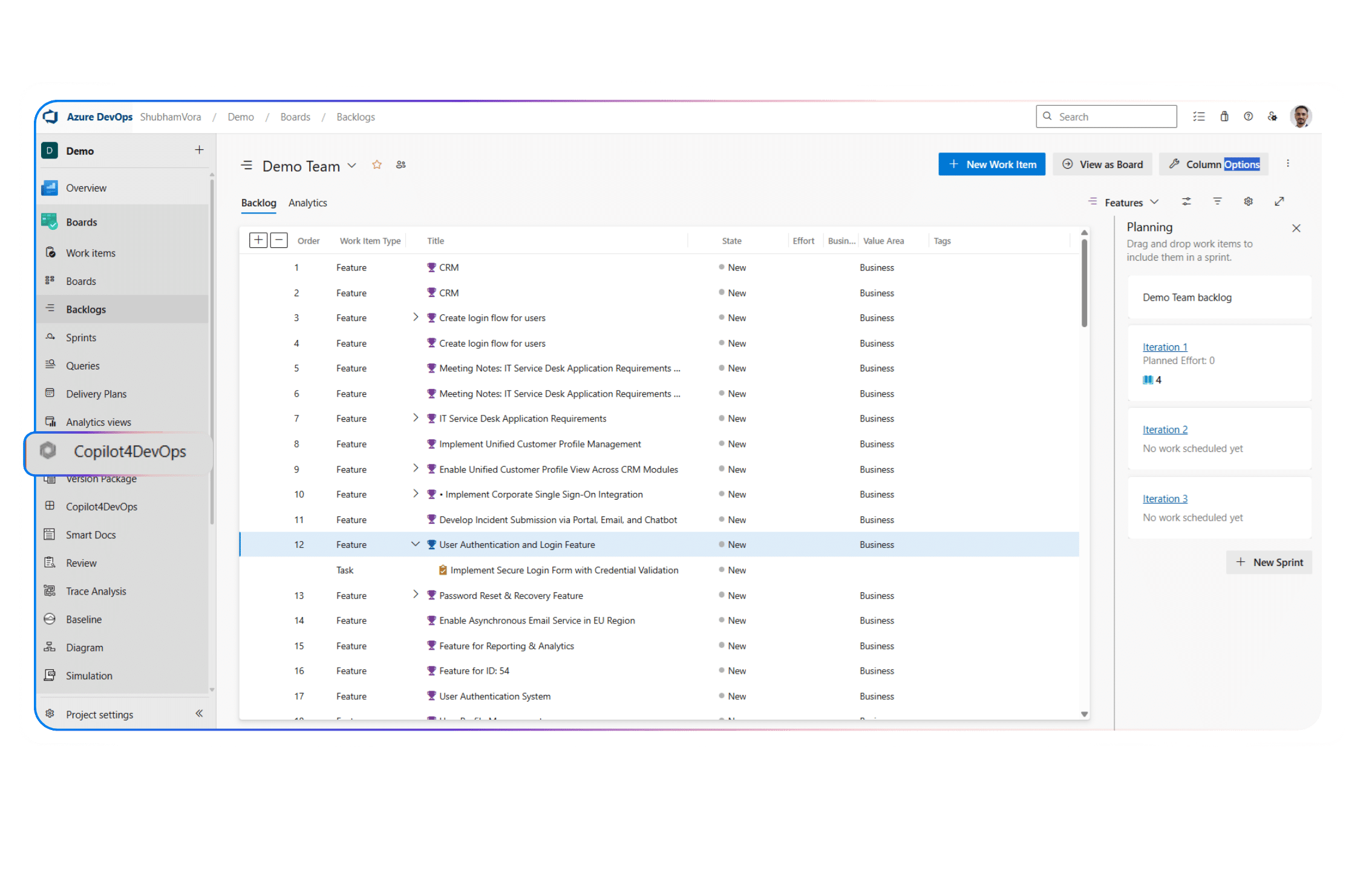
For instant use, you can open AI Chat directly from the Azure DevOps side panel. If you’re already working on a specific Azure work item, open Copilot4DevOps from that item to access AI Chat and continue the conversation in the context of the work item.

File upload

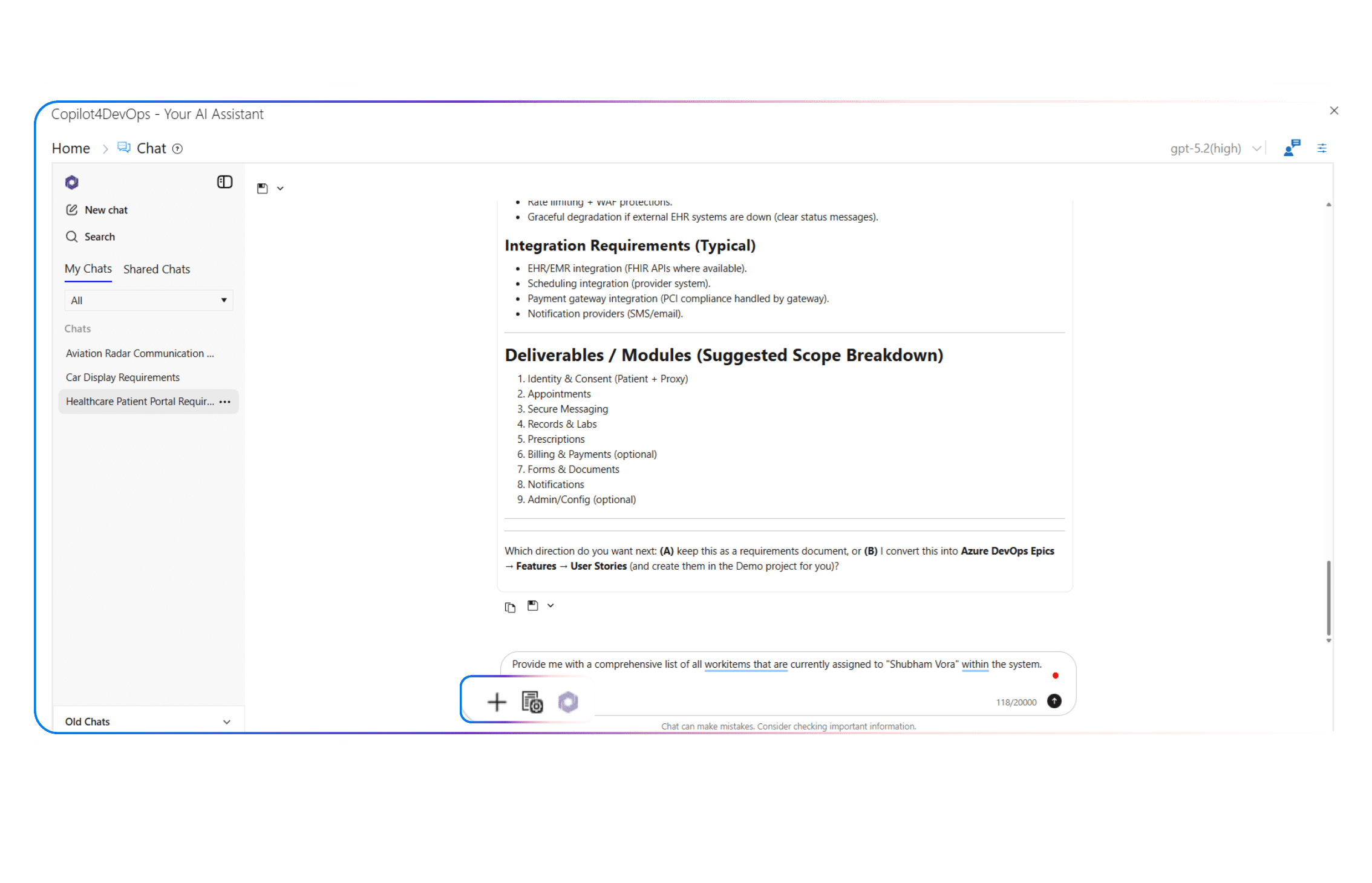
Need to provide context to AI while you ask it to perform any action? Just upload multiple files or paste images into the prompt area of the chat. It uses the content of files to generate a more accurate response.

Commands and shortcuts

These shortcuts can help teams work faster:

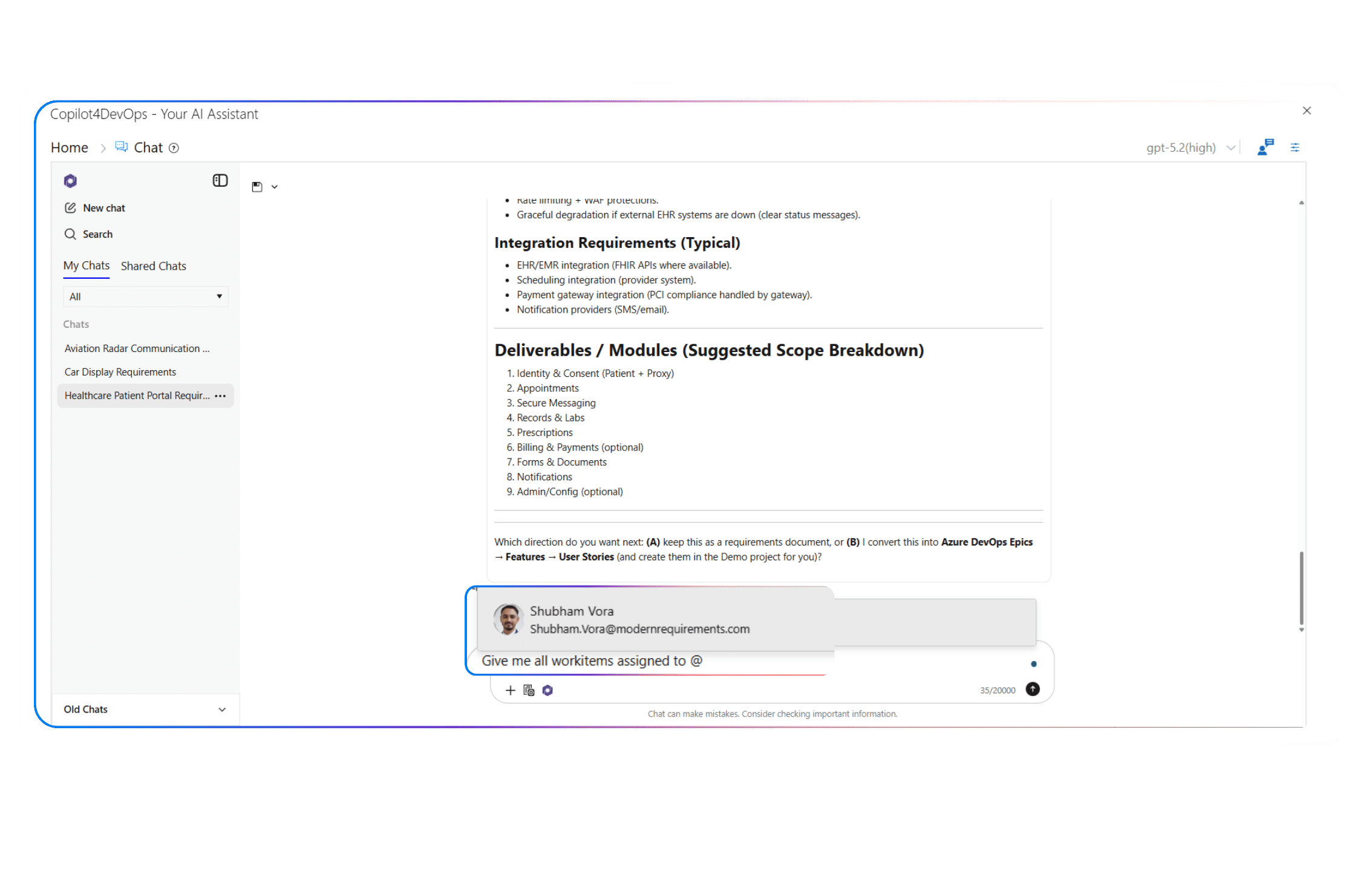
  • Use “/” to attach internal files directly.
  • Use “@” to mention a team member in the chat.
  • Use “#” to reference any existing Azure work item.
  • Use “*” to access saved queries.

Chat history and management

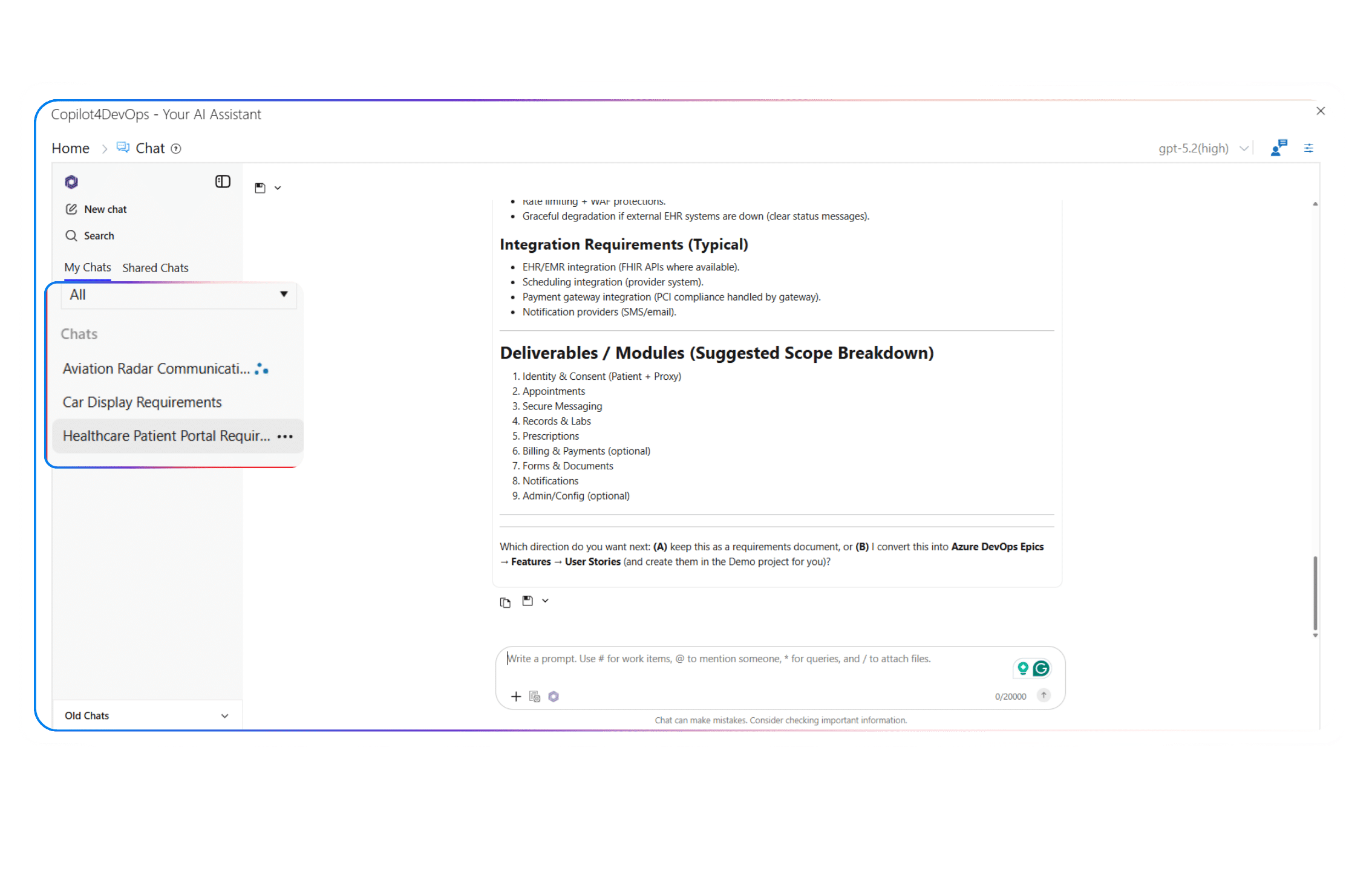
Want to access past chats? You can access them from the sidebar and start interacting with them. You can even rename or delete chats.

Shared chats

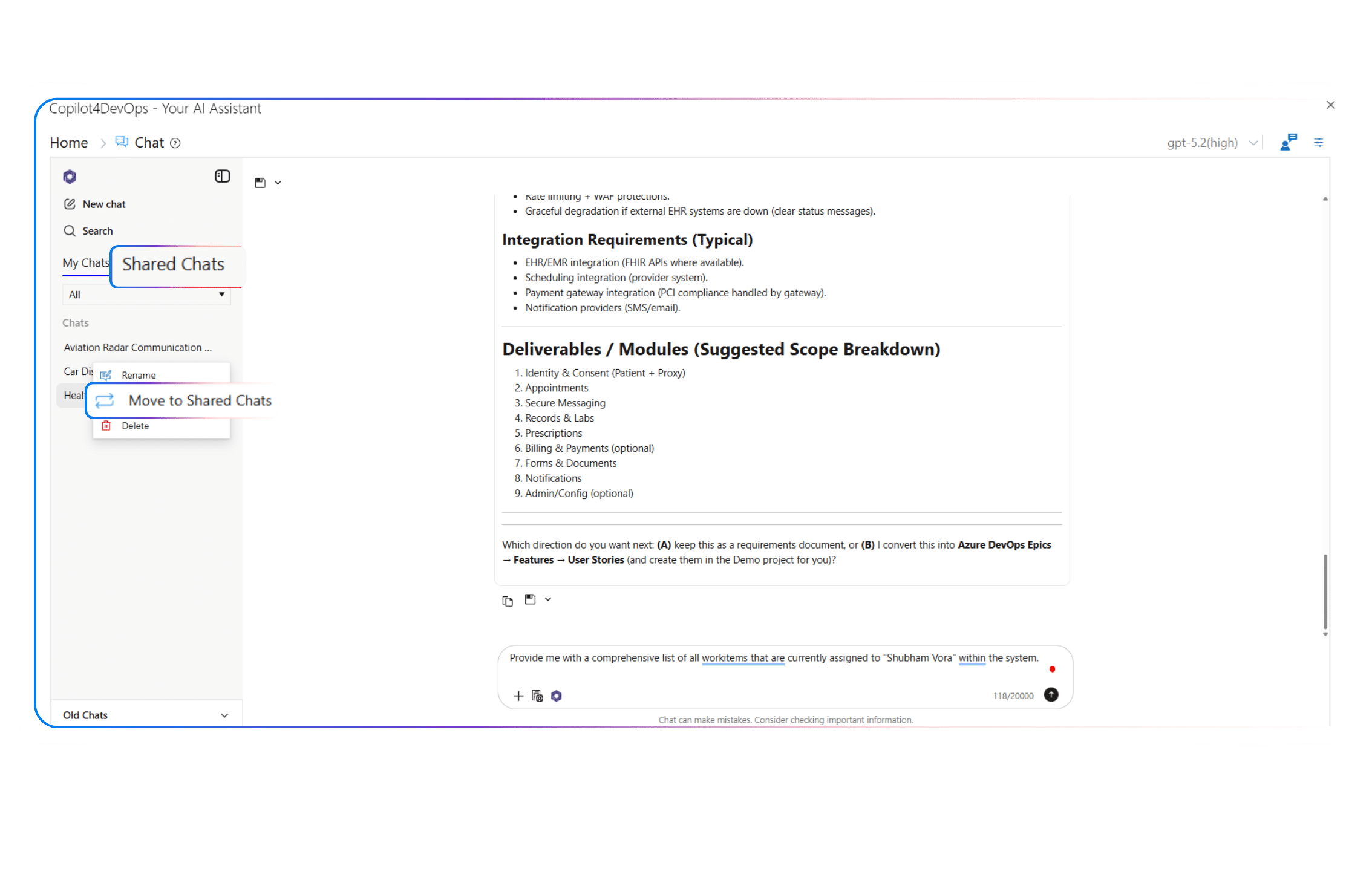
Need to share chats with your team members? Move chats from the “My Chats” tab to “Shared Chats”, and your team members will be able to access and interact with them without starting from scratch.

Smart text reference

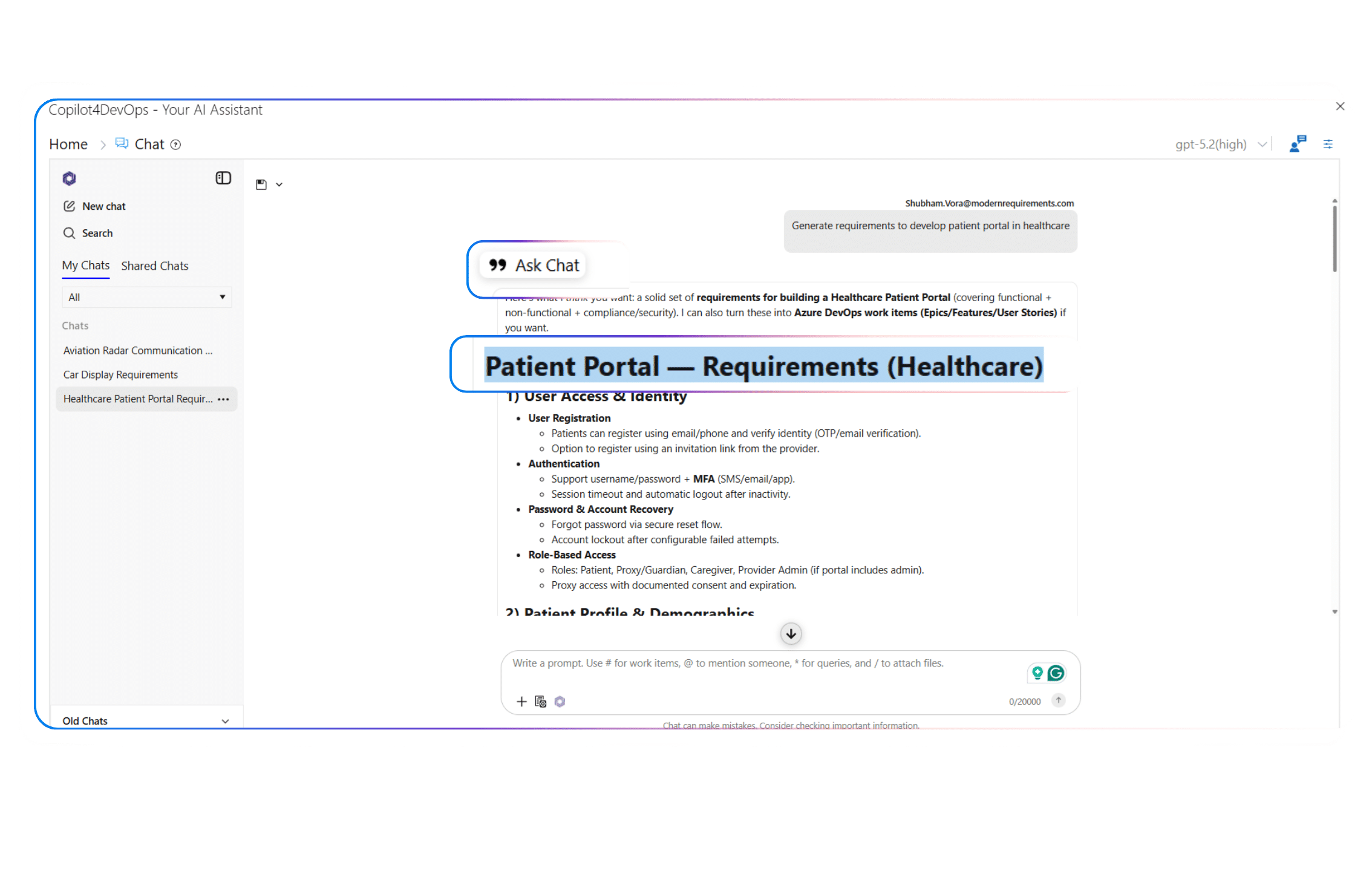
Need to link a part of your chat as context? Highlight any text, and a small pop-up lets you tag it for the next question. The system automatically uses that reference to give you a more relevant answer.

Rewrite prompt

Not sure how to phrase your request? Use the “Rewrite Prompt” option, which helps you refine the prompt using an AI. With a refined prompt, teams can get better outputs.

Text blocks

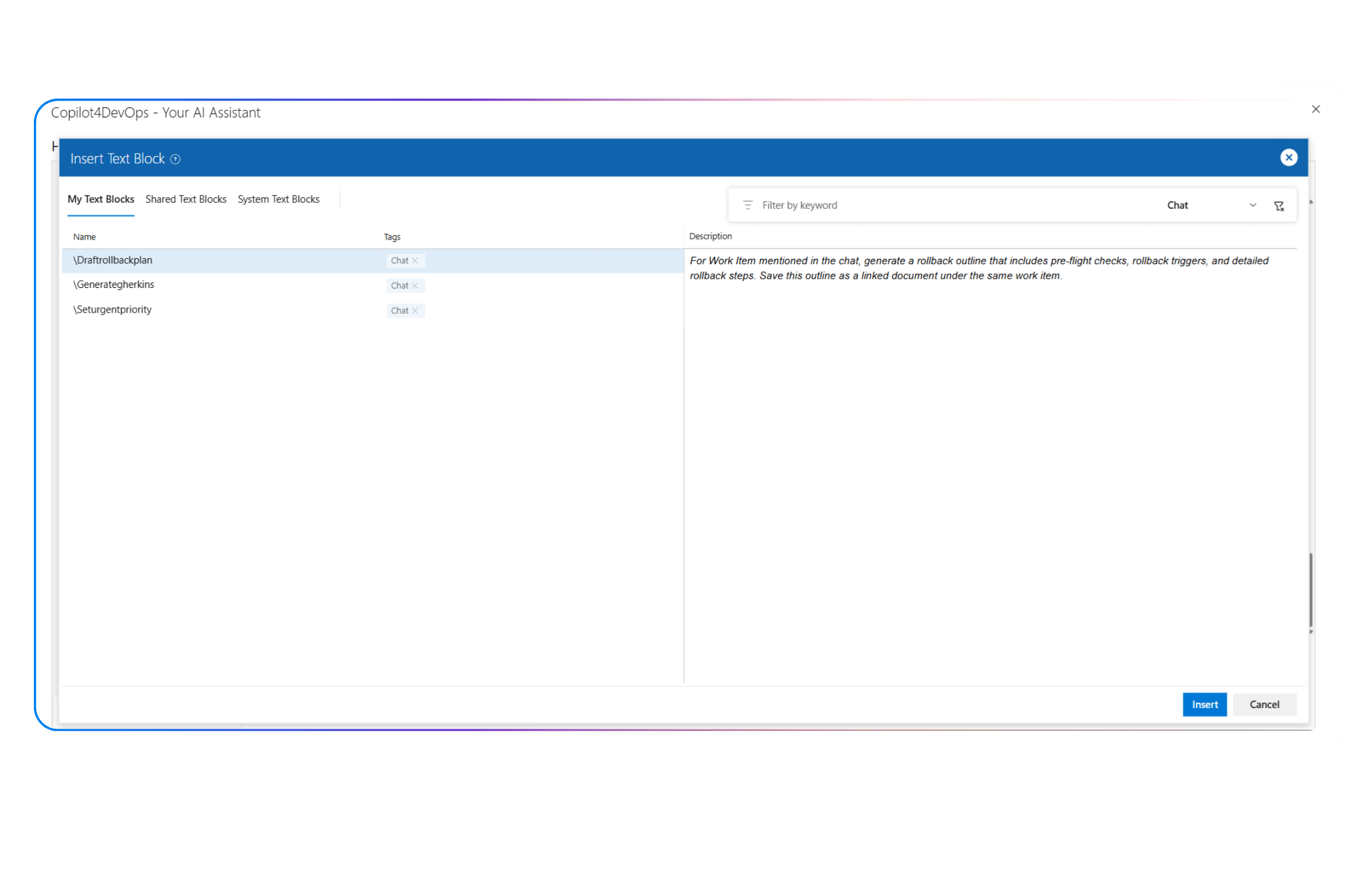
Tired of retyping the same instructions? Save them as Text Blocks. Later, teams can import text blocks into the prompt area whenever they need. This helps in generating consistent output and saves time.

Export chats

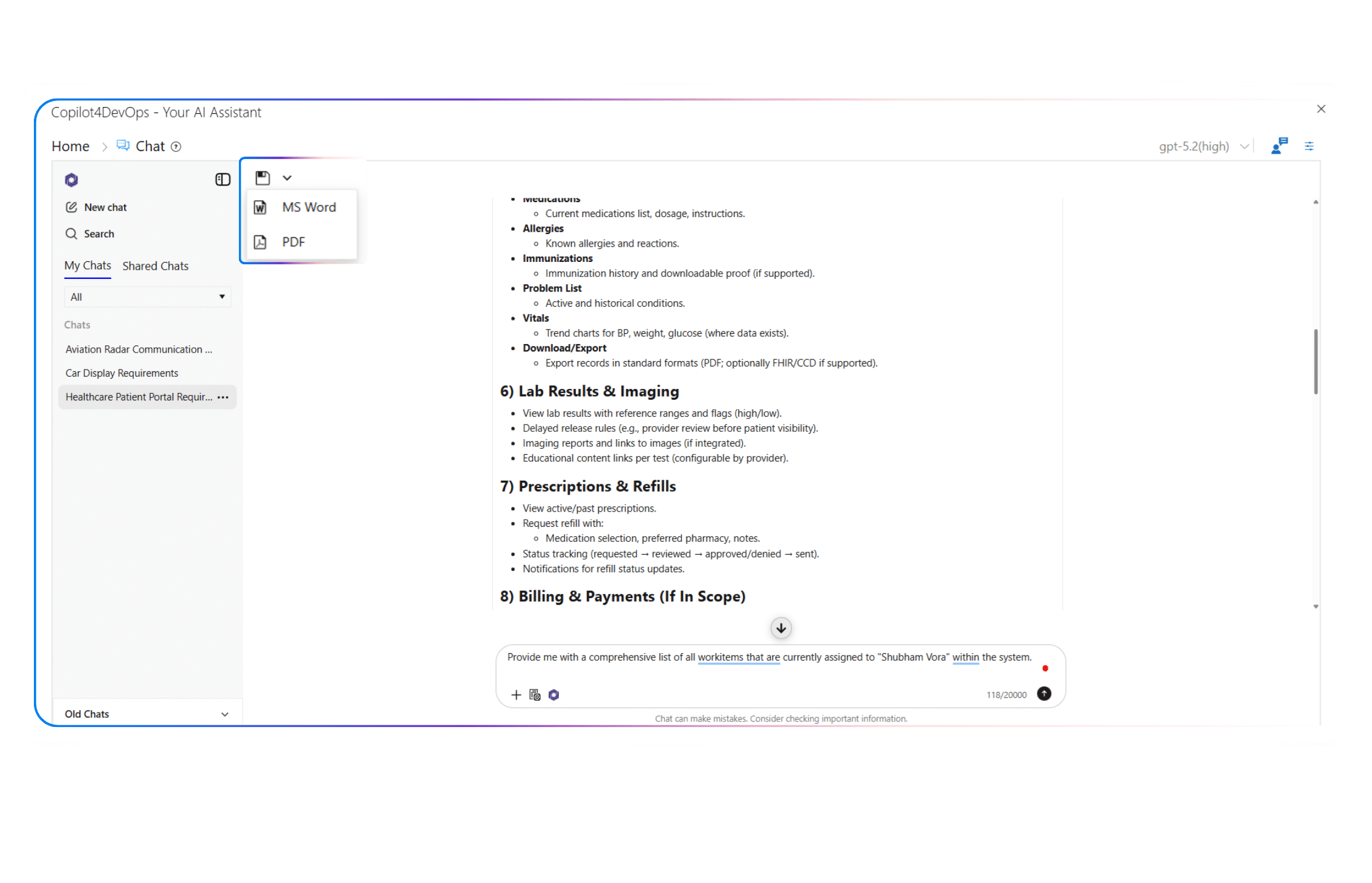
Want to share chats with external team members? AI Chat allows you to export the chat in Microsoft Word or PDF format.

Top use cases across different industries

Key benefits of using AI Chat in Copilot4DevOps

Less Time in Backlog Management

Teams using AI Chat of Copilot4DevOps report up to 70% less time in backlog management.

Planning and Review Cycles

It reduces the planning and review cycles by nearly 60%, improving release readiness.

Multiple Tabs to Perform Actions

Teams don’t need to switch between multiple tabs to perform actions on Azure work items.

Multiple Team Members

Multiple team members can work collaboratively by using shared chats.

FAQ

Your Questions are Answered Here

How do I open AI Chat inside Azure DevOps?

You can open AI chat directly from the side panel of Azure DevOps. Another way is you can open Copilot4DevOps directly from any Azure work item and then open AI chat from there.

Your project data remains inside your Azure Workspace and is not sent to anyone else. At Copilot4DevOps, we respect the privacy of users’ data, so we don’t track or use any data of our users.

AI chat can be used by anyone working with Azure DevOps, including product owners, BAs, PMs, developers, testers, and ops teams. Each role can use AI chat differently and boost their productivity.

Yes. You can ask it to produce UML, ERD, architecture sketches, or requirement documents based on referenced work items, then attach those outputs to the related items.

No. AI chat is a key feature of Copilot4DevOps. So, after subscribing to Copilot4DevOps, you can just start using AI chat within your Azure DevOps without any extra license.

AI chat allows you to upload up to 10 files at once. Please note that AI chats read only the text content of the file.

Yes, you can ask the AI chat to write a sprint status summary, list down open blockers, or create new work items in bulk and insert them into the current sprint.

Yes, your old chats are stored within your Azure workspace. You can access your old chats from the side panel and start interacting with them.

Yes. It can compile linked work items, approvals, and test evidence into a report. Always validate the output against your compliance checklist before submission.

Experience how AI Chat simplifies work in Azure DevOps

Start using natural language to create, manage, and summarize work items faster than ever.

Want to Learn More?

Explore Relevant Features