







DevOps isn’t a trend anymore. It’s how teams ship software.
DevOps adoption jumped from 33% in 2017 to nearly 80% in 2024 and continues to rise. Azure DevOps sits right at the center of that shift for teams managing DevOps projects, requirements, and delivery pipelines. Especially, ADO work items are the foundation of that, giving every task, user story, bug, and requirement a structured home.
And now, AI is changing how ADO work items are managed and tracked.
This guide helps teams understand different types of ADO work items, how to create and update them in bulk, different actions that can be performed on work items, and where AI helps to cut the manual overhead.
What Are Azure DevOps Work Items?
A work item in Azure DevOps is a simple record that captures any piece of work that needs to be tracked and done. It might be a feature request, bug, task, or anything to meet business goals.
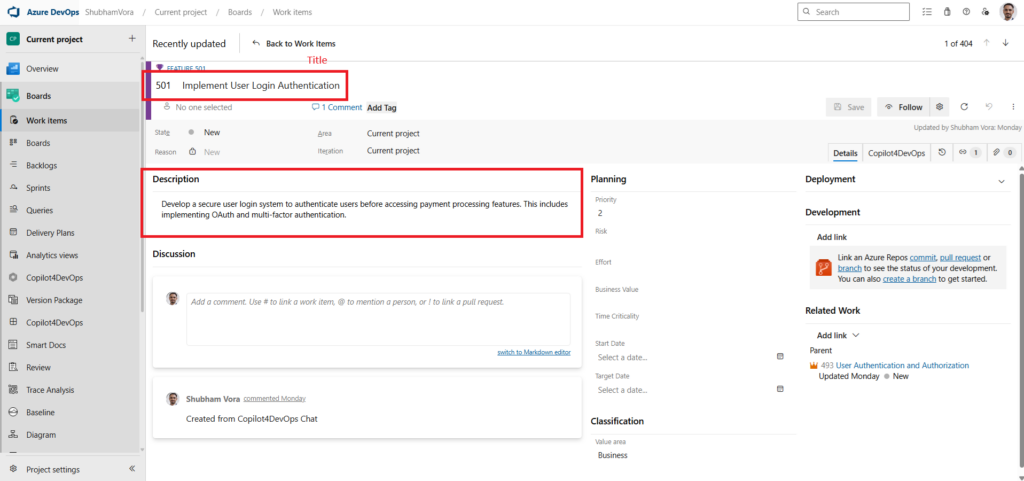
Every work item lives inside Azure Boards and gets a unique ID the moment it’s created. Furthermore, A typical ADO work item contains fields like the following:
- Title and description of the work
- Assigned team member
- Current state or status
- Priority or effort estimate
- Iteration or sprint assignment
- Many more attributes, such as comments, version history, related work items, etc.
In short, these work items help different teams, including planning, development, and testing, stay connected, track progress of work that needs to be done, and align with business goals.
Understanding Work Item Types and Processes in Azure DevOps
Common Work Item Types
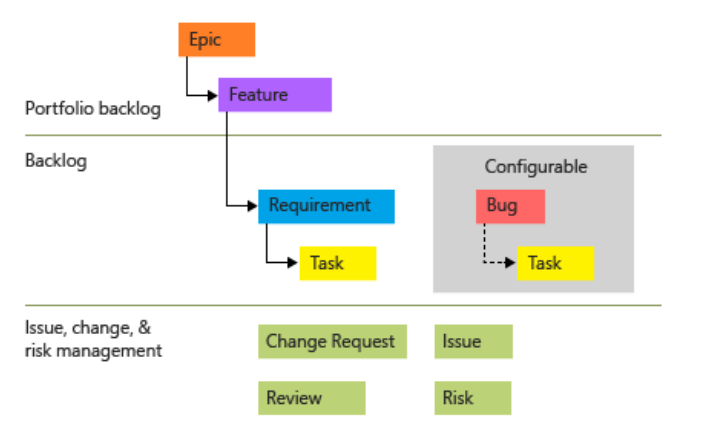
- Epic: It represents a large unit of work. For example, implement a login feature in the application.
- Feature: It’s a chunk of an Epic. It describes a specific feature of the system. For example, the system should allow login with a mobile number, implement two-factor authentication, etc.
- User Story / Product Backlog Item: Captures a specific requirement from the user’s perspective.
- Task: It is a unit of work assigned to developers or team members during implementation.
- Bug: It is helpful to track errors found during development.
Work Item Processes in Azure DevOps
Azure DevOps provides different process templates that define available work item types, states, and fields.
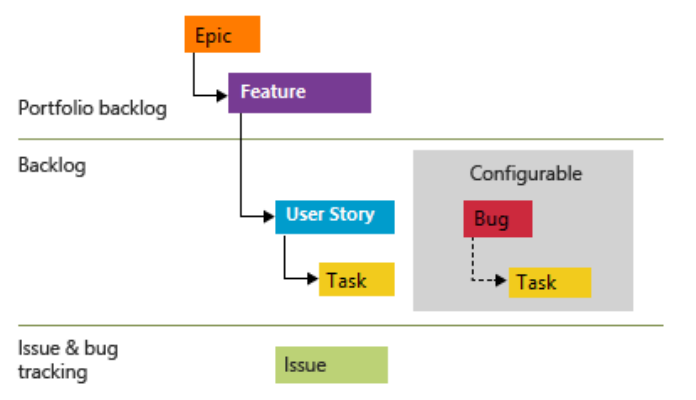
- Agile process: In this process, user stories and tasks track work, and bugs track defects. Here, epics and feature groups work under larger scenarios.
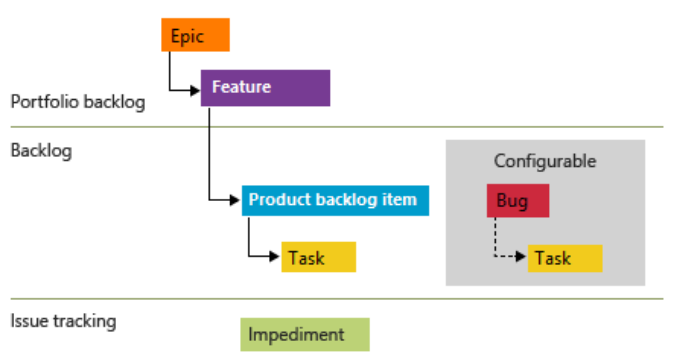
- Scrum process: This process template is specifically useful for Scrum teams. It uses backlog items, tasks, and bugs.
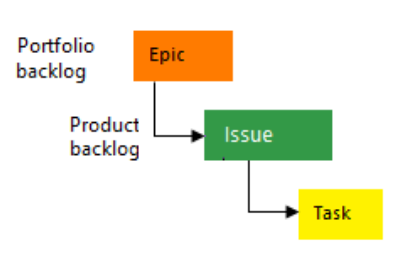
- Basic process: A simpler model with issues, tasks, and epics. Suitable for smaller teams.
- CMMI process: This process template includes additional work item types, such as Change Request, Risk, Review, and Issues. It is often used in regulated environments.
Where and How Teams Create Work Items in Azure DevOps
Work items within ADO can be created from multiple places:
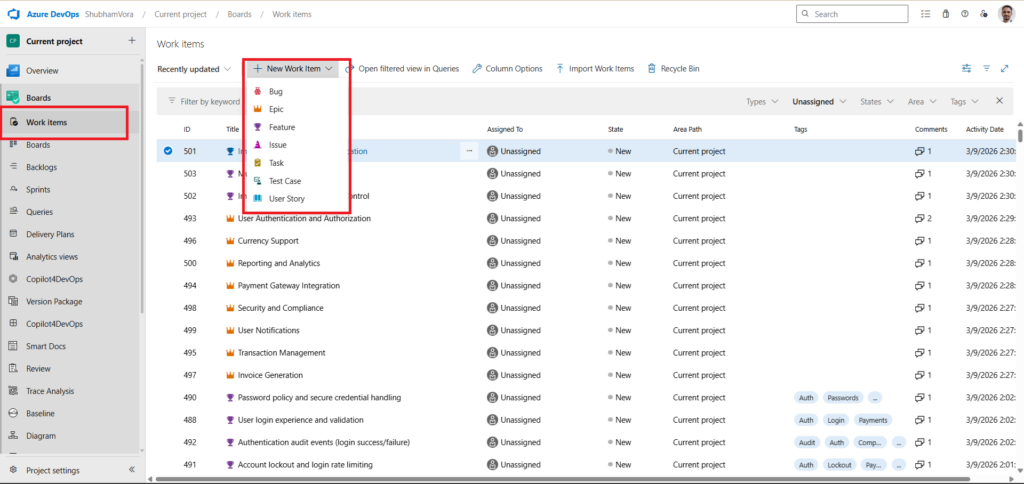
- From “Work Items” tab: In Azure Boards, go to the “Work Items” tab, select the work item type, and hit enter. This is the simplest way to create any type of work item.
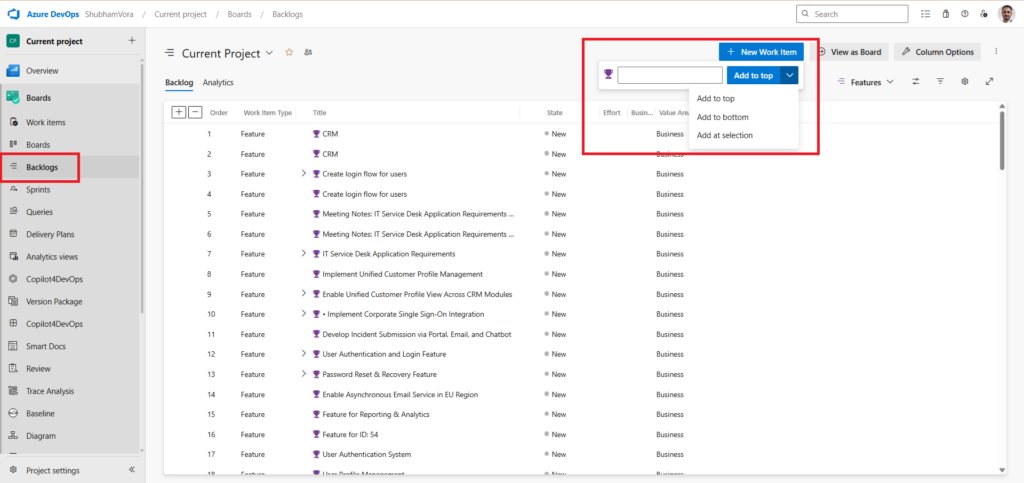
- From the “Backlogs” tab: Teams developing a product backlog can directly create new work items here without switching tabs.
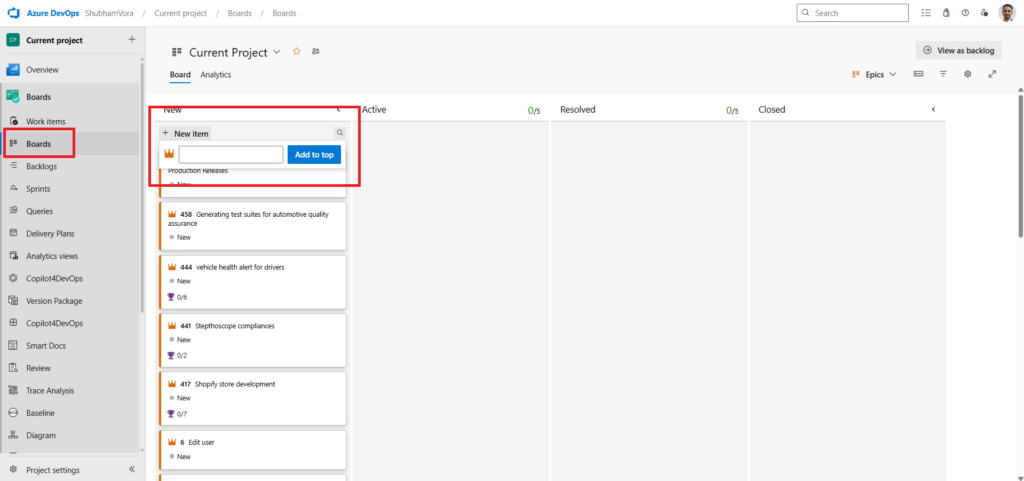
- From the “Boards” tab: Teams tracking work item progress in kanban boards can directly add requirements.
- Sprint backlogs: During sprint planning, teams can create work items, like user stories, directly from here.
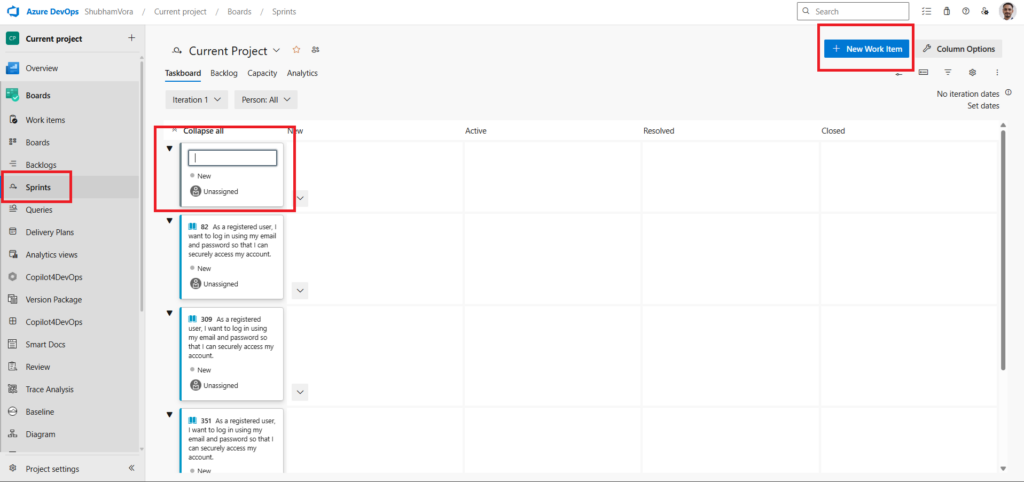
Creating Azure DevOps Work Items in Bulk
If you are working on large projects and need to create work items in bulk, follow any of the three approaches given below:
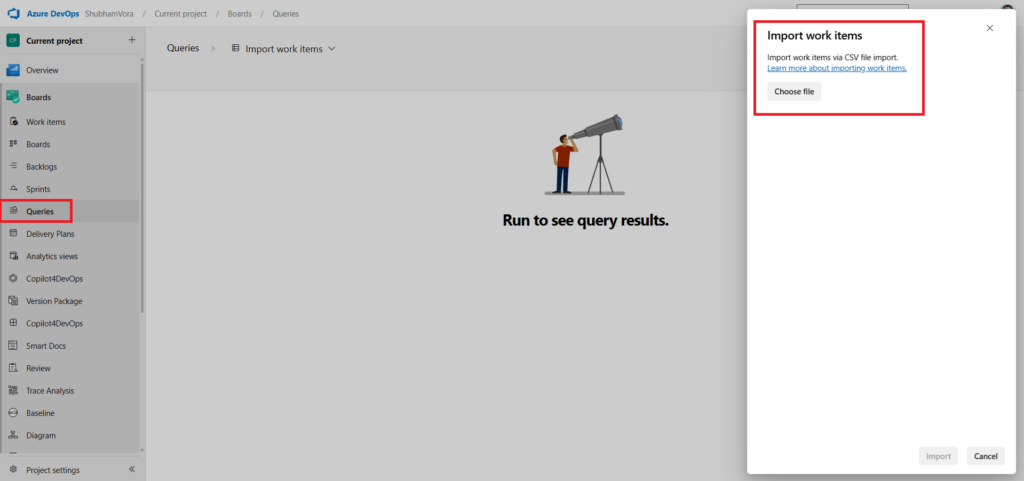
- CSV import: Teams can create a spreadsheet that contains columns such as title, description, priority, assignee, etc. Then, import the CSV file from the queries tab and create hundreds of work items at once. The only disadvantage of this method is that teams need to manually fill the spreadsheet.
- REST API automation: Organizations can use ADO APIs to create work items through automated workflows.
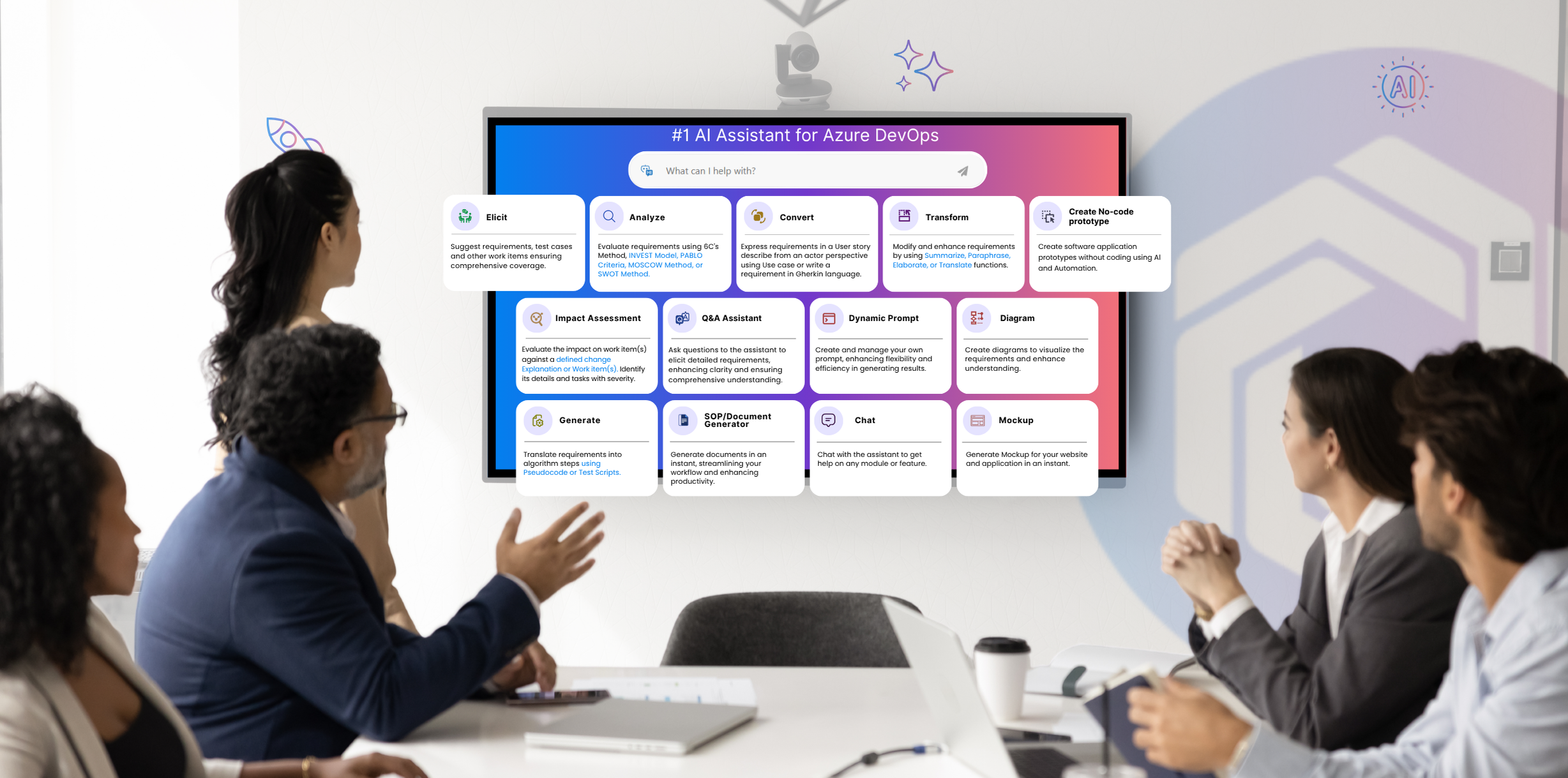
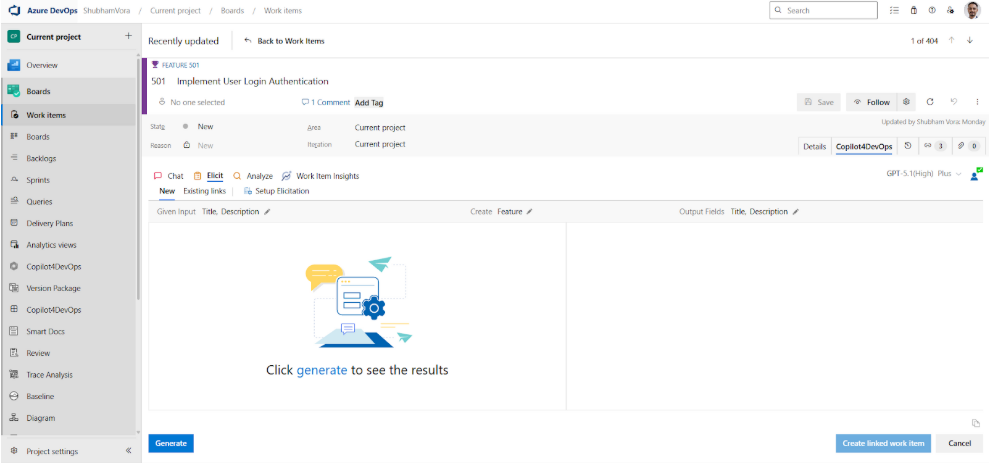
- Use Copilot4DevOps: It is an AI assistant for requirements management that works within Azure DevOps as an extension. The Elicit feature of Copilot4DevOps takes raw documents, meeting notes, web page links, or work item attachments as a reference and generates multiple work items based on the provided context, without missing anything. It even allows you to add all generated work items directly into the Azure backlog with a single click.
Editing ADO Work Item Content
Creating work items in Azure DevOps is just the start. As development moves, teams are required to edit work items. They might need to change the vague title and description, change priority, assignee, area, and iteration path, or tags.
Of course, editing is straightforward: Open the work item, update any field, save, and close. However, manually editing titles and long descriptions is a real headache for teams.
This is where the AI edit feature of Copilot4DevOps is really helpful.
An AI edit can be opened directly from an ADO work item. Then, users can fix grammatical errors, the length of a particular field of work item, and polish descriptions with a single click. It also offers chat in the left panel, where users can ask questions about a work item or instruct AI in natural language to update a particular field of a work item.
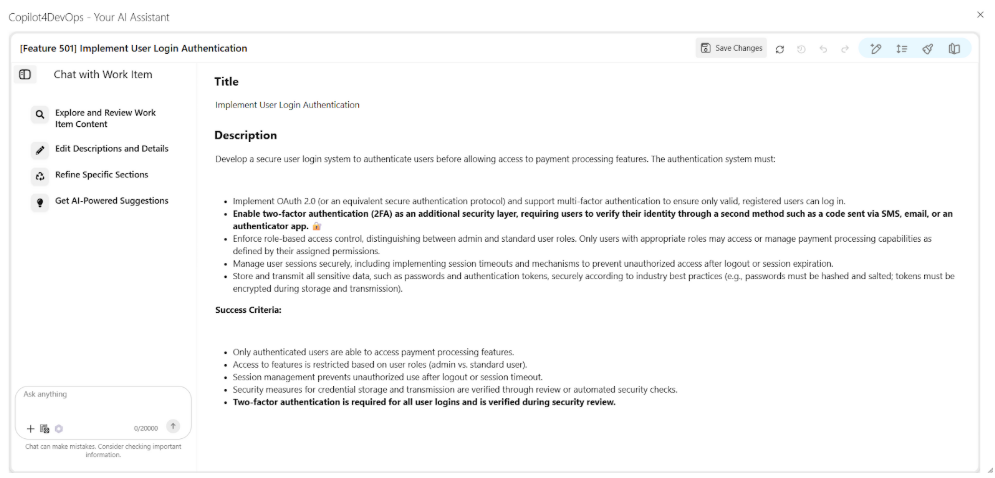
With this, teams can edit any work item in under a minute.
Collaborating Inside Azure DevOps Work Items
A work item is not just for tracking tasks, but it acts as an individual workspace for a specific task where team members have actual conversations to stay aligned.
Here is how users can collaborate on ADO work items:
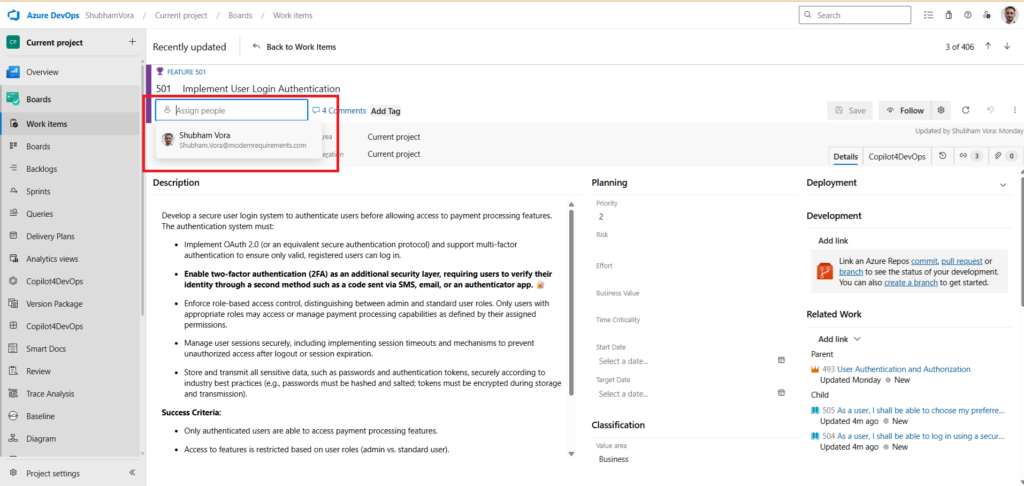
- Assigning work items: Each work item can be assigned to an individual or multiple team members. So, everyone in the team can know who owns a task. Also, teams can update the assignee during mid-sprint if required.
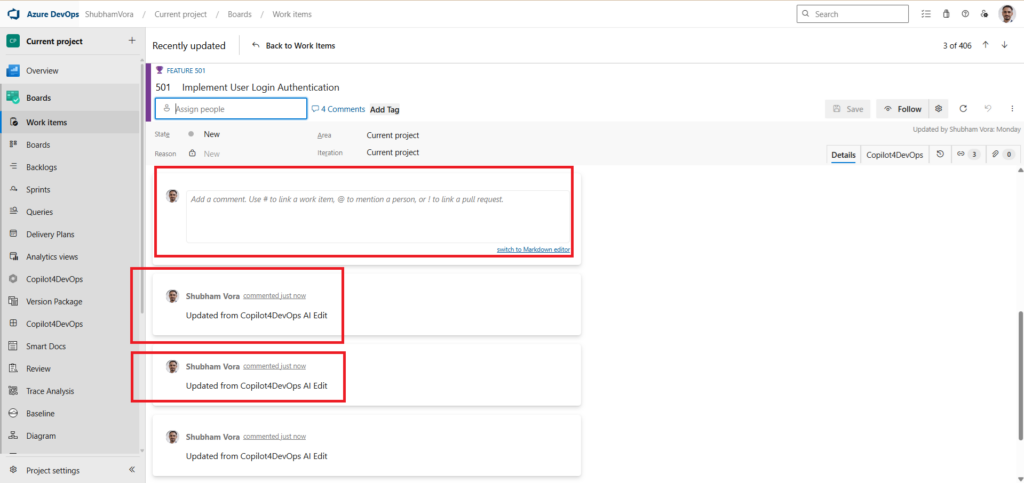
- Comments and discussion: In this section, team members can add notes and updates. This space can be used to ask questions or document decisions related to the requirement.
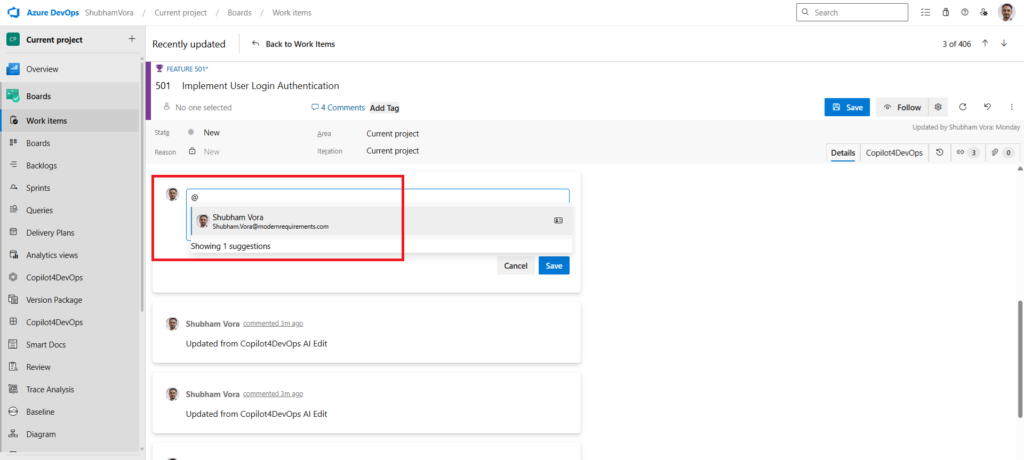
- Mentions and notifications: Users can use “@” to mention team members in comments. This allows for involving the right person in the discussion without sending scattered emails.
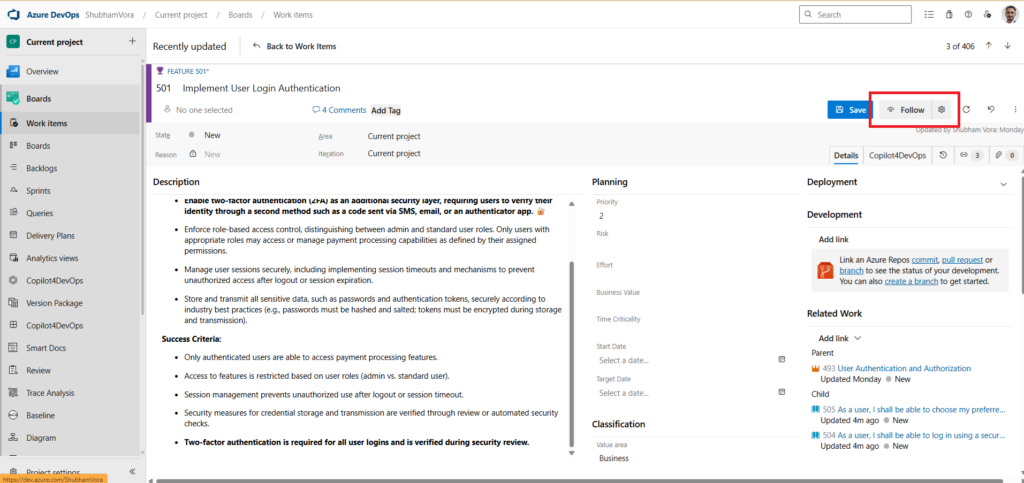
- Change history: ADO maintains the full history of updates made to work items. It shows what changed, when it changed, and who made the update.
Work item insights: AI-Powered Risk Analysis
Traditionally, to check the readiness of ADO work items, BA or tech teams sit together, read through each work item, verify priority, and clarify the work item description and other fields. This approach was taking them weeks to review thousands of work items for any complex projects.
For the last few years, AI has changed everything, and here is how Copilot4DevOps handles it:
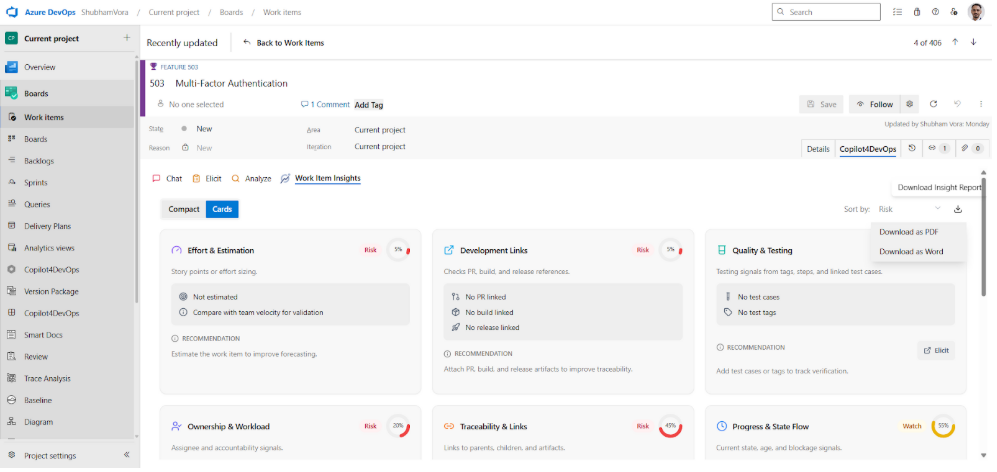
- You just open any ADO work item.
- Go to the “Copilot4DevOps” tab directly inside the work item editor.
- Then, move to the “Work Item Insights” tab, and you will see an analysis that contains different scores for clarity and specification, priority and scheduling readiness, risk and complexity level, traceability and linked artifacts score, etc.
So, this type of AI analysis allows teams to quickly analyze if they are complete, stable, and ready for development.
Managing Relationships Between Work Items
Azure DevOps allows teams to link work items with each other. This helps in understanding the relationship between work items across the project.
For example, you can have a parent-child relationship. In the Agile process, a typical parent-child relationship looks like this:
- Epic -> Features -> users stories -> Tasks -> Bugs/issues
Here are the steps to manage the relationship between work items:
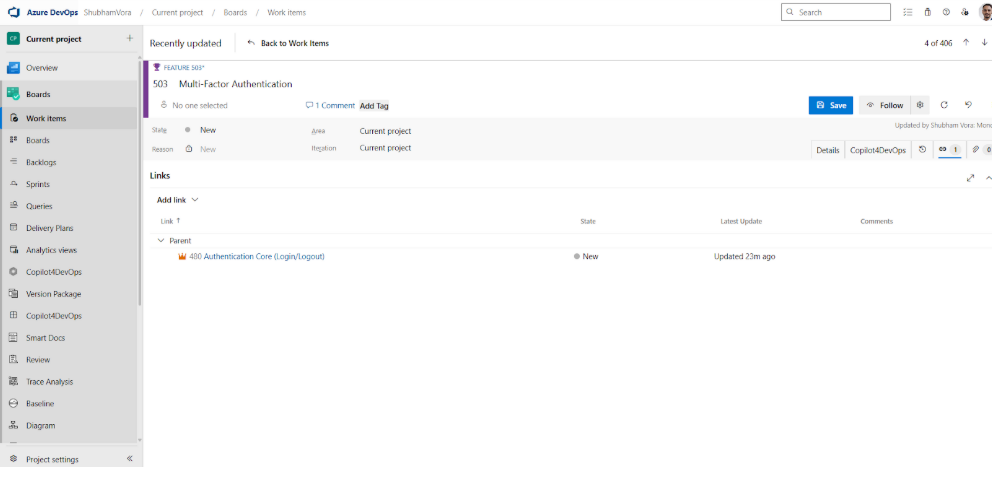
- Open work item. Then, go to the “Links” tab.
- Click on the “Add link” option. Then, select whether you want to link the current work item with the existing work item or the new work item.
- Then define the link type. You can select something like Parent, Child, Related, Predecessor, Tested By, or Successor. It also allows linking deployment status, Git updates, security alerts, and remote work.
- Then select multiple work items to be linked. You can find work items using ID or keywords.
- Then add any comment if you want, and click on the “Add Link” button.
- Once added, teams can see all dependencies in the “Link” tab.
ADO Queries — Filtering & Reporting on Work Items
ADO queries help teams to filter a group of work items based on specific conditions. With that, users can filter work items based on tags, iteration, assignee, state, priority, type, or other work item fields.
Here is a step-by-step process to create a query:
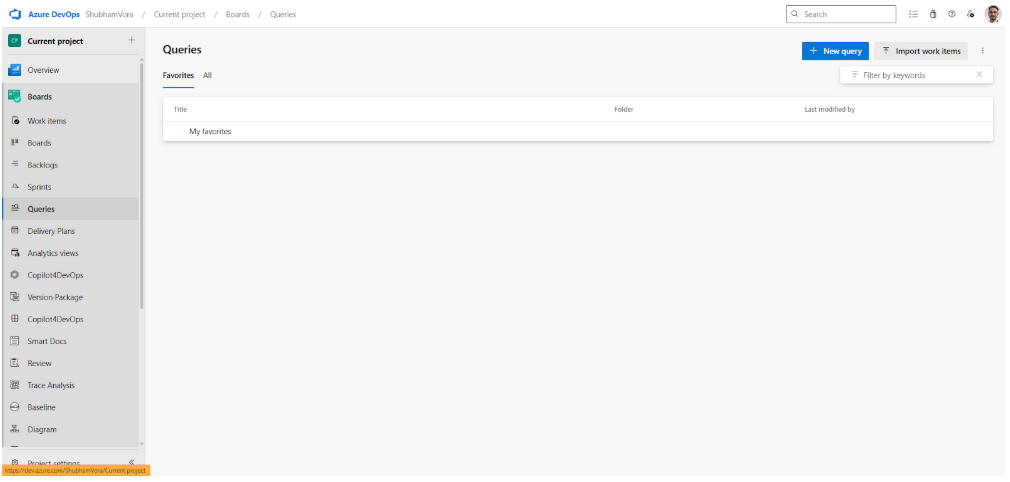
- Go to Azure Boards -> Queries.
- Select New Query.
- Add specific conditions based on fields, operators, and values.
- Then, run the query to view matching work items.
- Save it under My Queries or Shared Queries so others can reuse it.
Azure DevOps supports three query types:
- Flat list: Returns a list of work items.
- Tree query: shows hierarchical relationships such as parent and child items.
- Direct link query: Shows dependencies or linked work items.
These ADO queries are used for multiple purposes. For example, teams can list all active items during sprint planning and run the same queries again and again instead of manually finding each active work item.
The good part of ADO queries is that they can be reused, shared, and visualized through charts or a dashboard. So, it is very useful in tracking project progress.
Copilot4DevOps AI Chat: Interact with ADO Work Items in Natural Language
AI chat is a very powerful feature in Copilot4DevOps that allows teams to create, update, or manage work items in bulk. It also allows for managing ADO queries using natural language.
Use AI Chat From the Azure DevOps Side Panel
When you open AI Chat from the Azure DevOps side panel, it doesn’t take specific work teams as a context. Here, users can use AI Chat for performing actions like the following:
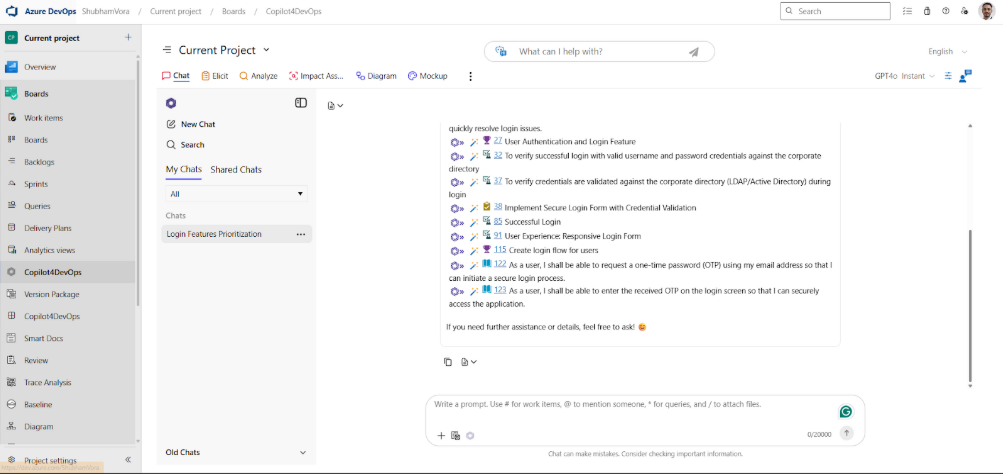
- Brainstorm ideas related to any feature to implement.
- Create and insert multiple epics, features, user stories, tasks, etc., in Azure DevOps for any rough ideas.
- Create ADO queries using natural language and save them in your workspace.
- Select work items through ID or queries, and prepare documentation or audit reports.
- Delete or modify selected work items in bulk. For example, you can select all user stories related to the login feature and set the priority to 1.
Use AI Chat Directly Within Work Item Editor
When you open Copilot4DevOps from the work item editor, by default, it opens AI chat and takes only the current work item as a context. This allows interaction with a specific work item using plain English.
Here, you can ask AI Chat to:
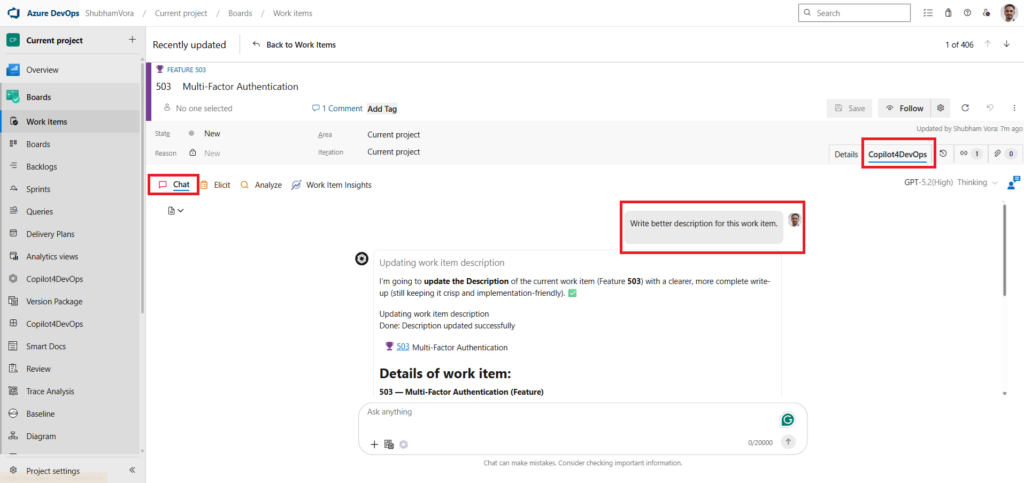
- Provide a summary of the work item.
- Review the work item and identify any areas that require further clarification.
- Ask to get a quick overview of all related work items.
In short, you can perform tasks related to specific work items.
You can explore more about AI Chat here.
Best Practices for Managing ADO Work Items at Scale
- Keep titles clear and specific: Write a short and direct title that explains the purpose of the work item. This helps team members quickly understand what the work item is conveying.
- Use tags for quick categorizations: Tags help teams group related work items based on features, current sprint, UI components, performance, etc.
- Use AI to boost productivity: Tools like Copilot4DevOps can be used to generate or update ADO work items in bulk. It also helps to fix vague descriptions and acceptance criteria without spending hours. We recommend teams look at work item insights to analyze associated risks before starting development.
- Link related work items: Connect all relevant work items. This improves traceability and shows how work flows across the project.
- Track ownership clearly: Assign a responsible owner to each work item. So, team members can avoid confusion during execution.
- Use queries and dashboards for visibility: Always use queries to filter work items, monitor work load, and track sprint progress.
Closing Thoughts
Azure DevOps work items are not just tickets to track work progress, but they’re the backbone of product development. We’ve seen that it captures requirements, tracks tasks in Kanban boards, logs bugs, and records progress as work moves through planning, development, deployment, and testing phases.
We have already looked at different actions teams can perform on ADO work items. Furthermore, it is hard to manage individual work items when the project grows. So, we also explained how to create or update work items in bulk. Moreover, you also learned how to use AI within Azure DevOps to boost productivity while managing work items.
You are now fully ready to start interacting with ADO work items.
Start your 15-day free trial of Copilot4DevOps and see how many hours your team can save each week while managing Azure DevOps work items.
Try it Yourself
Ready to transform your DevOps with Copilot4DevOps?
Get a free trial today.