








A detailed guide to managing file uploads in Copilot4devops

A Detailed Guide to Managing File Uploads in Copilot4DevOps

Managing file uploads effectively in Copilot4DevOps ensures smooth collaboration, optimized performance, and reliable workflows. This guide explains file handling capabilities, limitations, and best practices for different features of Copilot4DevOps.

Understanding File Upload Rules in Copilot4DevOps

These rules cover:

  • Maximum size allowed per file
  • Number of files per request or thread
  • File expiration timelines
  • Overall storage limits at the organization level

These limits are introduced to overcome the performance issues, but not to restrict usage. Sometimes, uploading large files or too many files at once can slow down the processing or cause failures.

In the next section, let’s look at file handling rules for different features of Copilot4DevOps.

Managing File Uploads Across Copilot4DevOps Features

1. Chat

In the AI chat, you can upload different types of files, including image files, text files, etc., using the ‘+’ icon in the prompt area. It takes the content of the uploaded file as a reference and generates the response accordingly.
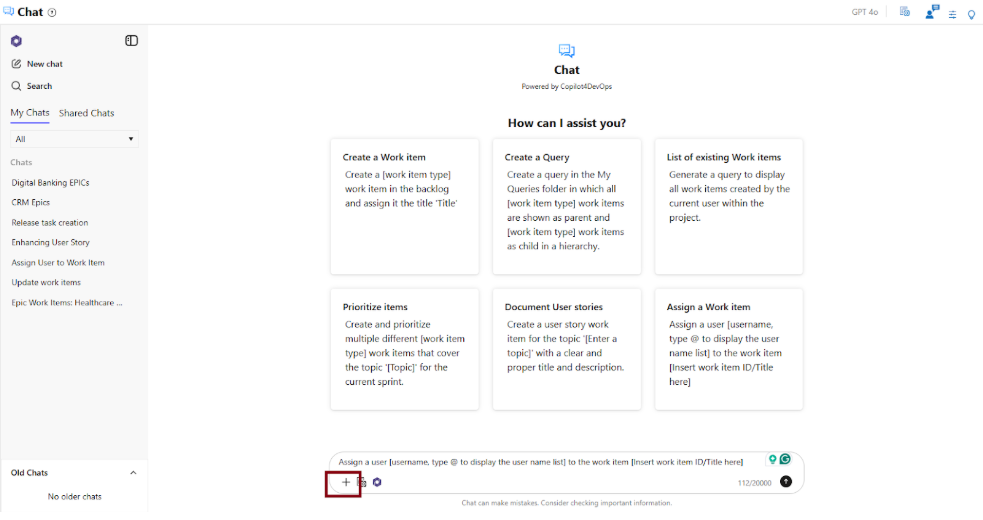
AI Chat

While uploading files to the AI chat, users need to follow the file size limits given in the table below:

Rule Details
Maximum size per file You can attach each file of size up to 20 MB. Files exceeding the size limit can’t be processed.
Maximum files per prompt With a single prompt, you can attach up to 10 files. Make sure that the size of each file does not exceed 20 MB.
Maximum files per chat (thread) There are no fixed limits on the total number of files in a thread. However, every file size should be less than 20 MB. Large threads with many files may load slowly or fail.
Recommended total size per chat Again, there is no total size limit per chat or thread. However, it is recommended to keep the total file size under approximately 100 MB to get better performance.
File expiration Chat files are stored for 1 month. If there is no activity in the thread, it is archived after this period.
Example In the mobile banking app development, the Product Owner decides the app will have features like account overview, fund transfer, and bill payments based on market needs and business priorities.
End goal Deliver a technically correct product that meets all documented requirements.

Note: These rules apply when you use LLM services offered by OpenAI or Azure OpenAI. The limits are defined by their APIs and enforced within Copilot4DevOps. If your organization connects its own LLM, the limits may change depending on that service’s configuration. This applies to all features of Copilot4DevOps that support file uploading.

2. Elicit

The “Setup Elicitation” feature within the Elicit function allows users to upload different types of files, including documents, PDFs, images, etc., to provide a reference to generate work items based on the file content.

Elicit

Users must know the constraints below to efficiently handle file uploading during the elicitation:

Rule Details
Maximum number of files (including images) Users can upload up to 10 files.
File size (raw) Each file size should be 20 MB or less.
If too many files or too large a file If the user attempts to upload more than 10 files or files larger than 20 MB, an error message will be displayed.

3. File Size and Type Allowed in BYOD (Bring Your Own Data)

The BYOD feature allows you to upload documents, code files, Azure wikis, queries, work items, etc., to train the custom LLM (Large Language Model) to provide brand-specific context to the AI. Later, AI can generate work items, documents, etc., tailored to the context.

While handling the file upload in BYOD, users should keep the constraints below in mind:

Rule Details
Maximum size per file Each file can be up to 512 MB or 5,000,000 tokens.
Organization storage limit (Including files, Azure Wikis, and Queries) A total of 100 GB is available for all uploaded files combined.
Maximum files per organization Allows uploading up to 10,000 files, including documents, Azure DevOps queries, and wiki pages.
File expiration File data can be deleted under three conditions:
  • If data is manually deleted by the Admin.
  • If the AI service is switched from the LLM tab
  • When the Copilot4DevOps licence is changed/upgraded.

4. SOP/Document Generator

Consider the constraints below while handling file uploads within the SOP/Document generator to avoid failures.

Rule Details
Maximum size per file Each file can be up to 20 MB.
Maximum Number of files Users can upload 10 files at a time, including images.
If the file is too large When the file size is more than 20 MB, it will automatically be skipped.

5. Mockup

Rule Details
Maximum size per file Each file can be up to 20 MB.
Maximum Number of files Allows uploading up to 10 files at once.

6. Diagram

Rule Details
Maximum size per file It must be 20 MB or smaller.
Maximum Number of files Allows uploading up to 10 files at once.
Reference only, no recreation The diagram feature considers an uploaded file as a reference, but it can’t recreate the same diagram mentioned in the file.

Key Takeaways

  • File upload rules differ across Chat, Elicit, BYOD, and other features, so it is important to know the exact limits before uploading.
  • Chat and Elicit support files up to 20 MB.
  • BYOD is built for organization-wide use, with limits of 100 GB storage and up to 10,000 files.
  • SOP/Document Generator, Mockup, and Diagram also allow files up to 20 MB, with a maximum of 10 files per upload.

Try it Yourself

Ready to transform your DevOps with Copilot4DevOps?

Get a free trial today.

Table of Contents

Table of Contents

Managing file uploads effectively in Copilot4DevOps ensures smooth collaboration, optimized performance, and reliable workflows. This guide explains file handling capabilities, limitations, and best practices for different features of Copilot4DevOps.

Understanding File Upload Rules in Copilot4DevOps

These rules cover:

  • Maximum size allowed per file
  • Number of files per request or thread
  • File expiration timelines
  • Overall storage limits at the organization level

These limits are introduced to overcome the performance issues, but not to restrict usage. Sometimes, uploading large files or too many files at once can slow down the processing or cause failures.

In the next section, let’s look at file handling rules for different features of Copilot4DevOps.

Managing File Uploads Across Copilot4DevOps Features

1. Chat

In the AI chat, you can upload different types of files, including image files, text files, etc., using the ‘+’ icon in the prompt area. It takes the content of the uploaded file as a reference and generates the response accordingly.

AI Chat

While uploading files to the AI chat, users need to follow the file size limits given in the table below:

Rule Details
Maximum size per file You can attach each file of size up to 20 MB. Files exceeding the size limit can’t be processed.
Maximum files per prompt With a single prompt, you can attach up to 10 files. Make sure that the size of each file does not exceed 20 MB.
Maximum files per chat (thread) There are no fixed limits on the total number of files in a thread. However, every file size should be less than 20 MB. Large threads with many files may load slowly or fail.
Recommended total size per chat Again, there is no total size limit per chat or thread. However, it is recommended to keep the total file size under approximately 100 MB to get better performance.
File expiration Chat files are stored for 1 month. If there is no activity in the thread, it is archived after this period.
Example In the mobile banking app development, the Product Owner decides the app will have features like account overview, fund transfer, and bill payments based on market needs and business priorities.
End goal Deliver a technically correct product that meets all documented requirements.

Note: These rules apply when you use LLM services offered by OpenAI or Azure OpenAI. The limits are defined by their APIs and enforced within Copilot4DevOps. If your organization connects its own LLM, the limits may change depending on that service’s configuration. This applies to all features of Copilot4DevOps that support file uploading.

2. Elicit

The “Setup Elicitation” feature within the Elicit function allows users to upload different types of files, including documents, PDFs, images, etc., to provide a reference to generate work items based on the file content.

Elicit

Users must know the constraints below to efficiently handle file uploading during the elicitation:

Rule Details
Maximum number of files (including images) Users can upload up to 10 files.
File size (raw) Each file size should be 20 MB or less.
If too many files or too large a file If the user attempts to upload more than 10 files or files larger than 20 MB, an error message will be displayed.

3. File Size and Type Allowed in BYOD (Bring Your Own Data)

The BYOD feature allows you to upload documents, code files, Azure wikis, queries, work items, etc., to train the custom LLM (Large Language Model) to provide brand-specific context to the AI. Later, AI can generate work items, documents, etc., tailored to the context.

While handling the file upload in BYOD, users should keep the constraints below in mind:

Rule Details
Maximum size per file Each file can be up to 512 MB or 5,000,000 tokens.
Organization storage limit (Including files, Azure Wikis, and Queries) A total of 100 GB is available for all uploaded files combined.
Maximum files per organization Allows uploading up to 10,000 files, including documents, Azure DevOps queries, and wiki pages.
File expiration File data can be deleted under three conditions:
  • If data is manually deleted by the Admin.
  • If the AI service is switched from the LLM tab
  • When the Copilot4DevOps licence is changed/upgraded.

4. SOP/Document Generator

Consider the constraints below while handling file uploads within the SOP/Document generator to avoid failures.

Rule Details
Maximum size per file Each file can be up to 20 MB.
Maximum Number of files Users can upload 10 files at a time, including images.
If the file is too large When the file size is more than 20 MB, it will automatically be skipped.

5. Mockup

Rule Details
Maximum size per file Each file can be up to 20 MB.
Maximum Number of files Allows uploading up to 10 files at once.

6. Diagram

Rule Details
Maximum size per file It must be 20 MB or smaller.
Maximum Number of files Allows uploading up to 10 files at once.
Reference only, no recreation The diagram feature considers an uploaded file as a reference, but it can’t recreate the same diagram mentioned in the file.

Key Takeaways

  • File upload rules differ across Chat, Elicit, BYOD, and other features, so it is important to know the exact limits before uploading.
  • Chat and Elicit support files up to 20 MB.
  • BYOD is built for organization-wide use, with limits of 100 GB storage and up to 10,000 files.
  • SOP/Document Generator, Mockup, and Diagram also allow files up to 20 MB, with a maximum of 10 files per upload.

Try it Yourself

Ready to transform your DevOps with Copilot4DevOps?

Get a free trial today.