Uploading Attachments/Files
Copilot4DevOps lets you enhance AI-generated outputs by adding supporting files and web links from multiple sources. These inputs provide additional context to improve relevance and accuracy across Copilot4DevOps modules.
This capability improves contextual accuracy, relevance, and overall output quality across Copilot4DevOps modules.
Supported Sources
You can add up to 10 items in total (combined across all sources) from the following locations:
-
Upload Files (from your local device)
-
Work Item Attachments
-
BYOD (Bring Your Own Data)
-
Web Links
The same experience is available anywhere in Copilot4DevOps where document uploads are supported, especially the following areas:
Upload File Popup Overview
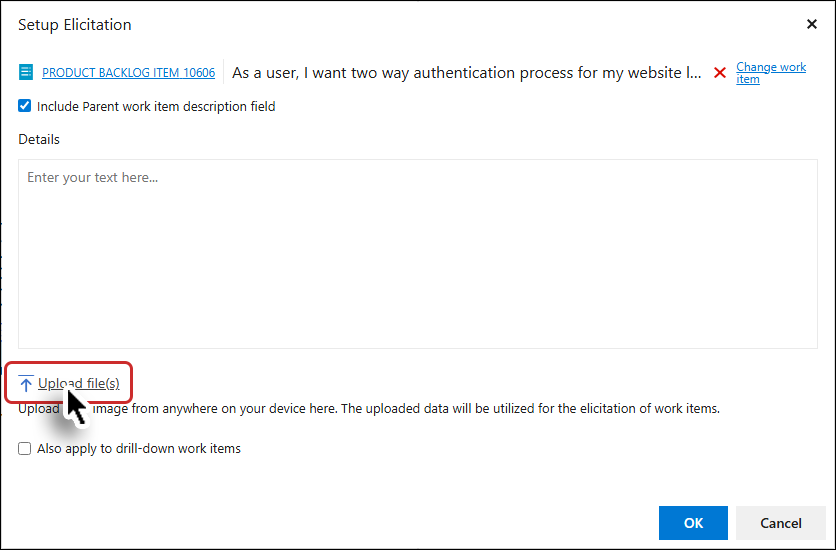
When you click Upload File(s) or the + icon, the Upload File popup opens.
This popup allows you to upload files, select existing documents, or add web links for the AI to fetch and use as context.
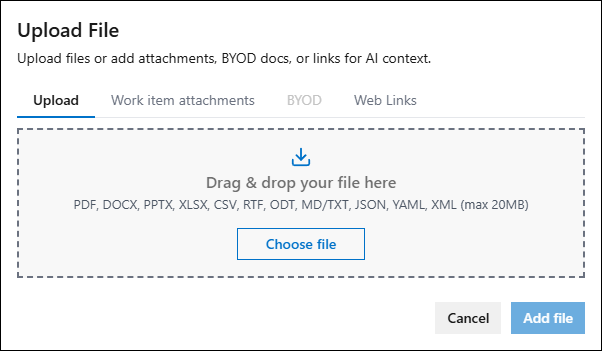
Tabs in the Upload File popup
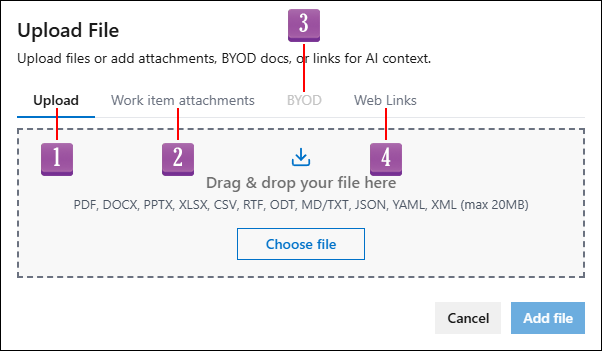
The popup contains four tabs, and you can switch between them without losing your selections.
-
Upload
-
Work Item Attachments
-
BYOD
-
Web Links
Upload
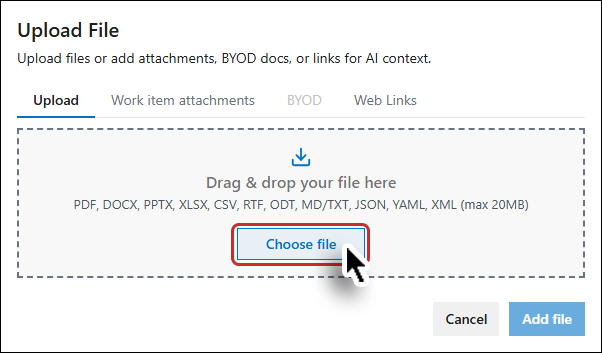
This tab is used to upload files from your local device.
Drag & drop the required file into the upload area.
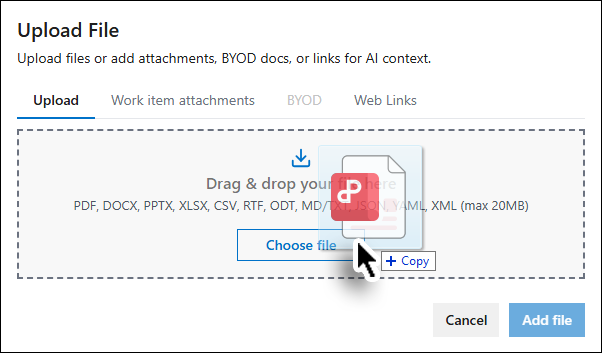
OR
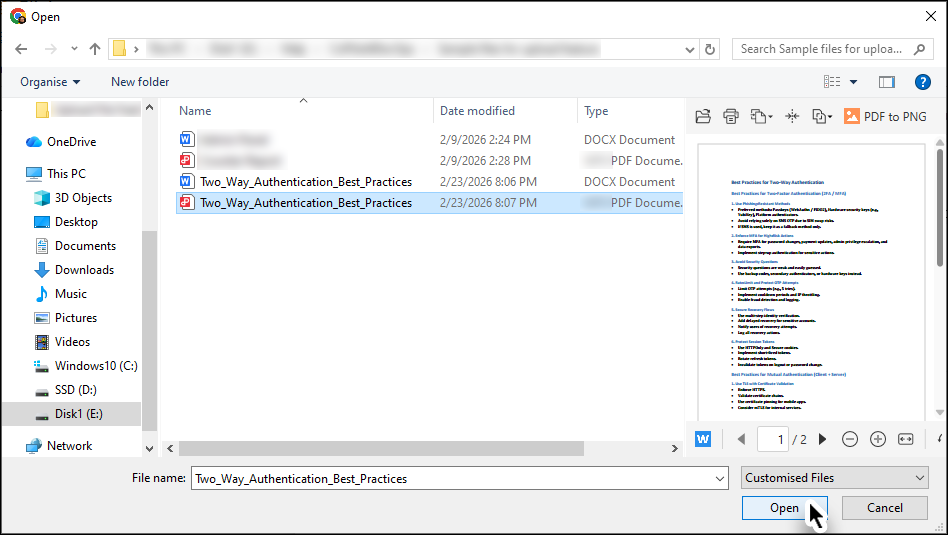
Click the Chose file button to browse from your device.
Supported File Types
-
Documents: .doc/.docx, .pdf, .pptx, .rtf, .odt
-
Spreadsheets/Data: .xls/.xlsx, .csv
-
Web/Config/Text: .html, .json, .xml, .yml/.yaml, .md, .txt
-
Code: .c/.cpp, .cs, .java, .js/.ts, .py, .php, .rb, .sh, .go, .tex
-
Images: .jpeg/.jpg, .png, .gif, .bmp, .webp, .svg
Note: Maximum File Size Limit is 20 MB (larger files are not allowed and trigger an inline error)
-
Embedded images within uploaded documents are extracted and processed, and are made available as input to the AI model along with the document text.
-
When images are extracted, the system preserves the image order, image captions (where available), and the surrounding text, so each image stays linked to its contextual position within the document.
Work Item Attachments
This tab is used to show (and select if required) all files attached to the current work item.
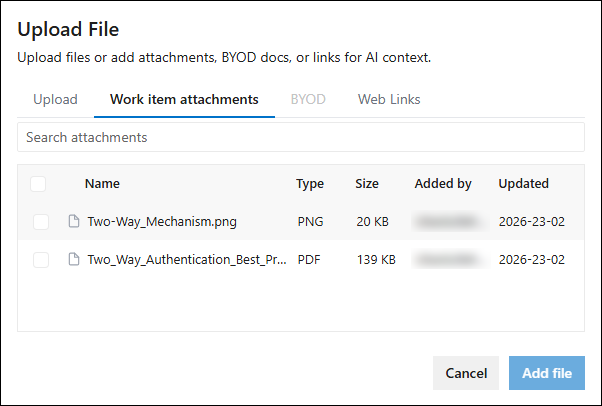
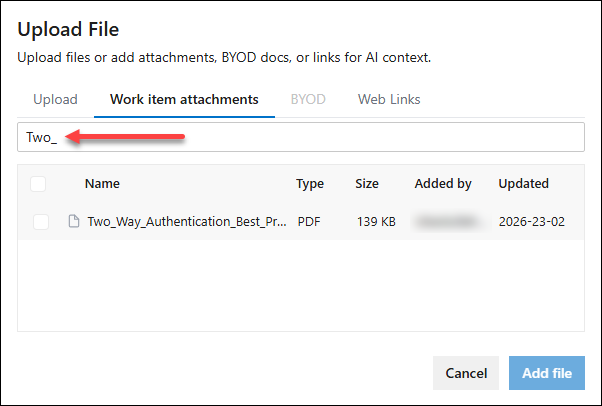
Users can search the desired file from attachments, by filename.
Users can select multiple files simultaneously.
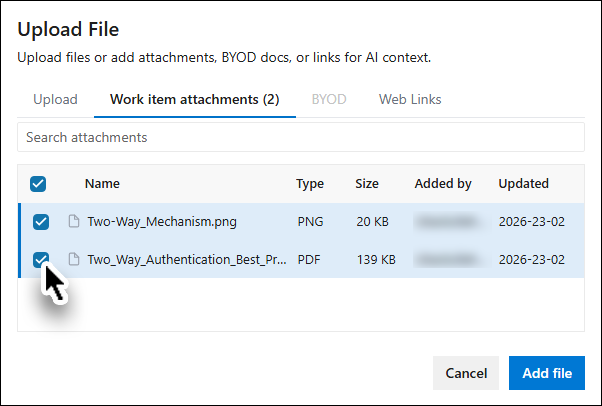
Files over 20 MB are automatically disabled and can not be selected.
BYOD (Bring Your Own Data)
The BYOD tab lets you select documents previously uploaded to your organization’s data sources.
Source Filter options:
-
Multi-select dropdown with the following options:
-
All
-
Team (Default)
-
Organization
Dropdown Logic:
-
Selecting All includes both Team and Organization
-
Selecting both Team + Organization auto-switches to All and vice-versa.
Features:
-
Search by filename
-
Multi-select
-
Large files (>20 MB) appear but are disabled
Images embedded within BYOD-enabled documents are also extracted and processed, and are available as input to the AI model along with their associated text.
Web Links
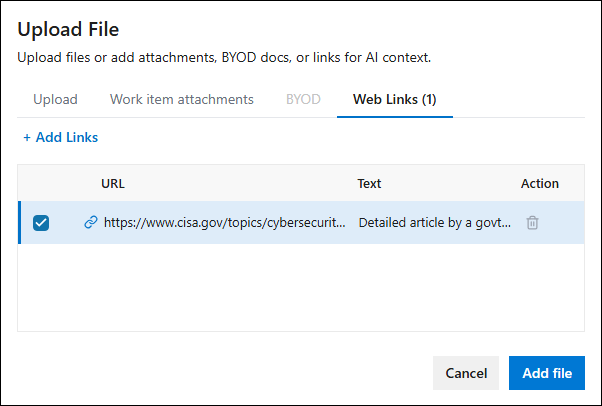
This tab is used to add URLs as contextual inputs.
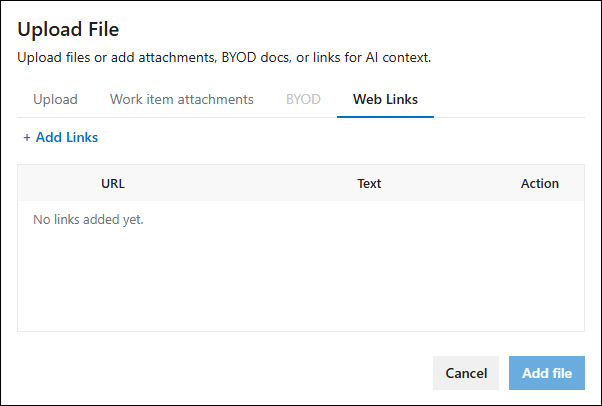
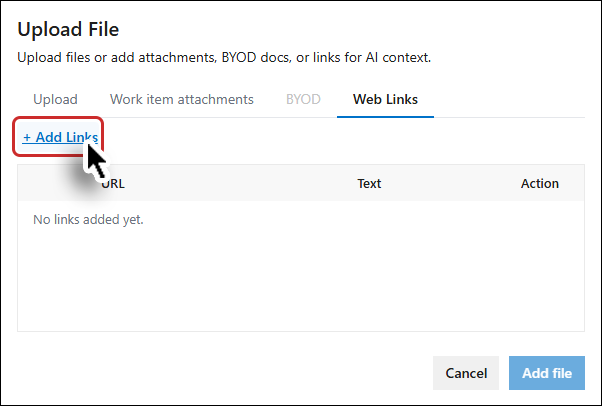
Start by clicking + Add Links.
Provide the URL, explanatory text (optional) and then click the Add button.
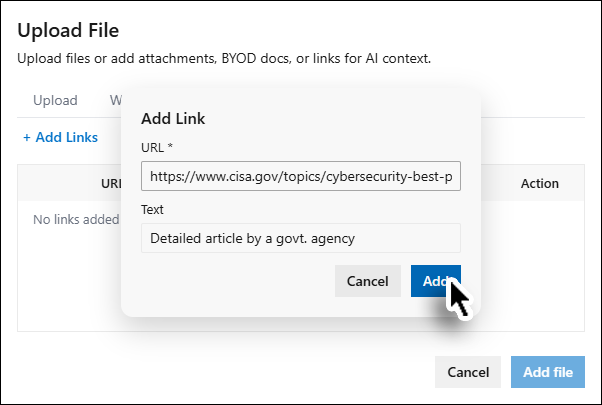
The URL is added (provisionally).
Validation Rules
-
The system validates the URL format and accessibility
-
Invalid or unreachable URLs display an inline error
-
Invalid links cannot be added
Proceed or cancel?
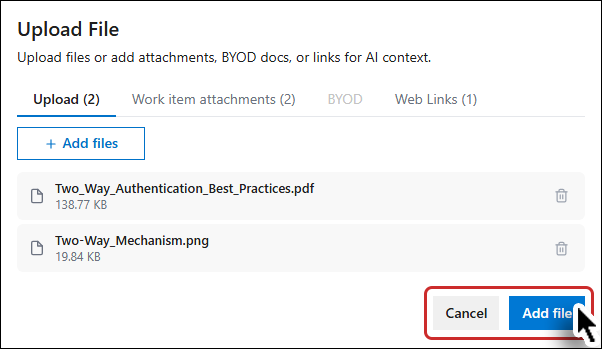
When desired files are attached, click the Add File button to proceed or Cancel to close the popup without saving.
Selection Rules and Behavior
-
Maximum combined limit: 10 items across all sources
-
Selections persist when switching tabs
-
Each tab displays a selection count (for example: Work Item Attachments (2))
-
Disabled or invalid items cannot be selected
-
Cancel exits without applying any changes
