








How to Auto-Generate Flowcharts and Sequence Diagrams from Requirements in Azure DevOps

Ask this simple question to any business analyst or product owner: how do they handle creating requirements diagrams in Azure DevOps?

The answer will be something like this:

  • They usually pull the ADO work item title and description and spend a few minutes reading it.
  • Then, switch to the external or third-party diagram builders like Draw.io or Lucidchart.
  • Create a workflow diagram from scratch and spend an hour or so.
  • Export the image and paste it into the Azure DevOps work items.
  • Follow the same process when anything updates in the ADO work item. 

This kind of manual work eats up a lot of the team’s time, reduces productivity, and makes it difficult to manage diagrams that stay in sync with requirements.

That’s why we are writing this blog. Here, we have covered how to auto-generate sequence diagrams, flowcharts, and other kinds of requirement diagrams using AI directly inside Azure DevOps.

Why Teams Still Draw Requirements Diagrams Manually (and Why That Breaks)

No team chose to manually create a diagram. However, it happens because Azure DevOps does not ship with a native AI diagram tool, and external diagramming tools have been the industry default for over a decade. Furthermore, most product teams have already built their workflow around these tools years ago, and their templates are already set up. So, they feel like their process is efficient, but here is where the process breaks:

  • No single source of truth: When teams use external tools to create diagrams, requirements are maintained in ADO, and diagrams are maintained in different tools. This creates multiple sources of truth, and it becomes hard to manage and connect the diagram with the requirements.
  • Context switching eats time: While using third-party tools, teams need to do context switching between tools multiple times as they need to understand the ADO work item description and then draw every point step by step into the diagram. This eats up the productivity of the team.
  • Lack of version control: Tools like Draw.io do not offer version control by default. Even if a third-party tool offers version control, all versions remain outside of Azure DevOps. That is of no use for teams working in regulated industries.
  • Rebuilding diagrams takes time: When any requirement changes within Azure DevOps, teams must also update relevant diagrams. But making those changes to the diagram manually can take hours.

Diagram Types You Can Auto-Generate from Azure DevOps Requirements

Azure DevOps-native AI extensions, like Copilot4DevOps, can take work items as input and automatically generate different kinds of diagrams without any manual effort. Before we learn how this AI extension generates diagrams, let’s look at what kind of requirement diagrams it can generate within Azure DevOps:

  • Flowchart: It maps a step-by-step process and decision logic in a visual flow.
  • Sequence Diagram: It shows how different systems interact with services and actors. Best to visualize the API integration process and authentication flows.
  • ER Diagram: Visualizes relationships between database tables and data sources.
  • Class Diagram: Mostly used in object-oriented programming to map components, modules, and their relationships.
  • State Diagram: Models how a system or object moves through different states based on conditions.
  • Mind Map: Breaks down sprint backlogs and work item dependencies into a visual tree.
  • Journey Diagram: Covers the user journeys and deployment pipelines in a step-by-step flow.
  • Context Diagram: Shows how a system sits within its external environment.

What Makes a Requirements Diagram Actually Useful

When requirement descriptions are read by different team members, like developers, QA engineers, and stakeholders, they might interpret them differently, but a diagram removes that ambiguity before it becomes a bug and a missed deadline.

Here is why requirements visualization in Azure DevOps is useful:

  • It reflects the actual requirements: A diagram helps teams to visualize the flow and business goals mentioned in the requirements description. It helps teams to keep on the same page.
  • Surface gaps early: With requirements modeling, teams can easily visualize what is missing and any gaps before any development work starts. This also reduces the cost and saves development time.
  • Cuts down clarification meetings: A shared visual gives everyone a reference point for what needs to be developed. So, it helps in removing confusion.
  • Makes scope changes visible: When any user story or work item is updated in Azure DevOps, generating an updated requirement diagram immediately shows the team exactly what is changed and how it affects other work items.

Here, you can learn more about requirements modeling.

How to Auto-Generate Flowcharts and Sequence Diagrams in Azure DevOps – Step by Step

Now, you understand how important it is to use AI to generate requirement diagrams. Copilot4DevOps, an AI assistant within Azure DevOps, offers an AI diagram generator within Azure DevOps that allows auto-generating requirement diagrams based on existing ADO work items. You can directly add them to the work items without exporting or switching tabs.

Let’s understand how it works in a step-by-step manner:

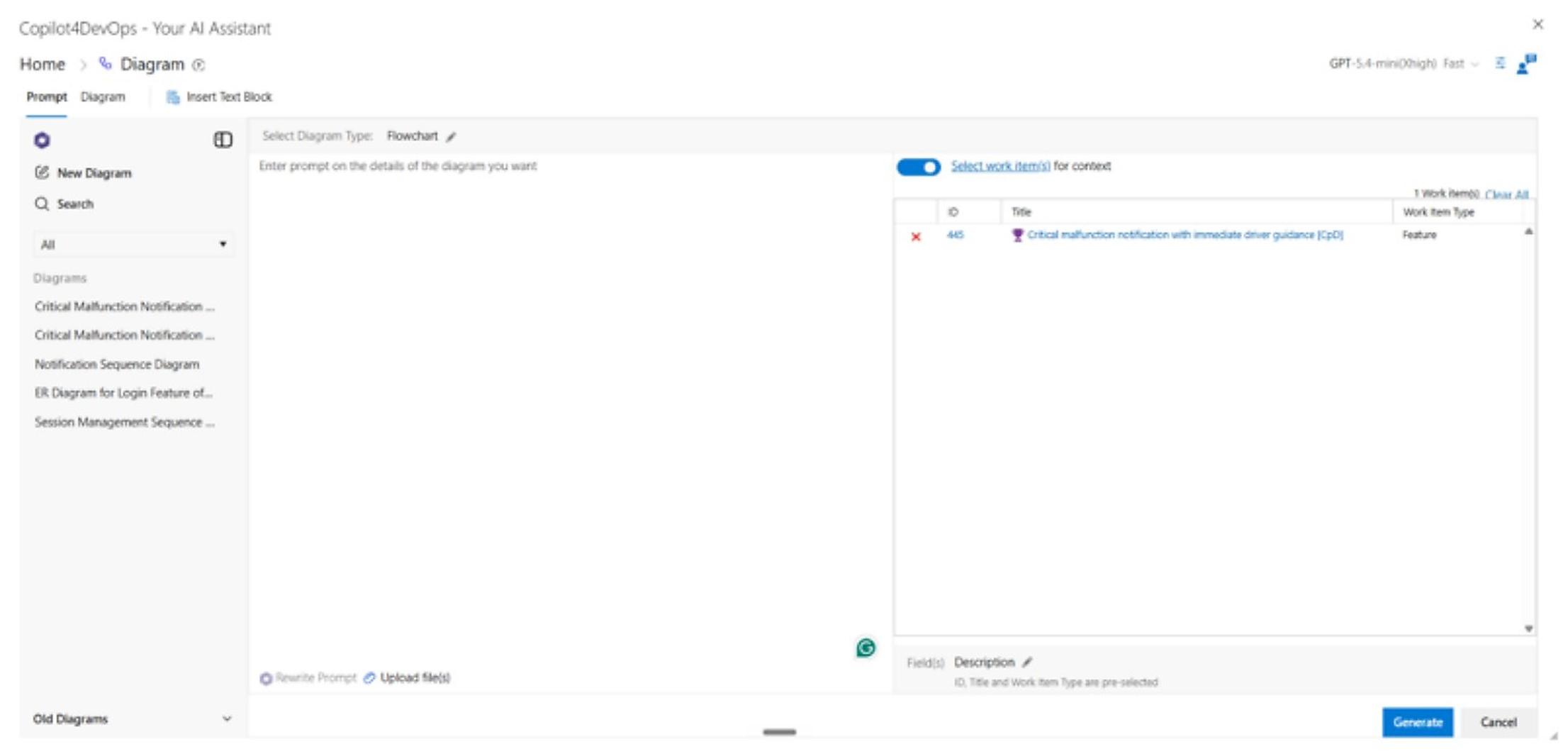
Step 1: Open the diagram feature of Copilot4DevOps inside Azure DevOps. On the right side, select the work items that you want to provide as input. Then, select the diagram type from the type drop-down menu. Here, we selected “Flowchart”.
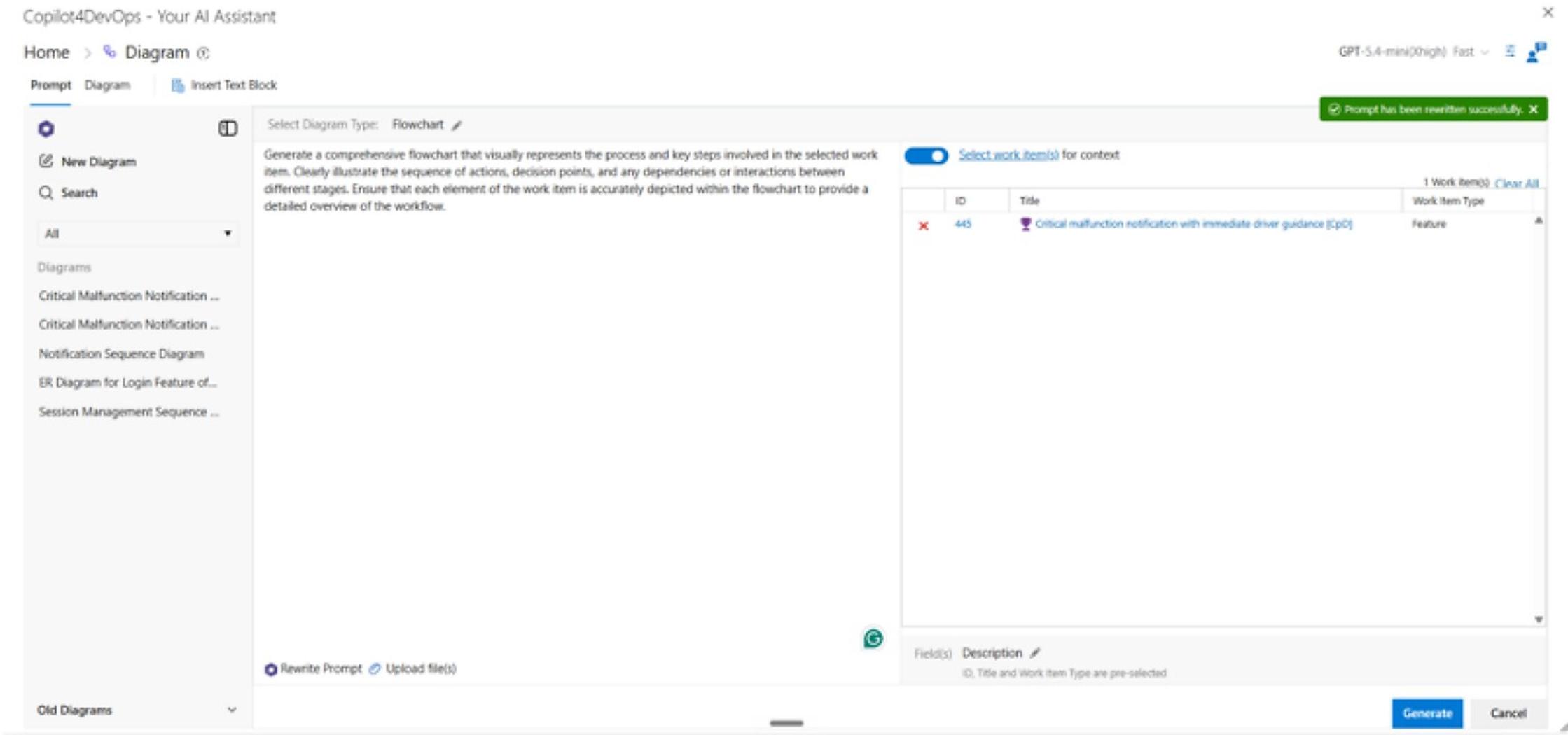
Step 2: Explain in natural language what kind of flow chart from any work item or user story in Azure DevOps you want to generate. Also, use the rewrite prompt feature if you want to improve your prompt.
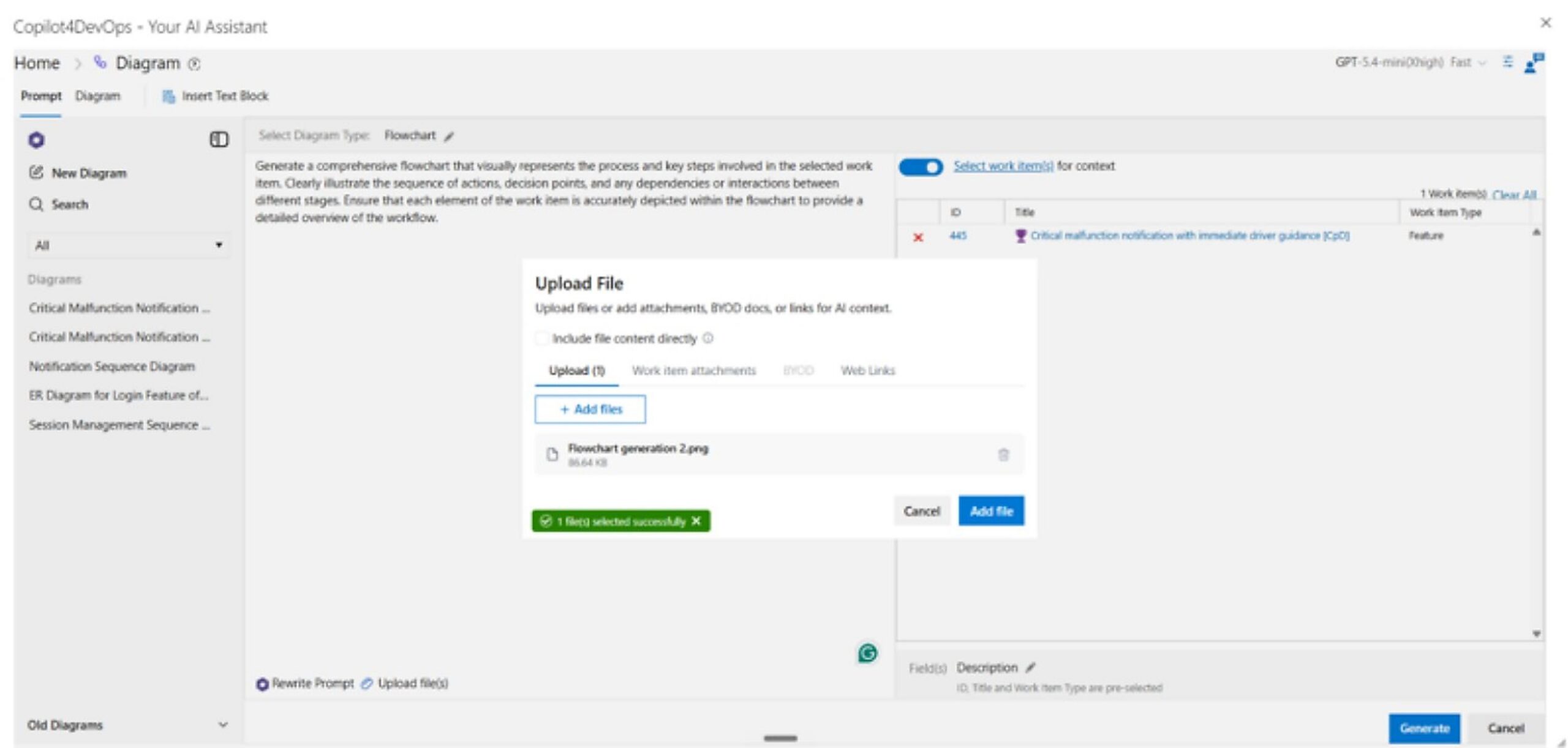
Step 3: If you want to provide more context alongside the prompt, you can upload the document, images, or any file. You can also directly insert work item attachments or just provide a web URL that AI will scrape and take its content as an input before generating the diagram.
Step 4: Click “generate,” and it will generate the diagram directly within Azure DevOps.
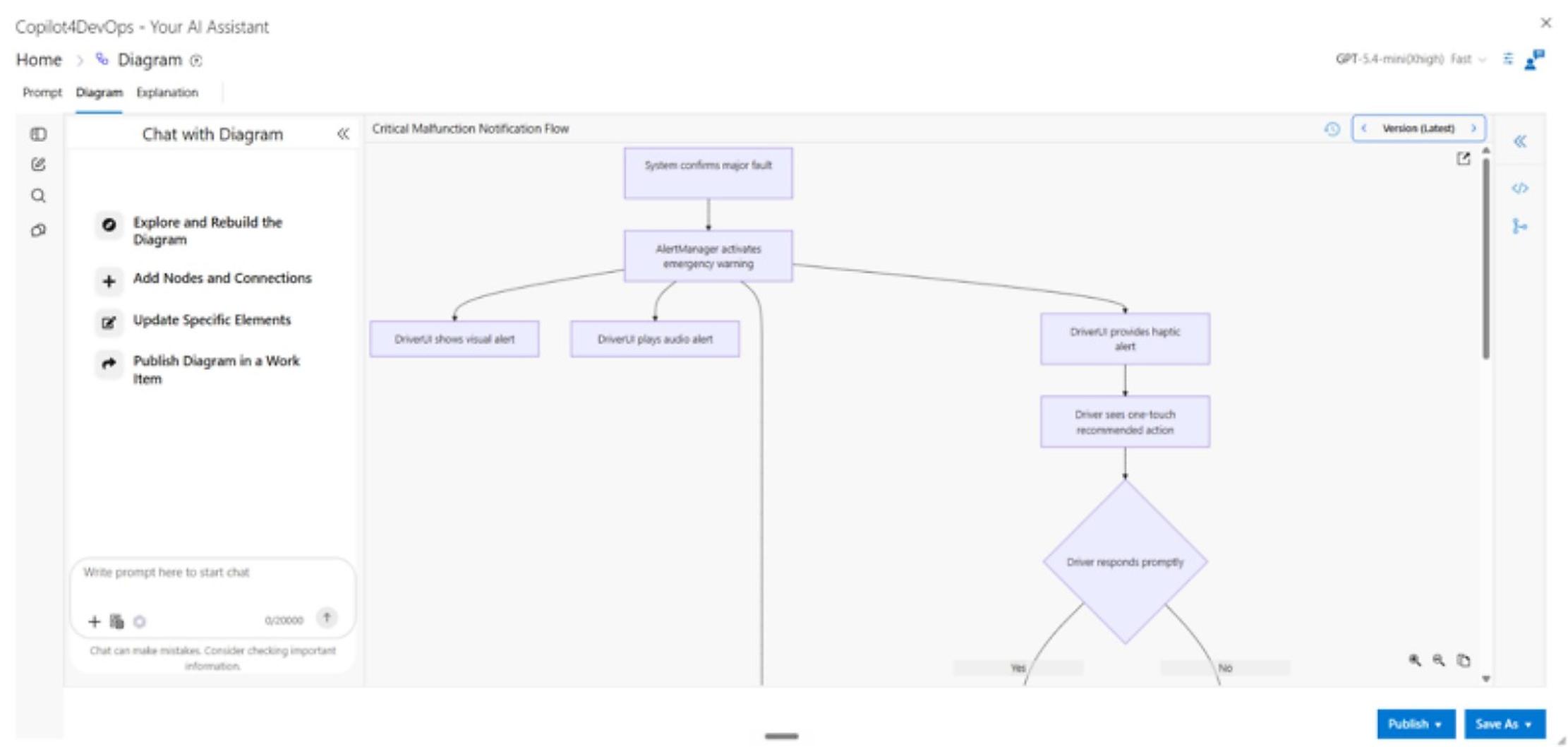
  • The best part about Copilot4DevOps is that it allows you to manage different versions of diagrams directly within Azure DevOps. Also, if you want to update the diagram according to the requirement changes, then you can use the chat panel to update the diagram using natural language prompts instead of manually updating it. This can save a lot of time for the team.
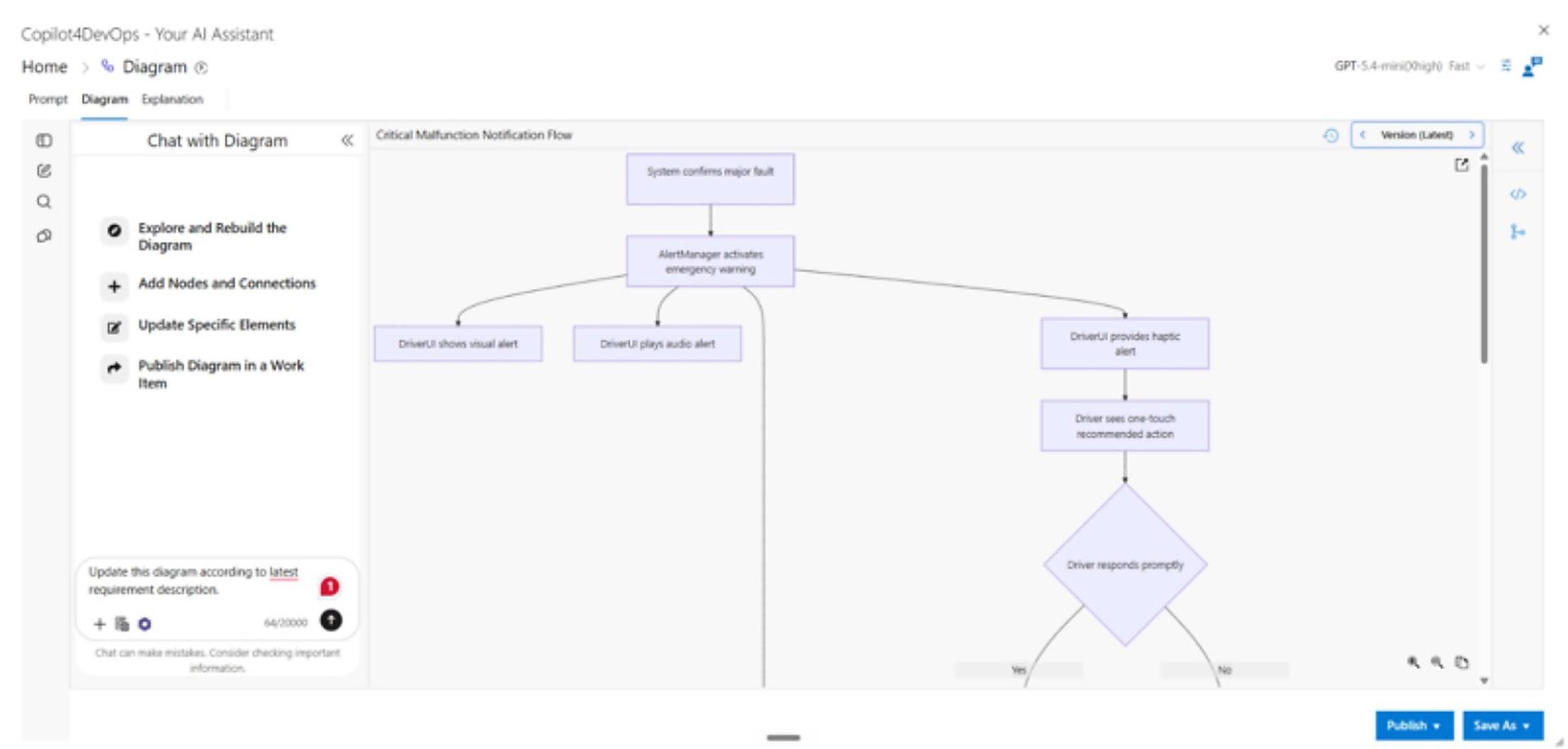
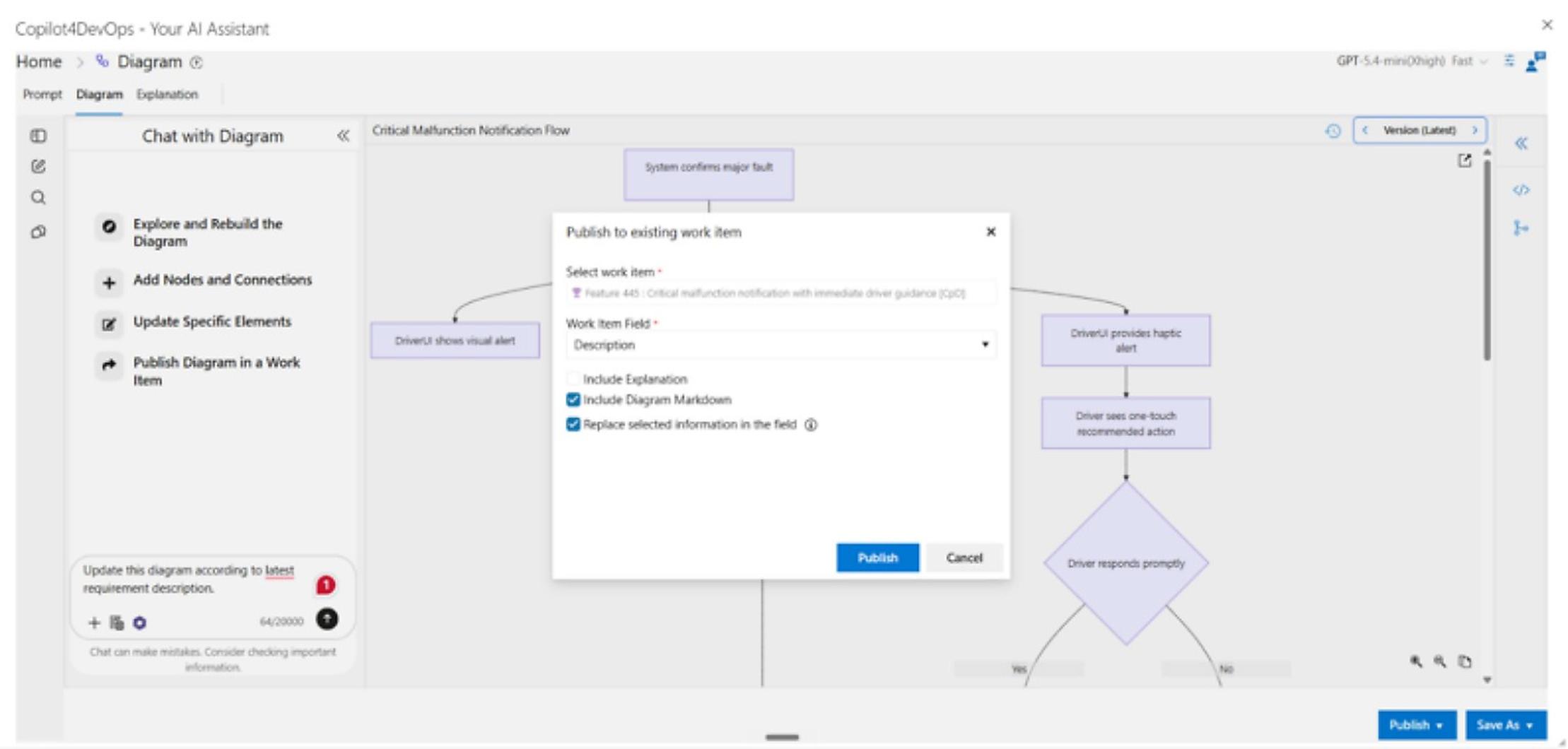
Step 5: If the diagram looks fine, then you can publish directly into the Azure DevOps work item.
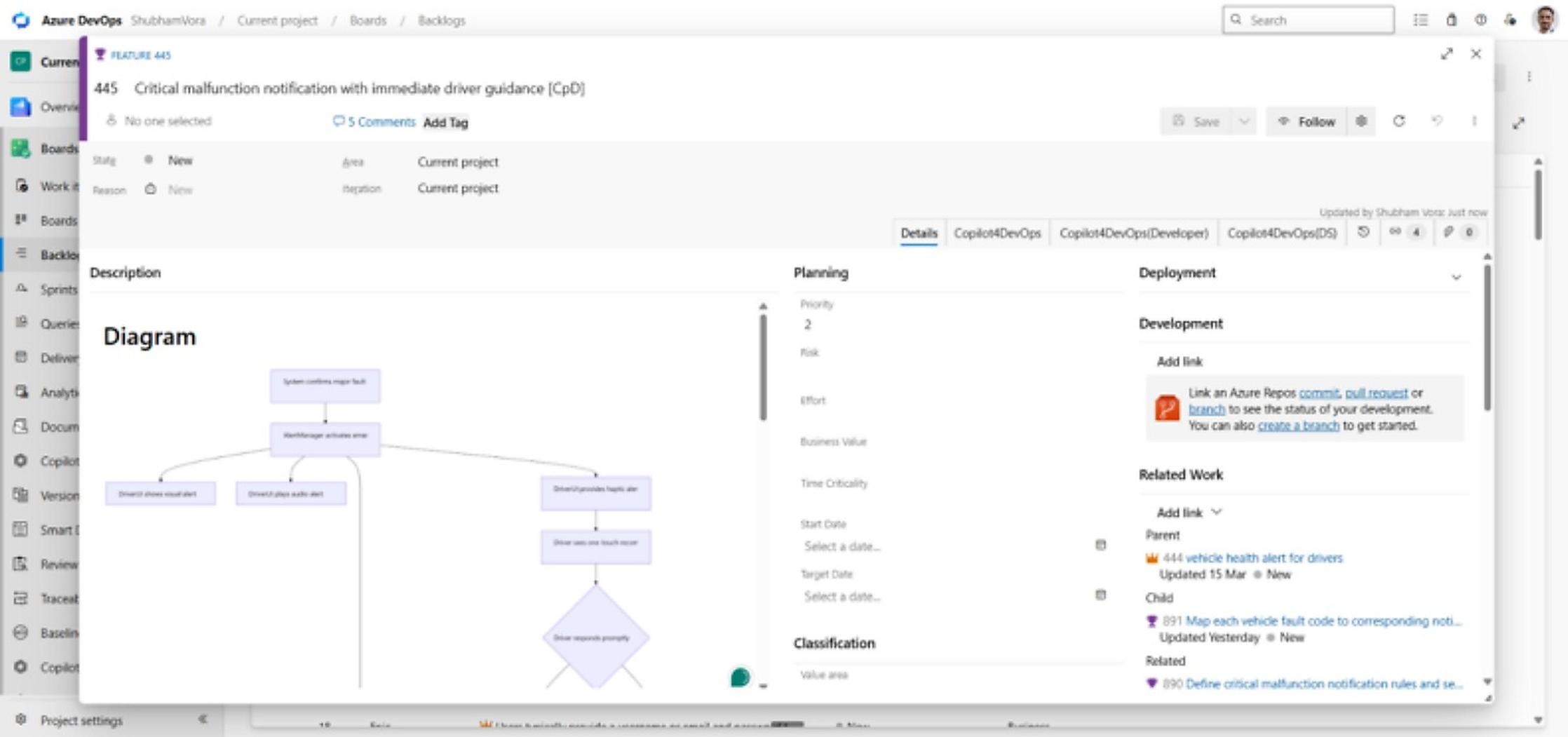
  • Here is how the flowchart is added to the Azure DevOps work item.
Bonus: Teams can also use the AI chat module of Copilot4DevOps to generate the diagrams. For example, you can start with brainstorming requirements ideas, generate epics, and insert them into the ADO backlog using natural language. Then generate features and requirements diagrams for those features and directly insert them into relevant feature work items, all using natural language instructions. It allows you to perform every action from one chat and directly within Azure DevOps.
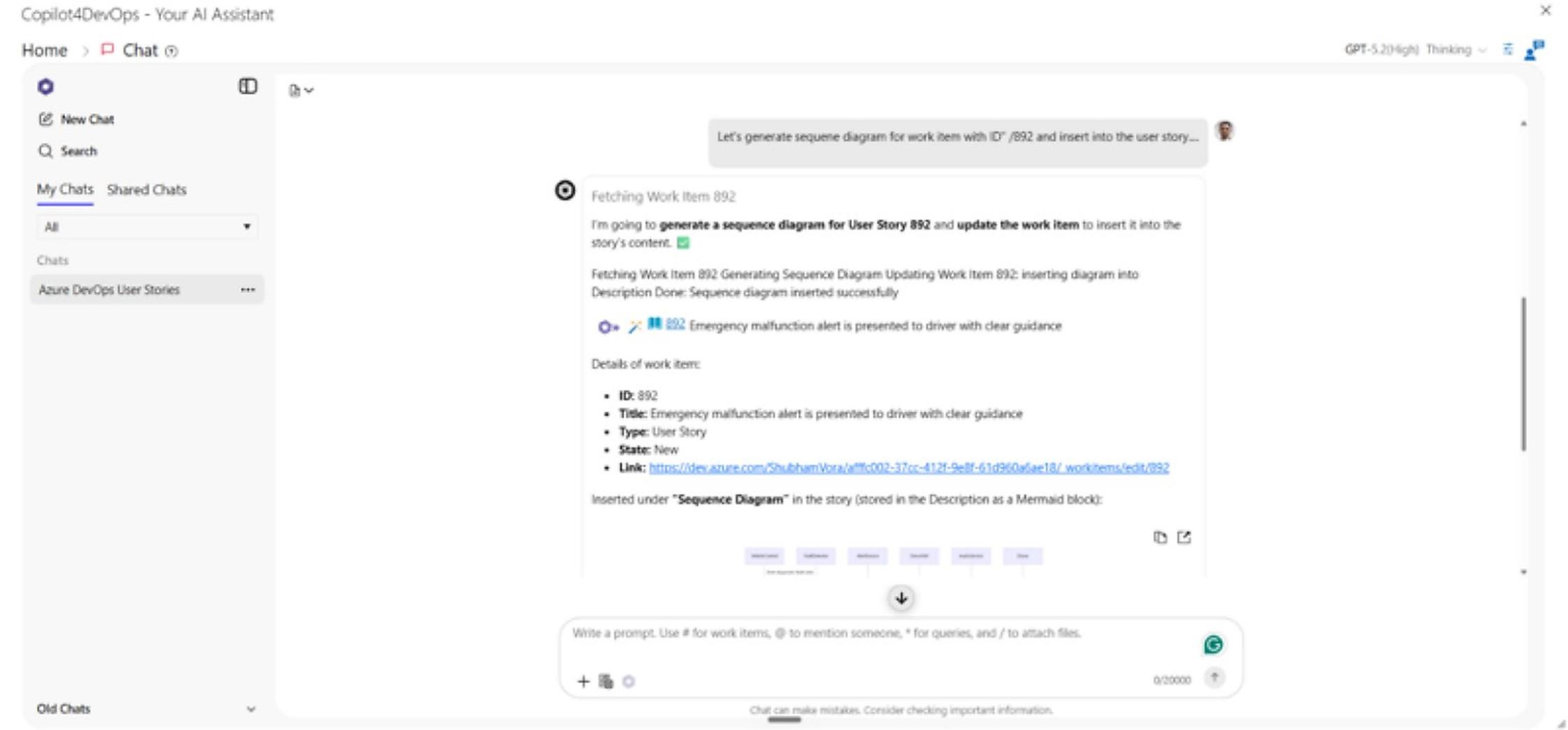
In the same way, teams can auto-generate sequence diagrams and other types of diagrams in Azure DevOps.

Important note: AI-generated diagrams are just a starting point. Before you attach them to ADO work items, review those diagrams and update them if required.

FAQ

Can I also generate a UML diagram in Azure DevOps?

Yes, you can use Copilot4DevOps’s Diagramming module to auto-generate a UML diagram directly from ADO work items.

Does my ADO data remain secure when I use Copilot4DevOps?

Copilot4DevOps is SOC type II certified, so it does not use your data to train the model or expose it to third-party teams. All generated diagrams are stored in your Azure DevOps workspace.

Do I need to know Mermaid syntax to use the Diagram module?

No. Write the prompt in plain English, and the AI handles the rendering.

How can I auto-generate a sequence diagram within Azure DevOps?


To generate a sequence diagram within Azure DevOps, you need to:

  1. Open Copilot4DevOps’s Diagramming module from the ADO work item.
  2. Select “Sequence Diagram” from the Type dropdown.
  3. Insert the prompt and click Generate.

Try it Yourself

Ready to transform your DevOps with Copilot4DevOps?

Get a free trial today.

Table of Contents

Table of Contents

Ask this simple question to any business analyst or product owner: how do they handle creating requirements diagrams in Azure DevOps?

The answer will be something like this:

  • They usually pull the ADO work item title and description and spend a few minutes reading it.
  • Then, switch to the external or third-party diagram builders like Draw.io or Lucidchart.
  • Create a workflow diagram from scratch and spend an hour or so.
  • Export the image and paste it into the Azure DevOps work items.
  • Follow the same process when anything updates in the ADO work item. 

This kind of manual work eats up a lot of the team’s time, reduces productivity, and makes it difficult to manage diagrams that stay in sync with requirements.

That’s why we are writing this blog. Here, we have covered how to auto-generate sequence diagrams, flowcharts, and other kinds of requirement diagrams using AI directly inside Azure DevOps.

Why Teams Still Draw Requirements Diagrams Manually (and Why That Breaks)

No team chose to manually create a diagram. However, it happens because Azure DevOps does not ship with a native AI diagram tool, and external diagramming tools have been the industry default for over a decade. Furthermore, most product teams have already built their workflow around these tools years ago, and their templates are already set up. So, they feel like their process is efficient, but here is where the process breaks:

  • No single source of truth: When teams use external tools to create diagrams, requirements are maintained in ADO, and diagrams are maintained in different tools. This creates multiple sources of truth, and it becomes hard to manage and connect the diagram with the requirements.
  • Context switching eats time: While using third-party tools, teams need to do context switching between tools multiple times as they need to understand the ADO work item description and then draw every point step by step into the diagram. This eats up the productivity of the team.
  • Lack of version control: Tools like Draw.io do not offer version control by default. Even if a third-party tool offers version control, all versions remain outside of Azure DevOps. That is of no use for teams working in regulated industries.
  • Rebuilding diagrams takes time: When any requirement changes within Azure DevOps, teams must also update relevant diagrams. But making those changes to the diagram manually can take hours.

Diagram Types You Can Auto-Generate from Azure DevOps Requirements

Azure DevOps-native AI extensions, like Copilot4DevOps, can take work items as input and automatically generate different kinds of diagrams without any manual effort. Before we learn how this AI extension generates diagrams, let’s look at what kind of requirement diagrams it can generate within Azure DevOps:

  • Flowchart: It maps a step-by-step process and decision logic in a visual flow.
  • Sequence Diagram: It shows how different systems interact with services and actors. Best to visualize the API integration process and authentication flows.
  • ER Diagram: Visualizes relationships between database tables and data sources.
  • Class Diagram: Mostly used in object-oriented programming to map components, modules, and their relationships.
  • State Diagram: Models how a system or object moves through different states based on conditions.
  • Mind Map: Breaks down sprint backlogs and work item dependencies into a visual tree.
  • Journey Diagram: Covers the user journeys and deployment pipelines in a step-by-step flow.
  • Context Diagram: Shows how a system sits within its external environment.

What Makes a Requirements Diagram Actually Useful

When requirement descriptions are read by different team members, like developers, QA engineers, and stakeholders, they might interpret them differently, but a diagram removes that ambiguity before it becomes a bug and a missed deadline.

Here is why requirements visualization in Azure DevOps is useful:

  • It reflects the actual requirements: A diagram helps teams to visualize the flow and business goals mentioned in the requirements description. It helps teams to keep on the same page.
  • Surface gaps early: With requirements modeling, teams can easily visualize what is missing and any gaps before any development work starts. This also reduces the cost and saves development time.
  • Cuts down clarification meetings: A shared visual gives everyone a reference point for what needs to be developed. So, it helps in removing confusion.
  • Makes scope changes visible: When any user story or work item is updated in Azure DevOps, generating an updated requirement diagram immediately shows the team exactly what is changed and how it affects other work items.

Here, you can learn more about requirements modeling.

How to Auto-Generate Flowcharts and Sequence Diagrams in Azure DevOps – Step by Step

Now, you understand how important it is to use AI to generate requirement diagrams. Copilot4DevOps, an AI assistant within Azure DevOps, offers an AI diagram generator within Azure DevOps that allows auto-generating requirement diagrams based on existing ADO work items. You can directly add them to the work items without exporting or switching tabs.

Let’s understand how it works in a step-by-step manner:

Step 1: Open the diagram feature of Copilot4DevOps inside Azure DevOps. On the right side, select the work items that you want to provide as input. Then, select the diagram type from the type drop-down menu. Here, we selected “Flowchart”.

Step 2: Explain in natural language what kind of flow chart from any work item or user story in Azure DevOps you want to generate. Also, use the rewrite prompt feature if you want to improve your prompt.

Step 3: If you want to provide more context alongside the prompt, you can upload the document, images, or any file. You can also directly insert work item attachments or just provide a web URL that AI will scrape and take its content as an input before generating the diagram.

Step 4: Click “generate,” and it will generate the diagram directly within Azure DevOps.

  • The best part about Copilot4DevOps is that it allows you to manage different versions of diagrams directly within Azure DevOps. Also, if you want to update the diagram according to the requirement changes, then you can use the chat panel to update the diagram using natural language prompts instead of manually updating it. This can save a lot of time for the team.

Step 5: If the diagram looks fine, then you can publish directly into the Azure DevOps work item.

  • Here is how the flowchart is added to the Azure DevOps work item.

Bonus: Teams can also use the AI chat module of Copilot4DevOps to generate the diagrams. For example, you can start with brainstorming requirements ideas, generate epics, and insert them into the ADO backlog using natural language. Then generate features and requirements diagrams for those features and directly insert them into relevant feature work items, all using natural language instructions. It allows you to perform every action from one chat and directly within Azure DevOps.

In the same way, teams can auto-generate sequence diagrams and other types of diagrams in Azure DevOps.

Important note: AI-generated diagrams are just a starting point. Before you attach them to ADO work items, review those diagrams and update them if required.

FAQ

Can I also generate a UML diagram in Azure DevOps?

Yes, you can use Copilot4DevOps’s Diagramming module to auto-generate a UML diagram directly from ADO work items.

Does my ADO data remain secure when I use Copilot4DevOps?

Copilot4DevOps is SOC type II certified, so it does not use your data to train the model or expose it to third-party teams. All generated diagrams are stored in your Azure DevOps workspace.

Do I need to know Mermaid syntax to use the Diagram module?

No. Write the prompt in plain English, and the AI handles the rendering.

How can I auto-generate a sequence diagram within Azure DevOps?


To generate a sequence diagram within Azure DevOps, you need to:

  1. Open Copilot4DevOps’s Diagramming module from the ADO work item.
  2. Select “Sequence Diagram” from the Type dropdown.
  3. Insert the prompt and click Generate.

Try it Yourself

Ready to transform your DevOps with Copilot4DevOps?

Get a free trial today.